Heartbeat Monitoring: Get Alerted When a Scheduled Job Stops Checking In

Quick Summary
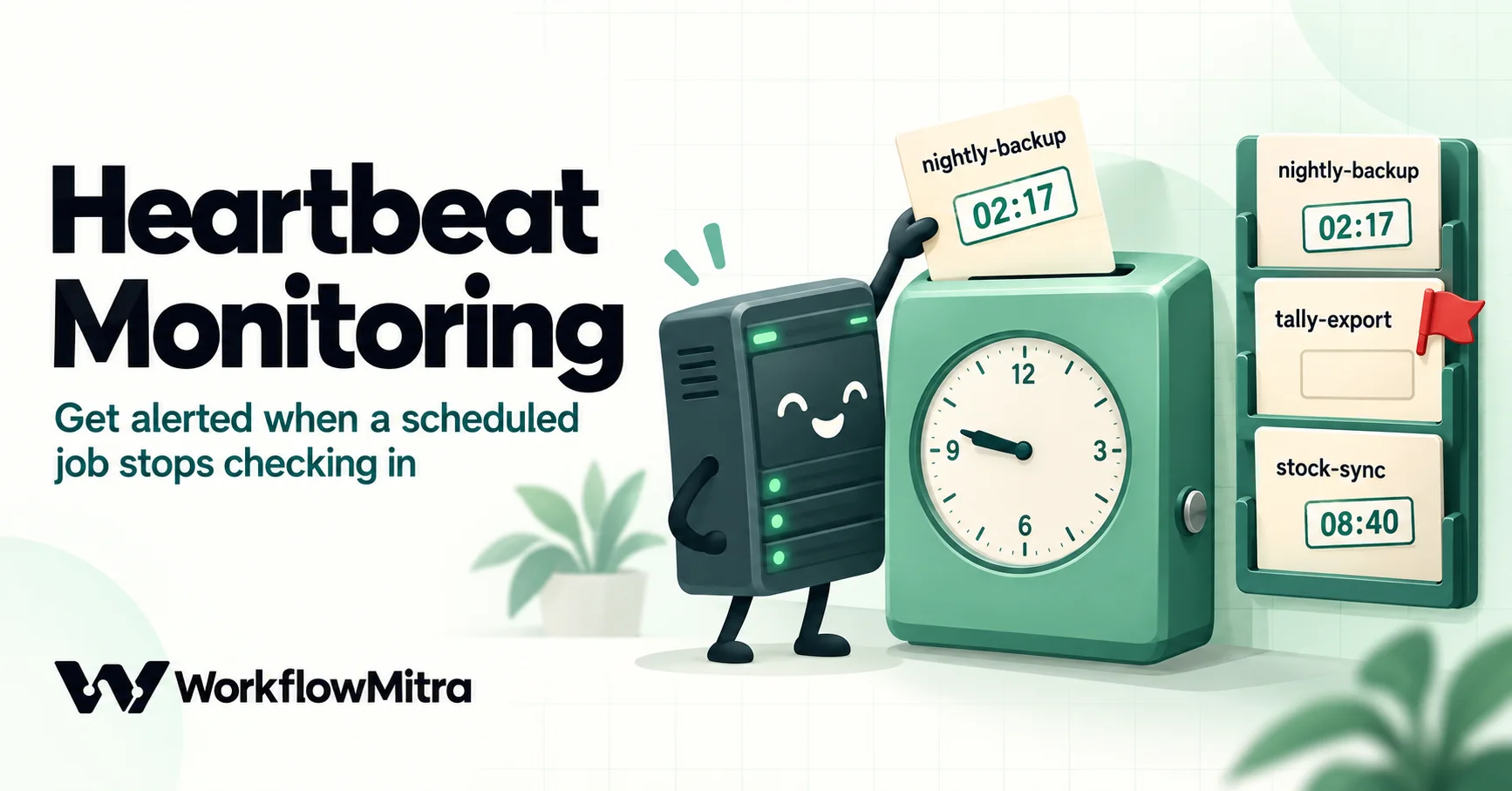
Heartbeat monitoring, also called a dead man's switch, watches a job by expecting a short message (a ping) every time it runs and alerting you when one doesn't arrive in time. It catches what error alerts can't: a backup that never started, a cron job lost after a server move, a script that hangs. To build it with WorkflowMitra, give each job a row in a Heartbeats tab with how often it should check in and a grace period, add one curl line to the end of the job that calls a webhook with the job's name and exit status, have that webhook write the time into the sheet, and run a scheduled checker that compares each job's last ping with its deadline and sends one alert per change: down, failed, stuck, or back to normal.
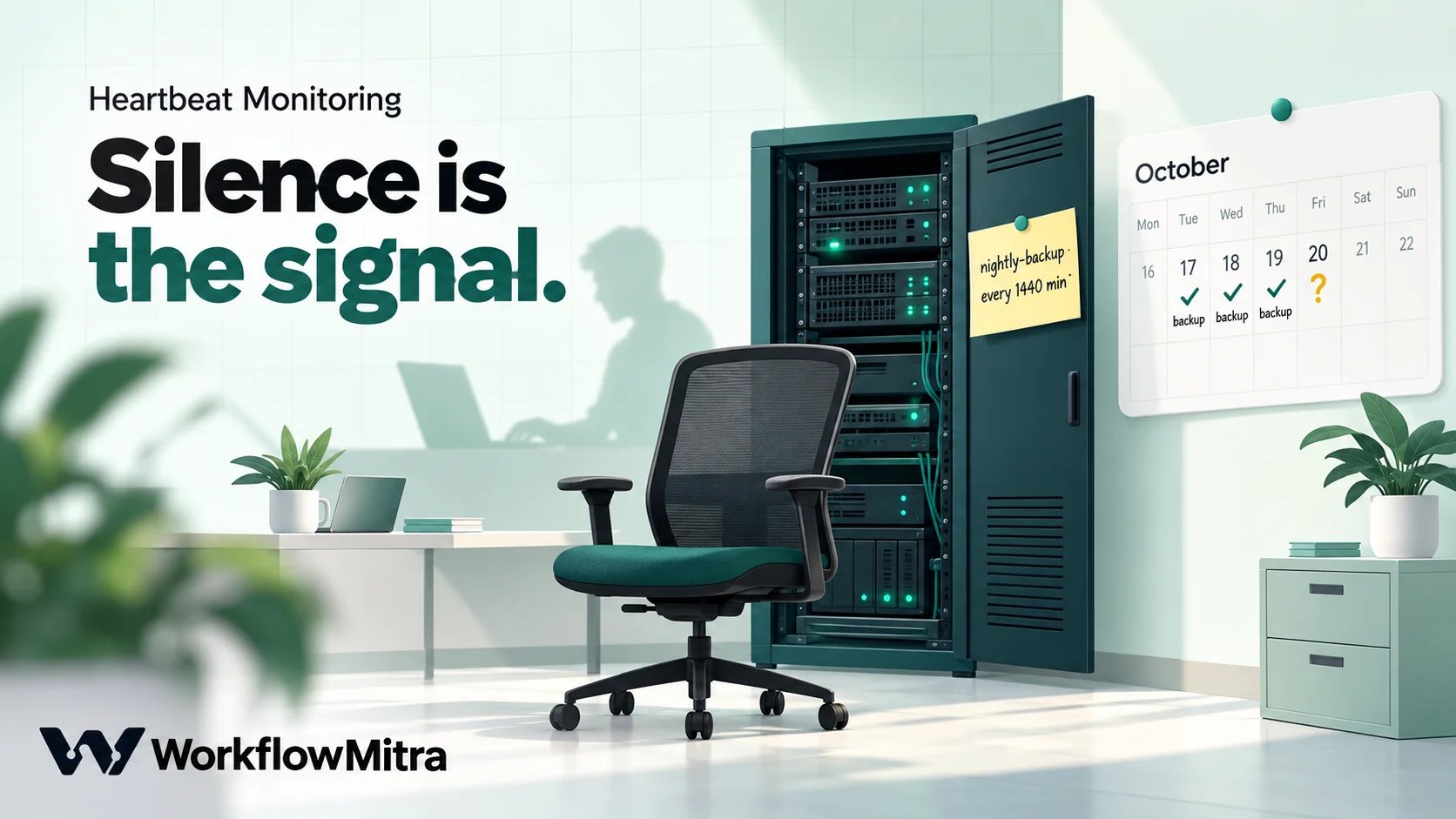
The backup ran every night for two years. Then the server was moved, the crontab didn’t come with it, and nothing complained. Three weeks later a disk failed, and the most recent backup anyone could find was from before the move.
No error alert would have caught that, because nothing failed. The job simply stopped happening. Heartbeat monitoring is built for exactly this: instead of waiting for a job to report a problem, it expects the job to report in, and treats silence as the alarm.
This guide explains how heartbeats work, which jobs need one, how to choose the interval and grace period, and how to build a working monitor with WorkflowMitra, powered by ChatMitra: a one-line ping you can add to any script, a sheet that records every check-in, and a scheduled checker we tested against thirteen sample jobs.
Quick answer: heartbeat monitoring (a "dead man's switch") expects every run of a job to send a short ping, and alerts you when the next ping is late. Add one curl line to the end of the job that calls a webhook with the job's name and exit status. Record each ping's time in a sheet. Run a scheduled check that compares each job's last ping with its interval plus a grace period and sends one alert per change: down, failed, stuck, or recovered.
What is heartbeat monitoring?
Heartbeat monitoring watches a scheduled or continuous process by expecting a regular signal from it. Each time the job runs, it sends a ping. The monitor knows how often pings should arrive. If one doesn’t arrive in time, it alerts someone.
It’s often called a dead man’s switch, after the train control that stops the train when the driver stops pressing it. The service Healthchecks.io describes itself the same way: it “works as a dead man’s switch for processes that need to run continuously or on a regular, known schedule.”
Three other kinds of monitoring are easy to confuse with it:
- Uptime or health checks are pull checks. The monitor calls your website or API every few minutes and alerts when it doesn’t answer. That suits things that should always be reachable. Our guide to API health check monitoring builds one.
- Workflow monitoring watches your automations. It covers failed runs, credit use and workflows that stop being triggered, across everything in your workspace. See workflow monitoring.
- Lead flow monitoring watches business events. It alerts when enquiries from a source stop arriving during business hours. See lead flow monitoring.
- Heartbeats are push checks for jobs that run on their own. A backup on a server, a nightly export from accounting software, a sync script on a laptop in the office. Nobody can call those to ask “did you run?”, so they have to say so themselves.
Why scheduled jobs fail silently
Scheduled jobs live in the corners of a business: a server in a cupboard, a Windows PC that runs the accounting software, a cloud machine someone set up two years ago. When they stop, the reasons are rarely dramatic:
- The schedule disappeared. The server was rebuilt or moved, and the crontab or Task Scheduler entry wasn’t recreated.
- The machine was off or asleep. A Windows task set to run “only when the user is logged on” doesn’t run after a reboot over the weekend.
- Cron’s error emails go nowhere. Cron can mail a job’s output, but on most modern servers no mail delivery is set up, so failures are mailed into a void.
- Credentials expired. A database password changed, a cloud token expired, a shared drive needs a fresh login. The job starts, fails at the first step, and exits.
- The disk filled up. The backup “ran” and wrote a zero-byte file.
- The job hangs. It’s waiting on a network drive or a lock and will wait forever, so it never fails and never finishes.
Each of these produces one of two signals: no ping at all, or a ping with a non-zero exit status. Heartbeat monitoring listens for both.
Which jobs deserve a heartbeat
Not every scheduled task needs one. Give a heartbeat to any job where a week of silence would cost you money, data or a customer’s trust:
- Backups, of databases, accounting data, file shares and websites. The classic case: you only find out it stopped when you need it.
- Imports and exports between systems, such as a nightly export from an accounting or billing system to a reporting sheet, or stock levels pushed to an online shop.
- Sync scripts that keep two systems aligned, such as price lists, customer records and order statuses.
- Scheduled reports that someone relies on but nobody would notice missing for a few days.
- Clean-up jobs, like deleting old files, rotating logs or expiring sessions, whose failure shows up weeks later as a full disk.
- Devices that should report regularly, such as a shop’s point-of-sale terminal uploading its end-of-day file.
If your scheduled jobs are themselves WorkflowMitra workflows, you can heartbeat them too: add one Google Sheets Update row step at the end of the workflow that writes the time into the same Heartbeats tab. That’s worth doing for important schedules, because WorkflowMitra’s built-in alerts tell you when a run fails, but not when a schedule stops producing runs at all.
How a heartbeat monitor works
Every heartbeat monitor, whether it’s a dedicated service or one you build, has the same four parts:
- A ping address. A URL the job calls when it runs. The call carries which job it is and, ideally, whether it succeeded.
- A record of the last ping. One row per job holding the time of its most recent check-in and the status it reported.
- A schedule of expectations. For each job: how often it should check in (the period) and how much lateness to tolerate (the grace period).
- A checker with a memory. Something that runs regularly, compares each job’s last ping with its deadline, and alerts when a job changes state, but doesn’t repeat the same alert every time it runs.
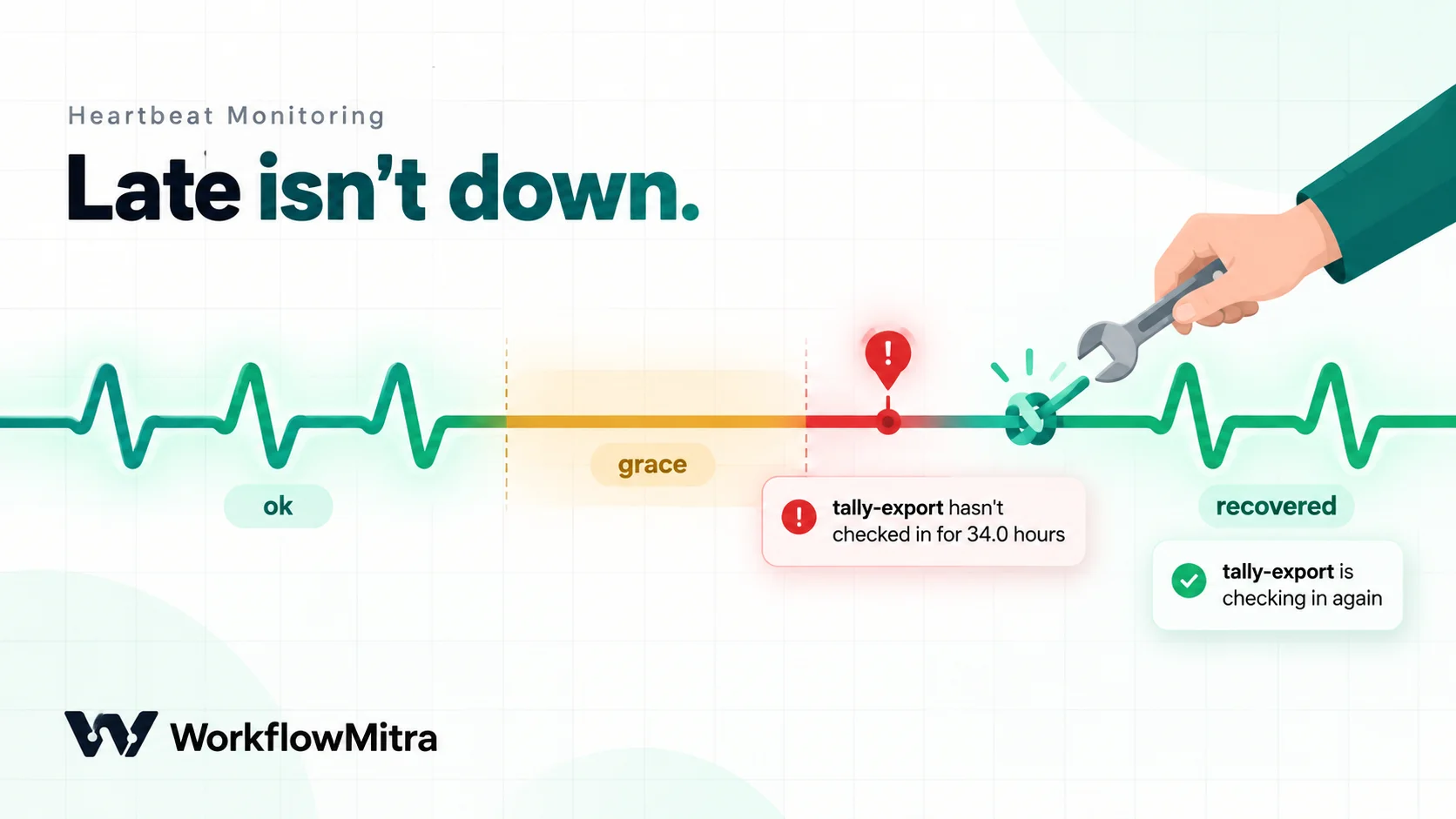
Healthchecks.io’s documentation defines the states clearly: a job is up when “the last ‘success’ signal has arrived on time”, late when it “is due but has not arrived yet”, and down when it “has not arrived yet, and the Grace Time has elapsed.” Only “down” sends an alert. “Late” is the grace period doing its job.
Choose the period and grace period
The period is how often the job runs: 1,440 minutes for a nightly job, 60 for an hourly one. The grace period is the safety margin, and it’s where most false alarms come from.
A grace period should cover three things:
- Normal variation in run time. A backup that usually takes 40 minutes may take 90 on the last day of the month.
- Start-time drift. A Windows task delayed until the PC wakes, or a cloud job queued behind others.
- How often your checker runs. If the checker runs every 30 minutes, a job can be up to 30 minutes past its deadline before anyone looks.
| Job | Runs | Every (min) | Grace (min) | Why |
|---|---|---|---|---|
| Nightly database backup | 02:00 daily | 1440 | 120 | Run time varies with data size |
| Accounting export | 23:00 daily | 1440 | 180 | PC may be asleep; task runs on wake |
| Stock sync to shop | Every 15 min | 15 | 10 | Short job; a missed run matters quickly |
| Weekly file clean-up | Sunday 03:00 | 10080 | 360 | Low urgency; avoid weekend noise |
Start generous, then tighten. A monitor that cries wolf twice a week gets muted, and a muted monitor is worse than none.
Build it in WorkflowMitra: the Heartbeats tab
Create a Google Sheet (or a tab in an existing one) called Heartbeats, with one row per job and these columns:
| Job | Every (min) | Grace (min) | Max run (min) | Owner | Last ping at | Last status | Started at | Alert |
|---|---|---|---|---|---|---|---|---|
| nightly-backup | 1440 | 120 | 60 | Ravi | ||||
| tally-export | 1440 | 180 | Priya | |||||
| stock-sync | 15 | 10 | Arjun |
Use short job names without spaces, such as nightly-backup, because they travel in a URL. You fill in the first five columns. The workflows fill in the last four. Max run (min) is optional; set it for jobs that can hang, and the checker will flag a job that started but hasn’t finished within that time.
Step 1: the receiver workflow
The receiver is a small workflow that takes each ping and writes it into the sheet.
- Webhook trigger. Create a new workflow and choose the webhook trigger. Copy its URL. New webhooks in the editor come with a generated secret, sent in a header called
x-webhook-secret; keep it. Requests without the right secret are refused with HTTP 401 and logged under the trigger’s deliveries, so a misconfigured job shows up there. - IF step on
{{ $trigger.status }}with the operator Equal tostart. This separates start pings from finish pings. - Yes route: Google Sheets, Update row on the Heartbeats tab. Set Key column to
Joband Key value to{{ $trigger.job }}. Map only Started at to{{ now() }}. Set Write values to Exactly as written (no formulas), so the time is stored as text. - Else route: Google Sheets, Update row, the same match, mapping Last ping at to
{{ now() }}and Last status to{{ $trigger.status }}, again written exactly as written.
now() returns the current time in ISO format, such as 2026-10-20T03:30:00.000Z, which the checker reads reliably. Columns you don’t map are left untouched, so a start ping never overwrites the last finish time.
If a ping names a job that isn’t in the sheet, Update row finds nothing and the run fails, which triggers your normal failure alert. That’s useful: a typo in a job name is caught the first time it runs, not three weeks later.
Every accepted ping is answered with HTTP 202 straight away, so the job never waits for the sheet to update.
Step 2: send the ping from the job
The ping is one HTTP request at the end of the job. Use GET with the job name and exit status in the query string. In a WorkflowMitra webhook, a GET request’s query parameters become the trigger’s fields, so ?job=nightly-backup&status=0 arrives as $trigger.job and $trigger.status.
There’s a practical reason to prefer GET for heartbeats. By default, WorkflowMitra drops a POST whose body is byte-for-byte identical to one received in the last 60 seconds, treating it as a retry. A GET has no body, so it’s never dropped this way. If you do use POST, include a timestamp or run ID in the body so no two pings are identical.
On Linux or macOS (cron)
Store the URL and secret once at the top of the crontab, then add the ping after the job:
WM_HEARTBEAT_URL=https://your-webhook-url
WM_SECRET=whsec_your_secret

30 2 * * * /opt/scripts/backup.sh; curl -fsS -m 10 --retry 5 -o /dev/null -H "x-webhook-secret: $WM_SECRET" "$WM_HEARTBEAT_URL?job=nightly-backup&status=$?"
The ; matters. With ; the ping always runs and $? carries the backup script’s exit status, so a failing backup reports status=1 instead of going silent. (With &&, a failed job sends nothing, and you’d only find out when the grace period runs out.)
The curl flags are the ones Healthchecks.io recommends in its shell script guide: -f treats an error response as a failure, -sS stays quiet unless something goes wrong, -m 10 gives up after 10 seconds, --retry 5 retries transient errors, and -o /dev/null discards the response.
One crontab trap: the crontab manual says a % in the command, “unless escaped with a backslash (\), will be changed into newline characters.” A job name or date format containing % (such as date +%F) breaks the line. Escape it as \%, or move the command into a script.
Detect a hung job with a start ping
For a job that can hang, ping at the start too:
#!/bin/sh
URL="$WM_HEARTBEAT_URL?job=db-dump"
H="x-webhook-secret: $WM_SECRET"
curl -fsS -m 10 --retry 5 -o /dev/null -H "$H" "$URL&status=start"
pg_dump --dbname=shop > /backups/shop-$(date +%F).sql
curl -fsS -m 10 --retry 5 -o /dev/null -H "$H" "$URL&status=$?"
If a start arrives and no finish follows within the row’s Max run (min), the checker reports the job as stuck, often hours before the next run would be missed.
On Windows (Task Scheduler)
Windows 10 and 11 include curl as curl.exe; curl’s own site notes that every installation of both versions has it. Put the job and the ping in a batch file and point Task Scheduler at the batch file:
@echo off
"C:\Scripts\tally-export.exe"
curl.exe -fsS -m 10 --retry 5 -o NUL -H "x-webhook-secret: %WM_SECRET%" "%WM_HEARTBEAT_URL%?job=tally-export&status=%ERRORLEVEL%"
%ERRORLEVEL% holds the previous program’s exit code. Set WM_HEARTBEAT_URL and WM_SECRET as user or system environment variables, and in the task’s settings choose Run whether user is logged on or not, so it also runs after an unattended restart.
Step 3: the checker workflow
The checker runs on a schedule, reads the Heartbeats tab, and decides which jobs have changed state.
- Schedule trigger. Every 30 minutes or every hour is enough for daily jobs. Use Every 15 minutes if you watch jobs that run every few minutes. (The schedule’s output is empty, so the Code step below reads the time itself.)
- Google Sheets, Read rows on the Heartbeats tab, with Read values set to Raw values (numbers stay numbers), so Every and Grace arrive as numbers.
- Code step with the script below.
- Loop with List field (optional) set to
changes. On a normal check the list is empty and the run ends here. - Inside the loop, a Slack step with your channel’s incoming webhook URL and Message set to
{{ text }}. A Telegram or Email step works the same way. Inside a loop, plain field names refer to the current item. - Inside the loop, after the message, Google Sheets, Update row: Key column
Job, Key value{{ $trigger.job }}, and Alert set to{{ $trigger.state }}. That written state is the checker’s memory.
Here’s the Code step. It handles five states: ok, down (missed the deadline), failed (checked in with a non-zero status), stuck (started but didn’t finish in time) and unknown (the row can’t be read):
const MIN = 60000;
const now = Date.now();
const OFFSET_MIN = 330; // India (UTC+5:30), used only to display times
const toMs = (v) => {
  if (typeof v === 'number') return (v - 25569) * 86400000 - OFFSET_MIN * MIN; // a date typed into the sheet
  const s = String(v ?? '').trim();
  return /^\d{4}-\d{2}-\d{2}T/.test(s) ? Date.parse(s) : NaN; // ISO text written by now()
};
const show = (ms) => new Date(ms + OFFSET_MIN * MIN).toISOString().slice(0, 16).replace('T', ' ');
const ago = (ms) => {
  const m = Math.round((now - ms) / MIN);
  return m < 120 ? `${m} min` : `${(m / 60).toFixed(1)} hours`;
};

const changes = [];
for (const r of input.rows || []) {
  const job = String(r.Job ?? '').trim();
  if (!job) continue;
  const every = Number(r['Every (min)']);
  const grace = Number(r['Grace (min)']) || 0;
  const maxRun = Number(r['Max run (min)']) || 0;
  const last = toMs(r['Last ping at']);
  const started = toMs(r['Started at']);
  const code = String(r['Last status'] ?? '').trim();
  const was = String(r.Alert ?? '').trim() || 'ok';
  const owner = String(r.Owner ?? '').trim() || 'no owner set';

  let state = 'ok';
  if (!(every > 0) || !Number.isFinite(last)) state = 'unknown';
  else if (maxRun > 0 && Number.isFinite(started) && started > last && now - started > maxRun * MIN) state = 'stuck';
  else if (now - last > (every + grace) * MIN) state = 'down';
  else if (code !== '' && code !== '0' && code.toLowerCase() !== 'ok') state = 'failed';
  if (state === was) continue;

  let text;
  if (state === 'down') text = `🔴 ${job} hasn't checked in for ${ago(last)} (expected every ${every} min, plus ${grace} min grace; last ping ${show(last)}). Owner: ${owner}.`;
  else if (state === 'stuck') text = `🟠 ${job} started at ${show(started)} and still hasn't finished after ${ago(started)} (limit ${maxRun} min). Owner: ${owner}.`;
  else if (state === 'failed') text = `🟠 ${job} checked in at ${show(last)} but reported exit status ${code}. Owner: ${owner}.`;
  else if (state === 'unknown') text = `⚪ Can't read the schedule or last ping for ${job} ("${r['Last ping at'] ?? ''}"). Owner: ${owner}. Check the Heartbeats tab.`;
  else text = `✅ ${job} is checking in again (last ping ${show(last)}).`;
  changes.push({ job, state, text });
}
return { changes, count: changes.length };
Why it’s built this way:
- The checker does the date maths. WorkflowMitra’s expressions have no “minutes between two dates” function, and IF steps compare dates but can’t add a grace period per row. A Code step handles any number of jobs, each with its own period.
- Silence is measured from the last finish. A start ping alone never counts as a check-in, so a job that starts and dies is still caught.
- Unreadable means alert, not quiet. A blank cell or a day-first date such as
20/10/2026 08:30becomes “unknown” and sends its own message. A monitor that skips rows it can’t read fails in exactly the way it was built to catch. Our guide to date calculations in workflows explains which date formats WorkflowMitra reads. - One message per change. A job alerts once when it goes down, stays quiet while it remains down, and sends one all-clear when it checks in again.
- India time for display only. All comparisons use absolute times;
OFFSET_MINonly formats the times in messages. Change it for another time zone without daylight saving.
We tested the checker
We ran this exact script in WorkflowMitra’s Code step against thirteen sample rows, with the clock fixed at 09:00 India time on 20 October 2026. It returned seven changes and stayed quiet for the other six:
- Down:
tally-export, last ping 34 hours earlier on a daily schedule with a 3-hour margin in total: ”🔴 tally-export hasn’t checked in for 34.0 hours (expected every 1440 min, plus 120 min grace; last ping 2026-10-18 23:00). Owner: Priya.” - Down, just past grace: a 15-minute job last seen 30 minutes earlier with 10 minutes of grace. A sister row seen 22 minutes earlier was late but inside its grace, and stayed quiet.
- Failed:
stock-syncchecked in 20 minutes earlier with exit status 1: ”🟠 stock-sync checked in at 2026-10-20 08:40 but reported exit status 1.” - Stuck:
db-dumpstarted two hours earlier with a 60-minute limit and no finish. A sister row whose finish arrived after its start stayed quiet. - Recovered: a job marked down that had pinged 10 minutes earlier got one all-clear.
- Unknown: one row with a day-first date and one new row that had never pinged.
- Quiet: a healthy nightly backup, a job already marked down, a date typed straight into the sheet (converted correctly), and a status written as
OK.
The script ran in about a millisecond, which costs a tiny fraction of a credit. Before you rely on it, do the same with your own sheet: set one row’s Last ping at to yesterday, run the checker from the editor, and check you get one alert, then nothing on a second run, then an all-clear once you put the time back. Our guide to testing automated workflows covers safe test runs.
What it costs
In WorkflowMitra a credit is one executed step. The webhook and schedule triggers and each Google Sheets, Slack, Telegram or Email step cost 1 credit. IF steps cost nothing, a Loop costs 1 credit per item, and the Code step is billed by run time (2 credits per second of execution), so this one costs a fraction of a credit.
That puts each ping at 2 credits (trigger plus one sheet update) and each check at about 2 credits (trigger plus one sheet read). An alert adds about 3 credits (loop item, message and status update), but only when a job changes state.
| What | Runs in 30 days | Credits in 30 days |
|---|---|---|
| Nightly job, finish ping only | 30 | 60 |
| Nightly job, start and finish pings | 60 | 120 |
| Hourly job | 720 | 1,440 |
| Job every 15 minutes | 2,880 | 5,760 |
| Job every 5 minutes | 8,640 | 17,280 |
| Checker every hour | 720 | 1,440 |
| Checker every 30 minutes | 1,440 | 2,880 |
On 20 October 2026 the Starter plan cost ₹999 a month (₹849 a month billed yearly) for 10,000 credits, according to WorkflowMitra pricing. Five daily jobs with start and finish pings plus an hourly checker use about 2,040 credits a month. A single job pinging every 5 minutes would use more than the whole plan.
So match the ping rate to the job. Daily and hourly jobs should ping on every run. For a job that runs every minute or five, ping from the script only on the first run of each hour (check the minute in the script), or use a dedicated heartbeat service built for high-frequency pings.
Who watches the watchdog?
A monitor that stops running looks exactly like a monitor with nothing to report. Plan for the checker itself failing:
- Credits running out stops both halves. When a workspace has no credits left, the webhook answers pings with HTTP 402 and refuses to start runs, and the checker’s own schedule can’t run either. With
curl -f, the job’s log records the error, but nobody reads that log. Turn on WorkflowMitra’s credit alerts (they’re off by default) and choose thresholds, such as 80 and 90 percent of your credits, so you hear about it before the credits run out. - A paused receiver returns 404. If someone turns off the receiver workflow, every ping is answered with “not found”. The checker then reports each job as down, which at least makes the problem visible.
- There’s no built-in alert for a schedule that stops firing. WorkflowMitra alerts on failed runs and on polling triggers, such as Google Sheets, that haven’t been checked for a while, but not on a schedule trigger that produces no runs. Add a once-a-day summary: a second small workflow at 9 a.m. that posts “all jobs checked in” or the list of problems. If the morning message doesn’t arrive, look at the monitor.
- For critical jobs, use two monitors. Have the checker’s last step send its own ping to an independent heartbeat service. Then each one watches the other.
When a dedicated heartbeat service is the better choice
Building heartbeats as workflows makes sense when you already run WorkflowMitra, have a handful of jobs, and want alerts to flow into the channels, sheets and follow-up workflows you already use. It’s easy to extend: the same down alert can open a ticket, message the job’s owner, or start a recovery workflow.
A dedicated heartbeat service is the stronger choice when:
- You have many jobs or high-frequency jobs. A ping to a dedicated service doesn’t run a workflow, so a job that pings every minute doesn’t use automation credits.
- You need cron-aware schedules. Healthchecks.io, for example, lets you enter a check’s cron expression and time zone, so it knows a weekday-only job isn’t late on Sunday. The sheet above uses a simple period.
- You want run-time history. Healthchecks.io stores start signals and displays job execution times, which shows a job that’s slowly getting slower.
- You want the monitor somewhere else entirely. An independent service keeps working when your own infrastructure or automation platform is the thing that broke.
Many teams use both: a dedicated service for infrastructure jobs, and a workflow for business jobs whose alerts need to reach the people who own them.
Keep the ping URL safe
Anyone who can call your heartbeat URL can mark a dead job as healthy. Treat it like a password:
- Keep the webhook secret on. It’s sent in the
x-webhook-secretheader, never in the URL, so it doesn’t end up in server logs. Read more in our guide to webhook security. - Store the URL and secret in environment variables, not in a script that gets copied to a shared drive or a code repository.
- Rotate after anyone leaves. WorkflowMitra keeps a rotated secret working for 24 hours and a rotated URL resolving for 7 days, which gives you time to update every job.
- Send only a job name and a status. Don’t put customer data or file names in the ping.
Common heartbeat mistakes
- Using
&&before the ping. A failed job then sends nothing, and you find out hours later from the grace period instead of at once from the status. - Pinging at the start only. A start proves the job began, not that it finished.
- A grace period shorter than the checker interval. Every slightly late run becomes an alert.
- Checking too rarely for the job. An hourly checker can’t tell you quickly about a job that runs every 5 minutes.
- Day-first dates in the sheet. Write times with
now(), exactly as written, and don’t retype them by hand. - Alerting on every check. Without the Alert column as memory, a down job alerts every 30 minutes all weekend, and people mute the channel.
- Monitoring everything at once. Start with the job you’d miss most, usually the backup, and add others once alerts are trusted.
- No owner. An alert that goes to “everyone” goes to no one. Put a name in the Owner column for every job.
Heartbeat monitoring checklist
- List the scheduled jobs whose silence would cost you data, money or customers.
- Add a Heartbeats row for each: job name, period, grace, optional max run, owner.
- Build the receiver: webhook with secret, IF on
start, two Update row steps writingnow()exactly as written. - Add the ping to each job with
;and the exit status, plus a start ping for jobs that can hang. - Build the checker: schedule, Read rows (raw values), Code step, Loop, message, Update row on Alert.
- Test each state on purpose: a late row, a failed status, a missing finish, and a recovery.
- Turn on credit alerts and add a daily summary so a silent monitor is noticed.
- Review the grace periods after two weeks and tighten the ones that have never fired.
Start with your backup
If you do one thing after reading this, add a heartbeat to your backup. It’s the job everyone assumes is running, and the one whose silence costs most.
WorkflowMitra, powered by ChatMitra, gives you every piece in one visual editor: webhook triggers with secrets, Google Sheets steps to record each check-in, a Code step for the deadline maths, schedules, loops, and alerts to Slack, Telegram or email. Browse the templates or the feature overview, then build your first monitor on a WorkflowMitra trial: 14 days, 10,000 credits, no card needed. To understand the trigger behind the ping, read what webhooks are and how they work, and if a workflow stops starting, see why an automation isn’t triggering.
Sources: Healthchecks.io, documentation (check states and grace time) and shell scripts (curl flags); man7.org, crontab(5); curl, curl shipped by Microsoft; curl manual. WorkflowMitra behaviour checked in the product source code on 20 October 2026; the checker script was executed in WorkflowMitra's Code step on the same day with a fixed clock. Job names, owners and times are illustrative.
Frequently Asked Questions
Short answers to common questions about heartbeat monitoring for scheduled jobs.
Heartbeat monitoring watches a scheduled or continuous job by expecting it to send a short signal, called a ping or heartbeat, each time it runs. If the next ping doesn't arrive within the expected interval plus a grace period, the monitor alerts you. It's also called a dead man's switch, because the alert fires when the signal stops, not when an error is reported.
Automate the work between your apps
Build workflows with triggers, conditions and actions, then test them before they go live. Try WorkflowMitra free for 14 days, no card required.
