How to Choose Workflow Automation Software: A 12-Point Buyer Checklist

Quick Summary
To choose workflow automation software, start from three real workflows you want to automate, not from feature lists. Score each tool on twelve points: depth of app coverage, trigger speed and polling cost, logic, data handling, the pricing unit and your real monthly cost, error handling and run history, testing, security, team access, AI costs, hosting and exit, and support. Weight the points that matter to you, build your three workflows during the free trial, and choose the tool that runs them reliably at a price you can predict. WorkflowMitra, powered by ChatMitra, is one option to test, especially for businesses that bill in rupees and send WhatsApp messages.
Most people choose an automation tool the same way: they read a “best tools” list, open the one with the most app logos, and start a trial. Three months later they find out the CRM action they needed doesn’t exist, the bill is twice what they estimated, or nobody noticed a workflow had been failing for a week.
None of that shows up on a feature grid. This guide gives you a twelve-point checklist built around the questions that decide whether a tool works for your workflows, a way to weight and score the answers, and a plan for using a trial to test what matters. It is written for small and mid-sized teams buying their first or second automation platform, wherever they are.
The short answer
To choose workflow automation software, write down three real workflows you want to automate, then score each candidate tool on twelve points: app depth, trigger speed, logic, data handling, pricing unit and real cost, error handling, testing, security, team access, AI costs, hosting and exit, and support. Weight the points by what matters to your business, build all three workflows during the trial, and choose the tool that runs them reliably at a cost you can predict.
The checklist is the easy part. The discipline is in the first step: judging tools against your own workflows instead of against each other’s marketing.
Do you need a separate automation tool at all?
Check this first, because the cheapest automation platform is the one you don’t buy. Many business apps now include their own automation:
- Helpdesks such as Freshdesk and Zendesk run rules when a ticket changes.
- CRMs such as HubSpot and Zoho CRM have workflow rules for assigning leads and sending follow-up emails.
- Online stores such as Shopify offer built-in flows on many plans.
- Spreadsheets and email have filters, scripts and scheduled sends.
If all three of your workflows live inside one app, its built-in automation may be enough, and it will understand that app’s data better than any outside tool. A separate platform earns its place when a workflow crosses apps: a form that should update the CRM and message the customer and alert a manager, or a payment that should change a sheet in another system. Most real workflows do cross apps, which is why the category exists, but it’s worth confirming before you add a subscription.
There is also a middle path. Many teams keep simple, single-app rules where they are, and use an automation platform for the cross-app workflows only. That keeps each rule close to the people who understand it, and keeps the platform bill smaller.
Before you compare tools: write down three workflows

Pick the three workflows that would save the most time or prevent the most expensive mistakes. For each one, note six things:
- What starts it. A form submission, a new row, an email, a payment, a schedule.
- Which apps it touches, and what it does in each: read, create, update, search.
- How many steps and branches it needs. “If the order is over ₹10,000, also alert the owner” is a branch.
- How often it runs. Per day or per month, at today’s volume and at double.
- Who will maintain it. You, an operations person, a developer.
- What a failure costs. A missed lead, a wrong invoice, an angry customer, or nothing much.
A worked example helps. Imagine a 25-person services company in Pune with these three:
| Workflow | Trigger | Apps | Runs a month | Failure cost |
|---|---|---|---|---|
| New enquiry → CRM + WhatsApp reply + sales alert | Website form webhook | Zoho CRM, WhatsApp, Slack | 600 | High: a lost lead |
| Paid invoice → mark project active + email the team | Payment webhook | Razorpay, Google Sheets, email | 150 | Medium: delayed work |
| Monday report → summary to the owner | Schedule | Google Sheets, email | 4 | Low |
This team’s needs are already clearer than any feature list. Webhook triggers matter more than polling, WhatsApp sending is a requirement rather than a nice-to-have, the CRM needs an update action rather than only create, and the first workflow needs alerting because its failures are expensive. The rest of the checklist sharpens that picture.
If you haven’t mapped workflows before, our guide to process mapping for automation covers how to do it in an afternoon.
The 12-point checklist

1. Your apps are covered at the depth you need
App counts are the most quoted and least useful number in this market. What matters is depth: for each app in your three workflows, does the tool have the trigger and the actions you need?
Integrations come in four levels, and it helps to know which one you’re looking at:
| Level | What it means | Effort for you |
|---|---|---|
| Native trigger and actions | Ready-made steps with field pickers for that app's events and operations | Lowest |
| Native actions only | You can send data to the app, but something else has to start the workflow | Low, if the app can call a webhook |
| Authenticated API request | The tool stores the login; you write the API path and body | Medium: you read the app's API docs |
| Generic webhook or HTTP | Works with almost anything that has an API or can call a URL | Highest, but nothing is out of reach |
Questions to ask: For my five most important apps, which exact triggers and actions exist? Is there an HTTP request step and an incoming webhook trigger for everything else? Do actions cover update and search, not just create?
Red flag: an integration page that lists the app but only one or two actions, with the one you need missing.
Test it in the trial: for the app that matters most, build the hardest action you need, typically an update or a search, not the create every demo shows. If you have to fall back to a raw API call, note how long it took to work out the request.
2. Triggers are fast enough, and polling doesn’t eat your budget
A trigger is how a workflow notices something happened. There are two kinds. Webhooks are instant: the other app calls the tool the moment something happens. Polling checks on a timer, every minute, five minutes or fifteen, and asks “anything new?”
Speed matters for some workflows and not others. A new lead deserves a reply in seconds; a weekly report doesn’t care. What catches people out is the cost of polling. Some tools charge for every check, including checks that find nothing. A workflow that polls every minute performs about 43,000 checks a month, which can use up a plan before it does any real work.
Questions to ask: Does this app trigger by webhook or by polling? What’s the shortest polling interval on my plan? Does an empty check cost anything?
Test it in the trial: time how long a new form entry or row takes to start a run, then leave a polling workflow on overnight with nothing happening and look at the usage meter in the morning. If it moved, you’ve found a cost the pricing page didn’t mention.
3. The logic you’ll actually need exists
Real workflows branch. Look for:
- Conditions and routes: if/else and multi-way switches.
- Loops: do something for every item in a list, such as each product in an order.
- Delays: wait an hour, or until a date, without the workflow failing.
- Human approval: pause until someone approves a refund or a discount.
- Memory between runs: remember that a customer was already messaged.
Questions to ask: Can a delay last days, and does it survive the tool restarting? Is approval built in, or do I build it from forms and webhooks? Is there a place to store small facts between runs?
Test it in the trial: build one workflow with a branch and a loop, such as “for each item in an order, if the quantity is over five, alert the warehouse”. Branching and looping together is where tools that look similar in screenshots start to differ.
4. You can shape data, and there’s a code escape hatch
Data rarely arrives in the shape the next app wants. Phone numbers lack country codes, dates come in three formats and amounts arrive as text. A good tool gives you expression functions for text, numbers, dates and lists, plus JSON parsing, and a code step for the cases functions can’t handle.
Questions to ask: How many built-in functions are there, and is there a reference with examples? Which languages does the code step support (JavaScript only, or Python too)? Can I see the exact data each step received and produced?
Red flag: a tool where every formatting problem means opening a code step.
Test it in the trial: feed a workflow your messiest real data: a phone number typed with spaces and no country code, a date in day-month-year order and an amount written as text. Count how many of them you could fix with built-in functions alone.
5. You understand the pricing unit and your real monthly cost
This is where most buying mistakes happen. Each platform counts something different, and the same workflow can cost five times more in one tool than another.
| Platform | What it counts | Free to run |
|---|---|---|
| WorkflowMitra | A credit per executed step, including the trigger | IF, Switch, Merge, Set Variable, Delay, Response and Parse JSON steps; polling checks that find nothing new |
| Zapier | A task per successful action step | Triggers, Filter and Paths steps, failed steps, and utility steps such as Formatter, Delay and Looping |
| Make | A credit per module run (roughly one per action per item) | Filters between modules; scheduled checks still use a credit even when they find nothing |
| n8n | An execution per complete workflow run | The number of steps doesn't matter; the self-hosted Community Edition has no execution fee |
Billing units checked on each vendor's own help or pricing pages on 8 October 2026. Verify before you buy; vendors change these.
To estimate, take each of your three workflows and multiply its runs per month by the units one run uses in each tool. The Pune company’s enquiry workflow (form trigger, CRM, WhatsApp, Slack, plus one IF) would use four credits per run in WorkflowMitra, three tasks in Zapier, at least four credits in Make, and one execution in n8n. At 600 runs a month, that is 2,400, 1,800, 2,400-plus and 600 respectively. Then check what each plan with that allowance costs, in which currency, and what happens when you run out: overage charges, a hard stop, or an upgrade prompt.
Questions to ask: What exactly counts? Do failed steps count? What happens at the limit? Is the price in my currency, and is yearly billing discounted?
Test it in the trial: run one workflow ten times and compare the usage meter with what you expected. A gap between the two is the best early warning you’ll get, and it costs nothing to find during a trial.
For the cost side in more depth, see our guides to reducing automation costs, Zapier pricing in rupees, Make pricing and n8n pricing.
6. Failures are visible, alerted and recoverable
Every workflow fails eventually. An API is down, a password changes, a customer types their phone number in a strange way. The question isn’t whether failures happen but whether you find out before your customers do.
Look for:
- Run history with step-by-step input and output, so you can see why something failed.
- Retention long enough to investigate: seven days is tight if you only check weekly.
- Failure alerts by email or chat.
- Error branches, so a failed step can trigger a fallback instead of stopping.
- A way to re-run a failed event with its original data.
Questions to ask: How long is run history kept on my plan? Can a failure alert go to a shared channel, not just the account owner? Can I replay a failed webhook delivery?
Test it in the trial: change a connected app’s password, trigger the workflow, and see how you find out: an email within minutes, a red mark you have to go looking for, or nothing at all.
Our guide to error handling in workflows goes into the patterns.
7. You can test without spamming real customers
Testing an automation that sends messages is awkward: you need real data to see whether it works, and you don’t want a test to message a real customer. Look for sample data you can replay, a test or sandbox mode that simulates sends, and clear labelling of which runs were live.
Questions to ask: Which steps does test mode simulate, and which still act for real? Can I test with a captured real payload? Can I turn a workflow on for one source before all of them?
Test it in the trial: run a messaging workflow in test mode and check, at the receiving end, that nothing arrived. Then read the run log to see what would have been sent.
8. Credentials and incoming data are secured
An automation tool holds the keys to your other systems: CRM logins, email passwords, payment webhooks. Treat its security like you’d treat your accounting software’s.
- Credential storage: encrypted, never shown again after saving, testable without exposing.
- Incoming webhooks: signature verification or a shared secret, so strangers can’t trigger your workflows; an IP allowlist is a bonus.
- Data retention: how long run data (which may include customer details) is stored.
- Certifications: if your customers require SOC 2 or ISO 27001, ask the vendor for the report itself. A badge on a website is not evidence.
Questions to ask: How are credentials encrypted? Can I verify the signatures my apps send? Where is data processed and stored?
Test it in the trial: send your webhook URL a request without the secret or signature, for example with a simple command-line request, and confirm it is refused and that no run started.
Our explainer on webhook security covers what good looks like for incoming data.
9. Team access fits how you work
A workflow built by one person and understood by no one else is a risk. Check how many people can use the account on your plan, what roles exist (who can edit, who can only view), whether you can separate clients or departments into workspaces, and whether there’s a record of who changed what.
Questions to ask: How many seats come with the plan I’d buy? Can someone view runs without editing workflows? Is there version history, so a bad edit can be undone? Is single sign-on available, and on which plan?
Test it in the trial: invite a colleague with the most limited role and ask them to find out why yesterday’s run failed. If they can’t, either the role is too narrow or the run history isn’t clear enough.
10. AI features fit the job, and you know who pays for the model
Most tools now offer AI steps for classifying, summarising, extracting and drafting. The difference that matters is billing: some vendors charge their own credits for AI usage, others let you bring your own API key from OpenAI, Anthropic, Google or similar, and pay the model provider directly. Bringing your own key usually makes cost and data handling more transparent; vendor-billed AI can be simpler to start with.
Questions to ask: Which models can I use? Is AI billed by the vendor or through my own key? Can an AI step’s output be validated before the next step acts on it?
Test it in the trial: give an AI step twenty real emails or tickets to classify, and check every answer by hand. If more than one or two are wrong, put a human approval step before anything the AI decides reaches a customer.
11. Hosting, data control and your way out
Cloud tools are run by the vendor; self-hosted tools, such as n8n’s Community Edition, run on your own server. Self-hosting removes the subscription and keeps data on your infrastructure, but someone has to handle updates, backups, scaling and security. For most small teams the cloud is the better trade.
Whichever you choose, plan your exit before you need it. Can you export workflows in a readable form? If the vendor raised prices by half, how long would it take to rebuild your top ten workflows elsewhere? Webhook-based designs move more easily than designs that lean on one vendor’s proprietary steps.
Questions to ask: Where does the tool run? Can I export workflows and run history? What would migration involve? Our guide to migrating from Zapier shows what a move involves in practice.
12. Support, billing and vendor fit
Last, the practical things that decide whether a tool is pleasant to live with:
- Support: community forum only, email, or priority help with onboarding? In which time zone?
- Documentation: current, with examples for your apps?
- Billing: your currency, local payment methods, invoices your accountant accepts.
- Channels your business relies on: for many businesses in India, the Middle East, Latin America and Southeast Asia, that means sending WhatsApp messages from approved templates.
Questions to ask: What support comes with my plan? Can I pay in my currency? Does the tool support the customer channels I actually use?
Test it in the trial: ask support one real question about your hardest workflow, early in the trial. The speed and quality of that answer is a better guide than any support promise on a pricing page.
Score the answers with a weighted sheet
A checklist only helps if it produces a decision. Give each of the twelve points a weight from 1 (nice to have) to 3 (deal-breaker) based on your three workflows, then score each tool from 0 (missing) to 3 (excellent) during the trial. Multiply weight by score and add up.
| # | Criterion | Weight (1–3) | Tool A score (0–3) | Tool A total | Tool B score (0–3) | Tool B total |
|---|---|---|---|---|---|---|
| 1 | App depth for my top five apps | 3 | 2 | 6 | 3 | 9 |
| 2 | Trigger speed and polling cost | 2 | 3 | 6 | 2 | 4 |
| 3 | Logic (branches, loops, delays, approvals) | 2 | 3 | 6 | 3 | 6 |
| 4 | Data handling and code | 1 | 2 | 2 | 3 | 3 |
| 5 | Real monthly cost at my volume | 3 | 3 | 9 | 1 | 3 |
| 6 | Errors, alerts and run history | 3 | 2 | 6 | 3 | 9 |
| 7 | Safe testing | 1 | 2 | 2 | 2 | 2 |
| 8 | Security | 2 | 2 | 4 | 3 | 6 |
| 9 | Team access | 1 | 2 | 2 | 3 | 3 |
| 10 | AI and its cost | 1 | 2 | 2 | 2 | 2 |
| 11 | Hosting and exit | 1 | 2 | 2 | 2 | 2 |
| 12 | Support, billing and channels | 3 | 3 | 9 | 1 | 3 |
| Total | 56 | 52 |
The numbers above are an illustration for the Pune company, not a rating of real products. Notice how the weights shape the result: Tool B scores higher on more criteria, but Tool A wins because it is stronger on the three this business weighted as deal-breakers (cost, support and channels). A team of developers with a big budget and no WhatsApp requirement would weight differently and might reach the opposite answer, and that would be the right answer for them.
Two rules keep the sheet honest. Fill in the weights before you start trials, so a slick demo can’t move them. And score only what you tested yourself; “the website says so” is worth a 1 at most.
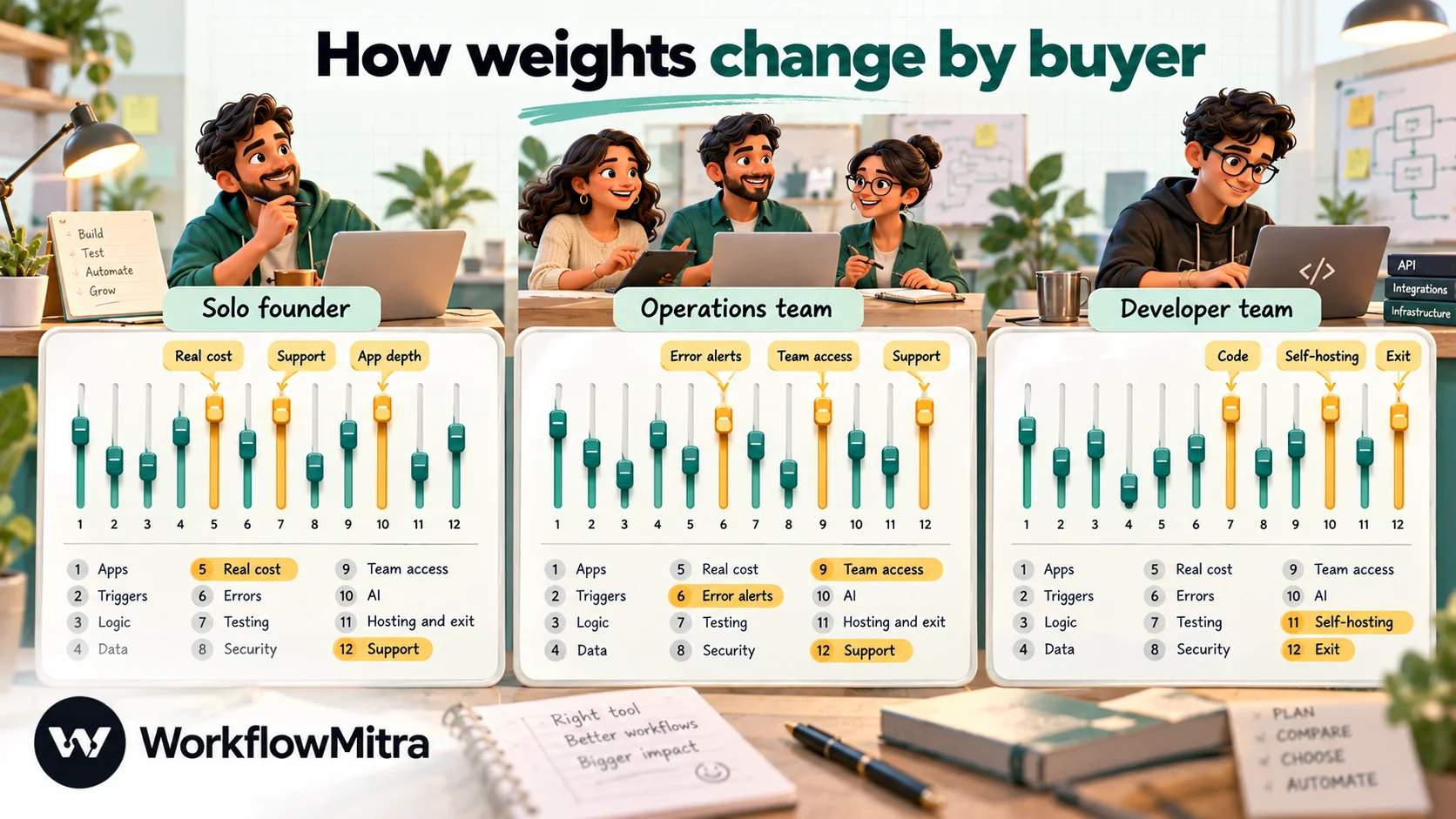
How weights change by buyer
| Buyer | Usually weights highest | Usually weights lowest |
|---|---|---|
| Solo founder or very small business | Real monthly cost, ease of building, templates, support | Team access, self-hosting |
| Operations or support team (5–50 people) | App depth, error alerts, team access, testing | Code features |
| Developer-led team | Code and HTTP flexibility, self-hosting, exit | Templates, guided onboarding |
| Regulated business (finance, health) | Security, data location, retention, audit trail | Price |
| WhatsApp-first business | WhatsApp template sending, webhook triggers, local billing | Size of app catalogue |
Run the trial like a test, not a tour
Trials are short, and most of them are spent clicking through templates. Plan yours instead.
- Days 1–2: build your most important workflow end to end with real apps, not demo data.
- Days 3–4: break it on purpose. Use a wrong password, send a malformed phone number, switch off a connected app. See what the tool shows you and whether an alert arrives.
- Days 5–7: build the other two workflows. Note anything you needed help with, and how fast help came.
- Days 8–10: run real traffic on at least one workflow and check the usage meter against your estimate from point 5.
- Days 11–14: hand it to a colleague. Can someone who didn’t build the workflow understand it and fix a small problem?
The result is a scoring sheet filled in from experience, a real usage figure, and an answer to the question most buyers never ask: will this still work when I’m not the one watching it? Our checklist for testing an automated workflow helps with days 3–4.
Eight questions to put to the vendor before you pay
Some answers aren’t on any web page. Ask them in writing, and keep the replies with your scoring sheet:
- What exactly counts toward my plan’s limit, and do retries, failed steps or test runs count?
- What happens on the day I reach the limit: do workflows stop, slow down or bill overage?
- How long is run data kept, and can I shorten it for privacy reasons?
- Where is my data processed and stored, and who at your company can see it?
- How do I export my workflows if I leave, and in what format?
- What changed in your pricing over the last two years, and how much notice do you give?
- Which of the integrations I need were built by you, and which by a third party?
- If an outage on your side means my workflows miss events, can those events be recovered?
A vendor that answers these clearly and quickly is usually one that will be easy to work with. Vague answers to questions 1, 2 and 8 are the ones to take most seriously, because they decide what a bad day costs you.
Mistakes buyers make
- Choosing by app count. Thousands of apps don’t help if yours has one shallow integration.
- Comparing list prices instead of usage. A cheaper plan in a tool that counts more units can cost more.
- Ignoring the failure story. If a tool can’t tell you clearly that something broke, it will break quietly.
- Letting one person own everything. Pick a tool your team can read, and give at least two people access.
- Testing with fake data. Real data has blank fields, odd formats and duplicates. Test with it.
- Buying for imagined future needs. Choose for the workflows you’ll build this quarter; switching later is easier than paying for years of unused capacity.
Where WorkflowMitra fits
WorkflowMitra, powered by ChatMitra, is a cloud, no-code workflow automation platform for small and mid-sized businesses, with ChatMitra as its WhatsApp sending layer. Here is how it answers the twelve points, including where it falls short:
| # | Criterion | WorkflowMitra today |
|---|---|---|
| 1 | App depth | About thirty integrations: Google Sheets, IMAP/SMTP email, WhatsApp, Slack, Telegram, Discord, Zoho CRM, Pipedrive, Zendesk, Freshdesk, Intercom, PostgreSQL, MySQL, MongoDB and more, plus App Request for authenticated API calls to apps such as HubSpot, Shopify and WooCommerce. Far fewer apps than the largest catalogues |
| 2 | Triggers | Instant webhooks with presets for apps such as Shopify, WooCommerce, Razorpay and Stripe; Google Sheets polling every 5 minutes by default; email, RSS and schedule triggers. Polling checks that find nothing cost nothing |
| 3 | Logic | IF, Switch, Merge, Loop (up to 1,000 items), durable Delay up to 30 days, Wait for approval, round-robin assignment and a built-in Data Store |
| 4 | Data and code | About 110 expression functions, Parse JSON, and a sandboxed Code step in JavaScript (no Python) |
| 5 | Pricing | Rupee plans from ₹999 a month for 10,000 credits (₹1,499 for 20,000, ₹2,699 for 40,000), 15% off yearly; one credit per executed step, logic steps free; 14-day trial with 10,000 credits and no card; no free tier |
| 6 | Errors | Step-by-step run history kept 7 to 180 days depending on plan, failure alerts by email or Slack, error branches, replay of webhook deliveries. No per-step retry setting in the editor yet |
| 7 | Testing | Test mode from the webhook trigger's test console simulates WhatsApp, email, Slack, Discord and Telegram sends; other steps run for real |
| 8 | Security | Credentials encrypted with AES-256-GCM, webhook signature checks and shared secrets, per-trigger IP allowlists |
| 9 | Team access | Workspaces with four fixed roles (Owner, Admin, Member, Viewer); 2 to 100 seats by plan. No SSO, custom roles or workflow version history |
| 10 | AI | Bring your own key for Claude, OpenAI, Gemini, Groq or Ollama; AI step and AI Agent |
| 11 | Hosting | Cloud only; no self-hosted edition |
| 12 | Support and channels | Community support on the entry plan, email or priority support on larger plans; billing in rupees; WhatsApp template sending through ChatMitra or Meta's Cloud API |
WorkflowMitra plans, limits and features checked in the product code on 8 October 2026.
Why WorkflowMitra?
It tends to score well for buyers who weight cost predictability, rupee billing and WhatsApp highly: a business in India or another WhatsApp-first market whose workflows start from forms, payments, sheets and emails, and end in a CRM update and a WhatsApp message. Logic steps are free and empty polls don’t bill, so a workflow’s cost is easy to predict from its steps. And sending WhatsApp templates is a built-in step rather than a third-party add-on.
It scores lower where a large catalogue, self-hosting, Python, single sign-on or version history is a deal-breaker. In those cases, tools such as Zapier (for catalogue breadth) or n8n (for self-hosting and code) may suit you better, and our WorkflowMitra vs Zapier, WorkflowMitra vs n8n and WorkflowMitra vs Make comparisons go point by point. For a ranked list of tools, see the best workflow automation software on workflowmitra.com.
The best way to score it is the way this guide recommends for every tool: put your three workflows through a 14-day trial with real data, break one on purpose, and fill in the sheet. If WhatsApp is one of your channels, ChatMitra’s pricing page covers the messaging side of the cost: a fee per conversation plus Meta’s charge per delivered template.
Sources: Zapier's Tasks in Zapier help article, Make Academy's credit consumption lesson, n8n's pricing page and hosting documentation, all read on 8 October 2026. WorkflowMitra plans and capabilities from its product code the same day and workflowmitra.com/pricing.
Frequently Asked Questions
Questions buyers ask when they compare workflow automation tools.
Look at how deeply it supports your own apps, how fast its triggers are, what logic it offers, how it bills, how it reports and alerts on failures, how you can test safely, how it stores credentials, who on your team can edit workflows, how AI steps are paid for, where it runs, and what support you get. Score those against three workflows you actually need, rather than against a generic feature list.
Automate the work between your apps
Build workflows with triggers, conditions and actions, then test them before they go live. Try WorkflowMitra free for 14 days, no card required.
