How to Test a Webhook (and Find Out Why It Was Rejected)


Quick Summary
To test a webhook, answer three questions in order: did the request arrive, was it accepted, and did it do the right thing? Capture one real request from the sender in a request inspector or your receiver's log, replay it yourself with curl or Postman, then deliberately send the failure cases: a wrong secret, a changed body, a repeat and an oversized payload. Read the HTTP status the sender saw and the receiver's own reason for any rejection. Most 401s come from a wrong secret or a signature computed over a changed body.
A webhook that works in a demo and fails in production usually fails quietly. The sender reports an error you can’t see, or the receiver drops a request you never knew arrived, or everything “succeeds” and the wrong thing happens. Testing a webhook properly means making each of those failures visible before a customer finds them.
This guide gives you a method that works with any sender and any receiver: the tools worth having, the order to test in, the failure cases to send on purpose, how to read status codes from both ends, and how to fix the most stubborn problem of all, a signature that won’t match. Where we show a receiver, we use WorkflowMitra, powered by ChatMitra, because its delivery log names the reason for every rejection.
Quick answer: Test a webhook by answering three questions in order. Did it arrive? Capture one real request in a request inspector or your receiver's log. Was it accepted? Replay that request with curl or Postman, then send deliberate failures, such as a wrong secret, an edited body and a repeat, and check each gets the response you expect. Did it do the right thing? Trigger a real event and check the result end to end. When something fails, read the status code the sender saw and the receiver's own reason.
What does testing a webhook actually involve?
A webhook is an HTTP request one system sends to another when something happens. Testing it isn’t one check. It’s three, and each has its own evidence.
- Arrival. Did the request reach the receiving URL at all? Evidence: an entry in the receiver’s log or a request inspector.
- Acceptance. Did the receiver trust it and answer with a success code? Evidence: the HTTP status, plus the receiver’s reason if it refused.
- Processing. Did the right thing happen afterwards, with the right data? Evidence: the run history, and the record, message or row that was created.
Most debugging time is lost by checking the third question first. If the order wasn’t added to the spreadsheet, people open the spreadsheet step. Often the request never arrived, or arrived and was refused. Work through the questions in order and the cause usually shows itself within minutes.
It also helps to know which side you’re testing. If you send webhooks (your app notifies others), you need somewhere to catch your requests and inspect them. If you receive webhooks (another app notifies you), you need a way to send realistic requests at your endpoint. Many builders do both in the same week.
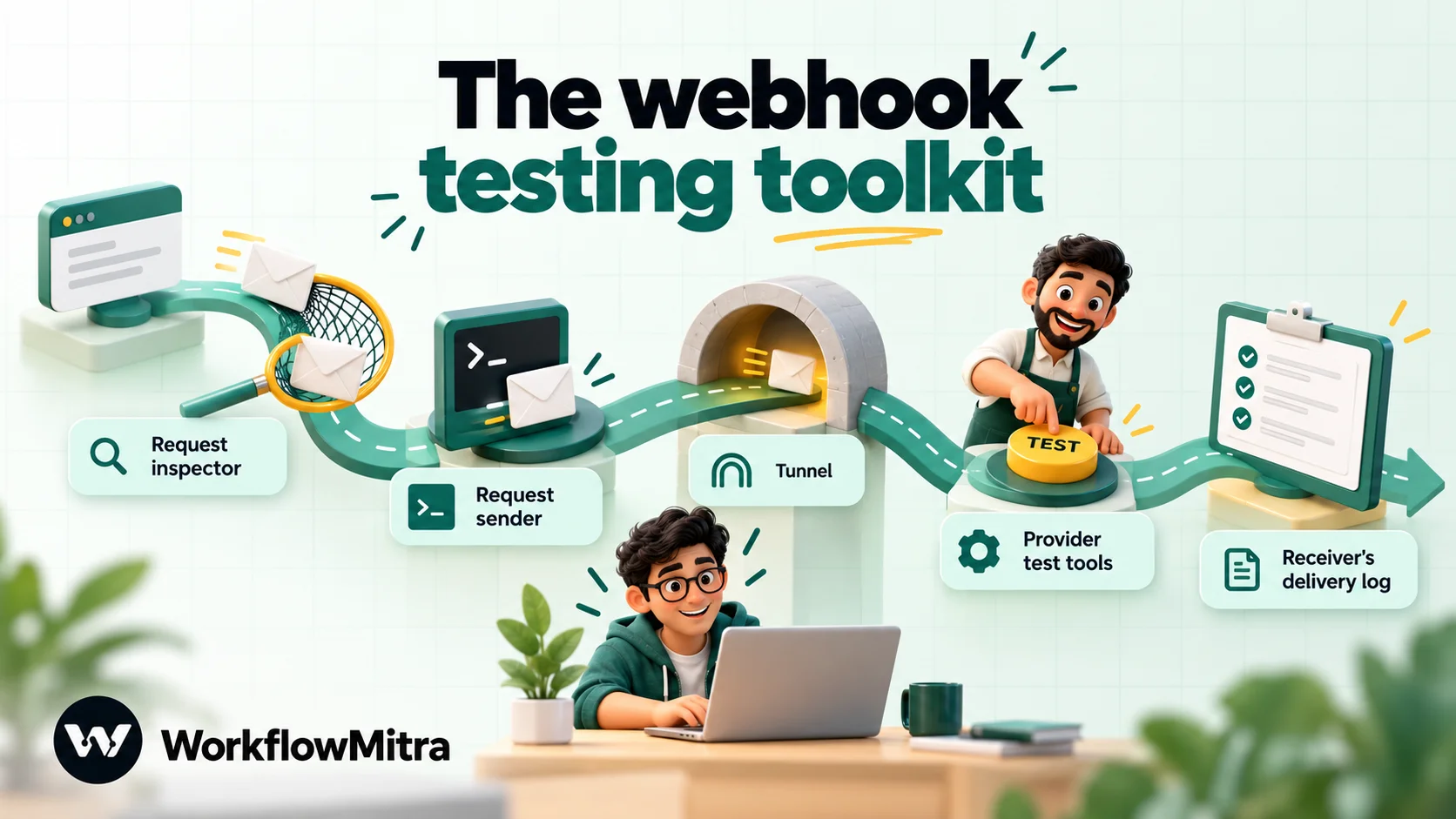
The webhook testing toolkit
You don’t need much. These five kinds of tool cover almost every situation.
| Tool | Examples | Use it to | Watch out for |
|---|---|---|---|
| Request inspector | Webhook.site | See exactly what a sender transmits: method, headers, body | Free Webhook.site URLs expire after 7 days and accept 100 requests; never send real customer data to a public bin |
| Request sender | curl, Postman | Fire controlled requests at a receiver, including deliberate failures | Shell quoting can change the body; send files byte for byte |
| Tunnel | ngrok | Give a server on your laptop a temporary public HTTPS address | Only needed when the receiver runs locally |
| Provider test tools | Stripe CLI, GitHub Recent Deliveries, store "send test" buttons | Send real, correctly signed events from the actual sender | Test and live modes often use different secrets |
| Receiver's delivery log | WorkflowMitra's Recent deliveries | See every request that arrived, its outcome and the reason for any rejection | Requests to an unknown URL usually aren't logged anywhere |
ngrok’s local agent also shows a traffic inspector at http://localhost:4040, where you can replay a captured request, which is handy when you’re iterating on your own handler.
Step 1: Capture one real request before you build
The single most useful thing you can do is look at a real request before you write a mapping, a filter or a line of code. Documentation examples are often out of date, simplified or missing optional fields.
Point the sender at a request inspector, or at your receiver if it records payloads, and trigger a real event: a test order, a form submission, a payment in test mode. Then write down five things:
- Method: almost always POST, sometimes GET.
- Content type:
application/json,application/x-www-form-urlencoded, multipart or XML. This decides how the body is parsed. - Headers that matter: the event type, an event or delivery ID, a signature, a timestamp.
- The body itself: field names, nesting, and whether amounts are numbers or text.
- What the sender expects back: some count any 2xx as success, others want exactly 200 within a few seconds.
In WorkflowMitra, a new webhook trigger shows Listening for data… and keeps the last payload for an hour so the editor can detect fields for you. It also tells you when requests reached the webhook but were refused, with a plain reason such as “Refused — wrong or missing secret”, which is often the first clue that the sender isn’t sending your secret at all.
Step 2: Replay it yourself with curl or Postman
Once you know what a real request looks like, reproduce it under your control. That lets you change one thing at a time.
A basic JSON request with a shared secret header looks like this:
curl -i -X POST 'YOUR_WEBHOOK_URL' \
  -H 'Content-Type: application/json' \
  -H 'x-webhook-secret: YOUR_SECRET' \
  --data-binary @order.json
Three habits make this reliable:
- Use
-iso curl prints the response status and headers, not just the body. - Keep the body in a file and send it with
--data-binary @file. curl’s plain-d @filestrips line breaks from the file, which changes the bytes and will break any signature you compute over them. - Copy the URL from the receiver every time. A URL that was rotated, or a stale copy pasted months ago, is one of the most common reasons nothing happens.
WorkflowMitra’s webhook trigger has an Integration guide that builds this curl command for you, with your URL and secret header filled in, along with versions for other languages. Postman does the same job with a visual editor and a history of what you sent, which some people find easier when they’re comparing two variants of a request.
Step 3: Send the failure cases on purpose
A receiver that accepts a good request has passed only half the test. The other half is refusing the bad ones, and handling repeats safely. Send each of these deliberately and confirm you get the expected result:
| Test | How to send it | Expected result (WorkflowMitra) |
|---|---|---|
| Wrong secret | Change one character of the secret header | 401, logged as Bad secret; no run |
| Missing secret | Remove the header | 401, logged as Bad secret; no run |
| Edited body | Keep a valid signature, change one value in the body | 401, logged as Bad signature; no run |
| Old request | Resend a signed request with a timestamp outside the window | 401, logged as Stale / replay |
| Same event twice | Send the identical request twice within a minute, or two requests with the same event ID | Second answered 200 and logged as Duplicate; no second run |
| Wrong source | Send from a machine not on the IP allowlist | 403, logged as Blocked IP |
| Paused workflow | Pause the workflow, then send | 404; not logged, because no active webhook matched |
| Missing field | Send a valid request without a field your steps use | Accepted; your workflow should stop or flag it, not create a half-empty record |
The last row matters as much as the security rows. A webhook that passes every check but writes a blank phone number into your CRM is still broken. Add an IF step that checks the fields you depend on, and test it with a payload that lacks them.
Rejected requests never start a run in WorkflowMitra, so these tests cost no credits. Accepted ones start a real run, so do them on a test copy of the workflow if its steps send messages or write to live systems. Our guide to testing an automated workflow explains how to set up that copy.
Step 4: Test the real sender, in its test mode
Hand-made requests prove your receiver works. Only the real sender proves the two work together. Most providers give you a way to send real, correctly signed events without touching live data.
- Stripe:
stripe listen --forward-to localhost:4242/webhookforwards events to a local server, andstripe trigger payment_intent.succeededcreates one. The CLI prints its own signing secret, which is different from your dashboard endpoint’s secret. - GitHub: each webhook’s Recent Deliveries shows what was sent and lets repository admins redeliver anything from the last three days.
- Shopify: the admin’s notification settings can send a test webhook. The sample can repeat the same order ID, so a receiver that skips duplicates may skip your second test.
- Razorpay: events from test-mode payments use the same payload structure as live ones, so a test-mode payment exercises your mapping fully.
Two warnings apply to almost every provider. First, test and live modes usually have different signing secrets. Stripe says so explicitly for endpoints that receive both. Second, a provider’s “send test” button sometimes sends a simplified payload or a ping with no signature at all. WooCommerce, for example, pings a new webhook URL without a signature when you save it. Don’t conclude your verification is broken from a test ping alone.
Read the status code from both ends
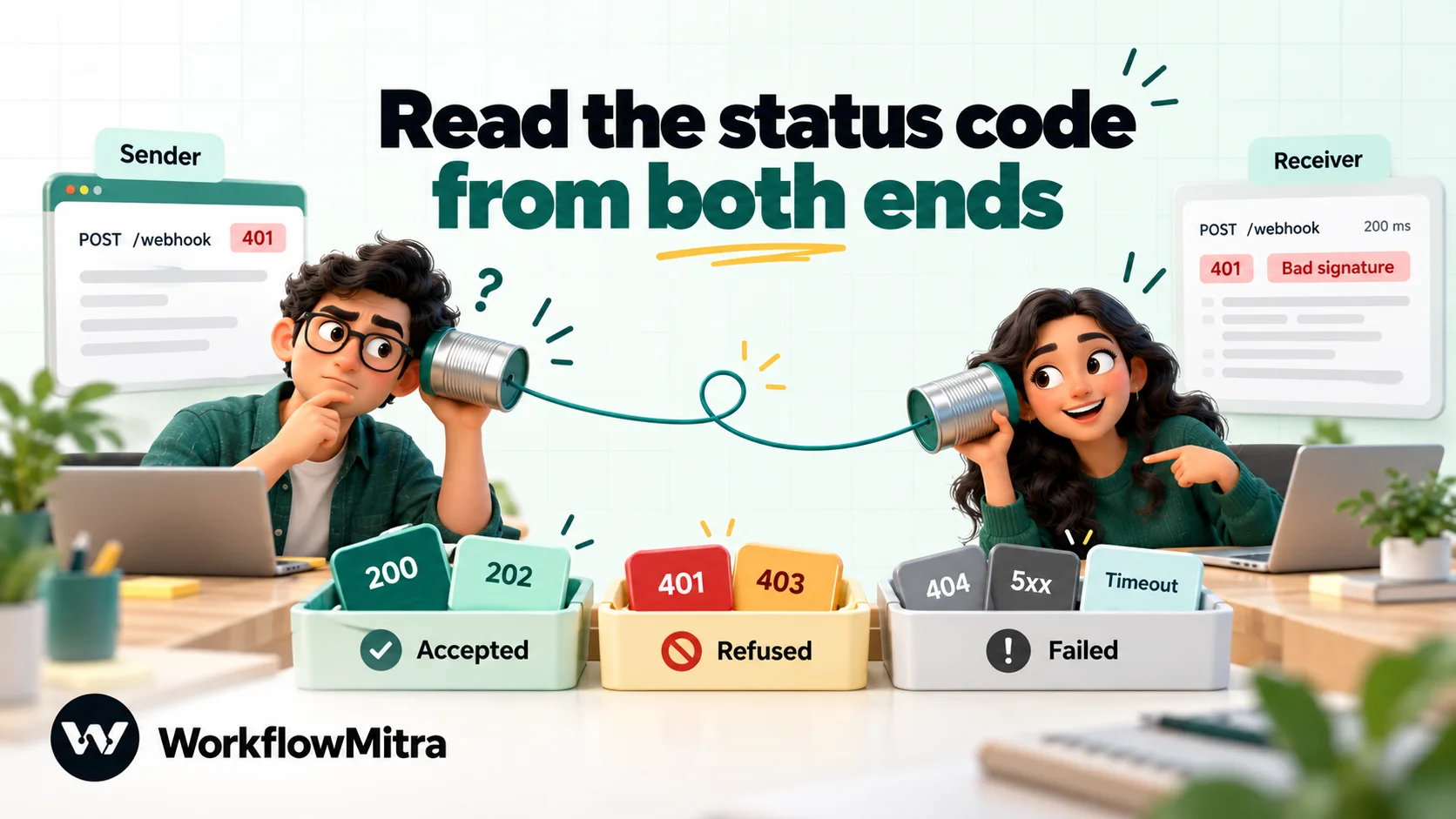
Every webhook delivery produces two views of the same event: what the sender recorded and what the receiver recorded. Read both. This table covers the codes you’ll meet most and what each usually means.
| Status the sender sees | Usually means | Where to look next |
|---|---|---|
| 200, 201, 202 | Accepted. A 202 means "received, processing later", not "done" | The receiver's run history, to check processing |
| 3xx redirect | The URL points at a page that redirects; many senders treat this as failure | Use the final URL, often the https or trailing-slash version |
| 400 | The receiver couldn't read the body | Content type and body format |
| 401 | Secret, signature or timestamp check failed | The receiver's rejection reason |
| 403 | Source IP not allowed, or a verification token mismatch | Allowlist and sender's published IP ranges |
| 404 | Unknown, deleted or paused webhook, or an expired old URL | Copy the current URL; check the workflow is on |
| 405 | Wrong HTTP method for that URL | Sender's method setting (POST vs GET) |
| 413 | Body too large for the receiver | Send a file link instead of the file |
| 429 | Too many requests in a short window | Sender's retry behaviour and burst size |
| 5xx or timeout | The receiver failed or took too long to answer | Receiver's errors; how long it holds the request |
Timeouts deserve special attention because senders are strict about them. GitHub ends the connection and counts a failure if it doesn’t get a 2xx within 10 seconds. Shopify allows five seconds, retries up to eight times over four hours, and removes the subscription if failures persist. Stripe retries live-mode events for up to three days with exponential backoff, and sandbox events three times over a few hours.
This is why WorkflowMitra answers 202 straight away by default and runs the workflow afterwards. If a sender needs the result of the workflow in its response, Respond synchronously holds the request for up to 25 seconds and then returns 200, or whatever a Response step sets, or 502 if the run failed. Only use it with senders whose timeout is longer than your workflow takes, and test the slowest realistic case.
How to read why a webhook was rejected
A status code tells you the category of the problem. The receiver’s log should tell you the specific cause. In WorkflowMitra, every request that reaches an active webhook is kept for 30 days under Recent deliveries, with one of these outcomes:
- Accepted: passed every check and started a run.
- Duplicate: recognised as a repeat of an earlier request and skipped; the sender still gets 200.
- Bad secret: the secret header was missing or wrong.
- Bad signature: the signature didn’t match the body.
- Stale / replay: the signed timestamp was outside the allowed window.
- Blocked IP: the request came from an address the allowlist doesn’t include.
- Unverified: the webhook requires verification and nothing verified the request.
- Errored: the request passed the checks but couldn’t be queued.
Open any delivery to see when it arrived, the source IP, whether the secret and signature passed, the event ID used for duplicate checks, the request headers and a preview of the body (the first 2,000 characters). Authorisation, cookie, secret and signature header values are shown as [redacted], so you can share a screenshot without leaking credentials.
Three behaviours are worth knowing before you rely on the log:
- A 404 leaves no trace. If the URL is unknown or the workflow is paused, there’s no webhook to file the request under, so it isn’t logged. An empty log while the sender reports 404s points straight at the URL or the workflow’s status.
- Replay needs a run. Replay re-runs the current version of the workflow with the original request’s full input, which is ideal after you fix a mapping. A rejected delivery never ran, so there’s nothing to replay: fix the cause and ask the sender to resend.
- Edit & Test Copy opens a rejected or accepted delivery’s body in the test console, so you can adjust it and run it safely without waiting for the sender.
The filters (accepted, rejected, duplicate, errored), a search box for IP, status or event ID, and a Download button for the current page make it practical to find one delivery among hundreds. For a deeper look at what each check protects against, see our guide to webhook security.
How to debug a webhook signature mismatch
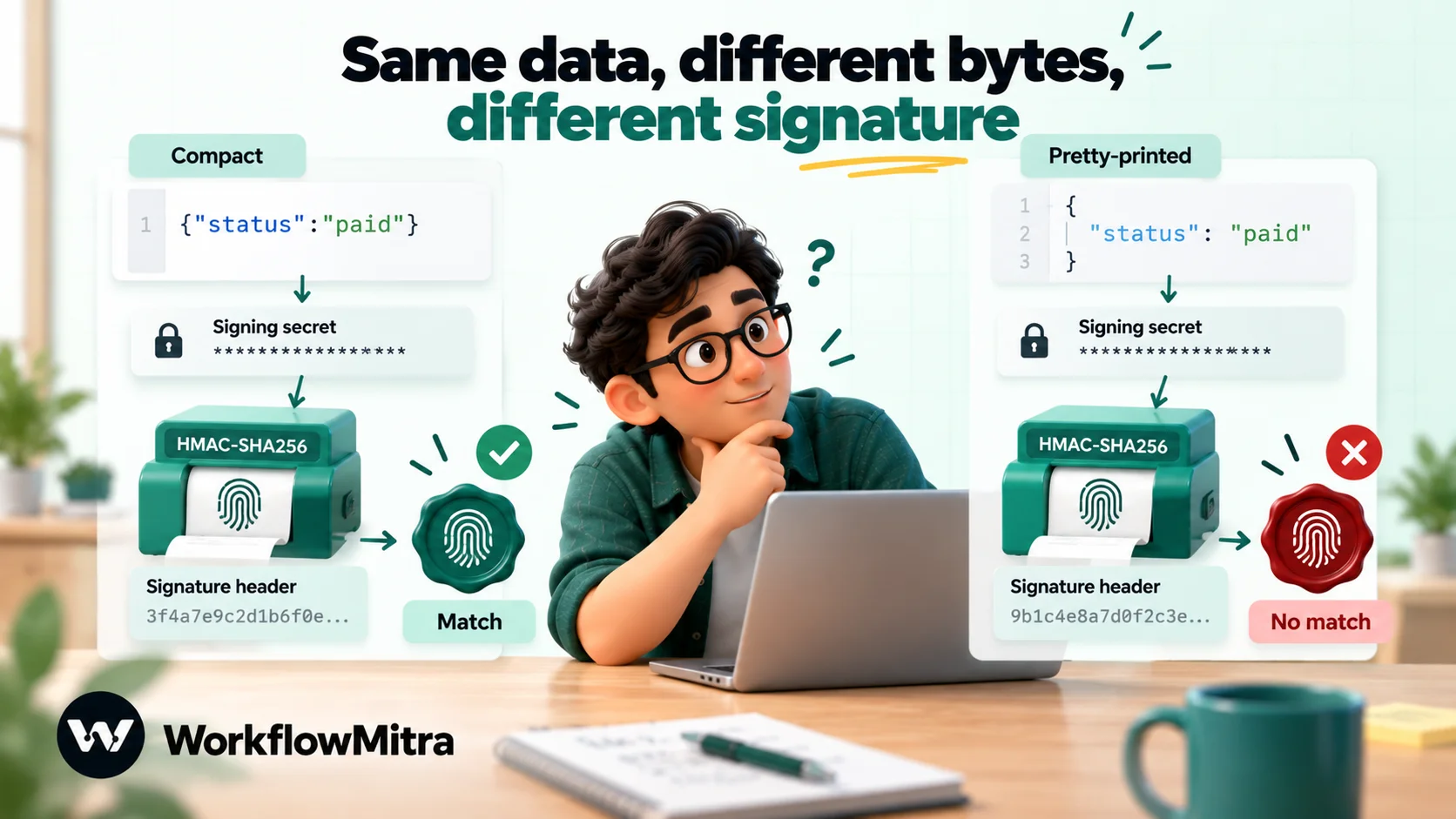
“Invalid signature” is the error people spend longest on, because everything looks right. The secret is correct, the header is there, and it still fails. The cause is almost always that the two sides computed the HMAC over different bytes or with different keys.
Work through these in order:
- Raw body, not parsed JSON. The signature covers the exact bytes the sender transmitted. Parsing the JSON and turning it back into text changes spacing or key order, and the signature no longer matches. Stripe and Razorpay both warn about this in their documentation.
- The right secret for the mode. A test-mode secret won’t verify live events, and the Stripe CLI’s secret isn’t your dashboard endpoint’s secret.
- The right header. Senders use their own names:
X-Razorpay-Signature,Stripe-Signature,X-Hub-Signature-256and so on. - The right algorithm and encoding. Most use SHA-256; a few older ones use SHA-1. The result may be hex or base64, sometimes with a prefix such as
sha256=. - The right signed text. The body isn’t always the whole message. Stripe, for example, joins its timestamp and the body with a full stop and signs that string.
- Nothing in between. A proxy, firewall or framework that re-encodes or re-formats the body will break every signature.
You can check the maths yourself with OpenSSL, which is installed on most Macs and Linux machines. Save the exact body to a file without a trailing newline, then run:
# hex output, compare with a hex signature header
openssl dgst -sha256 -hmac 'YOUR_SIGNING_SECRET' < body.json

# base64 output, compare with a base64 signature header
openssl dgst -sha256 -hmac 'YOUR_SIGNING_SECRET' -binary < body.json | base64
If your result matches the header, the sender and your secret are fine and the receiver is changing the body. If it doesn’t, the secret or the signed text is wrong. We ran this check against WorkflowMitra’s signature verifier with a sample order body: the OpenSSL hex output, the same value with a sha256= prefix, and the base64 output were all accepted, while a pretty-printed copy of the same JSON, with identical data, was rejected. That one experiment explains most real-world mismatches.
A worked example: the payment webhook that failed on launch day
Here’s a common launch-day failure, walked through with the three questions so you can recognise it.
A shop connects its payment gateway to a workflow that sends a WhatsApp order confirmation. Everything works for a week in the gateway’s test mode. On launch morning the shop switches the gateway to live, real payments start arriving, and no confirmations go out. The gateway’s dashboard shows every delivery failing with 401.
Did it arrive? Yes. The receiver’s delivery log has a row for every payment, so the URL and the workflow’s status are fine.
Was it accepted? No. Every row says Bad signature. The secret header isn’t involved, so the problem is the HMAC.
Why? The signature was computed with the live-mode webhook secret, which the gateway generated when the live webhook was created. The workflow still holds the test-mode secret. Nothing was wrong with the code, the mapping or the URL.
The fix takes two minutes: paste the live secret into the webhook’s signature settings, then trigger one small live payment and watch for Accepted. Because the rejected deliveries never ran, there’s nothing to replay. Most gateways keep retrying failed deliveries for a while (Stripe, for example, retries live events for up to three days), so earlier payments may arrive again once verification passes. Check the gateway’s dashboard for any that ran out of retries and resend those.
The lesson isn’t about this gateway. It’s that a launch changes secrets, URLs or modes, and a one-line check of the delivery log on launch morning finds it before customers notice.
When nothing arrives at all
If the receiver has no record of any request, work outwards from the sender:
- Point the sender at a request inspector. If nothing shows up there either, the sender isn’t firing. Check the event is selected, the webhook is enabled, and you’re in the mode (test or live) you think you’re in.
- Compare the URL character by character. Look for a missing segment,
httpinstead ofhttps, extra spaces, or an old URL after a rotation. WorkflowMitra keeps a rotated URL working for seven days, then answers 404. - Check the receiver is switched on. A paused workflow answers 404, and some senders disable a webhook after repeated 404s, so turn the workflow on before you resend.
- Read the sender’s own log. Stripe’s Event deliveries tab, GitHub’s Recent Deliveries and similar pages show the status the sender got and when it will retry.
For other trigger types, such as spreadsheets, email or schedules, our checklist for when an automation doesn’t trigger covers each one.
Testing webhooks you send
Sometimes your workflow is the sender. You might post order data to a partner’s API, notify an internal system, or forward events to another automation tool. Test this side the same way, in reverse.
- Point the request at an inspector first. Before you aim at the real API, send the step’s request to a Webhook.site URL and check the method, headers and body are what the receiver’s documentation asks for.
- Check what your step does with a failure. In WorkflowMitra, the HTTP Request step returns
status,ok,headersandbody. A 4xx or 5xx response doesn’t stop the run; it finishes the step withokset to false. Add an IF step that checksokis yes, and route the “no” branch to an alert, or a rejected request will look like a success in your run history. - Test the receiver’s limits. Send an oversized body, a burst of requests and a deliberately wrong token, so you know what the other side answers before it happens at 2 a.m.
WorkflowMitra can also notify other systems when a run succeeds or fails, through outgoing webhooks for the events execution.succeeded and execution.failed. These requests carry an x-chatmitra-signature header with a sha256= HMAC of the body, so the receiving system can verify them with the same OpenSSL check shown above.
Testing bursts and retries
Real senders don’t always send one request at a time. A store can fire dozens of order updates in a minute during a sale, and a sender that saw a timeout will send the same event again later.
Test both. Send a short burst at the volume you expect at peak and check every request is accepted. WorkflowMitra accepts up to 120 requests a minute on each webhook URL and answers 429 above that, which well-behaved senders treat as “retry later”. For a one-off import of thousands of records, a scheduled workflow that reads the data in batches is a better fit than a webhook flood.
Then send the same event twice, a few minutes apart, with the same event ID. If your duplicate key is set to that ID, the second is logged as Duplicate and doesn’t run. Our guide to webhook idempotency explains how to pick the key for common senders.
Testing webhooks inside WorkflowMitra
WorkflowMitra gives you several ways to test, and they don’t all behave the same, which catches people out.
- Webhook Test Console. Load a sample or an edited copy of a real delivery and run it in Safe Test Mode or Live. Safe Test Mode simulates WhatsApp, email, Slack, Discord and Telegram sends; every other step, including Google Sheets writes and AI calls, runs for real. Update Fields Only refreshes the field menus from your sample without running the workflow at all.
- Integration guide → Send test event. This sends the sample payload and runs the workflow live, with real messages. Use the Test Console’s Safe mode when you only want to check the flow.
- A real HTTP request. The console and the Integration guide start runs directly, so they skip the secret, signature, IP and duplicate checks, and they work even while the workflow is paused. To test security settings, send a real request to the URL with curl or the actual sender.
- Replay. Re-run a past delivery that started a run, using its original input, after you change the workflow.
Every run started by these tools uses credits like a normal run, so keep test payloads small and test on a copy of the workflow when its steps touch live systems.
Common webhook testing mistakes
- Testing only the happy path. If you never send a wrong secret, you don’t know your verification works.
- Hand-writing test payloads from the docs. Real payloads differ. Start from a captured request.
- Verifying a re-formatted body. Pretty-printing, re-ordering or re-encoding the JSON breaks the signature.
- Mixing test and live secrets. It’s the most common cause of a signature that “suddenly” fails at launch.
- Sending the same test twice and expecting two runs. Duplicate protection is doing its job. Change the event ID or wait out the window.
- Treating 202 as “done”. It means received. Check the run history for the outcome.
- Using a public request bin with real customer data. Inspector URLs are often viewable by anyone who has the link.
- Forgetting the sender’s timeout. A workflow that answers in 12 seconds will look broken to a sender that waits 5.
A pre-launch webhook test checklist
Before you point a live sender at a webhook, confirm each of these:
- One real request captured and its content type, headers and body recorded.
- A replayed copy accepted with the expected status.
- Wrong secret, edited body and missing header all refused, with the right reason in the log.
- The same event sent twice runs only once.
- A payload with a missing required field is stopped or flagged.
- A real event from the sender’s test mode processed end to end.
- Live-mode secrets in place, and test-mode ones removed.
- The sender’s timeout known, and the receiver answering well inside it.
- Someone named who checks the delivery log for the first week.
Why use WorkflowMitra to receive and test webhooks?
If you’d rather not build the receiving end yourself, WorkflowMitra, powered by ChatMitra, covers the parts of this guide that take the longest to build:
- Reasons, not just codes. Every refused request is logged with the check that failed, so a 401 turns into “wrong secret” or “signature didn’t match” in one click.
- Checks before runs. Secret, signature, timestamp and IP checks happen before any step runs, so bad requests cost nothing.
- Duplicates handled. Repeats are skipped by event ID or identical body, and logged.
- Safe tests for messaging. Safe Test Mode lets you run a workflow that ends in a WhatsApp message through ChatMitra without messaging a customer.
- Replay after a fix. Re-run real deliveries once you’ve corrected a mapping.
Be clear about its limits too. Request headers are used for checks but aren’t passed to your steps. JSON and form bodies are capped at 100 KB. Each webhook accepts up to 120 requests a minute. And Safe Test Mode doesn’t stop non-messaging steps from acting for real.
Putting it into practice
Pick one webhook you rely on today and run it through the four steps: capture a real request, replay it, send the failures, and trigger a real event from the sender’s test mode. Most teams find at least one problem, usually a missing duplicate check or a secret that was never enforced.
If you want a receiver that shows you the reason behind every rejection, try WorkflowMitra: the 14-day trial doesn’t ask for a card, and paid plans begin at ₹999 a month for 10,000 credits (one credit covers one executed step). Our guide to what webhooks are is a good starting point if you’re setting up your first one.
Provider behaviour comes from Stripe's webhook documentation, GitHub's guides to redelivering webhooks and webhook best practices, Shopify's webhook troubleshooting guide, Razorpay's webhook validation guide, Webhook.site's documentation and ngrok's inspection interface documentation, all read on 7 October 2026. WorkflowMitra behaviour was checked against the product's source the same day, and the signature examples were executed against its verifier.
Frequently Asked Questions
Quick answers for the moments a webhook goes quiet or starts failing.
Capture one real request from the sending app, using a request inspector such as Webhook.site or your receiver's delivery log. Replay that request yourself with curl or Postman to check the receiver accepts it, then send deliberate failures: a wrong secret, an edited body, the same event twice. Finally, trigger a real event in the sending app and confirm the whole workflow did what you expected.
Automate the work between your apps
Build workflows with triggers, conditions and actions, then test them before they go live. Try WorkflowMitra free for 14 days, no card required.
