Send an HTML Form to a Webhook (and What Browsers Block)

Quick Summary
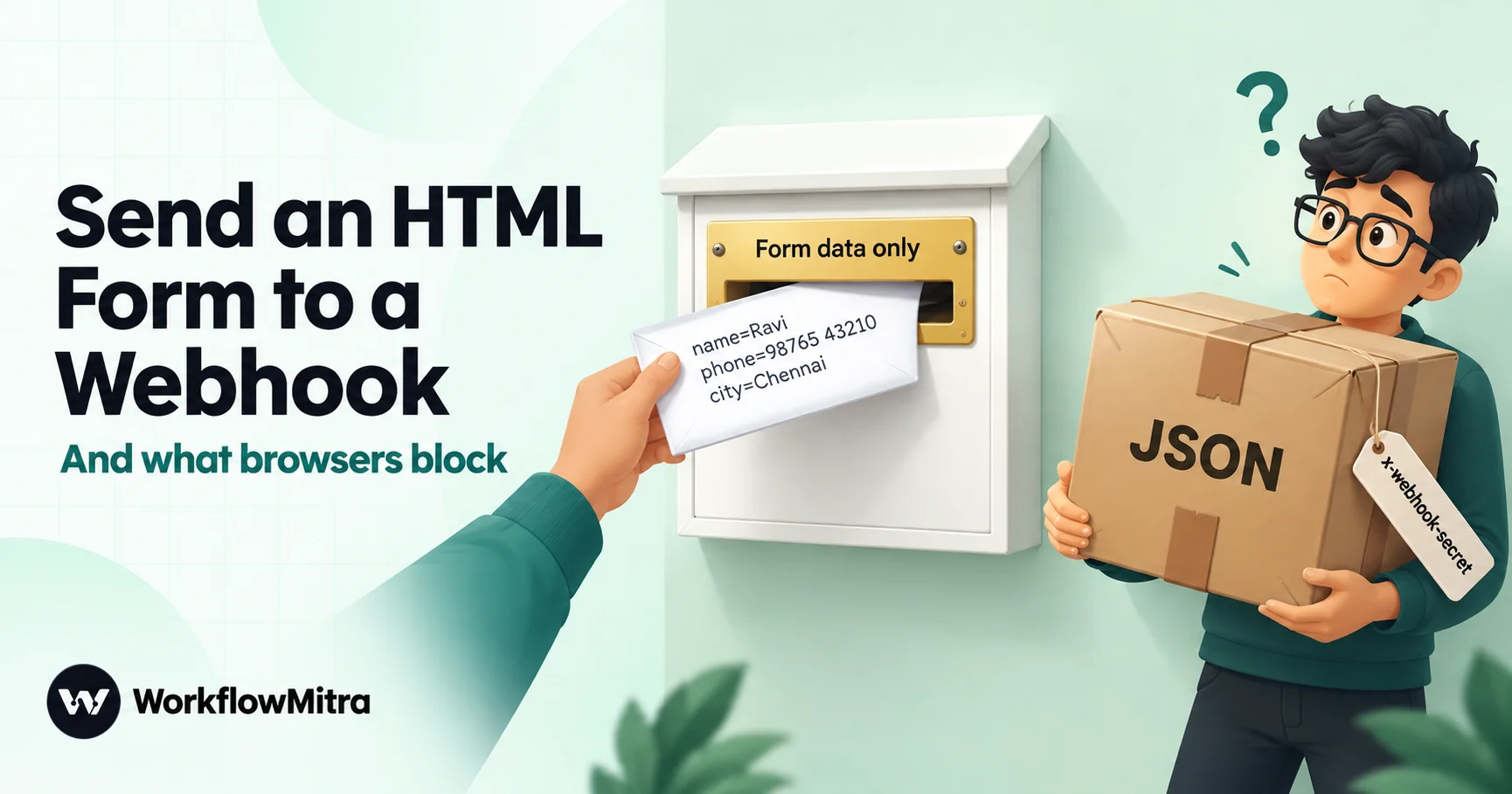
You can send a plain HTML form straight to a webhook by putting the webhook URL in the form's action and using method POST. The browser sends the fields as ordinary form data, which needs no permission from the receiving server, so it always arrives. Two things catch people out. First, the browser then shows whatever the webhook replies, usually a line of JSON, unless the webhook redirects the visitor back to your thank-you page with a 303 status. Second, JavaScript is more restricted: a fetch that sends JSON or a custom header is blocked before it leaves the browser, and a form-data fetch arrives but can't read the reply unless the webhook sends an Access-Control-Allow-Origin header. Browser forms also can't keep a secret, so protect a public form webhook with a honeypot, validation and duplicate checks instead. In WorkflowMitra, powered by ChatMitra, a Response step set to 303 handles the redirect, and the same step can add the header a fetch needs.
You have a hand-written HTML page, a contact form on it, and no backend. You’d like each submission to go straight into a workflow that saves it to a sheet, alerts the team and replies on WhatsApp. Webhooks look like the obvious bridge: paste the URL into the form’s action and you’re done.
Then you test it. The visitor lands on a page showing {"success":true,"data":{"received":true,...}}. You switch to JavaScript so they stay on your page, and the console fills with CORS errors. Someone on a forum suggests mode: 'no-cors', and now the browser says “Failed to fetch” even though the lead is sitting in your sheet.
This guide explains what’s going on, using tests we ran in Chrome against WorkflowMitra’s webhook receiver from a page on a different origin. It covers the three ways to send a form that actually work, what each one shows the visitor, why browsers block the others, and how to protect a webhook whose URL has to sit in your page source. Our running example is a rooftop solar installer’s quote form, sent to WorkflowMitra, powered by ChatMitra, but the browser rules are the same whichever webhook receives the form.
Quick answer: set the form's action to the webhook URL and method="POST". Ordinary form data needs no permission from the receiving server, so the submission always arrives. To avoid showing visitors the webhook's JSON reply, make the webhook answer with a 303 redirect to your thank-you page. If you submit with JavaScript instead, send FormData or URLSearchParams, never JSON or custom headers; use navigator.sendBeacon when you don't need the reply, or have the webhook add an Access-Control-Allow-Origin header when you do. A browser can't keep a secret, so clear the webhook's secret and protect it with a honeypot, validation and a duplicate check.
What works and what browsers block
Here’s what happened when a page on one origin sent the same form to a webhook on another, in Chrome. “Reaches the workflow” means a run started; “page can read the reply” means the page’s JavaScript could see the webhook’s answer.
| How the form is sent | Reaches the workflow? | Page can read the reply? | What the visitor sees |
|---|---|---|---|
Plain <form method="POST">, webhook replies normally | Yes | Not applicable | The webhook's JSON reply, on the webhook's address |
| Plain form, webhook replies with a 303 redirect | Yes | Not applicable | Your own thank-you page |
| Plain form, webhook replies with an HTML page | Yes | Not applicable | That HTML, but on the webhook's address and with scripts blocked |
fetch with a JSON body | No: blocked by the browser's permission check | No | Whatever your code shows on error |
fetch with a custom header, such as a secret | No: blocked the same way | No | Whatever your code shows on error |
fetch with FormData or URLSearchParams | Yes | No: "Failed to fetch" | An error, although the submission arrived |
Same, with mode: 'no-cors' | Yes | No: still "Failed to fetch" | An error, although the submission arrived |
FormData fetch, webhook adds Access-Control-Allow-Origin | Yes | Yes | Your page's own success message, after a real confirmation |
navigator.sendBeacon with FormData or URLSearchParams | Yes | No (it never returns a reply) | Your page's own success message, shown straight away |
navigator.sendBeacon with a JSON blob | No, though it returns true | No | A success message for a submission that never arrived |
The two rows that cause the most trouble are the ones where the browser’s answer is misleading. A form-data fetch throws an error although the lead arrived, so a visitor who sees “Something went wrong” submits again and you get two leads. And sendBeacon with JSON reports success while sending nothing at all.
Why browsers behave this way
Two separate browser rules explain the whole table. (If webhooks themselves are new to you, what are webhooks covers the basics first.)
Simple requests go through; everything else needs permission
Browsers let any page send a “simple” cross-origin request without asking. A simple request uses GET or POST, carries one of three content types (application/x-www-form-urlencoded, multipart/form-data or text/plain) and adds no custom headers. Those are exactly the requests an ordinary HTML form has always been able to make, so blocking them would break the web.
Anything else, such as a JSON body or an x-webhook-secret header, makes the browser send a preflight: an OPTIONS request asking the server whether this page may send that request. If the reply doesn’t grant permission with Access-Control-Allow-Origin and related headers, the browser never sends the real request. WorkflowMitra’s webhook doesn’t grant that permission to other websites, so JSON and custom-header requests from a browser stop at the preflight and no run starts. Mozilla’s CORS guide explains the full rules.
Sending isn’t the same as reading
The second rule is about the reply. Even when a simple request goes through, the browser hides the response from your page’s JavaScript unless the server’s reply includes an Access-Control-Allow-Origin header naming your site (or *). That’s why a form-data fetch starts a run but then fails: the request was delivered and the answer was withheld.
mode: 'no-cors' asks the browser for an opaque response instead of an error. It would work if not for a third header. WorkflowMitra’s API, like many APIs, sends Cross-Origin-Resource-Policy: same-origin with every reply, which tells the browser not to hand the response to other sites at all, even as an opaque one. So the fetch rejects with “Failed to fetch”. We confirmed the header on the live API on 19 October 2026.
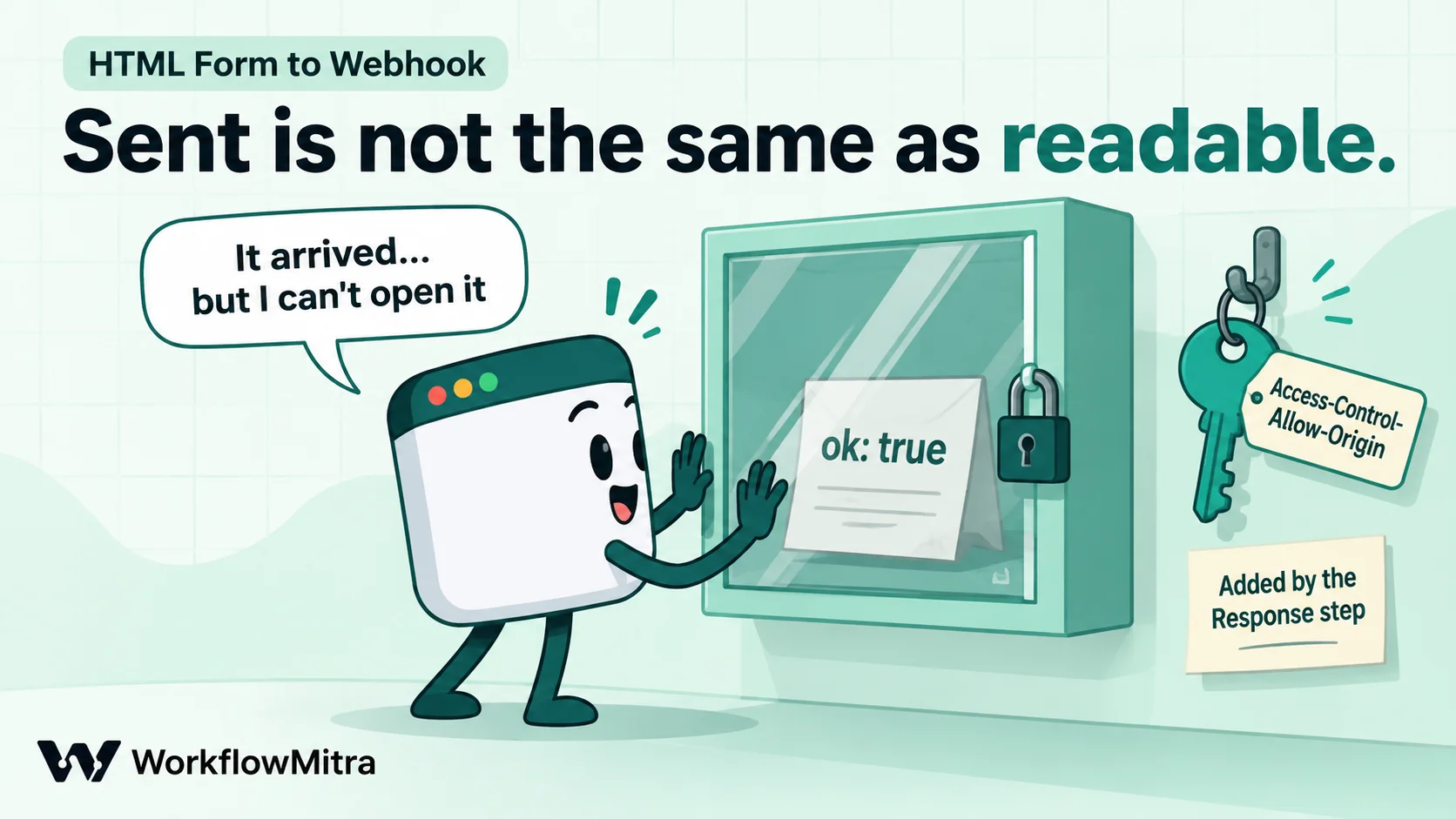
A plain form submission isn’t affected by any of this, because it isn’t a script reading a response. It’s the browser navigating to a new page, and it shows the visitor whatever comes back.
Before you start: the secret problem
New webhooks in WorkflowMitra start locked. Each has a secret and accepts only requests that send it in an x-webhook-secret header. That’s the right default for app-to-app webhooks, and it’s useless for a public HTML form:
- A plain form can’t send custom headers at all, so every submission would be rejected with a 401.
- A
fetchthat adds the header turns into a preflighted request, which the browser blocks. - Putting the secret in a hidden field or in JavaScript would publish it to every visitor anyway.
So for a form that lives in a public web page, open the webhook’s Edit panel and clear the Secret. A yellow warning appears in the trigger panel, pointing out that the URL alone is now enough to start a run. It’s right, and it’s true of every form backend you could use: the URL is in your page source. The job is to make abuse cheap to ignore, which the protection section below covers. Webhook security explains the trade-off of an open URL in more depth.
Method 1: a plain HTML form with a redirect back to your site
This needs no JavaScript at all, works in every browser and is the most robust option. The visitor submits, the workflow runs, and the browser lands on your own thank-you page.
Build the workflow
- Create a workflow with the On webhook call trigger. Clear the secret as described above, save and switch the workflow on, then copy the webhook URL.
- In the webhook’s Edit panel, under Enforcement, turn on Respond synchronously. The webhook now holds the request until the workflow finishes, and replies with whatever its Response step says instead of an instant acknowledgement.
- Add the steps that matter for each submission, for example an IF that checks the honeypot (see below), Google Sheets → Add row(s) to log the enquiry, and a Slack or WhatsApp alert to the sales team.
- End the workflow with a Response step. Set Status code to
303and add one response header:Locationwith the full address of your thank-you page, such ashttps://example-solar.in/thank-you/. Leave the body empty.
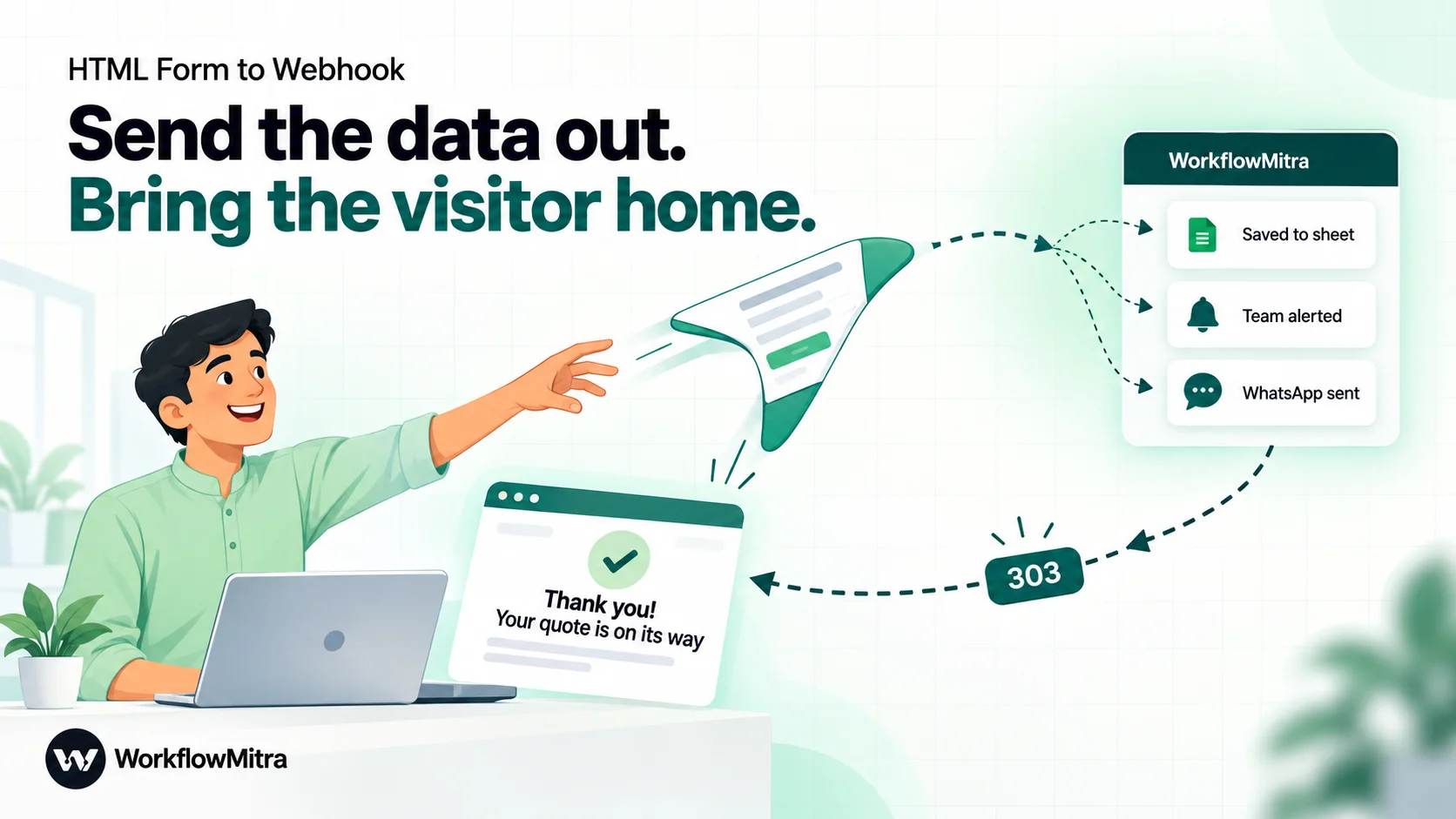
A 303 tells the browser “the form was received; now load this other page with GET”. The visitor ends up on your site, and refreshing the thank-you page doesn’t resubmit the form. Mozilla’s 303 See Other reference describes the behaviour. The Response step costs no credits.
Write the form
<form action="PASTE-YOUR-WEBHOOK-URL" method="POST">
  <label>Name <input name="name" required></label>
  <label>Mobile <input name="phone" type="tel" required></label>
  <label>City <input name="city"></label>
  <label>Monthly electricity bill (₹) <input name="bill" inputmode="numeric"></label>
  <label><input type="checkbox" name="whatsapp_ok" value="yes"> Send my quote on WhatsApp</label>
  <input type="hidden" name="page" value="/rooftop-solar-quote/">
  <input name="company_site" tabindex="-1" autocomplete="off" aria-hidden="true"
         style="position:absolute;left:-9999px">
  <button>Get my quote</button>
</form>
How the fields arrive in the workflow:
- Only fields with a
nameare sent. An input without one is silently left out. - An unticked checkbox isn’t sent at all. A ticked one sends its
value, oronif you didn’t give it one. In the workflow, test the checkbox field with Is not empty. - Empty fields arrive as empty text, not as missing fields.
- Repeated names become a list. Two checkboxes both named
interestarrive as["Rooftop", "Battery"]. - Square brackets nest. A field named
address[city]arrives asaddress.city. - Everything is text.
billarrives as"4500", not a number, so convert it before comparing.
We checked each of these against the parser WorkflowMitra’s webhook uses. The hidden page field records which page the form was on; tracking lead source automatically shows how to add UTM tags the same way. The company_site field is the honeypot.
Three things to know about the redirect
- Keep the steps before the Response quick. The webhook waits up to 25 seconds for the workflow to finish. If it takes longer, the visitor gets a short JSON note saying the request is pending instead of the redirect, though the run carries on. Sheet rows and messages take a second or two each, so this matters only if you add slow steps, such as an AI step with a long prompt.
- A double-click shows JSON. If the same form body arrives twice within about a minute, the webhook treats the second as a duplicate and replies with a small JSON message rather than running the workflow again, so a visitor who double-clicks may see that message instead of the redirect. The lead is saved once, which is what you want; a line of JavaScript that disables the button after the first click avoids the odd screen.
- A run that fails replies with an error. If a step fails and the workflow stops before the Response step, the visitor sees an error message from the webhook. Give steps that can fail, such as a CRM call, an error route that still ends at the Response step. Workflow error handling covers error routes.
Why not reply with an HTML page instead?
The Response step can return HTML too: set the content type to text/html and put the page in the body. It works, but the visitor sees it on the webhook’s address rather than your domain, the API’s security policy blocks any scripts in it, and your site’s analytics never see the conversion. A redirect to your own page avoids all three.
Method 2: stay on the page with JavaScript
If you’d rather show a message in place, without a page load, send the form with JavaScript. There are two sound ways to do it.
Option A: fire and forget with sendBeacon
navigator.sendBeacon sends a POST in the background and doesn’t wait for, or expose, a reply. Browsers send it as a simple request, so with FormData or URLSearchParams it goes through without a preflight:
<script>
document.getElementById('quote-form').addEventListener('submit', (e) => {
  e.preventDefault();
  const sent = navigator.sendBeacon('PASTE-YOUR-WEBHOOK-URL', new FormData(e.target));
  e.target.innerHTML = sent
    ? '<p>Thanks! We\'ll send your quote within one working day.</p>'
    : '<p>Sorry, that didn\'t go through. Please call us on 044 0000 0000.</p>';
});
</script>
sendBeacon returns true when the browser has queued the request, not when the webhook accepted it. A paused workflow, an out-of-credit workspace or a rejected request all look like success to the page, so switch on the workspace failure alerts and look at Recent deliveries whenever you change the workflow. And never give it a JSON blob: in our test it returned true and nothing arrived, because a JSON body needs the preflight that sendBeacon can’t do. Mozilla’s sendBeacon reference lists the limits.
Option B: fetch with a reply you can read
When you want the page to know that the workflow really accepted the submission, let the webhook grant your site permission to read the reply:
- In the webhook’s Edit panel, turn on Respond synchronously.
- End the workflow with a Response step: status
200, a short body such as{"ok": true}, content typeapplication/json, and one header,Access-Control-Allow-Origin, set to your site’s exact origin, such ashttps://example-solar.in(scheme and domain, no trailing slash). - Send the form as FormData, never as JSON, and handle the failure case honestly:
<script>
document.getElementById('quote-form').addEventListener('submit', async (e) => {
  e.preventDefault();
  const form = e.target;
  form.querySelector('button').disabled = true;
  try {
    const res = await fetch('PASTE-YOUR-WEBHOOK-URL', { method: 'POST', body: new FormData(form) });
    const data = await res.json();
    form.innerHTML = data.ok
      ? '<p>Thanks! We\'ll send your quote within one working day.</p>'
      : '<p>Please check your details and try again.</p>';
  } catch (err) {
    form.innerHTML = '<p>We may not have received that. Please call us on 044 0000 0000.</p>';
  }
});
</script>
In our test this was the only browser-side method that gave the page a genuine confirmation. Note the wording in the catch: a network error after a form-data fetch doesn’t prove the submission failed, so don’t tell the visitor it did, and don’t retry automatically.
Two limits. The header only lets your page read the reply; it doesn’t make JSON bodies or custom headers work, because the preflight that those trigger is answered before the workflow runs. And the reply waits for the whole workflow, so keep the steps before the Response step quick, as with the redirect.
What not to copy from forum answers
await fetch(url, { mode: 'no-cors', body })followed by a thank-you message. The fetch rejects, so the message never appears, while the submission did arrive. Visitors try again and you get duplicates.JSON.stringify(...)withContent-Type: application/json. Blocked by the preflight; nothing arrives.- Adding the secret as a header from JavaScript. Blocked by the preflight, and it publishes the secret anyway.
Which method should you choose?
All three methods deliver the submission reliably. They differ in what the visitor sees and how much the page knows:
- No JavaScript on the page, or you want the simplest thing that can’t break: the plain form with a 303 redirect. It also works when scripts fail to load on a slow mobile connection, which matters more than it sounds for a quote form opened from an Instagram ad.
- You want to stay on the page and the workflow is fast:
fetchwith the readable reply (Option B). It’s the only browser-side method that tells the visitor the workflow actually accepted the submission. - You want to stay on the page and the workflow is slow or does a lot:
sendBeacon(Option A), so the visitor isn’t kept waiting. Pair it with failure alerts, because the page can’t tell you when something goes wrong. - You have a server already, even a small serverless function: post the form to your own endpoint and forward it to the webhook from there. Server-to-server calls have no CORS rules, so you can send JSON, keep the webhook’s secret and verify submissions properly.
Form backend services sit in the same place as that last option: they receive the post on their own domain and forward it to a webhook. They suit sites with no server at all, at the cost of one more subscription and one more place where a submission can get stuck.
Whichever you pick, keep the honeypot and validation. The method decides how the visitor experiences the form; it doesn’t change who can post to the URL.
Sending files from a form
Add enctype="multipart/form-data" to the form and a file input:
<form action="PASTE-YOUR-WEBHOOK-URL" method="POST" enctype="multipart/form-data">
  <input name="name" required>
  <label>Recent electricity bill (photo or PDF) <input type="file" name="bill_photo" accept="image/*,.pdf"></label>
  <button>Send</button>
</form>
Multipart is also a simple request, so it works as a plain form, with FormData in fetch and with sendBeacon. WorkflowMitra’s webhook accepts up to 10 files of up to 10 MB each. The text fields arrive as usual, plus a files list where each entry has the field name, file name, content type, size and a url to the stored file. Anyone who has a file’s link can open it, so share links only with your team, and don’t ask for documents you don’t need, such as ID cards, on a public form.
A form without file uploads is limited to 100 KB per submission, which is far more than a contact form needs; a larger body is rejected with a 413 error.
GET or POST?
A form with method="GET" also works: the fields arrive as the query string, and the workflow reads them the same way. Use POST anyway. GET puts every field in the address bar, browser history and server logs, it’s easy to resubmit by accident, and WorkflowMitra’s automatic duplicate check, which drops an identical POST body arriving again within about a minute, doesn’t apply to GET requests.
Protect a webhook whose URL is public
With the secret cleared, anyone who views your page source can post to the webhook. Most of what arrives will be bots. Five measures keep that under control:
- A honeypot field. The hidden
company_siteinput above is invisible to people but filled in by many bots. Make the first step an IF with the rule “company_siteIs empty”. Submissions that fail it go nowhere. IF steps use no credits, though the trigger still uses one. - Validate in the workflow. Check that the phone has 10 digits once spaces and
+91are removed, that the email contains@, and that required fields aren’t blank. Never trust the browser’srequiredattribute: a bot posting straight to the URL skips it. - Block duplicates. The automatic check drops identical bodies resent within about a minute. For a longer window, add a hidden
submission_idfield filled bycrypto.randomUUID()when the page loads, and set the trigger’s Idempotency key path under Advanced settings tosubmission_id. A repeat of that ID within 24 hours is marked Duplicate and starts no run. - Filter what’s left. Bots that get past the honeypot write recognisable junk. An AI check before anything is saved or sent catches most of it; see AI spam filter for contact forms.
- Rotate the URL if it’s abused. Rotate URL in the trigger panel gives the webhook a new address, and the old one keeps working for 7 days so you can update the page in that time.
The webhook also limits each URL to 120 requests a minute and answers 429 above that, which caps how much a flood can cost you. Above all, keep a public form’s workflow to safe actions: save, alert, reply. Don’t let an open URL trigger anything you’d regret a stranger triggering, such as refunds or bulk messages.
What the workflow does next
Once submissions arrive, the form is just another trigger. A typical quote form workflow:
- IF: the honeypot is empty and the phone is valid.
- Google Sheets → Add row(s): a log of every enquiry; webhook to Google Sheets covers the column mapping.
- WhatsApp: an approved utility template confirming the request, sent through ChatMitra or Meta’s Cloud API to people who ticked
whatsapp_ok; webhook to WhatsApp walks through templates and consent. - Slack or email: an alert to the salesperson whose turn it is.
- Response: the 303 redirect, or the readable reply for Option B.
If your pages come from a builder such as Webflow, Unbounce or Elementor rather than hand-written HTML, use the builder’s own webhook setting instead: the URL stays out of your page source. Landing page leads to your CRM covers those builders.
Test it in a real browser
Tools such as curl and Postman ignore CORS entirely, so a request that works from your terminal can still fail in a browser. Test from the real page, served from its real domain or at least a different local port:
- Submit the form normally and check that the browser ends on your thank-you page and the run appears in Recent deliveries as Accepted.
- Fill in the honeypot field (temporarily remove its hiding style) and submit. The run should stop at the IF step.
- Double-click the submit button and check that only one run did any work.
- If you use Option B, open the browser’s developer tools and confirm the network tab shows the reply with your
Access-Control-Allow-Originheader and no CORS error.
For other ways to fire test requests, see how to test a webhook.
Troubleshooting
| What you see | Likely cause | Fix |
|---|---|---|
Visitor lands on {"success":true,...} | Respond synchronously is off, or there's no Response step | Turn it on and end with a Response step: 303 plus a Location header |
| "Invalid webhook secret" after submitting | The webhook still has its default secret | Clear the secret in the Edit panel |
| "Unknown webhook" after submitting | The workflow is switched off, or the form still uses a URL that was rotated over a week ago | Switch the workflow on and paste the current URL into the form |
| CORS error and no run in Recent deliveries | JSON body or a custom header triggered a preflight | Send FormData or URLSearchParams without custom headers |
| "Failed to fetch" but the run exists | The reply has no Access-Control-Allow-Origin for your site | Add the header in the Response step with Respond synchronously on, or switch to sendBeacon |
| Header added, still a CORS error | The origin doesn't match exactly, for example www missing or a trailing slash | Copy the origin from the browser's address bar: scheme and domain only |
| Redirect works sometimes, JSON other times | The workflow occasionally takes longer than 25 seconds, or a duplicate submission | Move slow steps out of the path before the Response step, and disable the button after one click |
| A checkbox field is missing from the data | Unticked checkboxes aren't sent | Test with Is not empty rather than expecting "no" |
| Hundreds of junk submissions | Bots posting straight to the URL | Add the honeypot and validation, then rotate the URL |
Limits to know about
- No secret is possible from a browser. Protection for a public form webhook comes from validation, honeypots, duplicate checks and rate limits, not from authentication.
- No preflight support. JSON and custom-header requests from other websites can’t reach a WorkflowMitra webhook. Send form data, or post from your own server if you have one.
- 25-second reply window. The redirect and readable replies wait for the workflow; longer runs fall back to a pending acknowledgement.
- Response headers are fixed text. Set one exact origin per webhook. If several of your domains share a form, use
*, which also worked in our test, or give each site its own workflow.
Send the form, then send the visitor home
An HTML form can post straight to a webhook, and it always could: ordinary form data is the one kind of cross-site request browsers never block. The work is in what happens around it. Clear the secret that a browser can’t keep, end the workflow with a 303 redirect so visitors land on your own thank-you page, and if you need JavaScript, send form data and let the webhook grant your site permission to read the reply. Then protect the open URL with a honeypot, validation and a duplicate check.
WorkflowMitra, powered by ChatMitra, does the receiving, the redirect and everything after it on one canvas, from a sheet row to a WhatsApp confirmation. Start a WorkflowMitra trial: 14 days, 10,000 credits, no card needed.
Sources: MDN Web Docs, Cross-Origin Resource Sharing (CORS), Preflight request, Cross-Origin-Resource-Policy, 303 See Other, Navigator.sendBeacon() and the form element, read on 19 October 2026. Browser results come from tests run that day in Chrome, from a page on one local origin to WorkflowMitra's webhook router, controller, CORS settings and Response step on another, with the database and job queue replaced by test doubles; the live API's response headers were checked the same day. Field parsing was checked against the parser the webhook uses, and file, size, rate, duplicate and timeout limits against the product's source code. The business, names and numbers are examples.
Frequently Asked Questions
Short answers to common questions about posting HTML forms to webhooks.
Yes. Put the webhook URL in the form's action attribute and set method to POST. The browser sends the fields as application/x-www-form-urlencoded, or multipart/form-data if you add file uploads, and most webhook receivers, including WorkflowMitra's, turn those fields into data the workflow can use.
Automate the work between your apps
Build workflows with triggers, conditions and actions, then test them before they go live. Try WorkflowMitra free for 14 days, no card required.
