IndiaMART CRM Integration: Send Every Enquiry to Google Sheets or Your CRM

Quick Summary
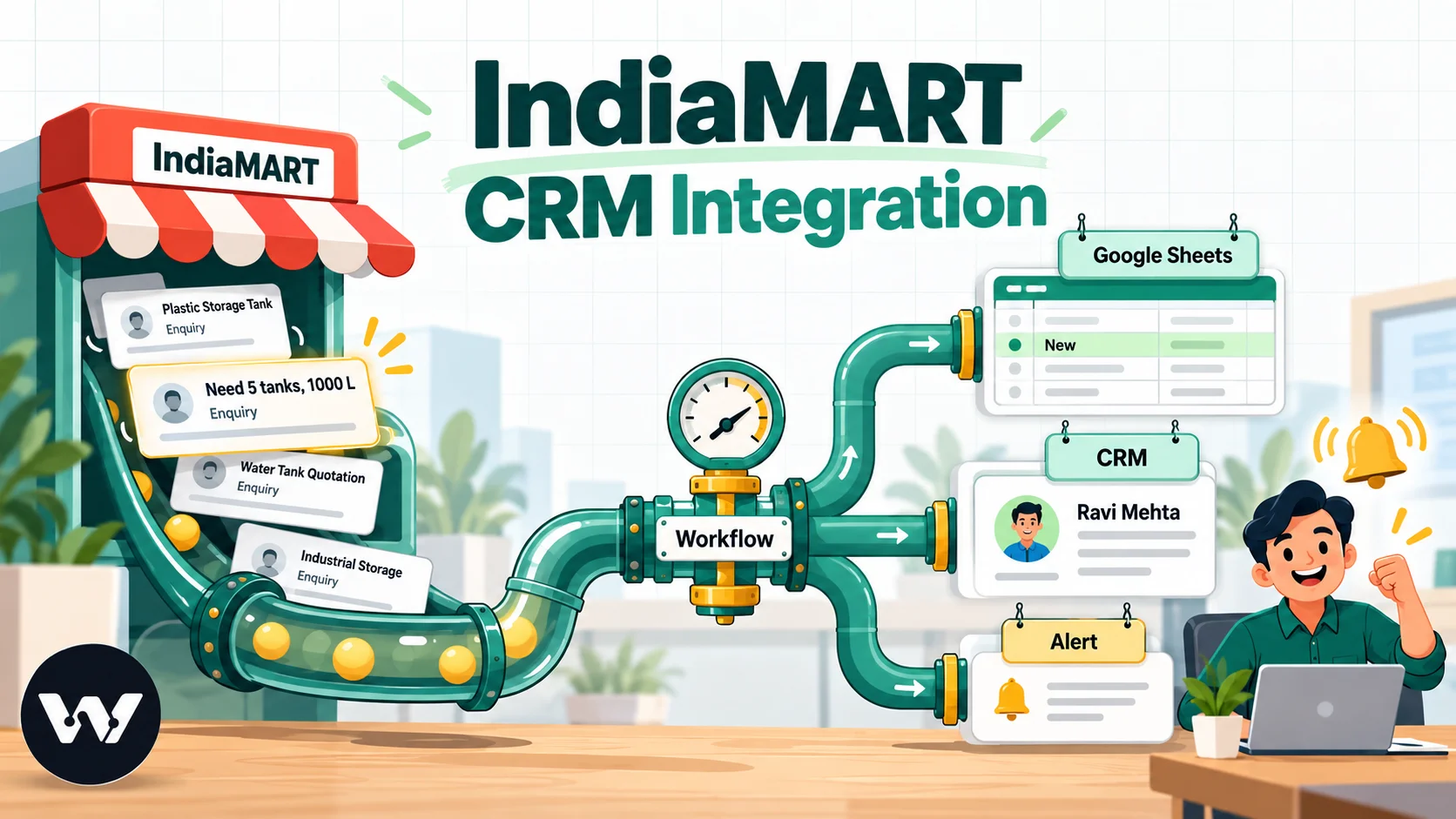
An IndiaMART CRM integration copies every buyer enquiry from IndiaMART's Lead Manager into the system your sales team works from, such as Google Sheets or Zoho CRM. Paid sellers can use IndiaMART's Push API, which posts each lead to a webhook URL in real time, or its Pull API, which a scheduled job calls at most once every five minutes. With WorkflowMitra, powered by ChatMitra, the Push API feeds a webhook workflow that records the lead, skips duplicates, assigns an owner and alerts them.
A buyer on IndiaMART sends an enquiry for steel water tanks at 11:17. By 11:25 they’ve sent the same enquiry to four other suppliers. The seller who calls first, with the right price list, usually wins. Yet in many businesses that enquiry sits in the IndiaMART Lead Manager until someone remembers to check it, then gets copied by hand into a spreadsheet or CRM, if it gets copied at all.
An IndiaMART CRM integration closes that gap. This guide explains the options IndiaMART offers for getting leads out, what each lead contains, and how to send every enquiry to Google Sheets, Zoho CRM or both, automatically, with duplicate checks, routing to the right salesperson, realistic costs and fixes for the problems sellers actually hit.
What is an IndiaMART CRM integration?
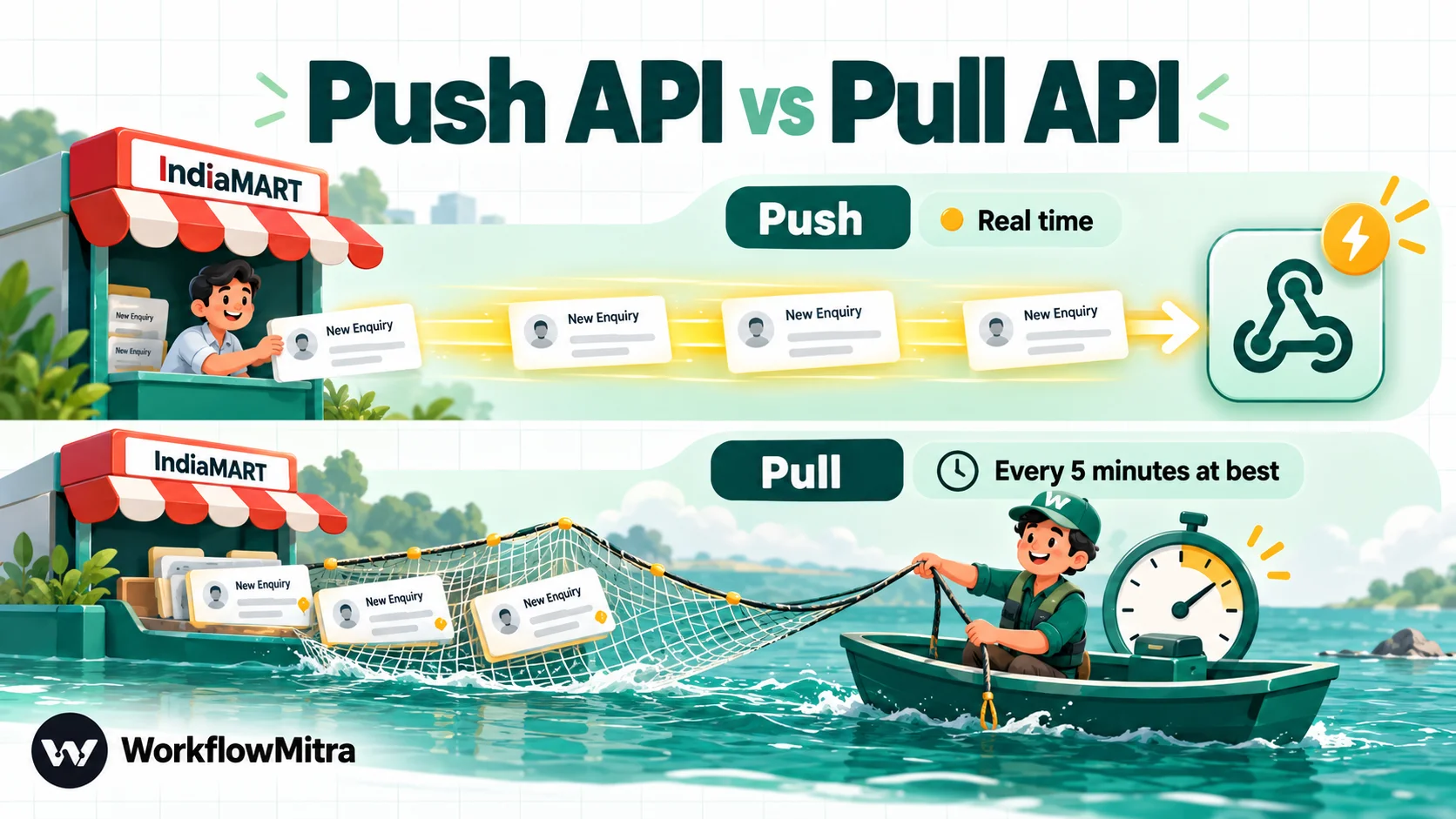
An IndiaMART CRM integration automatically copies each buyer enquiry from IndiaMART's Lead Manager into the system your sales team works from, such as Google Sheets, Zoho CRM or another CRM, usually within seconds. Paid IndiaMART sellers can do this with the Push API, which posts every new lead to a webhook URL in real time, or the Pull API, which a scheduled job can call at most once every five minutes.
The integration doesn’t replace IndiaMART’s own tools. Buyers still contact you through IndiaMART, and the Lead Manager keeps its copy. What changes is that your team stops retyping leads, nothing gets missed on a busy day, and every enquiry lands where follow-up already happens.
Four ways to get leads out of IndiaMART
Before building anything, it’s worth knowing all the options, because the simplest one that meets your needs is the right one.
| Method | How it works | Speed | Best for |
|---|---|---|---|
| Manual export | Download leads from Lead Manager and import them into a sheet or CRM | Whenever someone remembers | Very low volumes, one-off clean-ups |
| CRM listed by IndiaMART | Pick your CRM in IndiaMART's Push API drop-down; the CRM vendor receives the leads | Real time | Teams whose CRM is listed and who need nothing beyond "create the lead" |
| Push API to a workflow | Choose "Others" and paste a webhook URL; a workflow decides what happens to each lead | Real time | Sheets plus CRM, routing, alerts, unlisted CRMs, custom rules |
| Pull API on a schedule | A scheduled job calls IndiaMART with your CRM key and fetches new leads | Every 5 minutes at best | Systems that can't receive webhooks; catch-up jobs |
If your CRM appears in IndiaMART’s list and all you need is a new lead record, use that. A workflow earns its place when one lead should do several things: go into a sheet and a CRM, be assigned to the right person by product or region, trigger an alert, or skip a buyer you already have.
IndiaMART Push API vs Pull API
Both APIs are for paid IndiaMART sellers, and IndiaMART describes them as an add-on service that can’t be bought on its own. Neither comes with integration support: IndiaMART’s help pages say the API is provided in “do it yourself” mode. Here is how they differ, based on IndiaMART’s documentation read on 7 October 2026.
| Push API | Pull API | |
|---|---|---|
| Direction | IndiaMART sends each lead to your HTTPS URL | Your system calls IndiaMART's endpoint |
| Speed | Real time | No more than one call every 5 minutes |
| Authentication | None sent with the request; the URL is the identifier | A CRM key (glusr_crm_key) sent to your primary email |
| What you receive | One lead per request, under RESPONSE | A list of leads under RESPONSE, with TOTAL_RECORDS |
| Limits | Your endpoint must answer HTTP 200 | Window of up to 7 days per call; last 365 days only; more than 5 calls in a minute blocks the key for 15 minutes |
| Failure handling | Retries at intervals; deactivated after 48 hours of continuous failure | If a call is missed, call again; without dates it returns leads since the last call |
| Running cost in WorkflowMitra | Credits only when a lead arrives | Credits on every scheduled check, even when there are no leads |
For most sellers, the Push API is the better choice: it’s instant and you only pay for leads that exist. The rest of this guide builds the Push API workflow first and covers the Pull API as an alternative.
What an IndiaMART lead contains
Every push carries a small JSON body. The lead sits inside a RESPONSE object, next to a CODE of 200 and a STATUS of “SUCCESS”. These are the fields you’ll map most often:
| Field | What it holds | Example |
|---|---|---|
UNIQUE_QUERY_ID | IndiaMART's ID for this enquiry; use it to skip duplicates | 2871654321 |
QUERY_TYPE | Where the lead came from (see below) | W |
QUERY_TIME | When the enquiry was made | 2026-10-07 11:17:14 |
SENDER_NAME | Buyer's name; IndiaMART uses "IndiaMART Buyer" when it isn't shared | Ravi Mehta |
SENDER_MOBILE | Buyer's mobile, with a country code and hyphen | +91-9876543210 |
SENDER_EMAIL | Buyer's email, when given | [email protected] |
SENDER_COMPANY, SENDER_CITY, SENDER_STATE | Company and location, when given | Mehta Traders, Surat, Gujarat |
QUERY_PRODUCT_NAME | The product the buyer enquired about | Stainless Steel Water Tank |
QUERY_MESSAGE | The buyer's message; can include other languages and special characters | Need 5 tanks, 1000 L |
QUERY_MCAT_NAME | IndiaMART's product category | Water Storage Tanks |
RECEIVER_MOBILE | Your mobile number that received the lead | Your registered number |
IndiaMART guarantees only some fields on every lead: the query ID, type and time, the sender’s name and country, and either a mobile number or an email. Everything else can be blank, so your workflow should never assume an email or city exists. Alternate numbers and emails (SENDER_MOBILE_ALT, SENDER_EMAIL_ALT, SENDER_PHONE) and CALL_DURATION for calls are also available.
The QUERY_TYPE values are worth knowing because they make good routing rules:
- W: a direct enquiry to you
- B: a buy-lead you purchased or consumed
- P: a PNS call (a buyer calling through IndiaMART’s number)
- BIZ: a catalogue view
- WA: a WhatsApp enquiry
What you need before you start
- A paid IndiaMART seller account with access to Lead Manager on seller.indiamart.com, and the primary mobile number (IndiaMART confirms activation with an OTP).
- A Google Sheet with a header row, or a Zoho CRM account, or both.
- A WorkflowMitra workspace. WorkflowMitra, powered by ChatMitra, offers a 14-day trial without a card.
- Ten minutes with someone who can approve the IndiaMART settings change, since the Push API URL is set once for the account.
How to send IndiaMART leads to Google Sheets, step by step
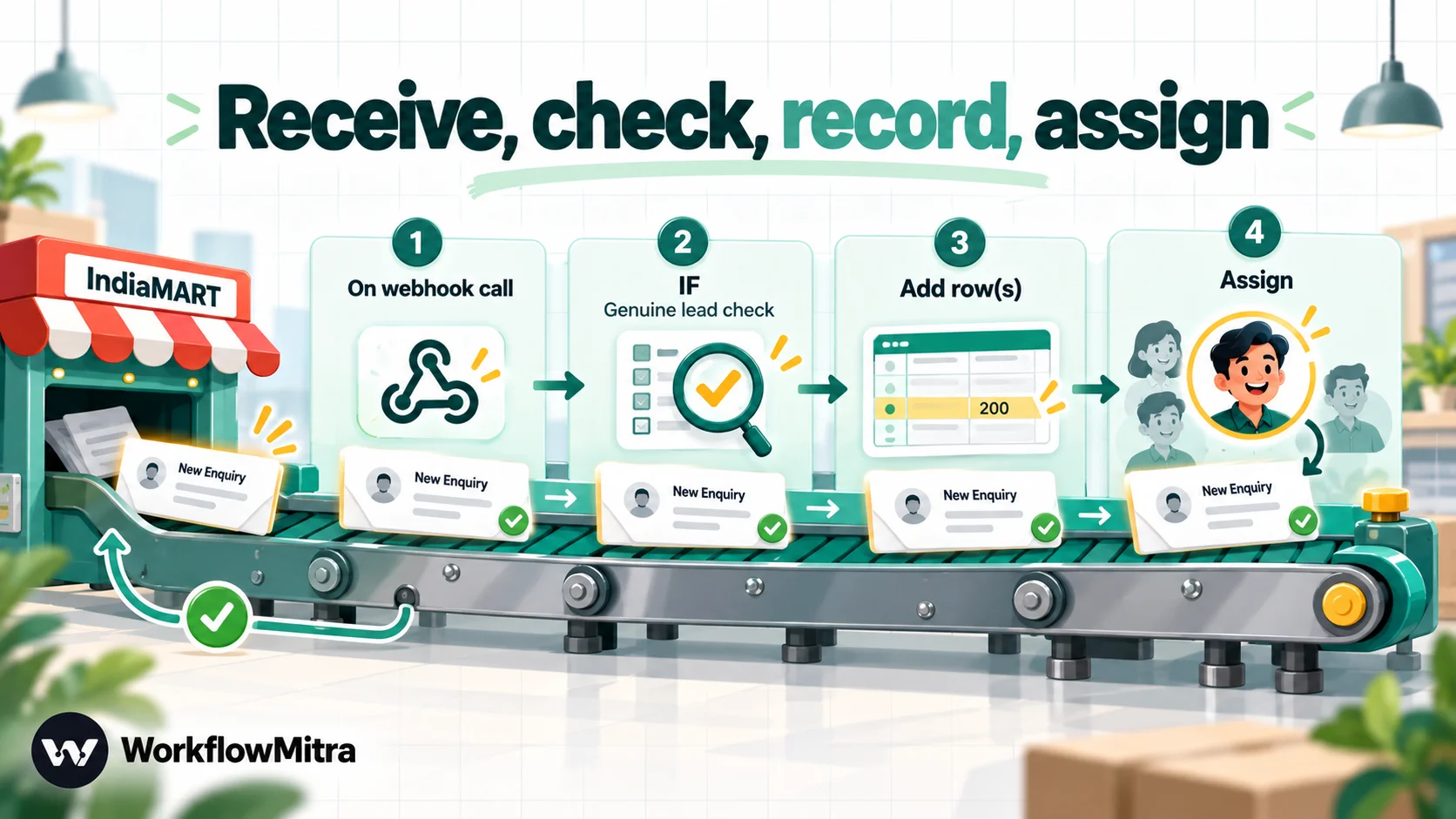
This build uses WorkflowMitra’s On webhook call trigger and a Google Sheets step. You’ll add a CRM and routing afterwards.
Step 1: Create the workflow and the webhook
Create a new workflow and choose On webhook call as the trigger. In Source, pick Something else: IndiaMART isn’t a named source, and this option deliberately adds no sender-specific checks.
Step 2: Remove the secret, and understand why
New WorkflowMitra webhooks start locked with a random secret that callers must send in a header. IndiaMART’s Push API can’t send custom headers, so every lead would be rejected with a 401. Open Edit webhook, clear the Secret under API key authentication, and leave Require verification off.
This makes the URL itself the main protection. It’s a common trade-off with marketplace and ad-platform webhooks, and the webhook security guide explains exactly what you give up and the compensating checks to add. Step 6 below adds one of them.
Step 3: Make the webhook reply with HTTP 200
IndiaMART counts a push as delivered only when it gets HTTP 200. By default, a WorkflowMitra webhook acknowledges with 202 the moment a request is accepted, and runs the steps afterwards. In Edit webhook, under Enforcement, turn on Respond synchronously. The webhook then waits for the run to finish (up to 25 seconds) and replies 200 when it succeeds. A short workflow like this one finishes well inside that window.
Step 4: Skip repeated deliveries
Back in the trigger panel, open Advanced settings and set Idempotency key path to RESPONSE.UNIQUE_QUERY_ID. If IndiaMART retries the same lead within 24 hours, WorkflowMitra logs it as a duplicate, answers 200 and doesn’t run the steps again. That keeps one enquiry from becoming two rows.
Step 5: Activate the workflow and copy the URL
Save and activate the workflow before giving IndiaMART the URL. A paused workflow’s webhook answers 404, which IndiaMART treats as a failure. Copy the webhook URL from the trigger.
Step 6: Turn on the Push API in IndiaMART
- Sign in to seller.indiamart.com and open Lead Manager.
- From the three-dots menu, choose Import/Export Leads, then Push API.
- In the CRM platform list, choose Others, enter a platform name such as “WorkflowMitra” and paste the webhook URL.
- Confirm with the OTP sent to your primary mobile number.
- Use IndiaMART’s test option on the activation screen to send a test to the URL.
Step 7: Check the delivery and the field paths
Open the trigger’s Recent deliveries. The test should show Accepted. Open it and confirm the lead fields sit under RESPONSE, as IndiaMART documents. If they don’t (for example if a test sends a different shape), map from what you actually see, because the delivery log is the source of truth.
Step 8: Add a lead check
Add an IF step after the trigger with two conditions, both required:
{{ $trigger.RESPONSE.UNIQUE_QUERY_ID }}Is not empty{{ $trigger.RESPONSE.RECEIVER_MOBILE }}Equal to your own receiving number, written exactly as IndiaMART sends it (check the test delivery)
A request missing these is either broken or not from IndiaMART, so the “no” branch simply ends. IF steps use no credits.
Step 9: Add the Google Sheets row
On the “yes” branch, add a Google Sheets step with the operation Add row(s), choose your spreadsheet and tab, and map the columns:
| Sheet column | Value |
|---|---|
| Enquiry ID | {{ $trigger.RESPONSE.UNIQUE_QUERY_ID }} |
| Received | {{ $trigger.RESPONSE.QUERY_TIME }} |
| Type | {{ $trigger.RESPONSE.QUERY_TYPE }} |
| Buyer | {{ $trigger.RESPONSE.SENDER_NAME }} |
| Mobile | {{ replace($trigger.RESPONSE.SENDER_MOBILE, "-", "") }} |
{{ $trigger.RESPONSE.SENDER_EMAIL | Not given }} | |
| Company | {{ $trigger.RESPONSE.SENDER_COMPANY }} |
| City | {{ $trigger.RESPONSE.SENDER_CITY }} |
| Product | {{ $trigger.RESPONSE.QUERY_PRODUCT_NAME }} |
| Message | {{ $trigger.RESPONSE.QUERY_MESSAGE }} |
| Status | New |
The replace() removes the hyphen, turning +91-9876543210 into +919876543210, and | Not given fills a blank email with a readable placeholder. Two settings matter:
- Write values: Exactly as written. With the default (“Like typing it in”), Google Sheets reads a value starting with
+as a formula:+91-9876543210becomes a negative number, and+919876543210becomes a plain number without its plus sign. Writing values exactly as written keeps phone numbers as text. - Column order. The visual mapping writes columns by position, so keep the sheet’s columns in the same order as the mapping, and add new columns at the end.
Send another test from IndiaMART and the row should appear within seconds.
Designing the lead sheet so people actually use it
A sheet full of enquiries is only useful if the team can see, at a glance, what needs doing. A few columns beyond the raw lead make the difference:
- Owner. Filled by the routing step later in this guide, so each salesperson can filter to their own leads.
- Status. Start every row at “New” and let the team move it to “Called”, “Quoted”, “Won” or “Lost”. A dropdown (data validation) keeps the values consistent, which matters if you later build reports or reminders on them.
- Next action date. Typed by the salesperson after the first call. It turns the sheet into a follow-up list instead of an archive.
- Notes. Free text for the conversation.
Keep the columns the workflow writes on the left, in the mapped order, and the columns people edit on the right. The workflow then never overwrites a human’s notes, and nobody accidentally types into a column the automation owns. Freeze the header row and filter by Owner and Status, and the sheet works as a lightweight CRM for small teams. When it outgrows that, the same workflow can feed a real CRM, as the next section shows.
Sending IndiaMART leads to Zoho CRM
A sheet is a good start. Many sellers want the lead in a CRM, where follow-ups, notes and deal stages live. WorkflowMitra’s Zoho CRM step can create, search, update and convert records, and loads modules and fields from your own Zoho account.
Add two steps after the IF (alongside or instead of the sheet):
- Zoho CRM › Search records named
Find buyer, in the Leads module, with a condition on the Mobile field equal to the cleaned number. The step returns the matchingrecordsand acount. - An IF on
{{ $node["Find buyer"].count }}Equal to0. On “yes”, add Zoho CRM › Create record in Leads. On “no”, add Zoho CRM › Create note on the existing lead (parent record ID{{ $node["Find buyer"].records[0].id }}) with the new product and message, so a repeat enquiry isn’t lost but doesn’t create a duplicate.
| Zoho CRM lead field | IndiaMART value |
|---|---|
| Last Name | {{ $trigger.RESPONSE.SENDER_NAME }} (Zoho requires a last name on leads, so use the full name) |
| Company | {{ $trigger.RESPONSE.SENDER_COMPANY | Not given }} |
| Mobile | {{ replace($trigger.RESPONSE.SENDER_MOBILE, "-", "") }} |
{{ $trigger.RESPONSE.SENDER_EMAIL }} | |
| City, State | SENDER_CITY, SENDER_STATE |
| Lead Source | IndiaMART (add it to the pick list in Zoho first) |
| Description | Product, category and the buyer's message |
If you use Pipedrive instead, WorkflowMitra’s Pipedrive step can create people, organisations, deals and activities with the same values. For other CRMs, the HTTP Request step can call the CRM’s API directly; the guide to connecting an API without code shows how.
Route each enquiry to the right salesperson
Recording leads only helps if someone calls them. Two steps turn the workflow into a routing system.
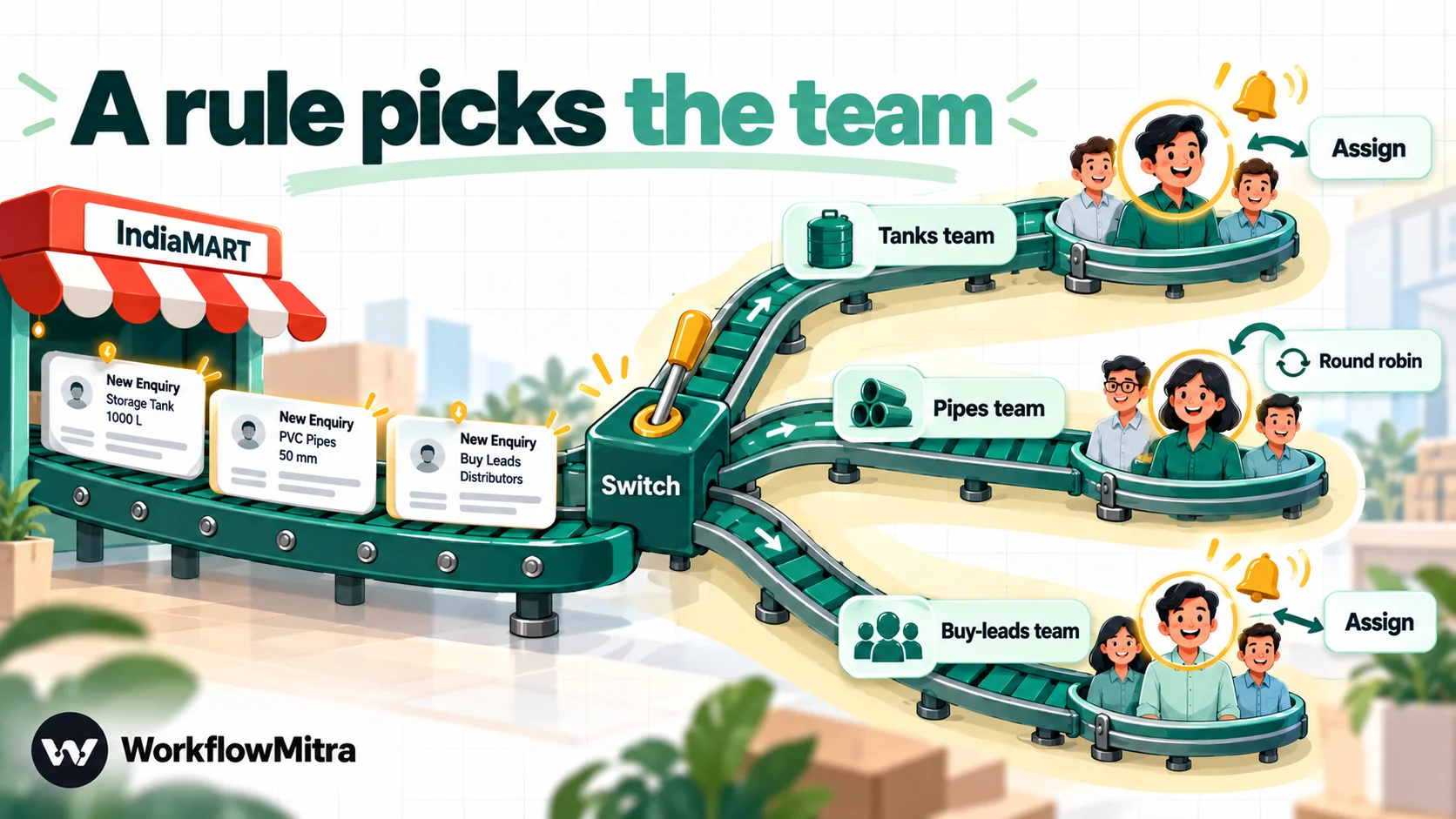
Pick the team with a Switch. Route on QUERY_MCAT_NAME (product category) if different people sell different product lines, or on SENDER_STATE if you work by territory. Buy-leads (QUERY_TYPE B) can go to a separate team or tab if they need a different approach.
Pick the person with Assign. Add an Assign step on each route with that team’s people. It rotates leads in order, and listing someone twice gives them a bigger share. The step outputs the chosen person, which later steps read as {{ assignedName }} and {{ assignedTo }}. Write the owner into the sheet’s Owner column or the CRM’s lead owner, then alert them by email or Slack with the buyer, product and number. The round-robin lead assignment guide covers weighting, absences and response-time checks in detail.
Many sellers also want the buyer to get an instant WhatsApp reply. That uses the WhatsApp step through ChatMitra, needs an approved message template and deserves its own walkthrough, so it’s covered in a separate IndiaMART-to-WhatsApp guide. For the wider pattern of capturing, scoring and following up leads, see lead management automation.
A worked example: one enquiry, start to finish
Here is how the finished workflow handles a single lead for a manufacturer of water storage tanks with three salespeople: two for tanks, one for pipes and fittings.
At 11:17, a buyer in Surat enquires about a 1,000-litre stainless steel tank. IndiaMART pushes the lead to the webhook. The trigger checks the query ID against the last 24 hours, finds nothing, and starts a run. The IF step confirms the query ID is present and the receiving number is the company’s own. The Switch reads the category, “Water Storage Tanks”, and sends the lead down the tanks route, where Assign picks the next salesperson in rotation. The Google Sheets step adds the row with that salesperson in the Owner column, the Zoho CRM search finds no existing lead with that mobile, so a new lead is created with IndiaMART as the source, and an email alert goes to the salesperson with the buyer’s name, city, product and number.
The run ends successfully, the webhook replies 200, and IndiaMART marks the push delivered. The whole sequence takes a few seconds. The salesperson calls while the buyer is still comparing suppliers.
Two days later, the same buyer enquires again, this time about pipes. It’s a new query ID, so it runs. The Zoho search finds the existing lead and adds a note instead of a duplicate, and the pipes route assigns it to the right colleague. One buyer, one CRM record, two enquiries, each handled by the person who sells that product.
If IndiaMART had retried the first push because of a network hiccup, the retry would have carried the same query ID, been logged as a duplicate and answered with 200, without a second row, lead or alert.
Using the Pull API instead
If you can’t use the Push API, or want a scheduled catch-up job, the Pull API works with three steps:
- Schedule trigger, every 15 or 30 minutes. IndiaMART asks for at least five minutes between calls and blocks the key for 15 minutes if it gets more than five calls in a minute, so never schedule it tighter than that.
- HTTP Request named
Fetch IndiaMART leads: method GET, URLhttps://mapi.indiamart.com/wservce/crm/crmListing/v2/, and a query parameterglusr_crm_keyset to your CRM key (generated under Lead Manager › Import/Export Leads › Pull API and sent to your primary email). Without dates, IndiaMART returns the leads since your last call, or the last 24 hours on the first call. - IF
{{ $node["Fetch IndiaMART leads"].body.RESPONSE }}Is not empty, then Google Sheets › Add row(s) in bulk mode with Upstream Array Source set to the sameRESPONSElist. Each lead becomes a row in one step, and the column values use the lead’s own fields, such as{{ SENDER_NAME }}and{{ UNIQUE_QUERY_ID }}.
Three cautions. The HTTP Request step doesn’t fail on an error response, so add a check on ok and alert yourself when it’s false (a 401 means a wrong key; a 429 means you called too often). The key is stored inside the workflow, where anyone who can edit it can see it. And because IndiaMART’s cursor moves forward on each call, a failed run after a successful fetch can skip leads; a date-based call (for example start_time=01-Oct-2026, end_time=07-Oct-2026, up to seven days) can backfill them, with a duplicate check on UNIQUE_QUERY_ID.
Keeping an open webhook URL safe
Because IndiaMART can’t sign its requests, your webhook URL is effectively the password. Treat it that way:
- Paste it only into IndiaMART. Don’t email it, share it in chat or leave it in screenshots.
- Keep the IF check from Step 8. A forged request that doesn’t carry your receiving number and a query ID stops there.
- Don’t trigger irreversible actions, such as discounts or dispatch, from a lead alone. Leads are enquiries, so the main risk is junk rows and false alerts, which is manageable.
- Look at Recent deliveries now and then. Unexpected volumes or odd sources are the signal to act.
- If the URL leaks, use Rotate URL. The old URL keeps working for seven days while you update it in IndiaMART.
A request that passes the gate starts a run, and the trigger step uses one credit even if the IF stops it, so a leaked URL can also cost credits. That’s another reason to rotate promptly. The webhook security guide covers the full trade-off.
What does it cost?
WorkflowMitra charges credits for steps that run: one credit per executed step, while IF, Switch and Set Variable use none. Plans start at ₹999 a month for 10,000 credits, checked on 7 October 2026.
| Setup | Credits per lead | 1,000 leads a month |
|---|---|---|
| Push → check → Google Sheets | 2 (trigger, Sheets) | 2,000 |
| Push → check → Sheets → Zoho CRM search + create | 4 | 4,000 |
| Push → check → Switch → Assign → Sheets → email alert | 4 | 4,000 |
| Pull every 15 minutes, Sheets bulk | 2 per check + 1 per check with leads | About 5,800 in checks alone, plus rows |
The Pull API’s cost comes from checking, not from leads: 96 checks a day at two credits each adds up whether or not anyone enquired. Checking every 30 minutes halves it, at the price of slower follow-up. For most sellers, the Push API is both faster and cheaper.
Test it properly before you rely on it
A test lead that appears in the sheet proves the happy path. Before telling the sales team to trust the integration, check the edges too:
- Resend the same test. It should show as Duplicate in Recent deliveries, with no second row.
- Look at a real lead with missing fields. Within the first day, at least one enquiry will arrive without an email or company. Confirm the row still writes and the fallbacks read sensibly.
- Check the phone column. Numbers should keep their country code and plus sign, not turn into large numbers or negatives.
- Check a routing decision for each team. If you route by category, wait for one lead per category, or send test payloads from a tool like Postman to the webhook with different
QUERY_MCAT_NAMEvalues. - Check IndiaMART’s side. The Push API log should show the leads as sent successfully, not retried.
- Break it on purpose, once. Pause the workflow and send a test: it should appear as a failure in IndiaMART’s Push API log (WorkflowMitra doesn’t log requests to a paused webhook). Reactivate it straight away, and you’ll know where to look when something goes wrong for real.
Ten minutes of this saves the awkward discovery, weeks later, that every lead without an email was silently skipped.
Troubleshooting IndiaMART integrations
IndiaMART keeps a failure log for Push API deliveries, with a retry count per lead, and WorkflowMitra keeps Recent deliveries on the trigger. Between the two, most problems are quick to find.
| Symptom | Likely cause | Fix |
|---|---|---|
| IndiaMART logs failures, WorkflowMitra shows nothing | Wrong URL, or the workflow is paused (404) | Re-copy the URL; activate the workflow |
| Deliveries show "Bad secret" | The webhook still has a secret IndiaMART can't send | Clear the secret in Edit webhook |
| Deliveries accepted, but IndiaMART still retries | Webhook replied 202 instead of 200 | Turn on Respond synchronously; keep the workflow short |
| Rows show a negative number instead of a mobile | Sheets read +91-… as a formula | Set Write values to Exactly as written |
| Rows appear but columns are empty | Paths miss the RESPONSE level, or the field was blank | Compare with the delivery; add fallbacks with | Not given |
| Values land in the wrong columns | Columns were reordered in the sheet | Match the sheet order to the mapping |
| Same lead appears twice | No idempotency key, or a repeat enquiry with a new ID | Set RESPONSE.UNIQUE_QUERY_ID; add a Find row on the mobile |
| A run failed and the lead is missing | A step error after the lead was accepted | Fix the cause, then use Replay on that delivery |
| Push API switched itself off | 48 hours of continuous failed deliveries | Fix the workflow, then re-enable the Push API in Lead Manager (ask IndiaMART if the option isn't shown) |
| Pull API returns 429 | Called more than allowed | Schedule every 15 minutes or more; wait out the 15-minute block |
One behaviour to understand: once a lead’s ID is recorded, a retry of that same lead is answered as a duplicate and won’t run again, even if the first run failed. That protects you from double rows but means a failed run needs your attention. Add a failure alert in workspace settings, and use Replay on the delivery after fixing the cause; replaying re-runs the workflow with the original lead.
Best practices for IndiaMART lead automation
- Respond in minutes, not hours. The integration’s value is speed. Pair it with an alert that reaches a person who can call.
- Keep one row per enquiry, one record per buyer. Use
UNIQUE_QUERY_IDfor the sheet and the mobile number for the CRM contact. - Store the raw facts first. Save the enquiry as it arrived, then enrich it. If a later step fails, the lead is still recorded.
- Route on product category, not keywords in the message.
QUERY_MCAT_NAMEis structured; free-text messages vary. - Separate buy-leads from direct enquiries. They behave differently and often deserve different follow-up.
- Review the failure logs weekly, on both sides, until the integration has run cleanly for a month.
- Respect the buyer’s contact preferences. An enquiry is permission to respond about that enquiry, not to add someone to every campaign.
Why use WorkflowMitra for IndiaMART leads?
IndiaMART’s Push API gives you the data. What you do with it decides whether it’s worth the effort. WorkflowMitra, powered by ChatMitra, is built for exactly this kind of India-first lead flow:
- One webhook, several destinations. A single enquiry can update a sheet, create or update a Zoho CRM lead and alert the right person, with checks in between.
- Duplicate protection built into the trigger.
UNIQUE_QUERY_IDas the idempotency key stops retries before any credit is spent on them. - Routing without code. Switch and Assign handle product lines, territories and fair rotation.
- A delivery log you can read, with Replay for runs that failed.
- Rupee pricing based on steps, so a two-step lead flow costs two credits per lead.
- A path to WhatsApp through ChatMitra when you’re ready to reply to buyers instantly.
It has limits to weigh honestly. There’s no ready-made IndiaMART step, so you set up the webhook yourself as above. IndiaMART can’t send a secret, so the URL-only protection described earlier applies to every seller who uses its Push API, with any tool. And if your CRM is already in IndiaMART’s own list and you need nothing beyond lead creation, the built-in connector is simpler.
Getting started
Start small: Push API into a sheet with the lead check and duplicate key, and watch a week of real enquiries arrive. Then add the CRM, then routing and alerts. Each layer is a few minutes’ work once the first one is running.
WorkflowMitra’s 14-day trial needs no card, which is enough time to connect IndiaMART, see real leads land in your sheet and decide whether the rest is worth building.
IndiaMART details come from IndiaMART's help articles on the Lead Manager CRM Push API and the Lead Manager Pull API, read on 7 October 2026; IndiaMART can change these APIs, so check them before you build. WorkflowMitra behaviour was checked against the product's source on the same day.
Frequently Asked Questions
Short answers to the questions IndiaMART sellers ask before connecting their leads.
Paid IndiaMART sellers can open Lead Manager on seller.indiamart.com, choose Import/Export Leads from the three-dots menu and activate the Push API. If your CRM appears in IndiaMART's list, pick it; otherwise choose Others and paste a webhook URL from a tool such as WorkflowMitra, which then creates the lead in your CRM, Google Sheets or both.
Automate the work between your apps
Build workflows with triggers, conditions and actions, then test them before they go live. Try WorkflowMitra free for 14 days, no card required.
