IndiaMART WhatsApp Integration: Reply to Every Buyer Enquiry in Seconds

Quick Summary
IndiaMART can push every new enquiry to a webhook URL in real time through its CRM Push API, available to paid sellers. In WorkflowMitra, powered by ChatMitra, an On webhook call trigger receives that push, a Switch step routes it by lead type, and a WhatsApp step sends the buyer an approved template through ChatMitra or Meta's Cloud API within seconds. Because IndiaMART can't send a secret header and expects an HTTP 200 reply, clear the webhook's secret, turn on Respond synchronously, end the workflow with a Response step and skip duplicates on UNIQUE_QUERY_ID.
An IndiaMART buyer rarely writes to just one seller. Someone looking for 5,000 mineral water bottles or a CNC spare part sends the same requirement to several suppliers and then talks to whoever responds properly first. If your enquiries sit in Lead Manager until somebody checks the app after lunch, you are often the fourth seller to call.
An IndiaMART WhatsApp integration fixes the slowest part of that chain. The moment an enquiry lands, the buyer gets a short WhatsApp message that names their product and tells them who will call. A salesperson gets the details on their own phone at the same moment. Every lead is logged in a sheet, so nothing depends on someone remembering to check.
This guide shows how to build that with IndiaMART’s CRM Push API and a workflow. It explains how IndiaMART sends leads, which lead types deserve an automatic reply, what WhatsApp’s rules mean for a buyer who found you on a marketplace, and the two settings that make or break the setup: the open webhook URL and the HTTP 200 reply. We build it in WorkflowMitra, powered by ChatMitra; the parts about IndiaMART’s data and WhatsApp’s rules hold whichever tool you pick.
Can you connect IndiaMART to WhatsApp?
Yes. Paid IndiaMART sellers can switch on the CRM Push API, which posts every new enquiry to a webhook URL in real time. A workflow tool picks up the push, reads the buyer's name, mobile number and product, and replies with a pre-approved WhatsApp template over the official WhatsApp Business Platform. IndiaMART also sells its own WhatsApp tool, IM Insta, which works inside Lead Manager.
So there are really two questions: whether you need anything beyond IndiaMART’s own tools, and if you do, how to wire the push to WhatsApp so that it’s fast, doesn’t double-send, and stays within WhatsApp’s rules.
Ways to connect IndiaMART to WhatsApp
| Option | What happens | Best for | Trade-off |
|---|---|---|---|
| WorkflowMitra (webhook workflow) | The Push API posts each lead to a workflow URL; Switch, IF, WhatsApp, Assign and Google Sheets steps run in one workflow | Sellers who want an instant reply plus routing, team alerts and a lead log, priced in rupees per step | IndiaMART can't send a secret header, so the URL itself must stay private (explained below) |
| IndiaMART IM Insta | IndiaMART sets up a WhatsApp Business API account on your PNS number; you send pre-written messages from Lead Manager | Sellers who work entirely inside Lead Manager | Works on IndiaMART's terms: one template per buyer per day for seven days after the enquiry; pricing on request |
| Other automation tools (Pabbly Connect and similar) | A webhook trigger feeds a WhatsApp provider's send-template action | Teams already paying for that tool | Same open-URL and HTTP 200 issues; check how the tool answers the push |
| WhatsApp Web automation tools | Software reads lead emails and types messages into WhatsApp Web | Nobody running a business number they care about | Not the official platform: against WhatsApp's terms, and the number can be banned |
| Your own code | A small server receives the push and sends through Meta's Cloud API | Developers with hosting and monitoring in place | You own duplicates, retries, template errors and uptime |
IM Insta is worth a look before you build anything. IndiaMART’s help page says it creates a WhatsApp Business API account on the seller’s PNS number using Meta’s Cloud API, and that sellers can send pre-crafted messages to leads “with just one click”. The product page lists smart auto-replies among its features. If all you want is a quick reply sent from Lead Manager, that may be enough.
A workflow earns its place when the enquiry has to go somewhere else as well: to a specific salesperson by rotation or by city, into a Google Sheet or CRM, to a manager when a big order comes in, or through your existing ChatMitra number and inbox rather than a separate one.
How IndiaMART sends leads: Push API vs Pull API
IndiaMART offers two ways to get leads out of Lead Manager. Both are listed under Import/Export Leads in the Lead Manager menu on seller.indiamart.com, and both are for paid sellers.
| CRM Push API | Pull API (CRM Listing v2) | |
|---|---|---|
| Direction | IndiaMART posts each lead to your URL | You call IndiaMART's endpoint with a key |
| Speed | Real time, lead by lead | Every few minutes at best: calls must be at least 5 minutes apart |
| History | Only leads received after activation | Up to the last 365 days, at most 7 days per call |
| Setup | Enter a webhook listener URL; confirm with an OTP | Generate a key; schedule the calls yourself |
| Failure behaviour | Retries until your URL answers 200; switched off after 48 hours of failures | Over 5 calls in one minute locks the key for 15 minutes; an unused key expires after 7 days |
| Best for | Instant WhatsApp replies | Back-filling older leads and reconciliation |
For a WhatsApp reply, use the Push API. A message that arrives ten minutes after the enquiry is still better than nothing, but the point of automating is to be first, and polling can’t give you that. The Pull API is useful later, for loading the past year of leads into a sheet or checking that nothing was missed.
IndiaMART provides the Push API in do-it-yourself mode: its help page says plainly that its technical team won’t hand-hold the integration. That’s one reason a no-code workflow is a reasonable middle ground between hiring a developer and living without it.
What an IndiaMART lead looks like
Each push is a JSON POST with three top-level keys: CODE (200 when a lead is being sent), STATUS and RESPONSE, which holds the lead itself. The fields you’ll use most:
| Field (inside RESPONSE) | What it holds | Use it for |
|---|---|---|
UNIQUE_QUERY_ID | IndiaMART's ID for the lead | Skipping duplicate deliveries; the key in your sheet |
QUERY_TYPE | W direct enquiry · B buy-lead · P PNS call · BIZ catalogue view · WA WhatsApp enquiry | Deciding whether to message at all |
QUERY_TIME | When the lead was created | Logging and response-time reports |
SENDER_NAME | Buyer's name ("IndiaMART Buyer" if missing) | The greeting variable |
SENDER_MOBILE | Primary mobile, e.g. +91-9999999999 | The WhatsApp "To" number |
SENDER_EMAIL | Buyer's email | Fallback when there's no mobile |
SENDER_COMPANY, SENDER_CITY, SENDER_STATE | Buyer's firm, city and state | Routing to a regional salesperson |
SENDER_COUNTRY_ISO | Country code, e.g. IN | Choosing the right template and rate |
QUERY_PRODUCT_NAME, QUERY_MCAT_NAME | Product enquired about and its category | The product variable; routing by product line |
SUBJECT, QUERY_MESSAGE | The enquiry's subject and text | The salesperson's alert |
CALL_DURATION, RECEIVER_MOBILE | Call length and the number that took the call (call leads) | Reporting on PNS calls |
Three details shape the workflow. IndiaMART guarantees only some fields in every lead: the ID, query type, time, name, country and either a mobile or an email. So some leads arrive with no mobile number, and the workflow has to check for one. QUERY_MESSAGE can contain line breaks, special characters and text in Indian scripts, which matters if you paste it into a template variable. And mobiles arrive with a plus sign, country code and hyphen, which, as you’ll see, WorkflowMitra’s WhatsApp step handles without extra work.
Which IndiaMART leads should get a WhatsApp message?
Not every lead should trigger the same message. QUERY_TYPE tells you how the buyer reached you, and that changes both what’s sensible and what’s allowed.
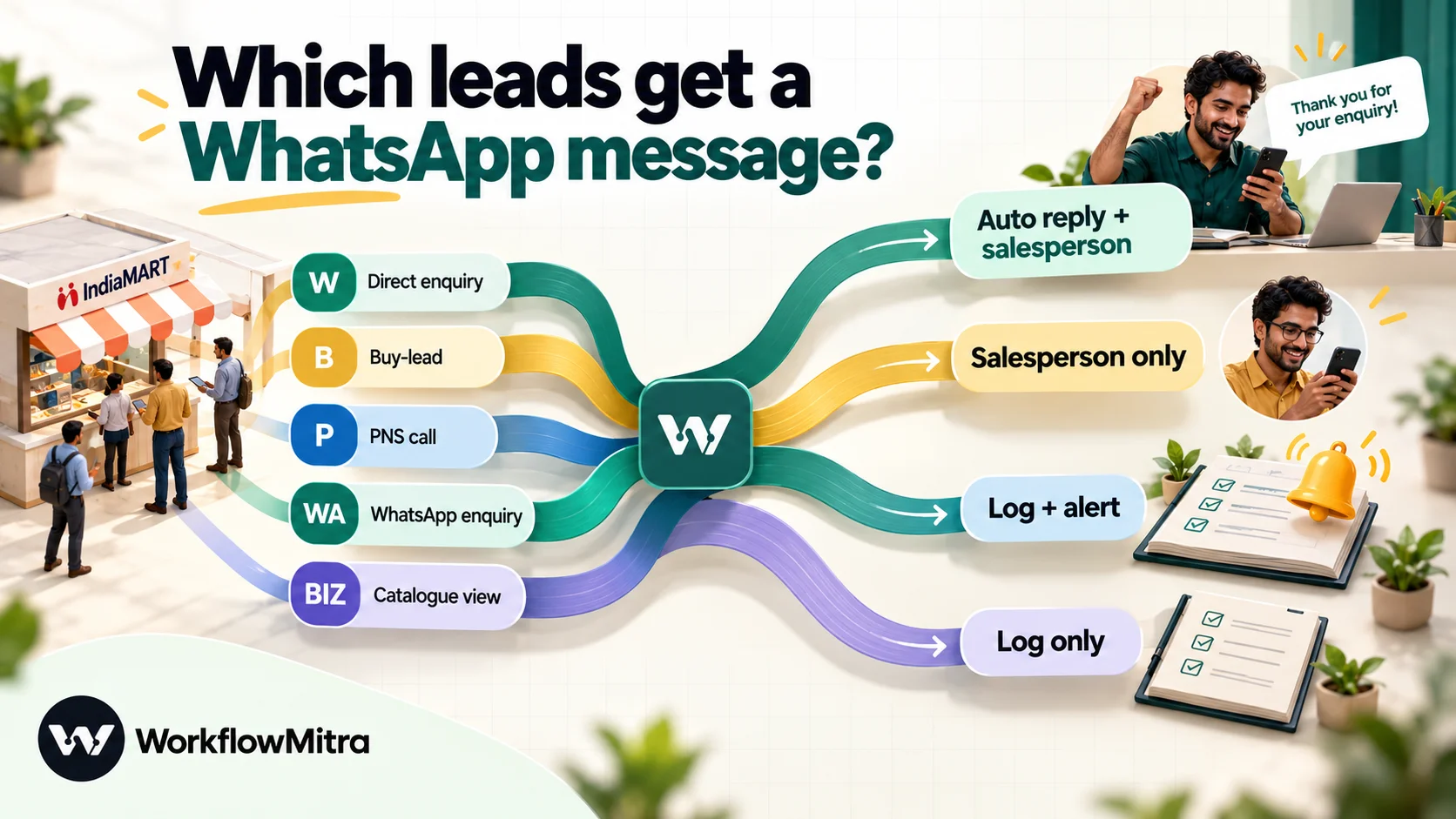
- W, direct enquiries. The buyer sent a requirement to you about your product. This is the case for an instant WhatsApp acknowledgement, and the one this guide automates.
- B, buy-leads. The buyer posted a requirement, and you chose to take up the lead. They didn’t write to you specifically, so a salesperson’s personal call or message is a better first contact than an automatic template.
- P, PNS calls. The buyer already called your IndiaMART number. A conversation exists. Log the call and alert the owner instead of sending a template on top.
- WA, WhatsApp enquiries. The buyer already messaged you on WhatsApp through IndiaMART. Answer in that conversation; a second automated message from a different number confuses people.
- BIZ, catalogue views. Someone looked at your catalogue. That is interest, not an enquiry, and messaging them is cold outreach. Log it for the sales team’s reference.
Start narrow. Automate W, alert on the rest, and widen it only when you’ve seen how buyers respond.
WhatsApp rules for a buyer who found you on IndiaMART
This is the part most IndiaMART-to-WhatsApp tutorials leave out, and it decides whether your number stays healthy.
The first message has to be a template. WhatsApp lets businesses send free-form messages only inside a 24-hour customer service window that opens when the person messages you. An IndiaMART buyer hasn’t messaged your WhatsApp number yet, so the first message must be a template Meta has approved in advance.
Opt-in is your responsibility. WhatsApp’s Business Messaging Policy says you may contact people only if they’ve given you their number and you’ve received opt-in permission confirming they want messages from you. Meta’s opt-in guidance adds that the person should know which business they’re opting in to, and leaves the method to you. A buyer who sends you an enquiry has handed you their number for a reply about that enquiry. Whether that also counts as WhatsApp opt-in is not something Meta’s wording settles, so be conservative:
- Message only about the enquiry the buyer made, and only once automatically.
- Name your business and the product, so the message is obviously a reply and not a cold pitch.
- Make it easy to stop: “Reply STOP if you’d prefer a call instead” costs you nothing.
- Don’t add these buyers to promotional broadcasts unless they agree to that separately. For ways to ask for and record consent, read ChatMitra’s WhatsApp opt-in guide.
The category decides the price and the risk. Meta defines utility templates as follow-ups to a user’s own actions or requests, and they must be non-promotional. A short note acknowledging the buyer’s enquiry and saying who will call fits that description. Add a catalogue link, a discount or “check out our full range”, and Meta treats it as marketing. Since 9 April 2025, a template submitted as utility that Meta judges to be marketing is approved as marketing. Meta also recategorises templates that drift. ChatMitra’s explainer on utility messages goes deeper into what passes.
Reply quality protects the number. Buyers who block or report a business lower its quality rating. One clear, relevant message per enquiry rarely causes that. Five follow-ups in two days do.
What you need before you start
- IndiaMART on a paid seller plan, so the Push API appears in Lead Manager, plus access to the account’s primary mobile for the activation OTP.
- A WorkflowMitra workspace. You can build and test all of this on the 14-day trial: 10,000 credits, no card required.
- A WhatsApp Business Platform number, connected through ChatMitra (an API key) or Meta’s Cloud API (an access token and phone number ID). See how to get the WhatsApp API if you don’t have one yet.
- An approved template for the buyer acknowledgement, with variables for the name, product and salesperson. A second, staff-facing template for alerts, if your team works on WhatsApp.
- A Google Sheet for the lead log, with columns such as Query ID, Time, Type, Name, Mobile, City, Product, Assigned to, WhatsApp status.
- The list of salespeople who share IndiaMART leads, with their WhatsApp numbers.
How the workflow fits together
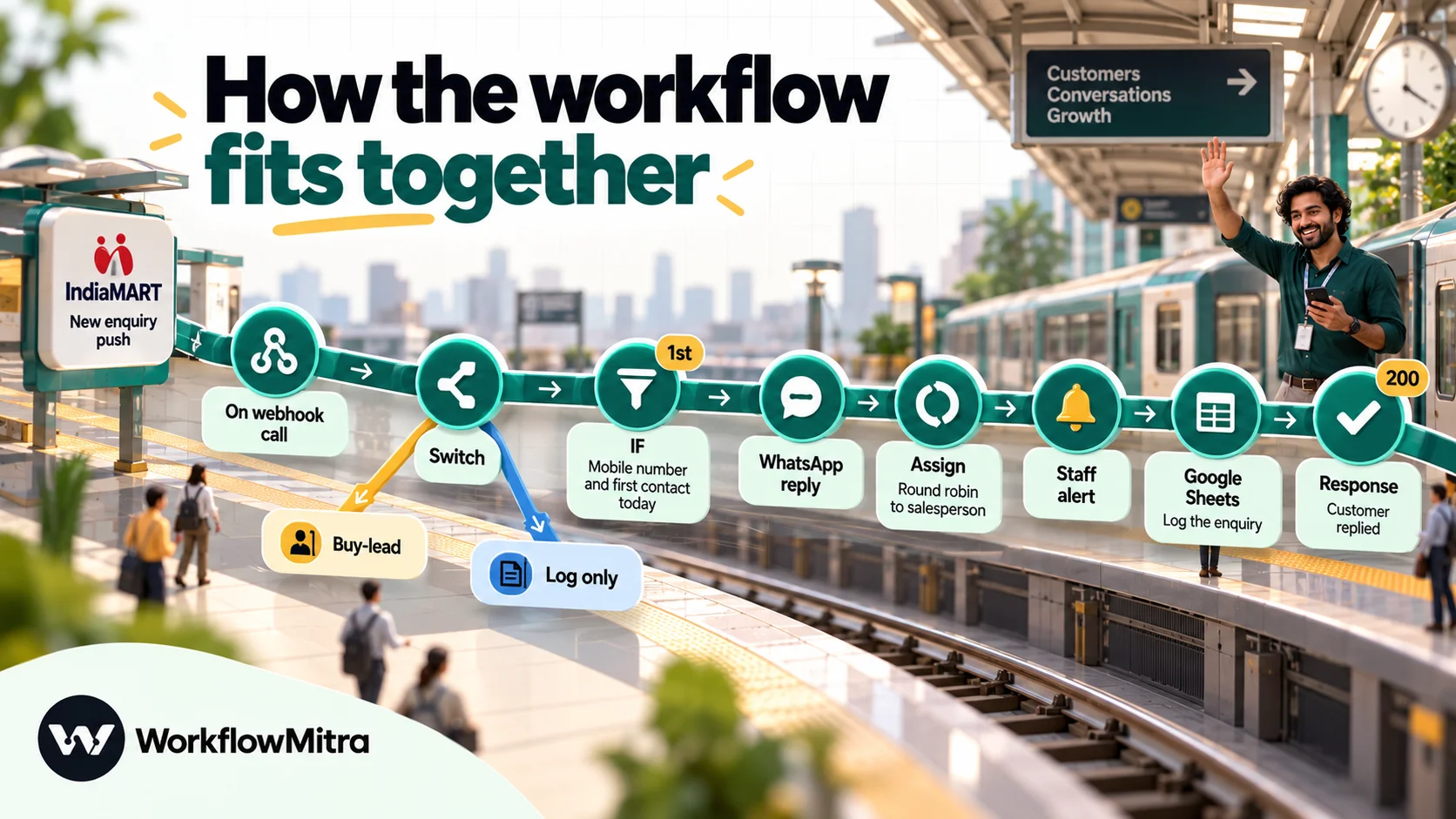
- On webhook call receives the push.
- Switch routes by
QUERY_TYPE. - IF confirms there’s a mobile number.
- Data Store (Create or update) records the buyer for today.
- Assign to the next person picks the salesperson in rotation.
- IF checks whether this is the buyer’s first enquiry today.
- WhatsApp sends the approved acknowledgement, on first enquiries only.
- WhatsApp (or Slack) alerts the salesperson, on every enquiry.
- Google Sheets adds the lead to the log.
- Response answers IndiaMART with status 200.
Other routes are shorter: buy-leads go straight to Assign, the alert, the sheet and a Response; call, WhatsApp-enquiry and catalogue-view leads are logged, followed by a Response.
How to send IndiaMART leads to WhatsApp, step by step
1. Create the workflow and add the webhook trigger
Start a new workflow in WorkflowMitra with the On webhook call trigger, and set its Source to Something else: there’s no IndiaMART preset, and none is needed, because IndiaMART posts plain JSON. Copy the URL. It ends in a long random string, and that string is the only thing protecting this workflow, so treat it like a password.
2. Clear the secret so IndiaMART can post
Every new webhook in WorkflowMitra starts locked: it generates a secret and refuses any request without it in an x-webhook-secret header. IndiaMART’s push settings ask only for a URL, so IndiaMART can’t send that header and every push would be refused with a 401.
Open Edit next to the webhook. In the API key authentication section, empty the Secret box; under Enforcement, make sure Require verification stays off. The panel then warns, “Anyone with this URL can start this workflow.” That’s accurate. IndiaMART’s documentation describes no signing secret, signature header or published IP addresses, so the IP allowlist can’t help either. The protection you have left:
- A long, unguessable HTTPS URL that you share with nobody but IndiaMART.
- A payload check in the workflow: the Switch below only acts on recognised query types, and the IF step only messages leads that carry a mobile and an ID.
- Rotate URL on the trigger panel if you think the address has leaked. The old one keeps working for seven days, which gives you time to paste the new one into IndiaMART.
For the wider picture, including when an open URL is acceptable and what signatures add, see our guide to webhook security.
3. Turn on Respond synchronously
This is the setting most IndiaMART integrations get wrong. IndiaMART counts a lead as delivered only when your URL answers with HTTP status 200. Anything else, and it keeps retrying; if your URL stops accepting leads for more than 48 hours, IndiaMART switches the Push API off.
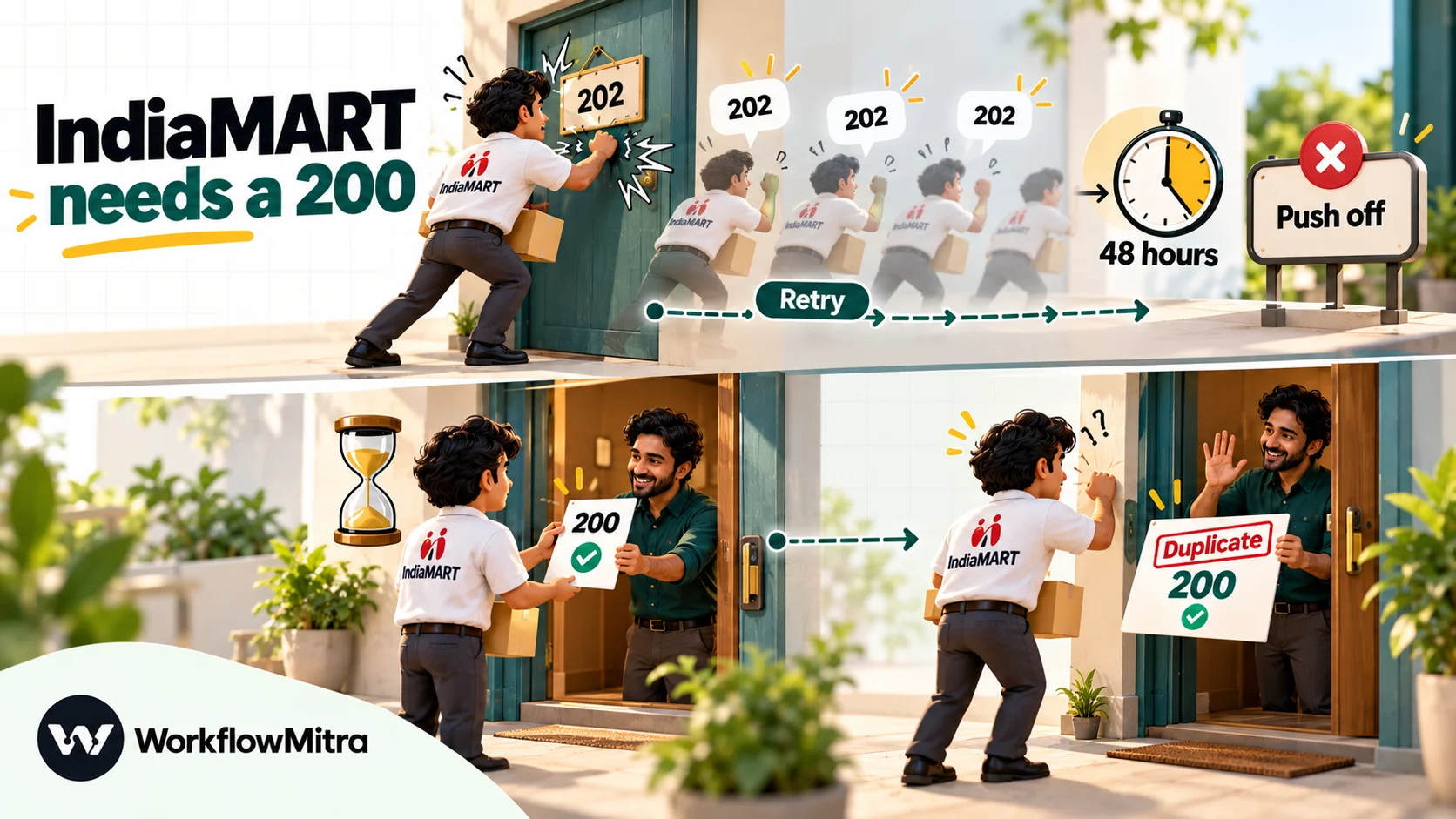
WorkflowMitra’s webhook normally replies at once with 202 Accepted and runs the workflow in the background. To give IndiaMART a 200, open Edit again and switch on Respond synchronously under Enforcement. The webhook then holds the request until the workflow finishes and returns what the final Response step produces. You’ll add that step at the end of every route.
Two consequences follow. Keep this workflow quick: the request is held for at most 25 seconds, after which the webhook falls back to 202. So no Delay steps here; put follow-up sequences in a separate workflow. And if a step fails, IndiaMART receives a 502 and retries, but the retry is recognised as a duplicate (step 5) and answered with 200, so you don’t get a second run. A failed run still needs your attention, which is why step 14 adds an error alert.
4. Switch the workflow on and save
Tick Active and press Save. A workflow that is off answers every request with 404, and that includes IndiaMART’s test button and the editor’s own “Listening for data…” panel. Turning it on before connecting IndiaMART saves a confusing first test.
5. Skip duplicate deliveries
Open the trigger’s Advanced settings and enter this in Idempotency key path:
RESPONSE.UNIQUE_QUERY_IDIndiaMART’s own documentation recommends this field for duplicate checks. With it set, WorkflowMitra runs the first delivery of each lead and answers later copies within 24 hours with a 200 and no new run. Without it, only byte-identical retries inside 60 seconds are caught.
6. Add the URL in IndiaMART
On seller.indiamart.com, open Lead Manager, then the three-dot menu, Import/Export Leads, Push API. Pick Other from the CRM list, type any platform name (“WorkflowMitra” is fine), and paste the workflow URL into Webhook Listener URL. IndiaMART accepts only https:// addresses, and workflow URLs already are. An OTP goes to the account’s primary mobile; entering it activates the push.
IndiaMART’s setup screen includes a sample listener and a Test button for your own URL. Use it, then check the result on WorkflowMitra’s side.
7. Read the first lead in the editor
Back in the trigger, the Detected data card shows the fields from the most recent request, including nested ones such as RESPONSE.SENDER_NAME. If it’s still listening, wait for a real enquiry or send the test again. Recent deliveries shows each request with its outcome and status code, and is the first place to look when a lead seems to vanish.
From here on, refer to fields as {{ $trigger.RESPONSE.FIELD_NAME }}. The $trigger form works in every step; a plain {{ RESPONSE.FIELD_NAME }} reads only the previous step’s output and breaks as soon as another step sits in between.
8. Route by lead type with a Switch
Add a Switch step with routes for {{ $trigger.RESPONSE.QUERY_TYPE }}: Equal to W (name it “Direct enquiry”), B (“Buy-lead”), and one route for P, WA and BIZ (“Log only”). Anything that matches nothing goes to the default route, which should just log and respond. Switch steps cost no credits.
9. Check the mobile number and record the buyer for today
On the Direct enquiry route, add an IF step: {{ $trigger.RESPONSE.SENDER_MOBILE }} Is not empty. Leads without a mobile go to the Else branch, which alerts the team with the email address instead and ends with a Response step.
On the Yes branch, add a Data Store step with Create or update (upsert), keyed on the buyer and today’s date:
{{ $trigger.RESPONSE.SENDER_MOBILE }}-{{ formatDate(now(), "YYYY-MM-DD") }}Put a fixed value such as {"seen": true} in Data (JSON). The record’s content doesn’t matter; what you need is the step’s wasNew output, which is yes only the first time that key is written. The date comes from the server’s clock, and records don’t expire, so this check means “once per buyer per calendar day”, not a rolling week.
10. Assign a salesperson
Add Assign to the next person and list the salespeople under Who should this go to?, each with a name and WhatsApp number. Each lead goes to the next person in the list, and the rotation carries on across runs. The step adds assignedName and assignedTo (the number) to the data. Our guide to round-robin lead assignment covers uneven teams, absences and fairness.
Assigning before the buyer’s message means the acknowledgement can name the person who will call, which reads far better than “our team”.
11. Send the WhatsApp acknowledgement to first-time enquiries
Add an IF step on the Data Store step’s wasNew (pick it from the variable list) Is yes. On the Yes branch, add a WhatsApp step. Choose ChatMitra or Meta Cloud API as the provider and select your connection, set the operation to Template message, and pick the template from Choose an approved template.
For To, use {{ $trigger.RESPONSE.SENDER_MOBILE }} as it is. The WhatsApp step strips everything except digits before sending, so +91-9876543210 goes out as 919876543210, with the country code intact. Don’t drop the country code yourself: a bare ten-digit number would be read as some other country’s number.
Fill the body variables: name from SENDER_NAME, product from QUERY_PRODUCT_NAME, and the salesperson’s assignedName from the Assign step. Fill in each variable’s If it’s empty, send instead fallback: “there” for a missing name, “your requirement” for a missing product.
A buyer who sends three enquiries for three products in one morning now gets one acknowledgement, while all three leads still reach the salesperson and the sheet. A failed send, such as an unapproved template or a number not on WhatsApp, fails the step, and the run stops unless you add an error handler (step 14).
12. Alert the salesperson on every enquiry
Add a second WhatsApp step that sends your staff alert template to the Assign step’s assignedTo, with the buyer’s name, company, city, product, mobile and the start of the enquiry text. Connect both the acknowledgement step and the No branch of the first-enquiry IF to this alert. A step with two incoming connections runs when either path reaches it, so repeat enquiries skip the buyer message but never the alert.
If your team lives in Slack, use a Slack step instead. For big-ticket product categories, add a second alert to the sales manager.
13. Log the lead in Google Sheets
Add a Google Sheets step that adds a row with the query ID, time, type, buyer details, product and assigned salesperson. Use $trigger and $node["Step name"] references; the variable picker inserts them for you. The sheet becomes your response-time record and the place to spot leads that never got a call. Our IndiaMART CRM integration guide covers the lead sheet’s design, Zoho CRM as a destination and the Pull API in detail.
14. End with a Response step and add an error alert
Finish every route with a Response step. Set Status code to 200 and Response body to something small, such as {"received": true}. Without a body, the webhook would send back the data from the last step, which IndiaMART doesn’t need.
Then right-click the WhatsApp acknowledgement step, choose Add error handler, and on the red branch add a Slack or WhatsApp alert to yourself (“WhatsApp reply failed for lead {{ $trigger.RESPONSE.UNIQUE_QUERY_ID }}: {{ error }}”). Connect that alert onward to the salesperson alert from step 12. A handled error ends the run as a success, so the salesperson still gets the lead, the sheet still gets its row, IndiaMART still gets its 200, and you find out why the message didn’t go.
15. Test with a real enquiry
The webhook’s test console has a safe mode that simulates WhatsApp sends, and it’s useful for checking the mapping. The real test is a live enquiry: ask a colleague to send an enquiry to your IndiaMART catalogue from their own account, then check the WhatsApp message, the salesperson alert, the sheet row and Recent deliveries (a 200 next to the request). Then check IndiaMART’s Push API failure logs, which should be empty.
Writing the first WhatsApp message
Short, specific and obviously a reply works best. Three examples to adapt and submit as your own templates:
Acknowledgement (utility): “Hi {{1}}, thank you for your enquiry about {{2}} on IndiaMART. {{3}} from our sales team will call you shortly. If WhatsApp is easier, reply here with your quantity and delivery city. Reply STOP if you’d rather not get WhatsApp messages from us.”
Out-of-hours version (utility): “Hi {{1}}, we’ve received your enquiry about {{2}}. Our office is closed now, and {{3}} will call you after 10 a.m. tomorrow. You can reply here with any details in the meantime.”
Staff alert (utility, to your own team): “New IndiaMART enquiry: {{1}} from {{2}}, {{3}}. Product: {{4}}. Mobile: {{5}}. Assigned to you. Please call within 15 minutes.”
Leave out price lists, catalogue links and “best rates guaranteed” lines. They push a template into marketing, and they also make the message look like every other supplier’s. The buyer’s reply opens the 24-hour window, and from then on your team can send quotes, PDFs and photos freely from ChatMitra’s shared inbox.
What does an IndiaMART to WhatsApp workflow cost?
Four bills can apply, and they’re easy to mix up.
| Bill | What it pays for | How it's calculated |
|---|---|---|
| WorkflowMitra | Each workflow run | One credit per charged step at default rates: webhook trigger 1, Data Store 1, WhatsApp 1, Assign 1, Google Sheets 1; Switch, IF and Response 0. Duplicate pushes start no run, so cost nothing |
| Meta | Delivering each WhatsApp template | Each template that reaches the phone, priced by template category and the buyer's country (Meta moved to per-message pricing on 1 July 2025) |
| ChatMitra (when it's your sender) | Platform, inbox and API | ₹0.20 per conversation, charged once per buyer in any 24-hour period however many messages you exchange |
| IndiaMART | Your seller subscription | Push API access comes with paid seller plans |
A worked example: a pump manufacturer in Ahmedabad gets 400 direct enquiries a month. Each one runs the trigger, Data Store, two WhatsApp steps, Assign and Google Sheets: six credits, or 2,400 a month, comfortably inside the 10,000 credits that WorkflowMitra’s entry plan includes for ₹999 a month. On ChatMitra’s pricing page today, Meta’s India rates are ₹0.86 per delivered marketing template and ₹0.11 per utility template. So 400 utility acknowledgements and 400 staff alerts cost about ₹88 in Meta charges, plus ChatMitra’s ₹0.20 for each of the roughly 800 conversations, about ₹160. Check chatmitra.com/pricing and the WorkflowMitra pricing page on the day you budget, because Meta changes its rate card.
Troubleshooting an IndiaMART to WhatsApp workflow
| Symptom | Likely cause | Fix |
|---|---|---|
| IndiaMART's test fails; Recent deliveries is empty or shows 404 | The workflow isn't active, or the URL was pasted incompletely | Tick Active and Save; copy the URL again |
| Recent deliveries shows 401 | The webhook secret is still set | Empty the Secret box in Edit webhook, then save |
| IndiaMART failure logs show retries though runs succeed | The webhook is answering 202 | Turn on Respond synchronously; end every route with a Response step at status 200 |
| Some leads get 202 with "pending" | The run took longer than 25 seconds | Remove Delay steps and slow lookups from this workflow; move them to a second workflow |
| WhatsApp step fails with a template error | Template not approved, paused, or variables don't match | Check the template's status and its number of variables; use Reload templates |
| Message never arrives, step succeeded | Number not on WhatsApp, or Meta chose not to deliver | Check the delivery status in ChatMitra; fall back to a call for those leads |
| Buyer receives two acknowledgements | Idempotency key path not set, or the buyer sent two enquiries on different days | Set RESPONSE.UNIQUE_QUERY_ID; the Data Store check limits it to one per day |
| Name shows as "IndiaMART Buyer" | The buyer's name wasn't shared, so IndiaMART used its default | Use an IF to swap that value for "there" in the greeting |
| Push API switched off | Your URL didn't accept leads for over 48 hours | Fix the cause, re-activate in Lead Manager, and pull the gap with the Pull API |
Limits worth knowing before you build
- Only leads after activation. The Push API doesn’t send history. For older leads, schedule a separate workflow that calls the Pull API with an HTTP Request step, at least five minutes apart and seven days per call.
- No secret, no signature. As covered above, the URL is the credential. Keep it out of screenshots and shared documents.
- 25-second reply window. Anything slow belongs in another workflow, triggered from the sheet or on a schedule.
- Once per day, not once per week. The Data Store check works on calendar days by the server’s clock; there’s no automatic expiry for a rolling window.
- International buyers.
SENDER_COUNTRY_ISOtells you when a buyer isn’t in India. Meta’s rate depends on the recipient’s country, and an English template written for Indian buyers may not fit. Add a Switch route for non-IN leads if you get many. - Your template, your judgement. No tool can make a marketing message utility. Meta decides based on the content.
The same pattern works for other lead sources that can post to a URL. For forms on your own website and other apps, see webhook to WhatsApp; for the bigger picture of what a WhatsApp workflow can do, read the WhatsApp workflow automation guide.
Why use WorkflowMitra for IndiaMART leads?
- It answers IndiaMART the way IndiaMART expects. Respond synchronously and a Response step give the push its 200, and the idempotency key on
UNIQUE_QUERY_IDturns IndiaMART’s retries into harmless duplicates. - WhatsApp sending is native. The WhatsApp step sends pre-approved templates via ChatMitra or Meta’s Cloud API, with a template picker and fallbacks for empty variables, and replies land in the same ChatMitra inbox your team already uses.
- One enquiry, several jobs. Routing by lead type, round-robin assignment, staff alerts and a Google Sheets log run in one workflow instead of three tools.
- Costs in rupees per step. Credits are counted per executed step, routing and responses are free, and plans are billed in INR.
- WorkflowMitra by ChatMitra. The workflow layer and the WhatsApp layer come from the same family, so the buyer’s reply, the salesperson’s chat and the automation sit side by side instead of across vendors.
IndiaMART itself remains the better choice in one case: if you want replies sent from your IndiaMART PNS number and your team never leaves Lead Manager, IM Insta keeps everything in one place.
If your IndiaMART enquiries currently wait for someone to open the app, start a 14-day WorkflowMitra trial, build the direct-enquiry route first, and ask a colleague to send a test enquiry. Within a minute you’ll see the message on their phone, the alert on yours and the row in the sheet. Add the other routes once that works.
Frequently Asked Questions
What IndiaMART sellers ask before they connect their enquiries to WhatsApp.
Yes. IndiaMART's CRM Push API posts every new lead to a webhook URL as soon as it arrives. A workflow tool receives it and sends the buyer an approved WhatsApp template through the WhatsApp Business Platform, using ChatMitra or Meta's Cloud API. IndiaMART's own IM Insta product also offers WhatsApp replies from Lead Manager.
Automate the work between your apps
Build workflows with triggers, conditions and actions, then test them before they go live. Try WorkflowMitra free for 14 days, no card required.
