Instamojo WhatsApp Integration: Payment Confirmations and Team Alerts on Autopilot

Quick Summary
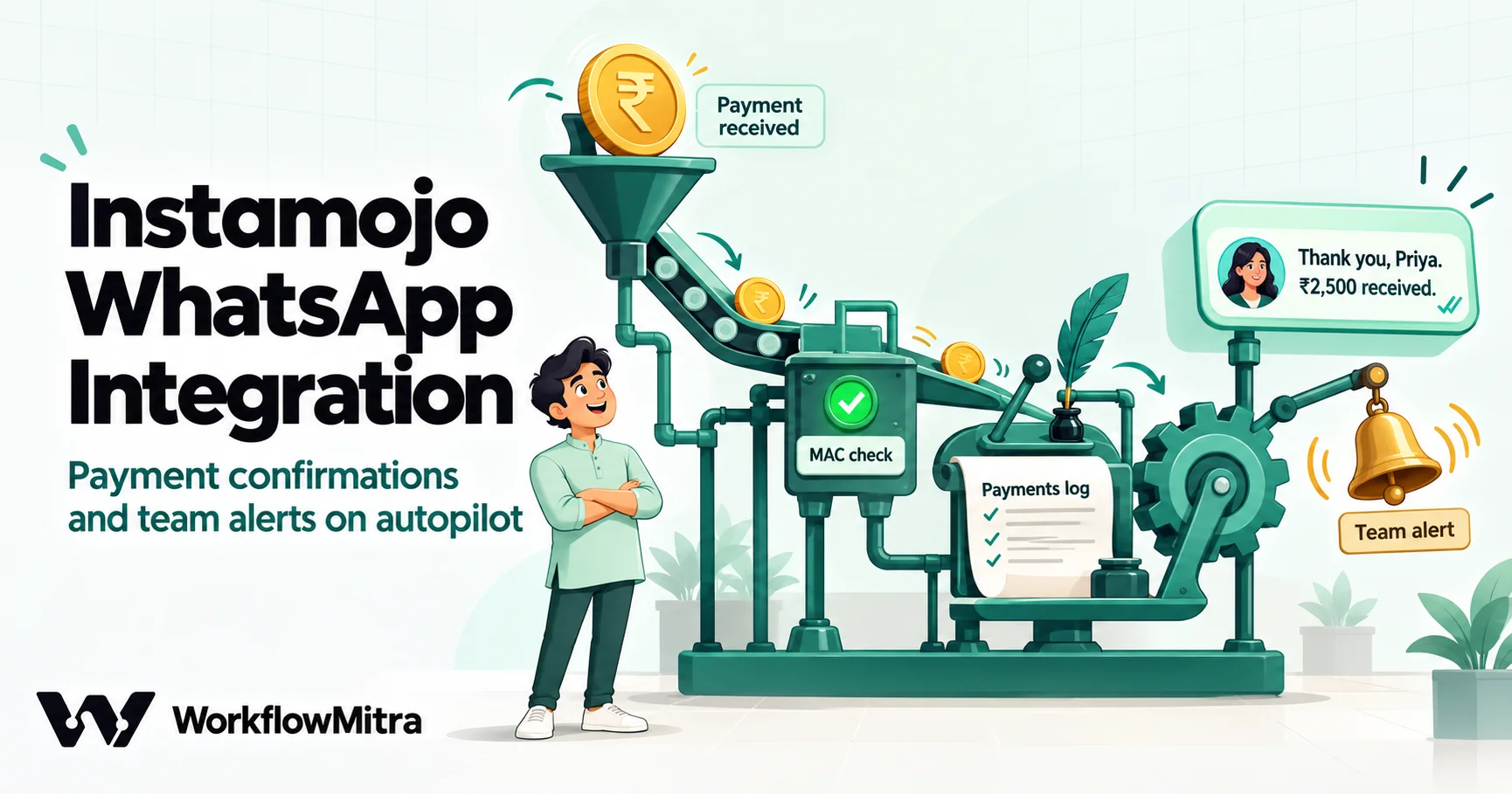
Instamojo doesn't send WhatsApp messages itself, but it can call a webhook URL the moment a payment succeeds, on plans that include webhooks. A workflow receiving that webhook can check the payment is genuine, log it in Google Sheets, send the buyer an approved WhatsApp template and alert your team. Instamojo posts the data as form fields signed with an HMAC-SHA1 code called mac, which you verify with your account's private salt. Links created through Instamojo's API include the buyer's name and phone; Smart Payment Links made in the dashboard don't, so the workflow looks the payment up through Instamojo's API first. WorkflowMitra, powered by ChatMitra, does all of this in one workflow.
A buyer pays ₹2,500 for a pottery workshop through your Instamojo link. Instamojo sends them an email receipt, and you get an email too. What doesn’t happen is the thing the buyer actually expects in India: a WhatsApp message from you saying the seat is booked, with the details they’ll need on the day. Someone on your team has to notice the payment email, find the number and type the message, usually hours later.
Instamojo has no WhatsApp button, but it can call a webhook the moment a payment succeeds. That’s enough to build the rest: check the payment is real, record it, confirm it to the buyer on WhatsApp and tell your team, in a few seconds and without anyone watching the inbox.
This guide builds that workflow in WorkflowMitra, powered by ChatMitra, step by step. It covers the parts most tutorials skip: which Instamojo plans send webhooks, why Smart Payment Links send no phone number, how to verify Instamojo’s signature, and what happens when the same payment arrives twice. The Instamojo details come from its developer documentation and pricing page, read on 19 October 2026; the verification code was run in WorkflowMitra’s Code step against sample payloads the same day.
How does an Instamojo WhatsApp integration work?
An Instamojo WhatsApp integration listens for Instamojo's payment webhook, a form post sent to your URL when a payment succeeds, and turns it into messages. A workflow receives the post, verifies its mac signature with your private salt, skips anything already processed, logs the payment, sends the buyer an approved WhatsApp utility template and alerts your team. Webhooks are available on Instamojo's paid Payment Links, Smart Pages and Online Store plans and on API-created payment requests.
Two kinds of message come out of one payment, and they follow different rules. The buyer’s confirmation goes to a customer, so it must be an approved WhatsApp template sent through the WhatsApp Business API. The team alert goes to your own people, so it can be a Slack, Telegram or email message with whatever detail is useful.
Before you start: which Instamojo products send webhooks
Instamojo sends webhooks from several products, and they don’t all send the same thing. This table, built from Instamojo’s webhook documentation and its pricing page, decides how your workflow starts.
| Instamojo product | Webhooks on | Buyer name and phone in the webhook? | Status values |
|---|---|---|---|
| Payment requests created through the API (including plugins) | Any account using the API | Yes | Credit or Failed |
| Smart Payment Links made in the dashboard | Payment Links SMART plan | No: link ID, payment ID, status, currency and amount only | successful or failed |
| Online Store products | Online Store Growth plan | No: ID, transaction ID, payment ID, status, currency and amount | success or failed |
| Smart Pages | Smart Pages PRO plan | Yes, but in a nested format signed differently | SUCCESS or FAILURE |
On the pricing page, the free QUICK plan for Payment Links lists “Zapier integration” rather than webhooks, and the SMART plan that adds them was listed at ₹4,999 a year or ₹1,499 a month, before taxes, on 19 October 2026. Instamojo’s transaction fee for payment links was 2% + ₹3 per payment on both plans.
This guide covers the first two rows in full, because they’re what most creators and small sellers use. The Online Store payload works the same way as Smart Payment Links. Smart Pages are different enough to need their own handling, covered in a short section near the end.
You’ll also need:
- Your Instamojo private salt, the key used to sign webhooks. Instamojo’s docs place the API key, auth token and private salt on the account’s integrations page (
www.instamojo.com/integrations/when signed in). - A WhatsApp Business Platform number, through ChatMitra or Meta’s Cloud API directly, and an approved utility template for the confirmation.
- A Google Sheet for the payment log, if you want one.
- For Smart Payment Links only: an Instamojo API client ID and client secret, to look up the buyer’s details.
What Instamojo sends
For a payment request created through the API, Instamojo’s documentation lists these fields, sent as an ordinary form post (application/x-www-form-urlencoded), not JSON:
| Field | What it holds | Example from Instamojo’s docs |
|---|---|---|
amount | Amount paid, in rupees | 2500.00 |
buyer | Buyer’s email | an email address |
buyer_name | Buyer’s name | John Doe |
buyer_phone | Buyer’s phone, as entered | 9999999999 |
currency | Currency | INR |
fees | Instamojo’s fee (blank on failed payments) | 125.00 |
longurl, shorturl | Links to the payment request | an instamojo.com and an imjo.in link |
payment_id | The payment’s unique ID | MOJO5a06005J21512197 |
payment_request_id | The request (link) it was paid against | a 32-character ID |
purpose | What the payment was for | FIFA 16 |
status | Outcome | Credit or Failed |
mac | Signature over all the other fields | a 40-character hex code |
Three details shape the workflow. The phone number in Instamojo’s example has no country code, so the workflow adds 91. Instamojo warns that the list of keys “will get updated over time”, so the verification has to work on whatever fields arrive, not a fixed list. And by default the webhook fires only for successful payments; failed-payment webhooks and retries are both switched on by asking Instamojo’s support team.
A Smart Payment Link sends only link_id, payment_id, status, currency, amount and mac. There’s no name or phone at all, which is why so many Instamojo-to-WhatsApp attempts stall: the confirmation has nobody to go to. Step 5 fixes that with a lookup.
The workflow at a glance
- Webhook trigger receives Instamojo’s post and ignores repeats of the same
payment_id. - Code step verifies the
macand tidies the phone number. - IF continues only for genuine, successful payments.
- Two HTTP Request steps fetch the buyer’s details, for Smart Payment Links only.
- Google Sheets adds a row to the payment log.
- WhatsApp sends the buyer the confirmation template.
- Slack or Telegram alerts the team.
Build it, step by step
1. Create the webhook trigger and open it to Instamojo
Start a new workflow from the On webhook call trigger, with Something else as the source. Every new WorkflowMitra webhook expects a secret in an x-webhook-secret header, and Instamojo has no way to send one, so remove it: in the webhook’s Edit panel, empty the Secret field and save. The trigger panel then warns that the URL alone can start a run, which is true; the mac check in step 2 is what protects you instead. The guide to webhook security explains this trade-off in more detail.
Back in the trigger panel, open Advanced settings and set Idempotency key path to payment_id. WorkflowMitra then remembers each payment ID for 24 hours and answers a second post for the same payment without starting a run. Save, switch the workflow on and copy the webhook URL.
Keep the workflow switched on once Instamojo knows the URL. A paused workflow’s webhook answers 404, and with Instamojo’s retries off by default, a payment that arrives while it’s paused is simply lost to the workflow.
2. Point Instamojo at the URL
Where you paste the URL depends on the product:
- Payment requests created through the API or a plugin: pass the webhook URL when you create the request. Instamojo’s API guide shows the parameter, and plugins usually have a field for it in their settings.
- Smart Payment Links: add the webhook in the link’s settings while editing it in the Instamojo dashboard. The option appears only on plans that include webhooks.
Make one real payment of a small amount to yourself, or use Instamojo’s sandbox at test.instamojo.com with its separate test credentials, then open the trigger’s Recent deliveries. You should see a delivery whose fields match the table above. If nothing arrives, check that the workflow is on and that the secret has been cleared; a request rejected for a missing secret appears in Recent deliveries with a 401.
3. Verify the mac in a Code step
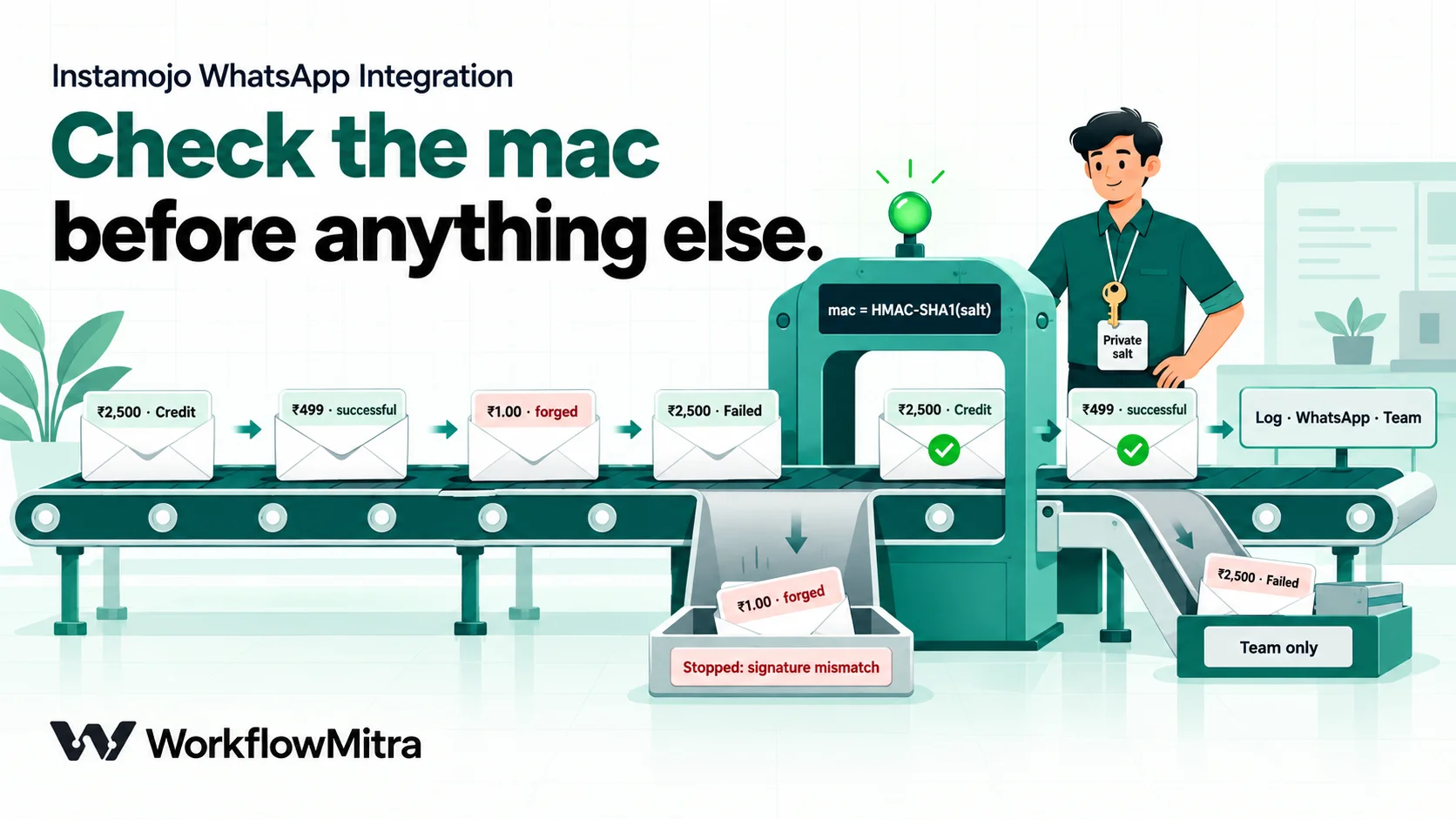
Instamojo signs each webhook so you can prove it came from Instamojo and wasn’t changed. Its documented method: remove the mac field, sort the remaining field names alphabetically ignoring case, join their values with a |, then calculate an HMAC-SHA1 of that text with your private salt. If the result equals the mac that arrived, the request is genuine.
WorkflowMitra’s built-in signature check reads signatures from a request header, and Instamojo puts its mac in the body, so this check runs in a Code step instead. The Code step has no crypto library, so the snippet below includes a small SHA-1 and HMAC implementation in plain JavaScript. Add the Code step directly after the trigger, because a Code step only sees the output of the step before it, and paste this, replacing the salt:
var SALT = "PASTE_YOUR_PRIVATE_SALT";

function utf8(s) { return unescape(encodeURIComponent(String(s))); }
function sha1(m) {
  var h = [0x67452301, 0xEFCDAB89, 0x98BADCFE, 0x10325476, 0xC3D2E1F0];
  var l = m.length, w = [], i, j;
  for (i = 0; i < l; i++) w[i >> 2] |= m.charCodeAt(i) << (24 - (i % 4) * 8);
  w[l >> 2] |= 0x80 << (24 - (l % 4) * 8);
  w[(((l + 8) >> 6) + 1) * 16 - 1] = l * 8;
  for (i = 0; i < w.length; i += 16) {
    var a = h[0], b = h[1], c = h[2], d = h[3], e = h[4], x = [];
    for (j = 0; j < 80; j++) {
      x[j] = j < 16 ? (w[i + j] | 0) : (function (v) { return (v << 1) | (v >>> 31); })(x[j - 3] ^ x[j - 8] ^ x[j - 14] ^ x[j - 16]);
      var f = j < 20 ? (b & c) | (~b & d) : j < 40 ? b ^ c ^ d : j < 60 ? (b & c) | (b & d) | (c & d) : b ^ c ^ d;
      var k = j < 20 ? 0x5A827999 : j < 40 ? 0x6ED9EBA1 : j < 60 ? 0x8F1BBCDC : 0xCA62C1D6;
      var t = (((a << 5) | (a >>> 27)) + f + e + k + x[j]) | 0;
      e = d; d = c; c = (b << 30) | (b >>> 2); b = a; a = t;
    }
    h[0] = (h[0] + a) | 0; h[1] = (h[1] + b) | 0; h[2] = (h[2] + c) | 0; h[3] = (h[3] + d) | 0; h[4] = (h[4] + e) | 0;
  }
  var out = "";
  for (i = 0; i < 20; i++) out += String.fromCharCode((h[i >> 2] >>> (24 - (i % 4) * 8)) & 255);
  return out;
}
function hmacSha1Hex(key, msg) {
  key = utf8(key); if (key.length > 64) key = sha1(key);
  var ip = "", op = "";
  for (var i = 0; i < 64; i++) { var c = i < key.length ? key.charCodeAt(i) : 0; ip += String.fromCharCode(c ^ 0x36); op += String.fromCharCode(c ^ 0x5c); }
  var raw = sha1(op + sha1(ip + utf8(msg))), hex = "";
  for (var n = 0; n < raw.length; n++) hex += ("0" + raw.charCodeAt(n).toString(16)).slice(-2);
  return hex;
}

var keys = Object.keys(input).filter(function (k) { return k !== "mac"; });
keys.sort(function (p, q) { p = p.toLowerCase(); q = q.toLowerCase(); return p < q ? -1 : p > q ? 1 : 0; });
var message = keys.map(function (k) { return input[k] == null ? "" : String(input[k]); }).join("|");
var expected = hmacSha1Hex(SALT, message);
var phone = String(input.buyer_phone || "").replace(/\D/g, "");
if (phone.length === 10) phone = "91" + phone;
return {
  genuine: expected === String(input.mac || "").toLowerCase(),
  paid: ["credit", "successful", "success"].indexOf(String(input.status || "").toLowerCase()) !== -1,
  payment_id: input.payment_id || "",
  amount: input.amount || "",
  name: input.buyer_name || "",
  phone: phone,
  purpose: input.purpose || ""
};
Name the step Verify payment. It returns genuine (the signature matched), paid (the status means success, whichever product sent it), and the fields later steps need, with the phone reduced to digits and given a 91 country code if it has ten digits.
We ran this exact snippet through WorkflowMitra’s Code step with a test salt and compared it with Node’s own HMAC-SHA1. A correctly signed API payload, including a name with an accented letter and a purpose containing a dash, came back genuine: true. The same payload with the amount changed from 2500.00 to 1.00, a payload with no mac and a payload signed with a different salt all came back false. A signed Smart Payment Link payload passed too. The first run took about 80 ms and later runs about 1 ms; Code steps are billed by run time, so this costs a small fraction of a credit.
Two cautions. Anyone who can open the workflow in your workspace can read the salt in the code, so limit who has access to the workspace. And if Instamojo ever changes its signing method, the check will start failing closed: genuine payments will stop at the next step rather than slip through, and your workflow’s failure alerts won’t fire, so look at the run history after any Instamojo announcement.
4. Continue only for genuine, paid payments
Add an IF step with one route, labelled Genuine and paid, and two rules joined with AND:
{{ genuine }}Is yes{{ paid }}Is yes
Everything else goes to Else. For forged requests, that’s the end of the run. If you’ve asked Instamojo for failed-payment webhooks, you can add a second route for {{ genuine }} Is yes and {{ paid }} Is no and send those to your team only; more on that below.
In our tests, the genuine paid payloads took the Genuine and paid route, while the forged, unsigned, wrongly signed and failed ones went to Else.
5. Smart Payment Links only: look up the buyer
If your payments come from API-created requests, skip to step 6: the buyer’s details are already in the webhook. For Smart Payment Links, the workflow asks Instamojo’s API for the payment, using the payment_id from the webhook. This takes two HTTP Request steps.
Get a token. Instamojo’s API uses OAuth2 client credentials. Add an HTTP Request step named Instamojo token:
- Method: POST
- URL:
https://api.instamojo.com/oauth2/token/ - Headers:
Content-Type=application/x-www-form-urlencoded - Body content type: Raw, with the body
grant_type=client_credentials&client_id=YOUR_CLIENT_ID&client_secret=YOUR_CLIENT_SECRET
Setting the Content-Type header matters. Without it, a raw body is sent as JSON, and Instamojo’s token endpoint expects form fields. A successful reply contains an access_token that lasts 10 hours.
Fetch the payment. Add a second HTTP Request step named Look up payment:
- Method: GET
- URL:
https://api.instamojo.com/v2/payments/{{ $trigger.payment_id }}/ - Authentication type: Bearer token, with the token
{{ $node["Instamojo token"].body.access_token }}
Instamojo’s documented reply includes the payment’s status (true for success), amount, name, email and phone, with the phone already in international form such as +919898989898. Add an IF that continues only when {{ body.status }} Is yes. This is also a second, independent check: the payment is confirmed by Instamojo’s own API, not just by the webhook.
An HTTP Request step treats an error reply as an ordinary result with ok set to false, so a bad token or a mistyped URL won’t fail the run on its own; the IF on body.status catches it. Like the salt, the client secret is visible to anyone who can open the workflow.
From here on, Smart Payment Link workflows read the buyer from $node["Look up payment"].body, for example {{ $node["Look up payment"].body.name }}, where API-request workflows read from $node["Verify payment"].
6. Log the payment in Google Sheets
Add a Google Sheets step, operation Add row(s), on a Payments tab with the columns Received at, Payment ID, Amount, Name, Phone, Purpose and WhatsApp sent:
| Column | Value (API-request version) |
|---|---|
| Received at | {{ now() }} |
| Payment ID | {{ $node["Verify payment"].payment_id }} |
| Amount | {{ $node["Verify payment"].amount }} |
| Name | {{ $node["Verify payment"].name }} |
| Phone | {{ $node["Verify payment"].phone }} |
| Purpose | {{ $node["Verify payment"].purpose }} |
| WhatsApp sent | queued |
Set Write values to Exactly as written (no formulas), so Sheets doesn’t turn the phone number into a number in scientific notation or the timestamp into a date it guesses at. Add row(s) writes by column position, so keep the columns in this order or re-save the step after changing them. now() gives a UTC timestamp; the guide to Razorpay to Google Sheets shows how to keep a payment log readable for accounts.
The log is your safety net. It’s the record you reconcile against Instamojo’s own payments list at the end of the week, and the first place to look when a buyer says they never got a message.
7. Send the WhatsApp confirmation
A confirmation to a buyer must be an approved WhatsApp template. Create a utility template in ChatMitra, or in Meta’s WhatsApp Manager if you send through the Cloud API directly, such as:
Thank you, {{1}}. ₹{{2}} for {{3}} has reached us, and your payment is confirmed. Keep this payment ID for your records: {{4}}. Questions? Just reply here.
Keep it transactional: no offers, discount codes or “follow us” lines, which can push a template into the marketing category. The guide to WhatsApp utility templates on ChatMitra covers categories and approval.
Then add a WhatsApp step, choose ChatMitra or Meta’s Cloud API as the sender, pick the template and fill its slots:
| Template slot | Value |
|---|---|
| Recipient | {{ $node["Verify payment"].phone }} |
| Variable 1 (name) | {{ ifempty($node["Verify payment"].name, "there") }} |
| Variable 2 (amount) | {{ $node["Verify payment"].amount }} |
| Variable 3 (what for) | {{ ifempty($node["Verify payment"].purpose, "your order") }} |
| Variable 4 (reference) | {{ $node["Verify payment"].payment_id }} |
The fallbacks matter because Meta rejects a template message with an empty variable. The recipient is already digits only with 91 in front, such as 919812345678, because the Code step cleaned it; for Smart Payment Links, the +91… number from the lookup works as it is, since the WhatsApp step removes anything that isn’t a digit.
A word on consent. WhatsApp’s rules expect customers to have agreed to hear from you there. A line on your payment page or link description such as “We’ll send your confirmation on WhatsApp” sets that expectation; ChatMitra’s guide to WhatsApp opt-in explains what counts.
8. Tell the team
Finally, add a Slack, Telegram or Email step for the people who act on the payment:
New Instamojo payment: ₹{{ $node["Verify payment"].amount }} from {{ $node["Verify payment"].name }} for {{ $node["Verify payment"].purpose }} ({{ $node["Verify payment"].payment_id }}).For a workshop, that alert might go to the person managing the seat list; for a product, to whoever packs orders. Put an IF in front if only some payments matter to the team, such as amounts above ₹5,000.
Test it before real buyers pay
Run through these before you share the link widely:
- A real or sandbox payment produces one delivery, one run that takes the Genuine and paid route, a row in the sheet, a WhatsApp message on your phone and a team alert.
- A forged request stops at the IF. Send one yourself with a tool such as curl, posting a few form fields and a made-up
macto the webhook URL; the run should end on Else withgenuine: false. - The same payment twice, by posting the genuine payload again within 24 hours, appears in Recent deliveries as a duplicate and starts no run.
- The template reads naturally on a real phone, with the rupee amount and no empty slots.
WhatsApp messages sent during these tests are real messages, so use your own number.
Duplicates, retries and the payment you mustn’t lose
Two things can make the same payment reach the workflow twice: an Instamojo retry, and someone re-sending a webhook by hand. The Idempotency key path from step 1 handles both for 24 hours. Instamojo’s retries, once support has enabled them, all happen within about four hours of the first attempt (after 15 minutes, 30 minutes, 60 minutes and 2 hours), so they fall well inside that window.
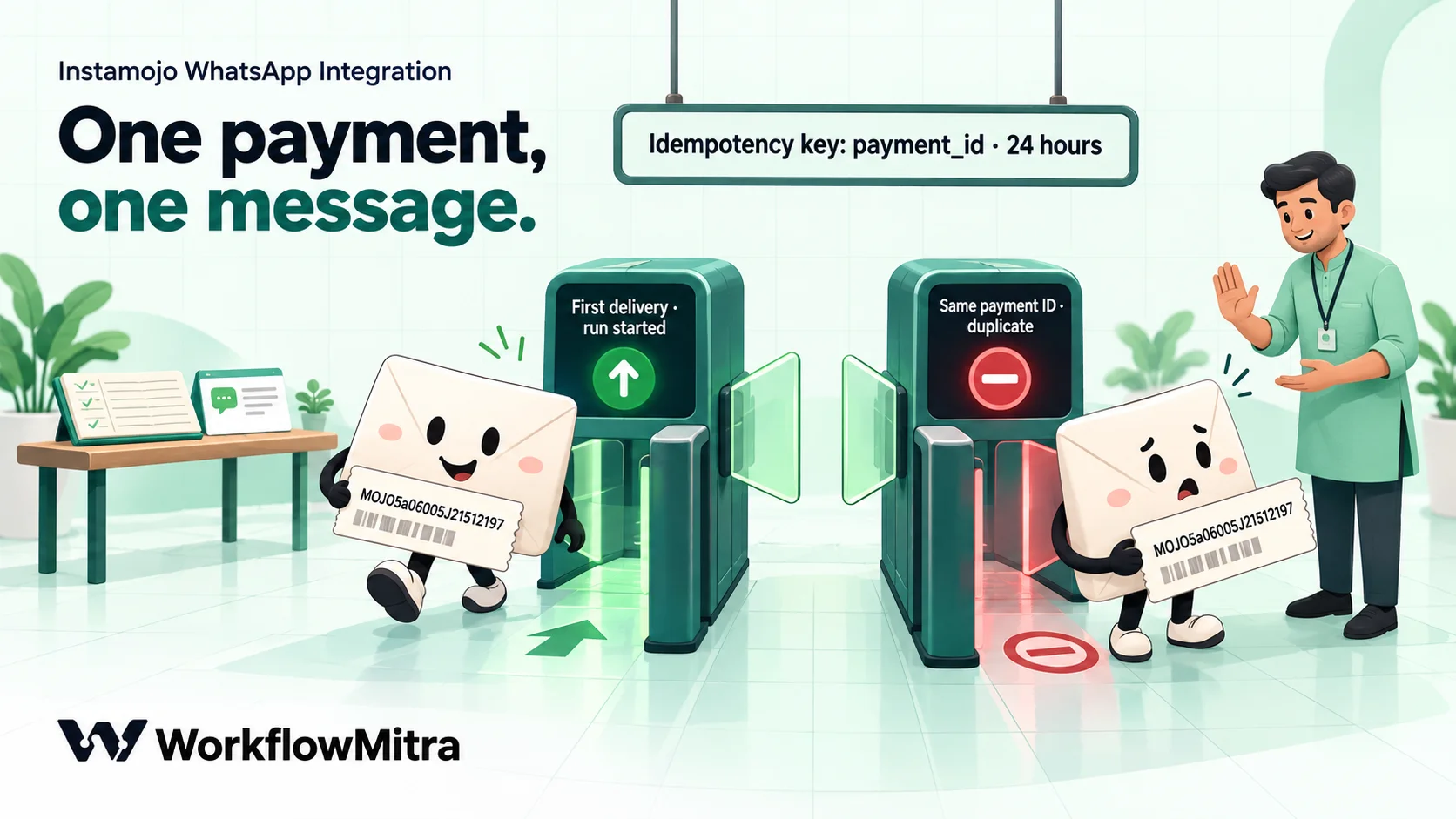
The other side of the trade-off is worth knowing. WorkflowMitra records the payment ID when the delivery is accepted, before the run finishes. If the run then fails, for example because the WhatsApp template was paused, a later retry of the same payment is still treated as a duplicate and won’t start a new run. Switch on the workspace’s failure alerts so a failed run reaches you, and resend that buyer’s confirmation by hand. The guide to webhook idempotency covers duplicate handling in more depth.
The bigger risk is a webhook that never arrives at all. Instamojo’s retries are off by default, so if your workflow is paused, out of credits or unreachable at the moment of payment, that delivery is gone. Two habits protect you:
- Ask Instamojo’s support team to enable webhook retries on your account, as its documentation suggests.
- Reconcile weekly. Compare the Payments tab with Instamojo’s list of payments for the same week. Any payment missing from the sheet missed its workflow, and the buyer may not have had their message.
Failed payments: tell the team, not the buyer
If you ask Instamojo to send failed-payment webhooks too, they’ll carry status set to Failed (or failed from a Smart Payment Link) and an empty fees field. The Verify payment step marks them paid: false, so they never reach the confirmation.
Resist the urge to message the buyer automatically. A payment can fail because the buyer changed their mind, their bank declined it or they simply retried and succeeded a minute later. An instant “your payment failed” message to someone who has already paid on the second attempt does more harm than good. Send failures to your team instead, and let a person decide whether to reach out. If you do want an automatic nudge, the Razorpay to WhatsApp guide shows a pattern that waits and checks for a later successful payment first.
Smart Pages and the Online Store
Online Store products send a payload like Smart Payment Links, with id, transaction_id, payment_id, status (success or failed), currency, amount and mac. The same Code step verifies it, and the same API lookup fetches the buyer.
Smart Pages are different. Instamojo documents a nested payload with payment, buyer, seller and custom_fields sections, and the signature arrives in a field called message_authentication_code instead of mac. Instamojo’s documentation, as we read it, doesn’t spell out how that signature is built for the nested format, so the Code step above can’t verify it as written. Until you’ve confirmed the method with Instamojo, use the API lookup from step 5 as your check: if Instamojo’s own API confirms the payment, the confirmation is safe to send.
What it costs
| Cost | Charged by | For each payment |
|---|---|---|
| Workflow steps | WorkflowMitra | About 4 credits: trigger, Sheets row, WhatsApp step and team alert at 1 credit each; the Code step costs a small fraction of a credit; IF steps are free. Smart Payment Links add 2 credits for the two HTTP requests |
| WhatsApp platform fee | ChatMitra, when it sends | ₹0.20 per conversation (one conversation per customer per 24 hours) on Starter and Pro |
| WhatsApp message | Meta | ₹0.11 for a utility template in India, so ₹0.31 in total with ChatMitra’s fee |
| The payment itself | Instamojo | Its transaction fee, 2% + ₹3 for payment links on 19 October 2026 |
A worked example: a creator selling 400 workshop seats a month through API-created links uses about 1,600 credits a month, well inside the 10,000 credits of WorkflowMitra’s Starter plan at ₹999 a month (₹849 a month billed yearly). The WhatsApp confirmations add 400 × ₹0.31 = ₹124 a month. Requests that are rejected, or skipped as duplicates, start no run and cost nothing. ChatMitra prices are from chatmitra.com/pricing and WorkflowMitra’s from its live plans, both on 19 October 2026.
Common mistakes
- Leaving the webhook’s secret in place. Instamojo can’t send the header, so every delivery is rejected with a 401. Clear the secret and rely on the
maccheck. - Skipping the
maccheck. With the secret cleared, anyone who learns the URL could post a fake “payment” and trigger a real confirmation. Verify every request. - Expecting a phone number from a Smart Payment Link. It isn’t in the webhook. Look the payment up through the API.
- Sending the confirmation as a plain text message. Messages to buyers who haven’t written to you first must be approved templates.
- Pausing the workflow “for a minute”. Deliveries during the pause get a 404, and without retries they’re gone. Keep it on and test on a copy instead.
- Hard-coding the field list. Instamojo says its keys will change over time. The Code step signs whatever arrives, which is why it reads every field rather than a fixed set.
- Never reconciling. A weekly comparison with Instamojo’s payments list is the only way to catch a delivery that never came.
Start with one link
Pick the payment link that brings in the most payments, build the workflow against it and make one small test payment. Once the row, the WhatsApp message and the team alert all arrive, point your other links at the same webhook URL; the purpose field tells the payments apart.
You can build and test it on a 14-day WorkflowMitra trial, no card required. To collect payments on WhatsApp in the first place, ChatMitra’s guide to WhatsApp payment links covers sending links in chats, and for Razorpay sellers the Razorpay to WhatsApp guide does the same job with Razorpay’s signed webhooks.
Instamojo behaviour (the form-encoded webhook, its fields for API payment requests, Smart Payment Links, Store products and Smart Pages, the mac signing method, successful-only delivery by default, the retry schedule and its default-off setting, the OAuth2 token endpoint and the payment lookup) was read in Instamojo's developer documentation on 19 October 2026; plan features and fees come from Instamojo's pricing page the same day. Instamojo's help-centre articles could not be loaded on that date, so dashboard menu names are described in general terms. No live Instamojo account was used: the verification code was tested in WorkflowMitra's Code step against payloads built to Instamojo's documented format and signed with Node's crypto library. WorkflowMitra behaviour (webhook secrets and idempotency, form-body parsing, the Code step's input and limits, HTTP Request authentication and raw bodies, the IF operators, ifempty and credit rates) was checked in the product's source code on 19 October 2026. ChatMitra and Meta prices are from ChatMitra's pricing page and WorkflowMitra's from its live plans, the same day. Sources: Instamojo, payments API integration guide; Instamojo, what is a webhook; Instamojo, what if the webhook fails; Instamojo pricing.
Frequently Asked Questions
Questions Instamojo sellers ask when they connect payments to WhatsApp messages.
Not on its own. Instamojo can call a webhook URL when a payment succeeds, and a workflow tool receiving that call can send the WhatsApp message through the WhatsApp Business API. The message must be an approved template, such as a utility payment confirmation, sent from a WhatsApp Business Platform number.
Automate the work between your apps
Build workflows with triggers, conditions and actions, then test them before they go live. Try WorkflowMitra free for 14 days, no card required.
