Jotform Webhooks: Send Submissions Anywhere (and Parse rawRequest)

Quick Summary
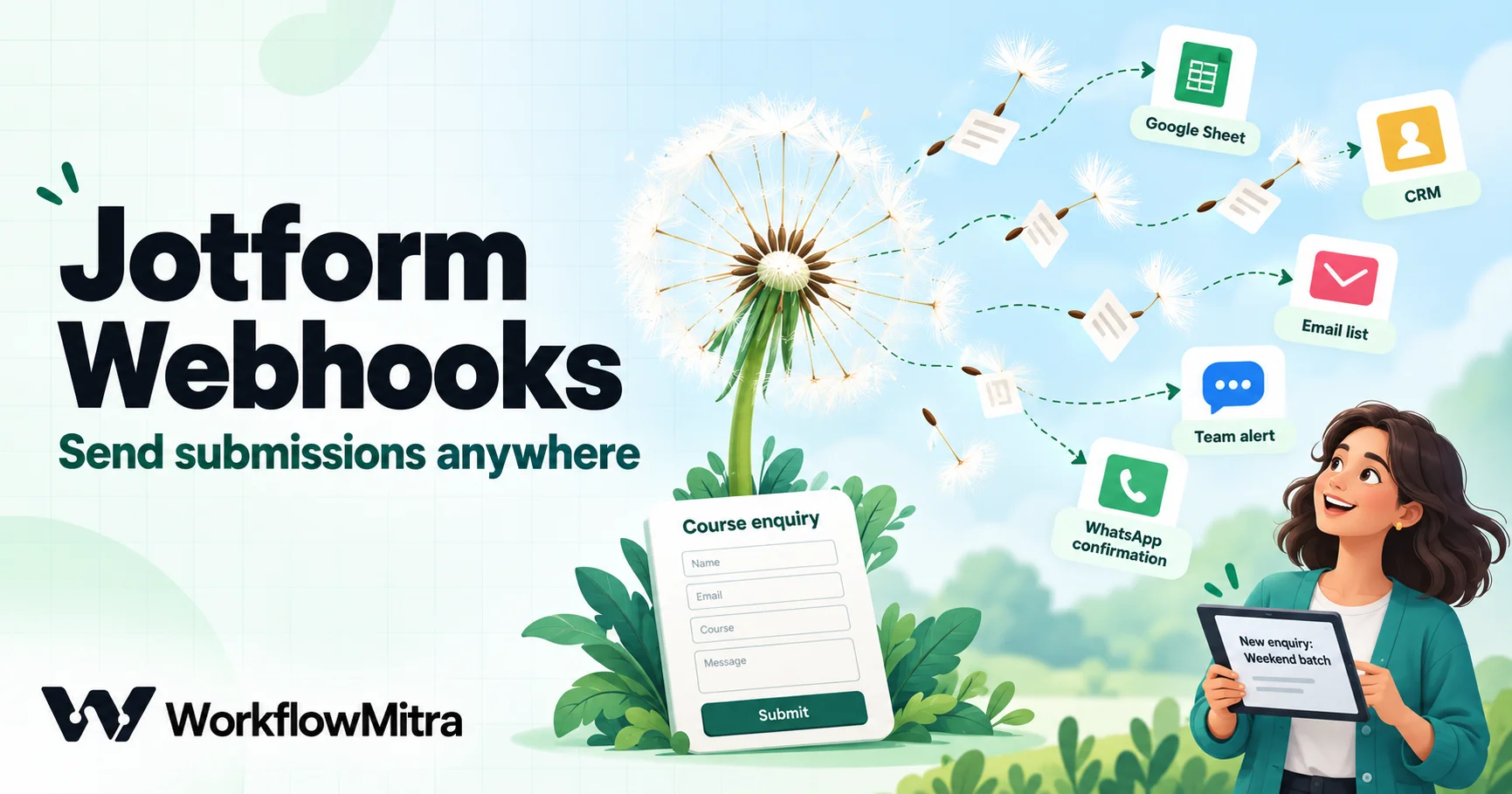
A Jotform webhook posts every new submission to a URL you choose, so any app or workflow can act on it within seconds. Jotform sends the submission as form fields rather than JSON: identifiers such as formID and submissionID sit at the top level, and the answers are packed into one field called rawRequest, a JSON string keyed by names like q3_email. To use the answers, parse that string once, then read each answer by its key. Add the webhook under Settings, Integrations, Webhooks in the form builder. The standard webhook can't send custom headers or a signature, so protect the receiving end another way: check the form ID, keep the URL private, use the submission ID to skip repeats, and, for sensitive forms, confirm the submission through Jotform's API. In WorkflowMitra, powered by ChatMitra, parsing is a free step and the trigger costs one credit per submission.
Jotform makes it easy to build a form and collect answers, and its inbox, tables and email alerts cover a lot of what happens next. Sooner or later, though, a submission needs to go somewhere Jotform doesn’t reach on its own: a CRM nobody built an integration for, a Google Sheet laid out your way, a WhatsApp confirmation, or three of those at once with a rule deciding which.
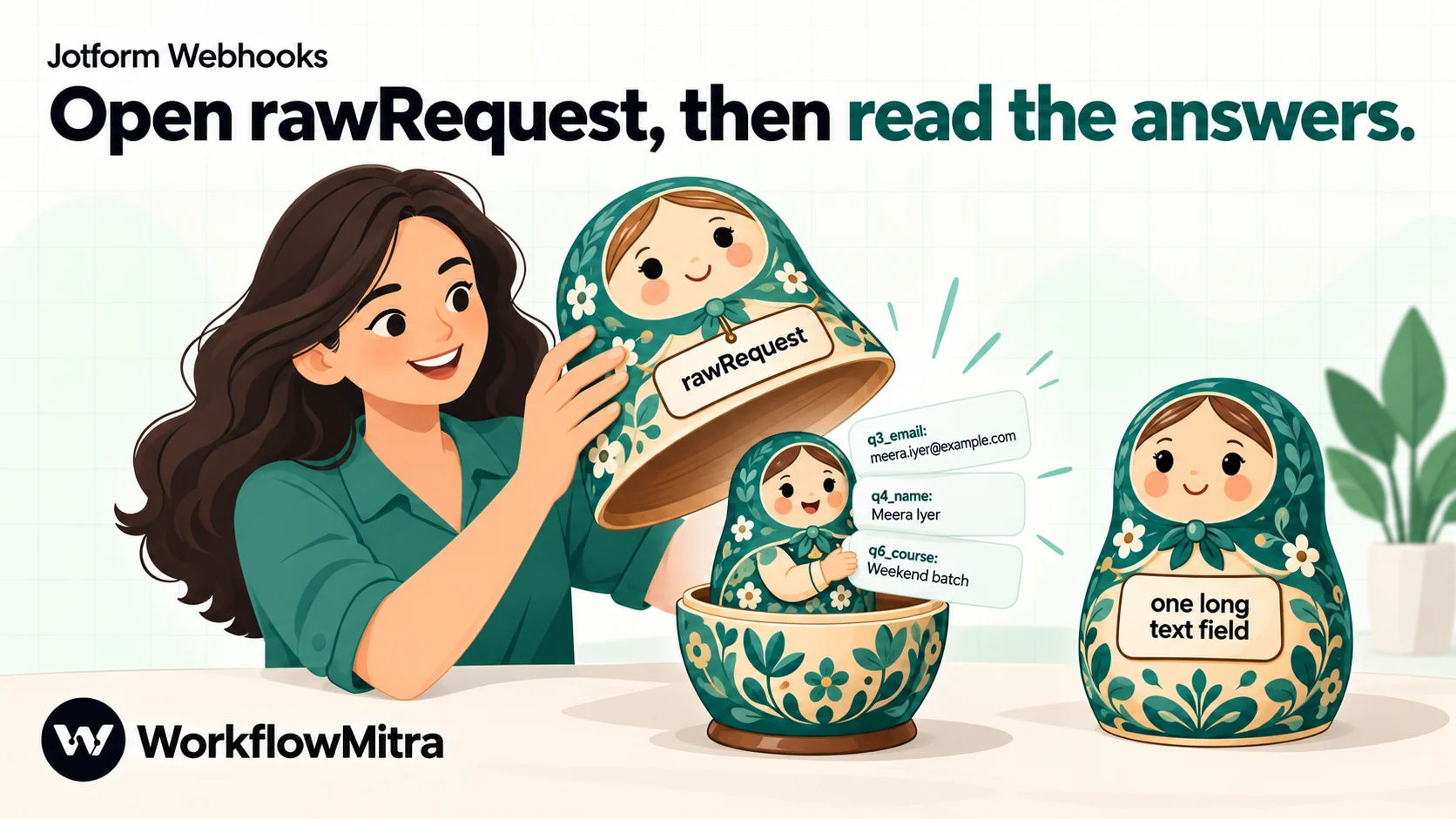
The Jotform webhook is the general-purpose way out. Every time someone submits, Jotform posts the submission to a URL you choose. Whatever receives it can do anything with the answers. The catch is the format: Jotform doesn’t send tidy JSON with a field per answer. It sends a handful of form fields and packs every answer into one of them, called rawRequest, as a JSON string with keys like q3_email.
This guide explains what Jotform actually sends, how to unpack rawRequest, how to find the key for each answer, and how to deal with the things the standard webhook doesn’t do: sign its requests, send JSON, or document any retries. The examples use WorkflowMitra, powered by ChatMitra, and a coaching institute in Pune taking course enquiries, but the Jotform side applies to any receiver.
Quick answer: in the Form Builder, go to Settings → Integrations → Webhooks, paste your endpoint URL and click Complete Integration. Each submission then arrives as form fields: formID, submissionID, formTitle and others at the top level, and the answers inside rawRequest, a JSON string. Parse rawRequest once, then read answers by key, such as q3_email or q4_name.first. Because Jotform's standard webhook can't send a secret header, keep the URL private, check formID, skip repeats using submissionID, and confirm sensitive submissions through Jotform's API.
When a Jotform webhook is the right tool
Jotform has several ways to move submissions out. They suit different jobs, and the webhook isn’t always the best one.
| Option | What it does | Good fit | Watch out for |
|---|---|---|---|
| Webhook to a workflow | Posts each submission to a URL; the workflow parses it and sends it on | Several destinations, rules, clean-up, or apps with no Jotform integration | You map fields yourself; no signature or documented retries |
| Jotform's built-in integrations | Ready-made connections to apps such as Google Sheets and many CRMs and email tools | One destination with simple field mapping | One integration per destination, each with its own mapping |
| Jotform Workflows' Webhook element | Sends a request at a chosen step of a Jotform workflow, with your own body keys and headers | Calls after an approval, or when you need a custom header | Part of Jotform Workflows; test what it sends before relying on it |
| Jotform API | Your code or workflow asks Jotform for submissions | Back-filling, nightly syncs, verification | Daily API call limits per plan |
Choose the webhook when submissions should trigger something within seconds and the logic doesn’t fit a single integration. A coaching institute’s enquiry form is a typical case: each enquiry goes to a sheet the counsellors work from, the counsellor for that course gets a message, students who agreed get a WhatsApp confirmation, and enquiries for a sold-out batch go to a waitlist instead.
What Jotform sends with each submission
Jotform’s help pages show the receiving side through PHP examples that read two posted values: rawRequest, decoded with json_decode, and submissionID. Deliveries that developers have published show the full set of fields. Jotform posts them as form fields rather than a JSON body, and a Jotform support answer from July 2026 says the standard integration has no setting to change that.
| Field | What it holds | Use it for |
|---|---|---|
formID | The form's numeric ID, the same number as in the form's URL | Checking the delivery came from the form you expect |
submissionID | A long unique number for this submission | Skipping repeats; looking the submission up in the API |
formTitle | The form's title | Readable alerts |
rawRequest | Every answer, as one JSON string | Everything that matters; parse it first |
pretty | A one-line summary such as Email:..., Name:... | Glancing at a delivery; not for parsing |
ip, username, type, webhookURL | The submitter's IP, your Jotform username, the submission type and the URL Jotform called | Troubleshooting |
Other fields appear too, many of them empty on an ordinary form submission. Don’t build anything on a field you haven’t seen in your own test delivery.
Treat submissionID as text, never as a number. At 19 digits it is longer than many tools can hold as a number without rounding, and a rounded ID matches the wrong submission or none at all. Form fields arrive as text anyway, so the only way to break it is to convert it deliberately.
Ignore pretty for anything automated. It joins questions and answers with colons and commas, so an answer that contains a comma, an address for instance, can’t be split back reliably. That is exactly why rawRequest exists.
Inside rawRequest
Parsed, rawRequest is an object with one key per question plus a few housekeeping values. For the institute’s enquiry form it looks like this:
{
  "q3_email": "[email protected]",
  "q4_name": { "first": "Meera", "last": "Iyer" },
  "q6_course": "Weekend batch",
  "q8_message": "Can I pay in two parts?",
  "slug": "submit/242963960265061",
  "timeToSubmit": "8",
  "path": "/submit/242963960265061"
}
Each answer’s key is the letter q, the question’s number, an underscore and the field’s unique name. Jotform’s own examples read keys such as q1_mobileNo, q16_yourEmail16 and q15_yourName, and read a Full Name field as an object with first and last parts. Composite fields like name, address and date arrive as objects with several parts; simple text fields arrive as plain strings. Fields that allow several answers can arrive as lists. The exact shape depends on the field and its settings, so check one real delivery for each field type you use.
The housekeeping values (slug, path, timeToSubmit and others) describe the submission, not the answers. One is worth knowing about: a test made from the form builder’s preview can carry a preview value, which lets you keep preview submissions out of your live sheet with a simple check.
Finding the key for each field
The quickest way is to submit one test entry and read the parsed answers; every key is right there. To check a field from the form builder, open the field’s settings, go to Advanced, scroll down and expand Field Details: the Unique Name shown there is the part of the key after the question number.
Two habits keep keys stable. Don’t delete a question and add it again when you only meant to change its wording; the new question gets a new number, so its key changes and the workflow reads an empty value without any error. And after any structural change to the form, send a fresh test entry and compare the keys before trusting the workflow again.
Tag where each submission came from
The webhook tells you which form was submitted, not where the person found it. If the same enquiry form is linked from Instagram, a Google ad and a WhatsApp broadcast, add a hidden field to the form for the source and fill it from the link. Jotform can prefill fields from URL parameters using each field’s unique name, so a link ending in ?source=instagram fills a hidden field called source, and the value arrives in rawRequest like any other answer, under its own q-numbered key.
Do the same for UTM values if you run ads. Our guide to tracking lead source automatically lists the parameters worth keeping. Once every row in your sheet carries a source, you can see which channel brings enquiries that turn into admissions, not just which brings the most clicks.
Hidden fields are visible to anyone who reads the page source, so never put anything secret in one. A source tag is fine; a password or a token is not.
Set up a Jotform webhook in WorkflowMitra, step by step
1. Create the webhook trigger and clear its secret
Create a workflow with the On webhook call trigger. New WorkflowMitra webhooks start locked: they accept only requests that carry a secret in an x-webhook-secret header. Jotform’s standard webhook has no way to add a header, so every delivery would be refused with a 401. Open the webhook’s Edit panel and clear the Secret. The trigger panel then warns that the URL alone can start a run, which is true; the steps below make that safe enough. Our guide to webhook security explains the trade-off in more depth.
There is no Jotform preset in the webhook source picker, so choose Something else, which leaves the security settings for you to decide.
2. Tell the webhook to skip repeats by submission ID
Under the trigger’s Advanced settings, set Idempotency key path to submissionID. From then on, a second delivery carrying the same submission ID within 24 hours is recorded as a duplicate and doesn’t start another run.
This matters more for Jotform than for most senders. WorkflowMitra’s automatic duplicate check, which catches an identical body sent twice within about a minute, works from the request’s raw bytes. It keeps those for JSON and form-encoded requests but not for multipart form data, the format Jotform’s deliveries are reported to use. We ran a Jotform-shaped multipart request through the product’s webhook parser on 19 October 2026: the fields parsed correctly, no automatic duplicate key was produced, and setting the key path to submissionID produced the right key. So set it, whatever format your deliveries turn out to use. Our guide to webhook idempotency covers why duplicates happen.
Save the workflow, switch it on and copy the webhook URL.
3. Add the webhook in Jotform
In the Form Builder, open Settings, choose Integrations, search for Webhooks and select it. Paste the URL into the Add WebHook field and click Complete Integration, then Finish. Use Add New Webhook if the same form should also notify another endpoint.
Jotform gives the receiving end 30 seconds to answer. WorkflowMitra answers within a moment with a 202 and runs the workflow afterwards, so even a long workflow never runs into that limit.
4. Submit a real test and look at what arrived
Fill in the live form yourself, with an answer in every field. Then open the trigger’s Recent deliveries and the run it started. You should see the top-level fields (formID, submissionID, rawRequest and the rest), with rawRequest still a single long string. That’s expected.
5. Parse rawRequest with a Parse JSON step
Add a Parse JSON step, name it “Parse answers”, and set JSON string to {{ $trigger.rawRequest }}. Leave On invalid JSON on “Fail the step (strict)”, so a malformed delivery shows up as a failed run instead of quietly producing blanks. Parse JSON is free: it uses no credits.
The step’s output is the answers object. Every later step reads from it by name.
6. Read each answer by its key
Reference answers through the Parse JSON step:
{{ $node["Parse answers"].q3_email }}for the email address.{{ $node["Parse answers"].q4_name.first }}and.q4_name.lastfor the two parts of a name.{{ $node["Parse answers"].q6_course }}for a dropdown or single-choice answer.
You can also parse inline with the parseJSON() expression, but only together with get(): {{ get(parseJSON($trigger.rawRequest), "q3_email") }} works, while {{ parseJSON($trigger.rawRequest).q3_email }} comes back empty. We tested both forms through the product’s expression resolver on 19 October 2026. For more than one or two answers, the Parse JSON step is clearer and costs nothing.
7. Check the delivery is real and expected
Add an IF step with one route, named “Valid”, and these AND rules:
{{ $trigger.formID }}Equal to your form’s ID (the number in the form’s URL).{{ $node["Parse answers"].q3_email }}Is not empty.
Only the “Valid” route continues. A request from anywhere else, or one missing the answer you depend on, falls to Else and stops. If preview tests are a nuisance, add a rule that the preview value is empty.
8. Send the answers wherever they need to go
From here the submission is ordinary data, and any step can use it:
- Google Sheets → Add row(s) to log every enquiry. Our guide to sending webhook data to Google Sheets covers column mapping.
- HTTP Request to a CRM, an email list or your own system; the guide to adding leads to Brevo or Mailchimp shows the exact calls for two popular email tools.
- Switch on
q6_courseto route each course to its counsellor, with a Slack or Telegram alert. - A WhatsApp confirmation through ChatMitra or Meta’s Cloud API, for students who ticked a WhatsApp consent box. The first message must be an approved template, which ChatMitra’s guide to utility templates explains.
For the institute, routing is where the webhook earns its keep. A Switch step reads {{ $node["Parse answers"].q6_course }} and has one route per course: “Weekend batch” goes to the counsellor who runs weekend admissions, “Evening batch” to another, and the Else route catches anything new, such as a course added to the form last week, and sends it to the office manager instead of dropping it. Switch takes the first route that matches, so put the most specific rules first. Like IF, it costs no credits.
The WhatsApp confirmation needs two things the form must provide: a phone number with its country code, and a separate consent answer for WhatsApp messages. Put the consent check in the same IF or Switch step, so people who didn’t agree get an email or nothing at all. Because the student hasn’t messaged you yet, WhatsApp only allows an approved template as the first message; once they reply, your team can answer freely for 24 hours.
An example field map
Keep a field map next to the workflow. When someone edits the form, it’s the first thing to check.
| Question | Key in rawRequest | Reference in the workflow | Goes to |
|---|---|---|---|
| Full name | q4_name (object) | .q4_name.first, .q4_name.last | Sheet columns, greeting |
q3_email | .q3_email | Sheet, email list | |
| Phone | q5_phone (shape depends on the field's settings) | Check a test delivery | Sheet, WhatsApp step |
| Course | q6_course | .q6_course | Switch to the right counsellor |
| Message | q8_message | .q8_message | Sheet, alert |
| Submission ID | top level, not in rawRequest | $trigger.submissionID | Sheet (as text), duplicate check |
Store submissionID in the sheet alongside every row. It links each row back to the original submission in Jotform, and it’s the key for any later update.
Securing a webhook that can’t be signed
Many apps sign their webhooks, so the receiver can prove a request came from them. Jotform’s standard webhook doesn’t, and can’t send a custom header either. That leaves the URL as the first line of defence. In practice that’s reasonable: unlike a URL in a public web page, a Jotform webhook URL lives only in your form’s settings, and WorkflowMitra’s webhook IDs are long and random.
Add these layers on top, in order of effort:
- Keep the URL private. Don’t paste it into shared documents or screenshots, and rotate it from the trigger panel if it leaks; the old URL keeps working for seven days while you update Jotform.
- Check
formIDin the IF step, as in step 7. It costs nothing and rejects requests that weren’t built for your form. - Skip repeats by
submissionID, as in step 2, so a replayed request can’t run the workflow twice. - Confirm sensitive submissions through Jotform’s API. Before a workflow does something costly or irreversible (issues a voucher, creates an account, sends a payment link), look the submission up: a GET request to
https://api.jotform.com/submission/followed by the submission ID, with your API key in anAPIKEYheader. Jotform answers with the submission’sform_idand its answers. If the lookup fails or the form ID differs, stop the run. Accounts on Jotform’s EU or HIPAA servers useeu-api.jotform.comorhipaa-api.jotform.cominstead. The lookup costs one credit and one Jotform API call; Jotform’s API documentation lists daily limits from 1,000 calls on its starter plan up to 100,000 on gold.
If you need a shared secret, Jotform Workflows’ Webhook element is the alternative. It sends a request at a chosen point in a Jotform workflow and lets you add headers, so it can carry the x-webhook-secret your WorkflowMitra webhook expects, and its body is a list of keys and values you choose. Send a test and look at the delivery before building on it, because its format differs from the standard webhook’s.
One more case: if a form uses Jotform’s encryption, Jotform’s help page notes that only encrypted data can be sent through the webhook. The answers can’t be read by a workflow, so keep encrypted forms on Jotform’s side.
Duplicates and missed deliveries
Two things can go wrong between Jotform and your workflow, and they need different fixes.
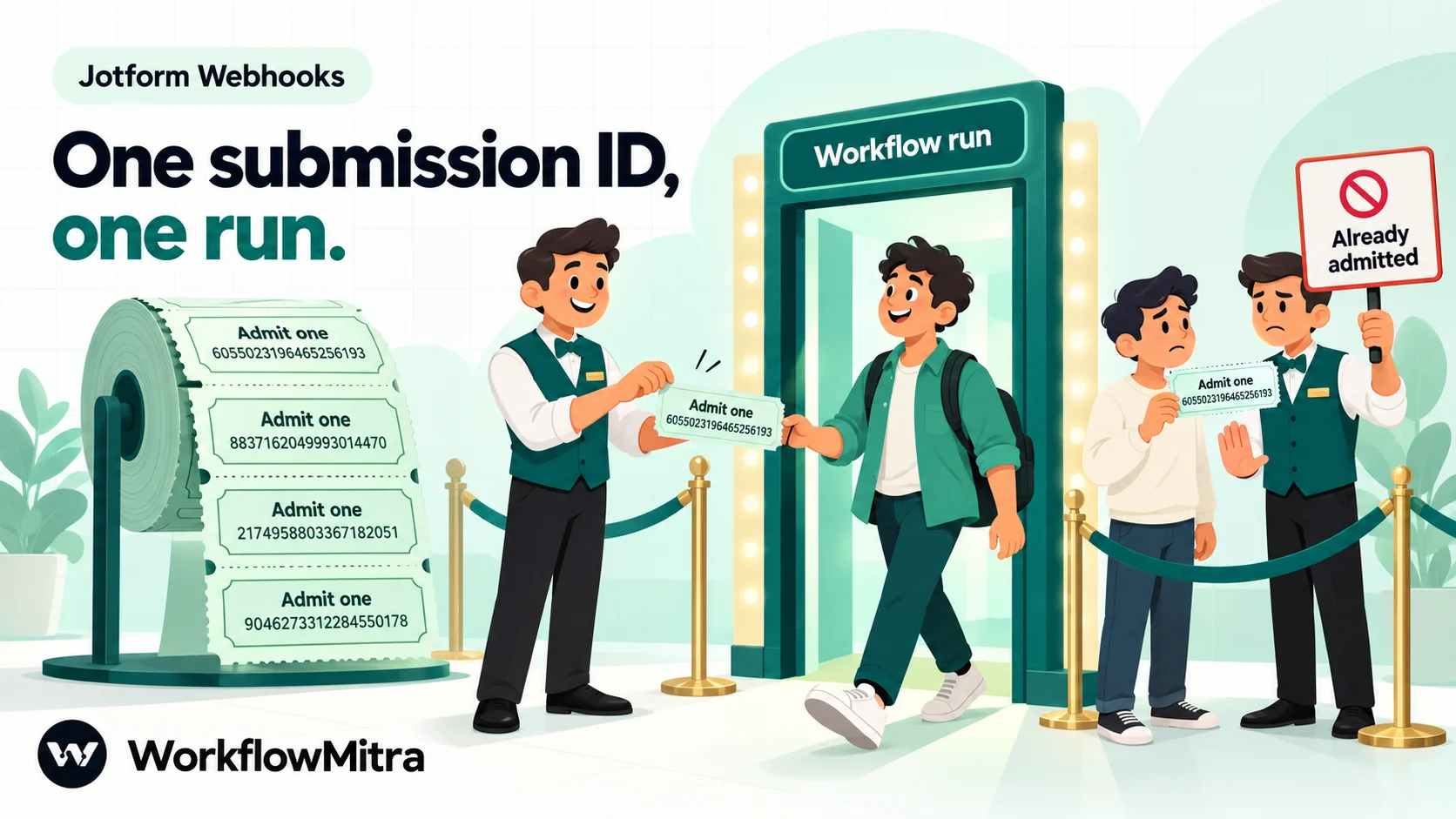
The same submission arrives twice. That can happen when a request is retried or replayed, or when someone resubmits by accident. The idempotency key from step 2 handles retries and replays: the second delivery with the same submissionID is recorded as a duplicate and starts nothing. A person submitting twice is different, because each submission gets its own ID. If that matters, for example one enquiry per email address per day, check your sheet for the address before adding a row. Our guide to preventing duplicates in Google Sheets shows how.
A delivery never arrives. Jotform’s help centre documents the 30-second timeout but no retry schedule, and its support answers on the subject disagree with each other. Plan as if a missed delivery is not resent. The commonest cause is on the receiving side: a WorkflowMitra workflow that is switched off answers 404, and a workspace out of credits answers 402. Keep the workflow on, turn on workspace failure alerts, and if you do switch it off for a while, fetch what arrived in the meantime afterwards. Jotform’s API lists a form’s submissions, and a scheduled workflow can pull the gap into your sheet, skipping any submissionID already there. The submissions themselves are never lost; they stay in Jotform’s inbox and tables.
Test it before you share the form
Run these four checks with the live form, not the builder’s preview, and look at the run each one starts:
- A complete submission. Every mapped value should land in the right place: the right sheet columns, the right counsellor, the confirmation sent only if consent was given.
- A submission with the optional questions left blank. Empty answers should leave empty cells, not shift columns or stop the run. If a later step needs a value, give it a fallback with
ifempty(). - A replay of the first delivery. From the trigger’s Recent deliveries, look at how the first submission arrived, then resend the same body to the webhook (any HTTP tool can do this). It should be recorded as a duplicate and start no run, which proves the
submissionIDkey works. - A change to the form. Add a question, submit again and compare the keys with your field map. Nothing already mapped should change; if something does, update the map before the next real enquiry arrives.
Our guide to testing an automated workflow has a longer checklist, including how to test steps that send messages without messaging real people.
Troubleshooting
| Symptom | Likely cause | Fix |
|---|---|---|
| Recent deliveries shows Bad secret (401) | The webhook still has a secret; Jotform can't send it | Clear the Secret in the webhook's Edit panel |
| No delivery at all | Workflow off (404), wrong URL in Jotform, or an encrypted form | Switch the workflow on; re-paste the URL; check encryption |
| Parse JSON fails with "No JSON string to parse" | The JSON string field points at the wrong value | Use {{ $trigger.rawRequest }} exactly |
| An answer is always empty | Wrong key, or the question was re-created with a new number | Read the key from a fresh test delivery |
| Expression returns empty although the key is right | Property read straight off parseJSON() | Use the Parse JSON step, or get(parseJSON(...), "key") |
| Name shows as an object | Full Name is a composite field | Read .first and .last |
| The same submission runs twice | No idempotency key path set | Set it to submissionID |
| Submission ID ends in zeros in the sheet | The sheet converted it to a number | Format the column as plain text before writing |
| Preview tests land in the live sheet | Tests from the builder's preview | Add an IF rule on the preview value, or test with the live form |
What it costs to run
In WorkflowMitra, a credit is one executed step. The webhook trigger uses one credit per submission; Parse JSON, IF and Switch are free. Each step that does something outside the run uses one more: a Google Sheets row, a Slack or Telegram message, an HTTP request, a WhatsApp send. A submission logged to a sheet with one team alert costs three credits. On the Starter plan, ₹999 a month for 10,000 credits, that’s room for about 3,300 such submissions a month.
On Jotform’s side, the optional verification lookup in the security section uses one API call per submission, counted against your plan’s daily API limit.
Limits to know about
- No Jotform preset. The webhook source picker has no Jotform entry, so you set the security options yourself, as above.
- No signature, no custom header on Jotform’s standard webhook. Use the layers above, or Jotform Workflows’ Webhook element when you need a header.
- Form fields, not JSON. The answers always need parsing, and the format can’t be changed on Jotform’s side.
- Headers don’t reach the workflow. Everything you need from Jotform is in the body, which is what the steps above use.
- New submissions only. The webhook sends submissions made after it was added; older ones come from Jotform’s API or an export.
- Keys follow the form. Edits that re-create questions change keys silently, so re-test after every structural change.
Turn every Jotform submission into action
A Jotform webhook gets every submission out of Jotform within seconds; the work is on the receiving side. Clear the secret Jotform can’t send, set submissionID as the duplicate key, parse rawRequest once, read answers by key, and check formID before acting. From there the submission can go to a sheet, a CRM, an email list, a team channel or a WhatsApp confirmation, with rules deciding which.
Build it with one test submission and the field map above, then add destinations one step at a time. WorkflowMitra, powered by ChatMitra, runs the whole thing on one canvas and shows every delivery and run in its history. Start a WorkflowMitra trial: 14 days, 10,000 credits, no card needed.
Sources: Jotform Help, How to set up a webhook with Jotform (setup path, rawRequest decoding, 30-second timeout, encrypted forms), Webhook PHP script examples (rawRequest and submissionID, q-number field keys, Full Name parts), How to find field IDs and names and How to create a webhook in Jotform Workflows; Jotform support, sending the request body as raw JSON (20 July 2026); Jotform API documentation (submission lookup, APIKEY header, EU and HIPAA hosts, daily limits); the full delivery shape from a published Jotform delivery in the Xano community; all read on 19 October 2026. WorkflowMitra prices are from its live plans API on that date. WorkflowMitra behaviour was checked against the product's source code (webhook secret check, multipart parsing, idempotency key path and content-hash duplicate check, 202 reply, Parse JSON step, IF routes, credit rates), and a Jotform-shaped multipart request was run through the product's webhook parser and expression resolver. The institute, names and IDs are examples.
Frequently Asked Questions
Short answers to common questions about Jotform webhooks and rawRequest.
rawRequest is the field in Jotform's webhook that holds the submitted answers as one JSON string. Each answer is keyed by the question's ID and unique name, such as q3_email or q4_name, and composite fields such as Full Name arrive as small objects with first and last parts. Parse the string as JSON before reading individual answers.
Automate the work between your apps
Build workflows with triggers, conditions and actions, then test them before they go live. Try WorkflowMitra free for 14 days, no card required.
