Working with JSON in Workflows: Parse, Map and Transform Data Without Code


Quick Summary
JSON is the text format almost every app, webhook and API uses to pass data, so every automated workflow is really moving JSON from step to step. Working with it comes down to five jobs: point at the value you need with a path, turn JSON text into usable fields, handle lists by summarising or looping, reshape and clean values, and send well-formed JSON on to the next system. In WorkflowMitra, powered by ChatMitra, those jobs are done with {{ }} expressions, the Parse JSON and Set Variable steps, and the Loop step, with a Code step kept for the rare case they can't handle.
Open the run history of almost any automation and you’ll find the same thing behind every step: a block of curly braces, quotes and square brackets. That’s JSON. A form submission arrives as JSON. An API answers in JSON. An AI model can be asked to reply in JSON. A WhatsApp message reaches a webhook as JSON.
Most of the time you never have to look at it, because the automation tool shows the fields as tidy variables you can click. Then one day a value comes through empty, a message says [{"sku":"MUG-01"... where a product name should be, or a step fails with “Invalid JSON”, and you need to understand what’s underneath.
This guide covers that layer. It explains how JSON is structured, how to point at exactly the value you need, and the five jobs that make up JSON transformation in workflows: reading values, parsing JSON text, handling lists, reshaping and cleaning data, and sending JSON on to other systems. The examples use WorkflowMitra, powered by ChatMitra, and every expression shown below was run against its expression engine before publication. The ideas carry over to any automation platform.
What is JSON?
JSON (JavaScript Object Notation) is a plain-text format for structured data. It writes information as named values inside curly braces and ordered lists inside square brackets, which can be nested inside each other. It's the default format for webhooks, web APIs and most data passed between steps in a workflow, because both people and programs can read it.
JSON is defined by an Internet standard, RFC 8259, and by ECMA-404. Despite the “JavaScript” in the name, it’s language-independent: Python, PHP, Java, spreadsheets with the right add-on and every modern automation tool can read and write it.
The whole format is built from six kinds of value:
| Type | Looks like | Example in a workflow |
|---|---|---|
| String (text) | "Asha Rao" | A name, an email address, an order ID |
| Number | 349 or 12.5 | A price, a quantity, a score |
| Boolean | true or false | Whether a customer opted in |
| Null | null | A field that exists but has no value |
| Object | { "name": "Asha", "city": "Pune" } | A customer, an address, a ticket |
| Array (list) | [ 1, 2, 3 ] or a list of objects | The items in an order, the rows returned by a search |
Two details cause most beginner confusion. First, the quotes matter: "349" is text and 349 is a number, and some steps treat them differently. Second, keys are case-sensitive, so Phone and phone are two different fields.
Why JSON sits underneath every workflow
A workflow is a chain of steps, and something has to carry data from one step to the next. In practice that something is almost always JSON:
- Triggers receive it. A webhook from a website form, an online store or a payment gateway usually posts a JSON body. Our guide to what webhooks are explains that delivery in detail.
- APIs return it. When an HTTP Request step calls a service, the response body is nearly always JSON.
- Steps output it. A Google Sheets lookup, a database query or an AI step hands its result to the next step as a JSON object.
- Messages are wrapped in it. An incoming WhatsApp or Telegram message reaches a workflow as a JSON event, with the text buried a few levels down.
In WorkflowMitra you can see this directly. Open any run in the run details and each step shows its input and output as expandable JSON. When something goes wrong with data, that view is the first place to look, because it shows exactly what the step received rather than what you expected it to receive.
What if the data doesn’t arrive as JSON?
Not every system sends JSON, and it helps to know what a workflow does with the alternatives, because they all end up looking like JSON once they’re inside. Here’s how WorkflowMitra’s webhook trigger handles the common cases:
- A JSON object becomes the trigger data directly, so
{{ order_id }}works straight away. - A JSON list at the top level, such as
[{...}, {...}], is wrapped as{ "data": [...] }. Point a Loop atdata, or count it with{{ count(data) }}. - Form posts (the format plain HTML forms use) are turned into named fields, exactly as if they had been sent as a flat JSON object.
- XML is converted into an object, so its elements can be read with the same paths.
- Plain text arrives as
{ "raw": "...", "contentType": "text/plain" }. If that text is JSON, parse it, as described below. - Query parameters on a GET request become fields too, which suits simple “ping this URL” integrations.
- File uploads are stored, and the trigger receives details about each file rather than the file itself.
The practical lesson is that you can treat almost every incoming payload as JSON once it’s in the workflow. The exceptions are the two that hide the structure: text that contains JSON, and a list sent without a wrapping object. Both are easy to spot in the run details, and both take one small step to fix.
How to read a JSON payload
Here’s a typical payload, the kind an online store might send to a webhook when an order is placed. We’ll use it for every example in this guide.
{
  "order_id": "A-1042",
  "customer": {
    "name": "Asha Rao",
    "phone": "98765 43210",
    "email": "[email protected]"
  },
  "items": [
    { "sku": "MUG-01", "title": "Steel mug", "qty": 2, "price": 349 },
    { "sku": "TEA-05", "title": "Masala tea 250 g", "qty": 1, "price": 199 }
  ],
  "notes": "{\"utm_source\":\"instagram\",\"coupon\":\"DIWALI10\"}",
  "Delivery slot": "Evening"
}
Read it from the outside in. The whole thing is one object. Inside it, order_id is a plain string. customer is a nested object with its own three fields. items is an array of two objects, one per product. notes looks like JSON, but it’s wrapped in quotes, which means it’s actually a string that happens to contain JSON. And Delivery slot is a key with a space in it, which you’ll meet often in data that started life as a spreadsheet column.
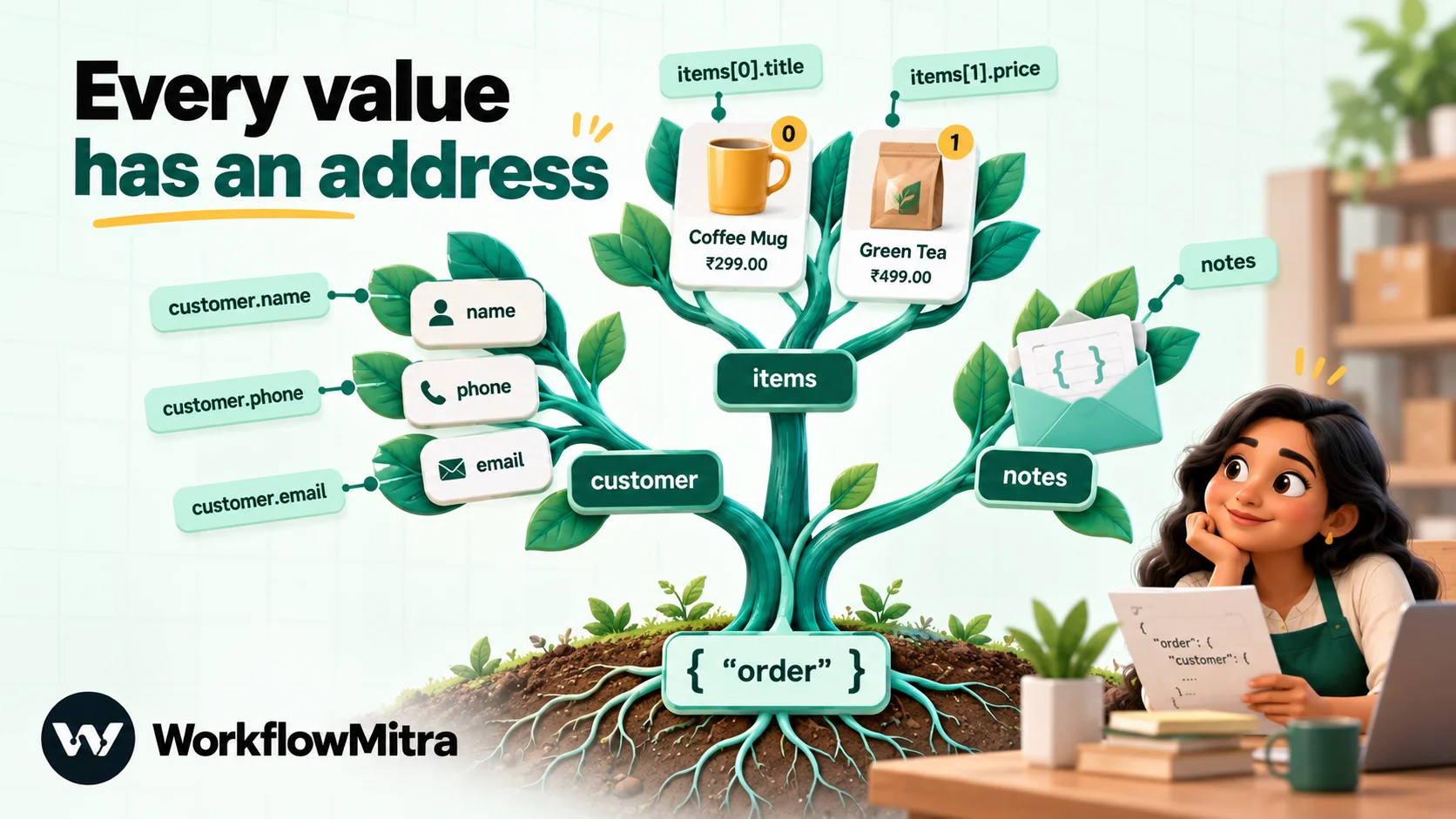
Each of those shapes needs slightly different handling, which is what the next few sections are about.
Paths: pointing at the value you want
A path is the address of one value inside a JSON document. Automation tools use paths whenever you map a field: the friendly variable you pick in a menu is a path underneath. In WorkflowMitra, a path goes inside double curly braces, {{ }}, in any field that accepts text.
Using the order above, these paths were all tested against WorkflowMitra’s expression engine:
| You want | Path | Result |
|---|---|---|
| A top-level value | {{ order_id }} | A-1042 |
| A value inside a nested object | {{ customer.name }} | Asha Rao |
| The first item in a list | {{ items[0].title }} or {{ items.0.title }} | Steel mug |
| The second item's price | {{ items[1].price }} | 199 |
| A key with a space | {{ $trigger["Delivery slot"] }} | Evening |
| A value from the trigger, from any later step | {{ $trigger.customer.email }} | [email protected] |
| A value from a named earlier step | {{ $node["New order"].order_id }} | A-1042 |
Four rules explain nearly every path that comes back empty:
- Positions start at zero. The first item is
[0], the second[1]. - A plain path reads only the previous step.
{{ customer.name }}looks at whatever the step directly before produced. Once an AI step, an approval or a lookup sits in between, that step’s output is what’s there. Use$triggerfor the trigger’s data and$node["Step name"]for any earlier step, with the step name exactly as it appears on the canvas. - Use square brackets for positions after
$triggeror$node.$node["Get customer"].body.data.customers[0].nameworks; the same path written with.0.returns nothing. Brackets work everywhere, so they’re the safer habit. - Keys with spaces or symbols need brackets and quotes.
$trigger["Delivery slot"]works. A dot can’t express a space.
You rarely have to type paths from memory. After a test delivery reaches a webhook, or after a test run, the variable picker in each field lists the fields earlier steps produced, and inserts the path for you.
The five jobs of JSON transformation in workflows
“Transforming JSON” sounds technical, but in day-to-day automation it means one of five jobs. Knowing which one you’re doing tells you which tool to reach for.
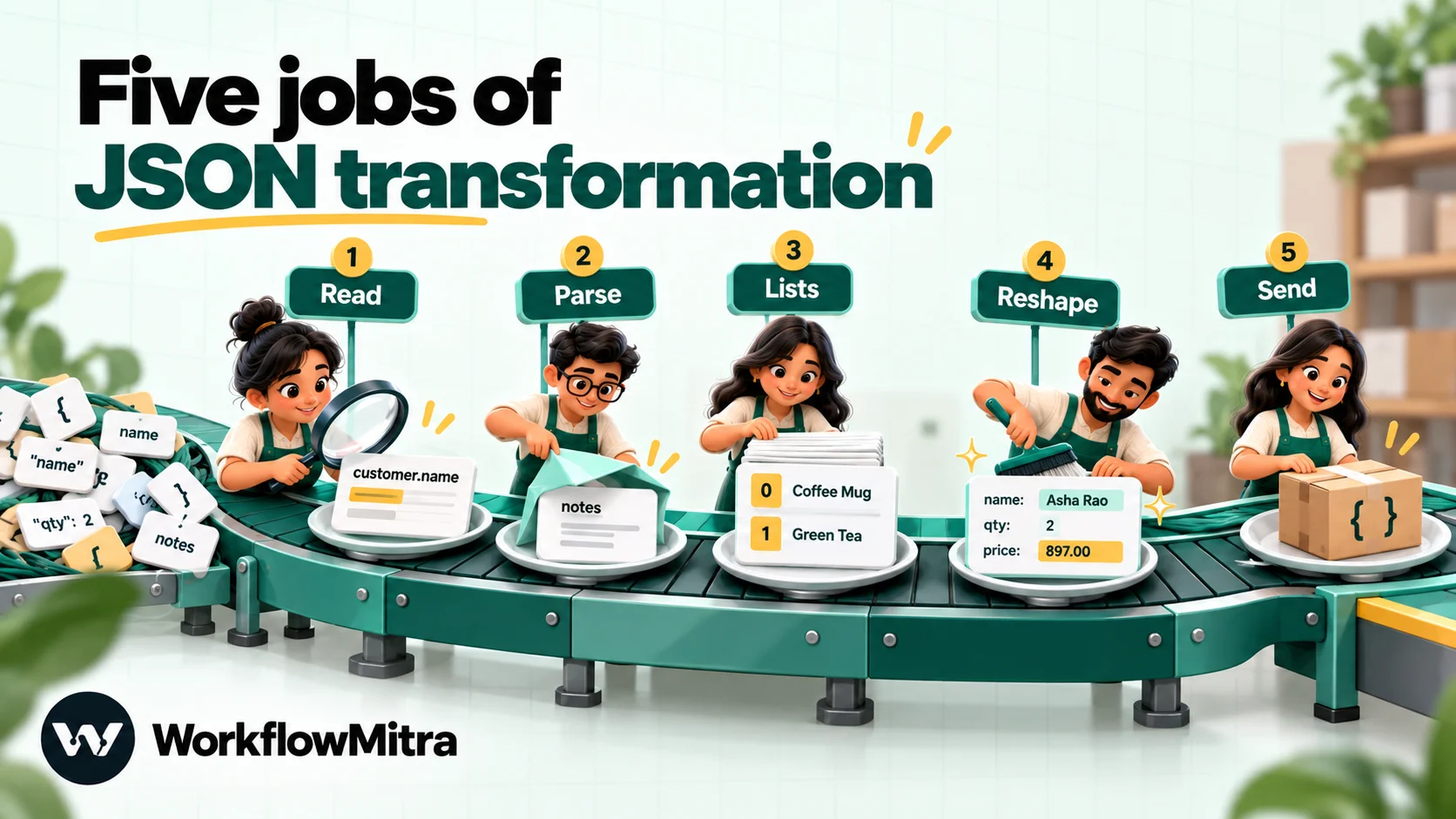
| Job | What it means | Usual tool in WorkflowMitra |
|---|---|---|
| 1. Read | Pull one value out of the data | A path in {{ }} |
| 2. Parse | Turn JSON that arrived as text into fields | Parse JSON step, or parseJSON() inline |
| 3. Handle lists | Summarise an array, or act on each item | Expression functions, or the Loop step |
| 4. Reshape and clean | Add, rename, convert or default fields | Set Variable with expressions |
| 5. Send | Build JSON for another system | HTTP Request or App Request body |
The sections below take each job in turn, with the mistakes that tend to go with it.
Parsing JSON: turning text into usable data
Parsing is needed whenever JSON arrives as text rather than as structured data. It’s more common than you’d expect:
- A field that stores JSON as a string. Stores, CRMs and form tools often keep extra data such as tracking parameters or custom attributes in one text field, like
notesin our example. - A webhook sent with the wrong content type. If a service posts JSON but labels it as plain text, WorkflowMitra receives it as
{ "raw": "...", "contentType": "text/plain" }. The data is all there, insideraw, but still as text. - An AI reply. When you ask a model for JSON, the answer is still text. WorkflowMitra’s AI step tries to parse it into a
jsonfield, but only when the whole reply is valid JSON; a reply wrapped in a Markdown code fence leavesjsonempty and the content intext. - A spreadsheet cell or database column that holds a JSON string.
The tell-tale sign is in the run details: the value is shown in quotes, with backslashes before the inner quotes, as notes is above.
The Parse JSON step
WorkflowMitra’s Parse JSON step (you’ll find it under Data when adding a step) has two settings:
- JSON string: the text to parse, usually picked from an earlier step, for example
{{ notes }}or{{ $trigger.raw }}. - On invalid JSON: Fail the step (strict) stops the run with a clear error, while Output null (lenient) passes
nullalong and lets later steps decide what to do.
With {{ notes }} as the JSON string, the step outputs {"utm_source": "instagram", "coupon": "DIWALI10"}, and the next step can use {{ coupon }} directly.
One behaviour to plan for: Parse JSON’s output replaces the data flowing forward. The step after it sees only the parsed fields, so reach back for the original order with {{ $trigger.order_id }} or {{ $node["New order"].customer.name }}.
Strict or lenient? Use strict when the JSON is supposed to be there and its absence means something is broken, such as an API response. Use lenient when the field is optional, such as notes that only some orders carry, and follow the step with an IF that checks whether the result is empty.
Parsing inline, without an extra step
When you need just one value from a JSON string, parse it inside the expression:
{{ get(parseJSON(notes), "coupon") }} → DIWALI10The get() wrapper matters. Writing {{ parseJSON(notes).coupon }} looks natural but returns nothing, because WorkflowMitra’s expressions don’t read a property directly off a function’s result. The same applies to first(items).title: use get(first(items), "title") instead.
Cleaning an AI reply before parsing
Models often wrap JSON in a code fence, so strict parsing fails with “Invalid JSON”. Strip the fence inside the JSON string field before it’s parsed:
{{ trim(replace(replace(text, "```json", ""), "```", "")) }}Tested on a fenced reply, this produced clean JSON that Parse JSON read without errors. Better still, tell the model in the prompt to return only a JSON object with named keys, and keep this clean-up as a safety net.
Working with arrays: summarise or loop?
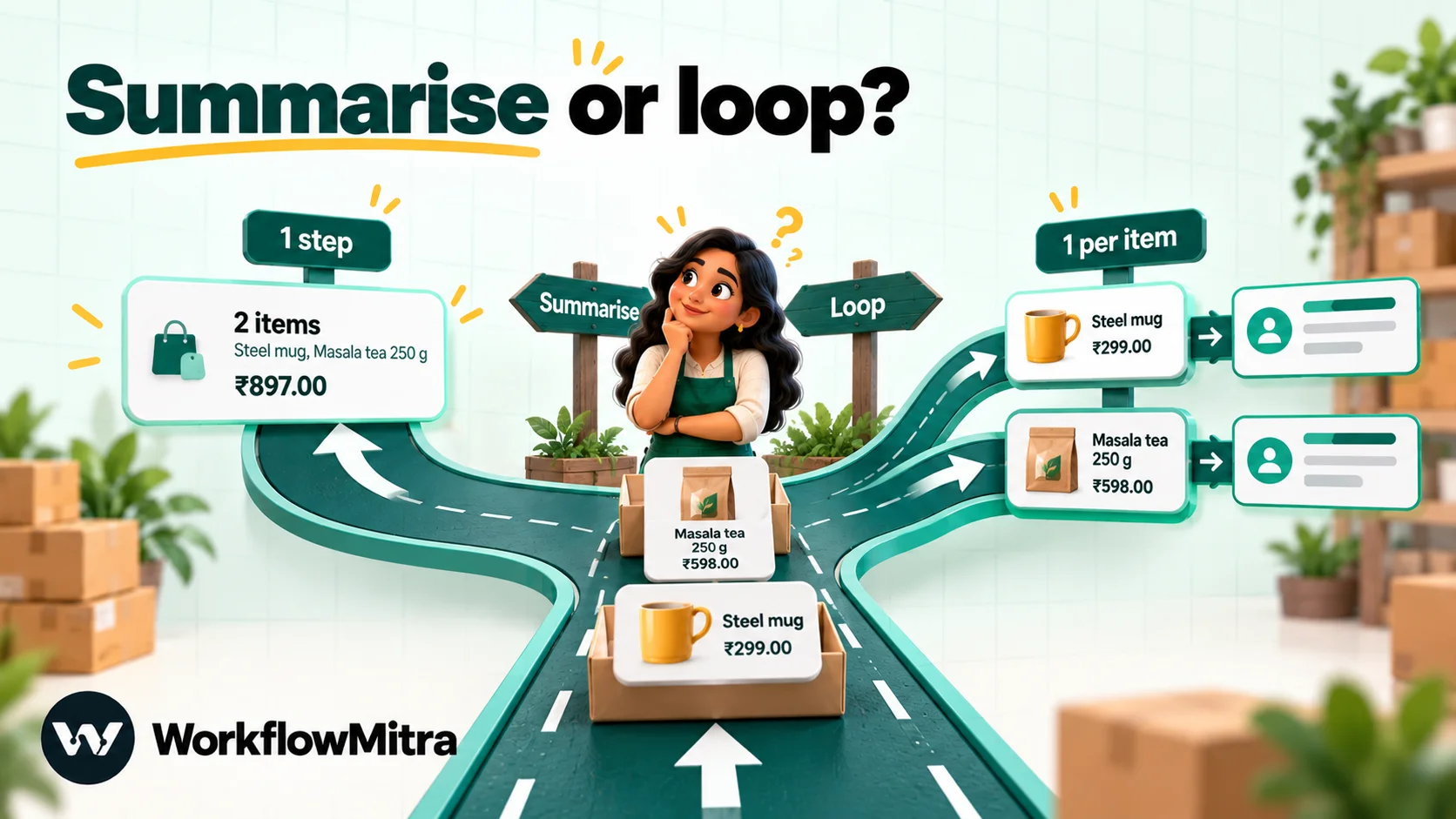
Arrays are where most JSON work in automation happens, and the first decision is whether you need one answer about the list or one action per item.
Summarising a list with expressions
If you want a count, a total, a text list or a single matching item, an expression does it in place, with no extra steps. Each of these was run on the order payload:
| Goal | Expression | Result |
|---|---|---|
| Count the items | {{ count(items) }} | 2 |
| List product names | {{ join(map(items, title), ", ") }} | Steel mug, Masala tea 250 g |
| Order total (qty × price) | {{ sum(map(items, multiply(qty, price))) }} | 897 |
| Total as rupees | {{ formatCurrency(sum(map(items, multiply(qty, price))), "INR") }} | ₹897.00 |
| Highest price | {{ max(map(items, price)) }} | 349 |
| Items with quantity 1 | {{ filter(items, qty = 1) }} | The tea, as a list |
| One field of a matching item | {{ get(find(items, sku = "TEA-05"), "title") }} | Masala tea 250 g |
| Is a SKU in the order? | {{ contains(map(items, sku), "TEA-05") }} | true |
| All unique tags across items | {{ distinct(flatten(map(items, tags))) }} | A de-duplicated list |
Inside map(), filter() and find(), each item becomes the scope, so you write the item’s field names directly: map(items, title). Writing map(items, item.title) returns blanks. You can still reach outside the item with $trigger, so map(items, $trigger.order_id) attaches the order ID to every entry.
Two limits are worth knowing. Expression comparisons support = and != only, so “items priced above ₹300” can’t be written as a filter; use an IF step inside a Loop, or a Code step. And arguments are separated by commas, even though some function descriptions in the editor show semicolons.
Acting on each item with the Loop step
When every item needs its own action, such as one spreadsheet row per product, one API call per record or one message per recipient, use the Loop step. Its settings:
- List field (optional): the path to the array, such as
itemsordata.orders. Leave it blank if the previous step’s whole output is the list. - Batch size, Execution mode (sequential or parallel), Max concurrency and Delay between batches (ms), for pacing calls to services with rate limits.
- Empty list behavior: skip with an empty result, or fail the run.
Steps attached to the loop branch run once per item, and inside that branch {{ $trigger.title }} refers to the current item. A Loop handles up to 1,000 items per run and is charged 1 credit per item, plus the steps inside it. That cost is why summarising with an expression is the better choice whenever a single answer will do. Some steps also have their own bulk mode: Google Sheets Add row(s) can write one row per array item in a single step, which is cheaper than looping.
One quiet failure to watch for: if the List field points at something that isn’t a real array, the Loop treats it as an empty list. With the default “skip” behaviour, the run carries on and nothing happens. If a loop seems to do nothing, open the run details and check that the value is a list in square brackets, not text in quotes.
Reshaping and cleaning data with Set Variable
Set Variable is the step for tidying data before it moves on. Under Fields to set, each row has a key and a value, and the value can be fixed text, a path or a formula. The Formula & Transform Builder offers common transformations, such as paise to rupees, Indian rupee formatting, upper or lower case, trimming and fallback values, without typing the formula yourself.
Useful patterns, all tested:
| Field | Value | Why |
|---|---|---|
first_name | {{ first(split(customer.name, " ")) }} | Friendlier greetings |
phone_digits | {{ replace(customer.phone, " ", "") }} | "98765 43210" becomes 9876543210 |
company | {{ customer.company | Not provided }} | A fallback when the field is missing or blank |
amount_rupees | {{ paisaToRupees(amount) }} | Payment gateways often send 129900 for ₹1,299 |
total_number | {{ parseNumber(total_text) }} | "₹1,299.50" becomes 1299.5 |
order_date | {{ formatDate(created_at, "DD MMM YYYY") }} | An ISO timestamp becomes 07 Oct 2026 |
contact | {{ pick(customer, "name", "email") }} | Copy only the fields another system needs |
Set Variable adds these fields to the data it received, so later steps see the original fields plus the new ones.
Three behaviours that surprise people, confirmed in WorkflowMitra’s source code:
- Values are stored as text. A number such as
{{ count(items) }}arrives as"2", and a list such as{{ items }}arrives as JSON text. IF comparisons still treat"2"as a number, so this rarely matters for numbers. It matters for lists: a Loop pointed at a list made in Set Variable sees text, not an array, and does nothing. To loop over a list you built, follow Set Variable with Parse JSON on that field. - A dot in a key is just a character. A key of
customer.citycreates a field literally named “customer.city”; it doesn’t addcityinsidecustomer. Use flat names such ascustomer_city. - There’s no text joining with
+. To add a country code, use{{ padStart(phone_digits, 12, "91") }}, which pads a 10-digit number to 12 characters with the prefix. It’s a fixed-length trick, so check the length first if numbers might already include the code.
Sending JSON to another system
The last job is the reverse: building a JSON body for an API. In WorkflowMitra’s HTTP Request step, choose the Raw JSON body and write the JSON with placeholders:
{
  "name": "{{ customer.name }}",
  "items": {{ items }},
  "item_count": {{ count(items) }},
  "company": "{{ customer.company }}"
}
The step handles the two hardest parts of building JSON by hand. Placeholders inside quotes are escaped, so a name such as Asha "Ash" Rao still produces valid JSON. Placeholders outside quotes are inserted as real JSON values, so items arrives as an actual array and item_count as a number. A missing value becomes an empty string inside quotes, or null outside them.
By contrast, the JSON fields body mode sends every value as a string, so 2 becomes "2". If the receiving API is strict about types, use Raw JSON. Our guide to connecting any API without code covers headers, authentication and response handling for the same step, and the escapeJSON() function is available if you ever build JSON text outside a Raw JSON body.
A worked example: order to WhatsApp confirmation
Here’s how the jobs combine in one workflow. An online store posts each new order to WorkflowMitra, and the customer gets a WhatsApp confirmation listing what they bought and the total.
- Trigger: On webhook call. The store posts the order JSON shown earlier. Send one test order, then use the variable picker to confirm the fields came through.
- Set Variable, named “Order summary”:
product_list→{{ join(map(items, title), ", ") }}order_total→{{ formatCurrency(sum(map(items, multiply(qty, price))), "INR") }}first_name→{{ first(split(customer.name, " ")) }}phone→{{ padStart(replace(customer.phone, " ", ""), 12, "91") }}
- IF:
{{ phone }}Is not empty, so orders without a number don’t produce a failed send. - WhatsApp, on the Yes branch: send an approved order-confirmation template to
{{ phone }}, with{{ first_name }},{{ $trigger.order_id }},{{ product_list }}and{{ order_total }}as its variables. WorkflowMitra can send it with your ChatMitra account or straight through Meta’s WhatsApp Cloud API.
The customer reads: “Hi Asha, order A-1042 is confirmed: Steel mug, Masala tea 250 g. Total ₹897.00.”
Note the comma in product_list. WhatsApp rejects template variables that contain line breaks or tabs, so joining items with newline would make the send fail. Commas are safe. The two data steps, Set Variable and IF, are charged 0 credits at current rates, so the transformation itself adds nothing to the run’s cost. Setting up the webhook trigger itself, including test deliveries, is covered step by step in our webhook to WhatsApp tutorial.
When to switch to a Code step
Expressions, Parse JSON, Set Variable and Loop cover most JSON work. A Code step earns its place when the transformation needs logic they don’t have:
- Filtering by a numeric rule, such as items over ₹300, since expression comparisons only support equals and not-equals.
- Grouping or counting by a field, such as how many items are in each category.
- Building a new nested structure from several sources, such as an API body with arrays of objects whose fields come from different steps.
- Validating many fields at once and returning one clear yes or no.
Keep the Code step to that one job and return a clean object for the visual steps that follow. Our guide to code steps in automation covers when code is worth it, its limits and seven tested snippets, including one that summarises an order’s items.
Common JSON mistakes and how to fix them
| What you see | Likely cause | Fix |
|---|---|---|
| A field comes through empty | The path doesn't match exactly, or it reads the previous step when the value is in an earlier one | Check spelling and case in the run details; use $trigger or $node["Step name"] |
A message shows [{"sku":... or {"name":... | A whole object or list was put in a text field | Map individual fields, or summarise with join(map(...)) |
| "Invalid JSON" from Parse JSON | The text isn't pure JSON: a code fence, a trailing comment or truncated text | Clean it with replace() and trim(), or use lenient mode with an IF after it |
| "No JSON string to parse" | The JSON string field resolved to nothing | Check the path; use lenient mode if the field is optional |
| A Loop runs zero times | The List field points at text or at the wrong path | Parse the text first; confirm the value is a list in square brackets |
parseJSON(x).field or first(list).field is blank | Properties can't be read straight off a function's result | Wrap it: get(parseJSON(x), "field") |
map(items, item.title) returns blanks | The item is already the scope | Write map(items, title) |
| A number compares wrongly | One side is text with symbols, such as "₹1,299" | Convert with parseNumber() or toNumber() first |
| The API rejects your body's types | JSON fields mode sent numbers as strings | Switch to Raw JSON and leave number placeholders unquoted |
Testing and debugging JSON in a workflow
JSON problems are almost always data problems, so test with data that’s as messy as the real thing. Before switching a workflow on, run it with:
- A complete record, to confirm the happy path.
- Missing optional fields, such as no company or no notes, to check your fallbacks.
- An empty list, to see what the Loop and summary expressions do.
- Awkward text: quotes, apostrophes, emoji and non-English names, to check escaping.
- A wrong type, such as a price sent as “349.00” instead of 349.
After each run, open the run details and read each step’s input and output from top to bottom. The first step where the data looks different from what you expected is where the problem is. Errors from a failing step appear next to it, with messages such as “Invalid JSON” that name the cause. When a step is allowed to fail without stopping everything, attach an error branch to it with Add error handler from the step’s right-click menu. Error branches should always notify someone, and workflow error handling shows how to set that up.
Best practices for JSON-heavy workflows
- Look before you map. Send one real test event and read its JSON before building the rest of the workflow.
- Name steps clearly.
$node["Get customer"]is readable months later;$node["HTTP Request 2"]isn’t. - Flatten early. If ten later steps need values from deep inside a response, pull them into flat fields with one Set Variable straight after it.
- Summarise before you loop. A count, total or joined list in an expression costs nothing; a loop costs a credit per item.
- Give every optional field a fallback, so messages never go out as “Hi ,” and APIs never receive a blank where they expect a value.
- Keep types honest. Convert text to numbers before comparing, and send numbers unquoted in Raw JSON bodies.
- Parse once. If several steps need fields from a JSON string, use one Parse JSON step rather than repeating
parseJSON()in every field. - Keep personal data lean. Pass on only the fields the next system needs;
pick()makes that a one-line job.
Why use WorkflowMitra for JSON-heavy workflows?
WorkflowMitra’s approach to JSON is built around keeping data work visible on the canvas rather than hidden in scripts:
- Data steps are free at current rates. Parse JSON, Set Variable, IF, Switch and Merge are charged 0 credits, so tidying data doesn’t add to a run’s cost. Plans start at 10,000 credits for ₹999 a month, after a 14-day trial with no card.
- The expression library covers most list work. 110 built-in functions, including
map,filter,find,sum,join,pickandparseJSON, handle the common jobs without a loop or code. - Request bodies are built safely. Raw JSON bodies escape text and keep types, which removes the most common cause of “invalid JSON” errors from receiving APIs.
- It connects to the messaging layer. The same workflow that reshapes an order can send the WhatsApp confirmation through ChatMitra.
The limits are just as real. Expressions can’t compare greater-than or less-than, there’s no built-in step to validate data against a JSON Schema, and a Loop stops at 1,000 items per run. Teams that transform large datasets or need schema validation in every flow may be better served by a developer-oriented platform.
Putting it into practice
Start with one real payload. Read it from the outside in, write paths for the three values you need most, and decide for each list whether you need one answer or one action per item. Use Parse JSON only when the data arrived as text, Set Variable to flatten and clean, and a Code step only for the rule nothing else can express.
To try the examples, start a 14-day WorkflowMitra trial, add a webhook trigger and send it the order JSON from this guide. For the concepts around it, read what webhooks are and our guide to triggers, actions and conditions.
How we checked: the WorkflowMitra behaviour in this guide, including expression results, step settings, the handling of text and lists in Set Variable, Raw JSON escaping and current credit rates, comes from its source code as of 7 October 2026; every expression in the tables was executed against the product's expression engine with the sample order shown. JSON definitions follow RFC 8259 and json.org.
Frequently Asked Questions
Short answers to the questions people ask when JSON data first shows up in their automations.
JSON (JavaScript Object Notation) is the plain-text format most apps, webhooks and APIs use to send structured data. In an automated workflow, the trigger usually receives JSON, every step reads JSON from the steps before it, and most steps output JSON. Mapping a field in an automation tool means pointing at one value inside that JSON.
Automate the work between your apps
Build workflows with triggers, conditions and actions, then test them before they go live. Try WorkflowMitra free for 14 days, no card required.
