JustDial Lead Integration: Capture Every Enquiry in Google Sheets or Your CRM

Quick Summary
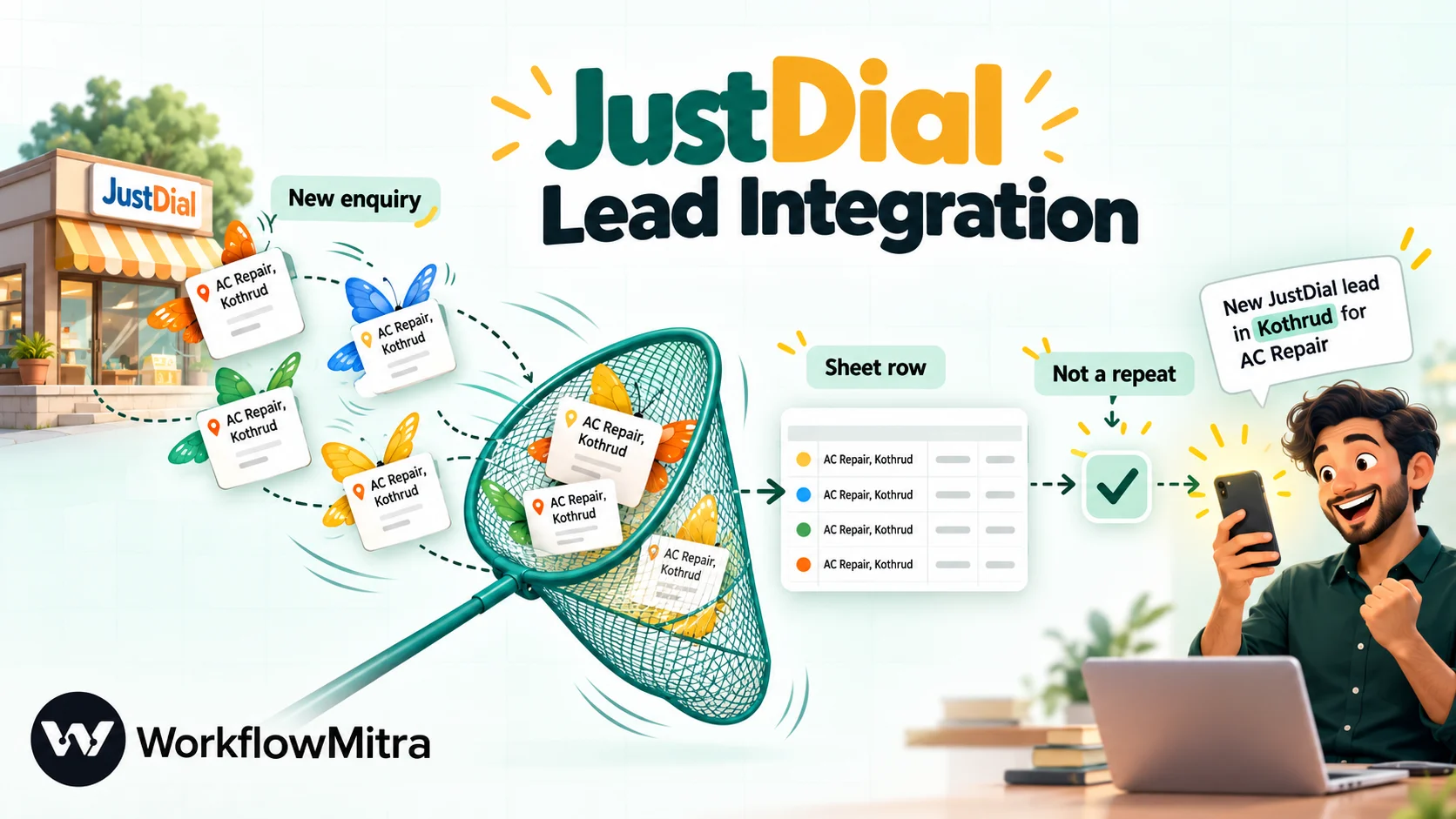
A JustDial lead integration sends each enquiry you receive on JustDial to the system your team works from, such as Google Sheets or a CRM, within moments of it arriving. JustDial doesn't offer a self-service setting for this: you give a webhook URL to your JustDial account manager, and their team configures JustDial to call it with the lead's details, typically as a GET request. With WorkflowMitra, powered by ChatMitra, that URL starts a workflow that checks for repeats, adds the lead to a sheet or CRM, picks an owner and alerts them.
Someone in your city searches JustDial for an AC repair service, a caterer or a coaching class, and taps “send enquiry”. Your business is one of several that receive it. What happens next mostly depends on speed: the first business to call back with a clear answer usually gets the job. Yet in plenty of teams that enquiry sits in the JustDial app on the owner’s phone, gets forwarded to a salesperson as a screenshot, or is copied into a sheet at the end of the day.
A JustDial lead integration removes that delay. This guide explains how JustDial hands leads to other software (it works differently from most lead sources), what a lead contains, and how to build a workflow that records every enquiry in Google Sheets or a CRM, skips repeats, routes each lead to the right person and alerts them, with honest notes on costs and on the things JustDial doesn’t document.
What is a JustDial lead integration?
A JustDial lead integration automatically sends each enquiry you receive on JustDial to the system your team works from, such as Google Sheets, a CRM or a team alert. JustDial has no self-service setting for this. You create a webhook URL in your CRM or automation tool and give it to your JustDial account manager, whose team configures JustDial to call that URL with every new lead's details, typically as a GET request.
The integration doesn’t change how customers reach you. They still find you on JustDial, and the lead still shows up in your JustDial account. The difference is that a copy now arrives in the place where follow-up actually happens, seconds after the enquiry, without anyone retyping it.
How JustDial sends leads to other software
This is the part most guides skip, and it shapes everything you build. Three facts matter.
There’s no switch you can flip yourself. JustDial’s seller tools don’t include a screen for adding a webhook URL. Every CRM that supports JustDial describes the same route: generate a URL, send it to your JustDial account manager or JustDial’s support team, and wait for them to confirm the configuration. LeadSquared, Kylas, Niswey and 3sigma all document it this way in their setup guides.
Leads arrive as GET requests. LeadSquared’s guide states that the API must be configured in JustDial using the GET method. In practice that means JustDial calls your URL with the lead’s details appended as query parameters, the way a browser loads a link, rather than posting a JSON document. This detail matters later, for testing and for duplicate checks.
There’s no public schema. JustDial doesn’t publish developer documentation for its lead push: no field list, no description of retries, no statement of what reply it expects. Integrators work from the payloads they actually receive. So should you. The build below captures your first real lead and maps fields from it, instead of trusting a list copied from somewhere else.
None of this is a reason to avoid the integration. It just means the first step is a conversation with your account manager, not a settings page, and that you should confirm a few things with them in writing. The email in Step 4 covers what to ask.
Four ways to get leads out of JustDial
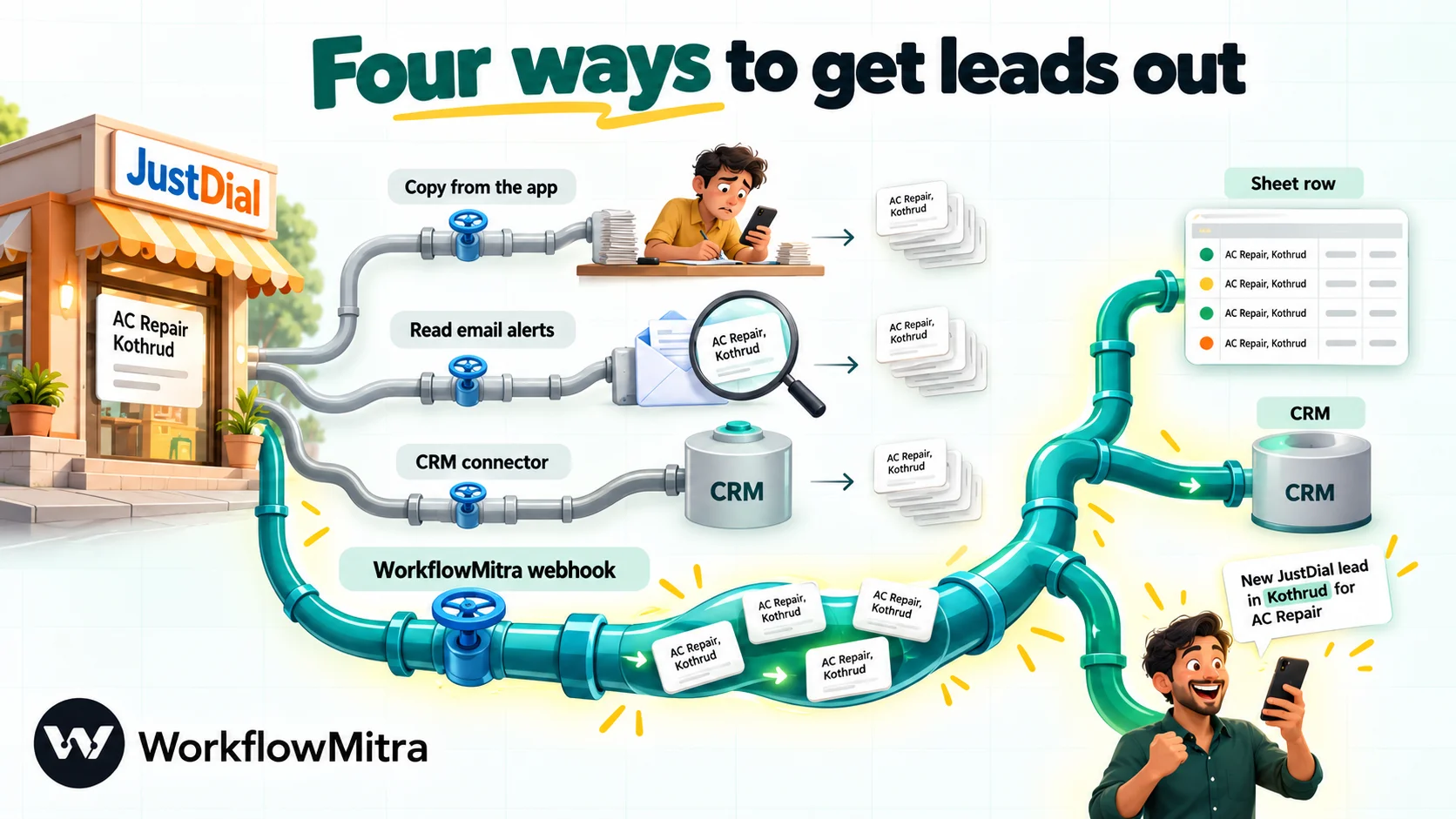
Before building anything, consider all the options. The simplest one that fits your volume is the right one.
| Route | How it works | Speed | Good fit |
|---|---|---|---|
| Copy from the JustDial app | Someone reads each lead in the app and types it into a sheet or CRM | Whenever someone gets to it | A handful of leads a week |
| Read the email alerts | An automation reads lead notification emails and pulls out the fields | Minutes | A stopgap while the push is being set up |
| A CRM with a JustDial connector | The CRM generates the URL; JustDial's team configures it; leads appear in the CRM | Real time | Teams already on that CRM who only need leads created |
| A webhook into a workflow | JustDial calls a workflow URL; the workflow applies your rules to each lead | Real time | Sheets and CRM together, routing, alerts, duplicate rules, any CRM |
Reading email alerts works, but it’s fragile. You depend on the layout of a notification email that can change without warning, and parsing free text is where small errors creep in. Treat it as a bridge, not a destination.
A CRM’s built-in connector is the easiest choice when it does everything you need. Check whether it’s included in your CRM plan, though: LeadSquared, for example, lists its JustDial connector as a paid feature. Choose the workflow route, which this guide builds with WorkflowMitra, powered by ChatMitra, when you want more than “create the lead”: a shared sheet for a small team, a CRM that has no JustDial connector, duplicate rules, routing by service or area, or alerts on the channels your team actually reads.
What a JustDial lead looks like
Because JustDial publishes no schema, treat the table below as a guide to recognise fields, not a contract. The names are the ones integrators commonly report seeing in JustDial pushes. Your payload may include fewer fields, extra ones or slightly different names, and the first lead you capture is the only list that counts.
| Commonly reported field | What it appears to hold | How you'll use it |
|---|---|---|
leadid | JustDial's identifier for this enquiry | Duplicate checks; the reference you quote back to JustDial |
leadtype | The kind of lead | Optional filtering or reporting |
prefix, name | Salutation and the enquirer's name | Greeting, CRM name fields |
mobile, phone | Mobile and landline numbers | Callback, WhatsApp (with consent), CRM matching |
email | Email address, often blank | CRM contact; don't depend on it |
category | The JustDial category the person searched or enquired in | Routing to the right team |
city, area, pincode | Where the enquirer is | Territory routing, travel planning |
brancharea, branchpin | Which of your listed branches the enquiry relates to | Routing for multi-branch businesses |
date, time | When the enquiry was made | Response-time tracking |
company | The enquirer's company, if any | B2B context |
dncmobile, dncphone | The names suggest a do-not-call flag for each number | Ask your account manager what these mean before you rely on them |
parentid | An identifier linked to your listing | Sanity checks on incoming requests |
Two things are worth checking on your first real lead. First, the format of mobile: whether it arrives as ten digits, with a leading zero or with a country code changes the expression you’ll use later. Second, whether leadid is filled every time, because it’s the natural key for spotting repeats.
What you need before you start
- A JustDial listing with an account manager you can reach. Ask whether lead push to a third-party URL is available on your package; JustDial doesn’t publish this.
- A Google account with a sheet for leads, or access to your CRM.
- A WorkflowMitra workspace. The 14-day trial needs no card and includes enough credits to run this for real.
- A decision about ownership. Who gets which leads, and on which channel they want to hear about them. The workflow can only route what you’ve decided.
How to send JustDial leads to Google Sheets, step by step
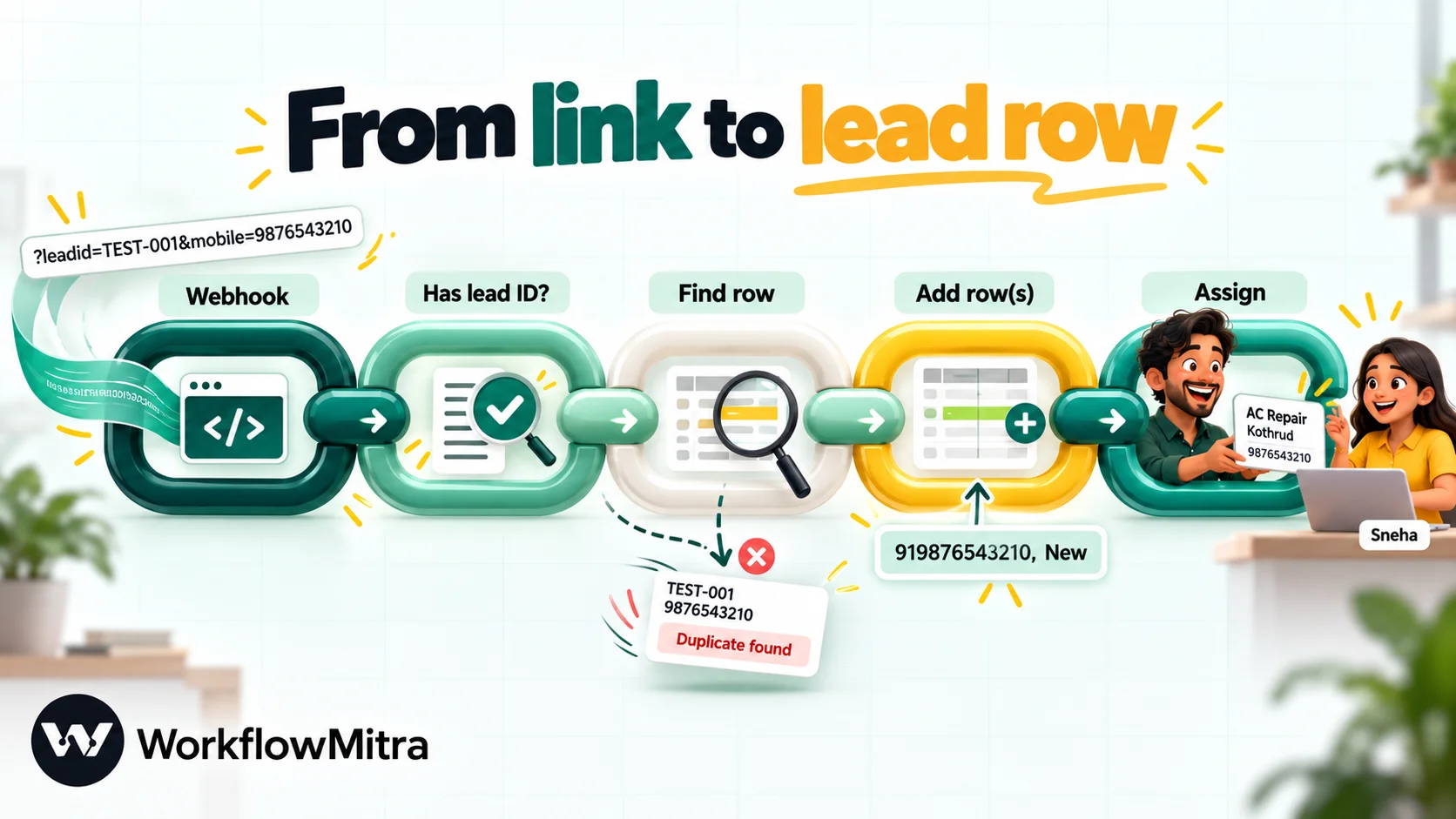
The core workflow has four jobs: receive the request, ignore anything that isn’t a real lead, skip repeats, and record the lead. Routing, a CRM and alerts come after.
Step 1: Create the workflow and its webhook
In WorkflowMitra, start a new workflow with the On webhook call trigger. Set the Source to Something else. JustDial isn’t a named source, and this option adds no sender-specific checks that a JustDial request couldn’t pass.
Step 2: Clear the secret
New webhooks start protected by a random secret that the caller must send in a request header. JustDial’s push can’t add custom headers, so every lead would be refused with a 401 error. In Edit webhook, find API key authentication, empty the Secret field, and keep Require verification switched off.
The trigger panel will then warn that anyone with the URL can start the workflow. That’s accurate, and it’s the same position every CRM’s JustDial connector is in. The URL is now the key, so treat it like one; the section on keeping the URL safe covers the checks that compensate.
Step 3: Switch the workflow on and copy its URL
Turn the workflow on (save it, then activate it) before the URL leaves your hands. A paused workflow’s webhook answers 404, which looks to the sender like a wrong address. Copy the URL from the trigger panel.
Step 4: Send the URL to your JustDial account manager
A short, specific email gets this done faster than a phone call, and gives you a written record. Something like:
Hi [name], please configure lead push for our listing [business name, city] to this URL: [your webhook URL]. Please send leads as a GET request with all available lead fields. Could you also confirm: (1) the exact field names you will send, (2) whether you retry when a delivery fails, and (3) what response you expect from our URL? Please send one test lead once it's set up. Thanks.
The three questions fill the gaps in JustDial’s public information. Whatever answers you get, keep them with your workflow notes; they’re what you’ll check first if something goes wrong months from now.
Step 5: Test it yourself from a browser
You don’t have to wait for JustDial to know your workflow works. Because JustDial sends GET requests, any browser can imitate one. Paste your webhook URL into the address bar, add a question mark and some test values, and press Enter:
https://your-webhook-url?leadid=TEST-001&name=Test%20Lead&mobile=9876543210&category=AC%20Repair&city=Pune&area=Kothrud%20 is how a space is written inside a URL. In WorkflowMitra, the trigger’s Listening for data… card picks up the request and lists the fields it found (leadid, name, mobile and so on), which then appear in the variable picker for every later step. The card’s list of recent requests shows the call as a GET with its outcome, such as Received or Refused — wrong or missing secret if Step 2 was missed.
Two cautions. Each browser test runs the workflow for real, so it uses credits and writes a row; delete test rows afterwards, or give test values an obvious marker like TEST-. And when JustDial’s first real lead arrives, compare its fields with your test. If a name differs, update your mappings to match the real one.
Step 6: Ignore requests that aren’t leads
Add an IF step after the trigger. Its condition: {{ $trigger.leadid }} Is not empty. Requests without a lead ID are either broken or not from JustDial, so the “no” branch simply ends.
If your first real lead carries a field that should always hold the same value for your business, such as parentid, add a second condition comparing it with that value. A stranger who finds your URL is unlikely to guess it. IF steps cost no credits, so these checks are free.
Step 7: Skip leads you’ve already recorded
This step exists because of the GET method. WorkflowMitra’s webhook can ignore repeated deliveries automatically, but both of its methods read the request body: the trigger’s Idempotency key path looks up a field inside the body, and the fallback check fingerprints the body’s raw bytes. A GET request has no body, so neither applies, and a lead JustDial sends twice would run twice.
The fix is a lookup inside the workflow. Next, on the IF step’s “yes” branch, place a Google Sheets step using Find row, choose your sheet and tab, set Key column to your Lead ID column, and set Key value to {{ $trigger.leadid }}. Then add a second IF: {{ found }} Is no. The “yes” branch continues to the new row; the other branch ends quietly, because the lead is already there.
Format the Lead ID column as Plain text in Google Sheets (Format › Number › Plain text) before the first lead arrives, so an ID that looks like a number is stored and matched exactly as JustDial sent it.
Step 8: Add the lead to the sheet
Continue the “yes” branch with a Google Sheets step set to Add row(s), and map the columns. Because later steps run after other steps, refer to lead fields through $trigger, which always means the original request:
| Sheet column | Value |
|---|---|
| Lead ID | {{ $trigger.leadid }} |
| Enquired at | {{ $trigger.date }} {{ $trigger.time }} |
| Name | {{ $trigger.prefix }} {{ $trigger.name }} |
| Mobile | {{ if(length($trigger.mobile) = 10, padStart($trigger.mobile, 12, "91"), $trigger.mobile) }} |
{{ $trigger.email | Not given }} | |
| Category | {{ $trigger.category }} |
| Area | {{ $trigger.area }} |
| City | {{ $trigger.city }} |
| Status | New |
| Owner | (filled by routing, below) |
The mobile expression turns a ten-digit Indian mobile number such as 9876543210 into 919876543210, the country-code-first form that WhatsApp and most CRMs expect, and leaves anything else untouched. That’s deliberate: a number with a leading zero or an unusual length is better left as JustDial sent it, for a person to check, than silently mangled. | Not given writes a readable placeholder when the email is blank.
Set Write values to Exactly as written (no formulas). With the default, Google Sheets interprets what it receives as if someone had typed it, so long numbers lose their formatting and values starting with + become formulas. And match the sheet’s column order to the mapping, because Add row(s) writes by position; new columns go at the end.
Run the browser test again with a new lead ID, and the row should appear within seconds. Run it a second time with the same ID, and nothing new should appear. That’s your duplicate check working.
Designing a lead sheet a sales team will actually use
A sheet that only collects leads becomes an archive. A few columns turn it into a working list:
- Status with a dropdown (Data › Data validation): New, Called, Visit booked, Quoted, Won, Lost. Consistent values make filters and reports possible later.
- Owner, written by the routing step, so each person can filter to their own leads.
- First call at, typed by whoever calls. Comparing it with “Enquired at” is the simplest response-time report you can build, and response time is what wins JustDial enquiries.
- Notes for the conversation, and Next follow-up for the date of the next touch.
Put the workflow-filled columns first and the hand-edited ones after them. Nobody then types into a column the next lead will overwrite, and adding a manual column never shifts the positions the workflow writes to.
Route each lead to the right person
Once leads land reliably, routing is where the integration starts paying for itself. JustDial leads carry two natural routing keys: what the person wanted (category) and where they are (area, city, or brancharea for multi-branch businesses).
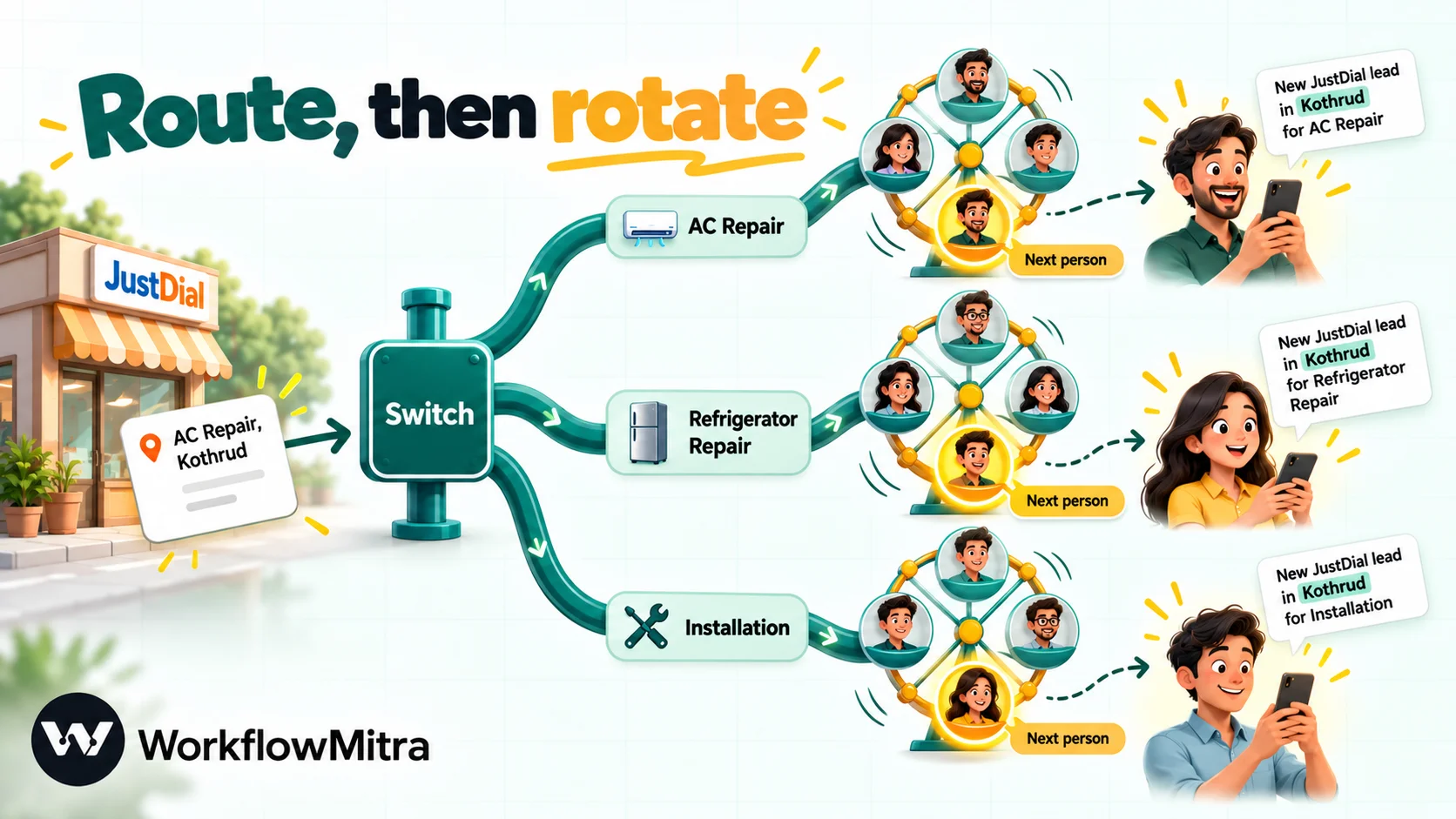
- After the Add row(s) step, add a Switch step and route on
{{ $trigger.category }}. Create one route per category your teams split on, such as “AC Repair” and “Refrigerator Repair”, with the values written exactly as they appear in your test leads. Leave an else route for anything unexpected. - On each route, add an Assign to the next person step with that team’s members. It rotates through them in order, so leads are shared fairly rather than landing on whoever checks the sheet first. Our guide to round-robin lead assignment compares the options.
- Write the owner back: a Google Sheets Find row on the lead ID, then Update row with
{{ assignedName }}in the Owner column. Or, simpler, move the Switch and Assign steps before Add row(s) and include the owner in the row itself. - Send the else route to a manager, so a new category JustDial starts sending doesn’t vanish.
For territory routing, switch on {{ $trigger.area }} instead. Keep the list of areas short and add an else route; areas are spelled however the customer’s location was recorded, so expect variations and grow the list from real leads.
Alert the salesperson where they’ll see it
A lead in a sheet still waits for someone to look. An alert removes the wait. WorkflowMitra can send it as a WhatsApp message, an email, or a Slack, Telegram or Discord message. Use the channel your team already keeps open.
For WhatsApp, the WhatsApp step sends through ChatMitra or the Meta Cloud API. Business-initiated WhatsApp messages need an approved template, so create a short utility template such as “New JustDial lead: {{1}} in {{2}} for {{3}}. Call {{4}}.” and fill the variables with the lead’s name, area, category and mobile. ChatMitra is the WhatsApp layer here: it holds your number and templates, and WorkflowMitra decides when each message goes and to whom.
Should you message the customer on WhatsApp too? Be careful. WhatsApp’s Business Messaging Policy allows contacting people only when they’ve given you their number and agreed to receive messages from you. Someone who enquired on JustDial gave their number to JustDial to hear back about their enquiry; they didn’t agree to WhatsApp messages from your business. The safe pattern is to call, ask if they’d like details on WhatsApp, and record their answer. ChatMitra’s guide to WhatsApp opt-in covers how to ask and keep a record.
Send JustDial leads to a CRM instead of (or as well as) a sheet
The same workflow can create CRM records. Add the CRM steps after the duplicate check, or in place of the sheet.
Zoho CRM. Use the Zoho CRM step with Search Records in the Leads module to look for the mobile number first. Zoho’s search criteria are written as (Mobile:equals:{{ … }}) with your formatted number inside. If the search returns nothing (a count of 0), a second Zoho CRM step with Create Record adds the lead. Zoho’s Leads module requires a Last Name; JustDial usually sends one name field, so put the full name there unless you can split it reliably. Add “JustDial” to your Lead Source values in Zoho first, and set it on every record, so your reports can separate JustDial leads from the rest.
Other CRMs. WorkflowMitra’s App Request step calls HubSpot, Pipedrive and other supported apps with a saved connection, and the HTTP Request step reaches any CRM with an API. The pattern stays the same: search on the phone number, then create or update. The CRM automation guide walks through it in more depth.
Keeping both a sheet and a CRM is reasonable during a changeover. Long term, pick one place where status lives, or the two will disagree.
A worked example: from search to callback in four minutes
Here’s how it plays out for an illustrative business: an AC servicing company in Pune with two teams, installation and repair.
- At 10:42 a customer in Kothrud enquires on JustDial under an AC repair category.
- JustDial calls the webhook with the lead’s ID, name, mobile, category and area in the URL.
- The IF step finds a lead ID, and the Find row step finds no row with it, so the lead is new.
- Add row(s) writes the lead with the mobile number as
919876543210, status New. - The Switch step reads the category and takes the repair route; Assign picks Sneha, next in the repair rotation.
- Sneha’s phone shows a WhatsApp alert with the customer’s name, area, need and number, and her name is written into the Owner column.
- She calls at 10:46 and logs the time. Later, the manager’s weekly filter on “First call at” minus “Enquired at” shows the team’s average response time.
Total effort per lead from the team: one phone call. Everything else happened in the four minutes between the enquiry and the call.
What should JustDial get back?
When JustDial calls your URL, WorkflowMitra replies immediately with HTTP 202 (“accepted”) and a short JSON note, then runs the steps. Any 2xx code means success in HTTP terms, and that’s normally fine.
JustDial doesn’t publish what reply it expects, though, which is why the email in Step 4 asks. If your account manager says deliveries are failing while leads are reaching your sheet, or tells you they need HTTP 200 specifically, open Edit webhook and turn on Respond synchronously. Then end each route with a Response step set to status 200. The webhook then holds the request open until the run ends, for at most 25 seconds, and returns your response. A workflow this short finishes well within that window, and Response steps cost no credits.
Keeping an open webhook URL safe
With the secret cleared, the URL is the only thing standing between your workflow and anyone who learns it. That’s the same for every JustDial integration, whichever tool receives it, but you can reduce the risk:
- Keep the URL private. Share it with your account manager only. Don’t paste it into chats, screenshots or support tickets.
- Use the checks from Step 6. A lead ID requirement and a match on a field only JustDial would send filter out casual misuse.
- Never let a request trigger something irreversible on its own. Recording a lead or alerting a salesperson is safe. Refunds, deletions or customer-facing messages need a human or a second check.
- Rotate the URL if it leaks. Rotate URL in the trigger panel issues a new address; the old one keeps working for seven days, which gives JustDial’s team time to update their configuration.
- Remember that query strings travel. URLs, including their query strings, are more likely than request bodies to be written into logs along the way. That’s a property of GET requests generally, and another reason to keep the URL to yourself.
For the full trade-offs of open webhooks, read the webhook security guide.
What does it cost to run?
WorkflowMitra charges credits per executed step: the webhook trigger, Google Sheets, Assign and messaging steps cost 1 credit each, while IF, Switch and Response steps cost nothing. For the full build in this guide, a new lead costs:
| Step | Credits |
|---|---|
| Webhook trigger | 1 |
| IF (lead check) and IF (found?) | 0 |
| Google Sheets Find row | 1 |
| Google Sheets Add row(s) | 1 |
| Switch | 0 |
| Assign to the next person | 1 |
| WhatsApp alert to the salesperson | 1 |
| Total per new lead | 5 |
A repeated lead stops after the lookup and costs 2 credits. At 400 JustDial leads a month, the flow uses about 2,000 credits. WorkflowMitra’s Starter plan is ₹999 a month for 10,000 credits (prices checked on 8 October 2026), so the integration uses a fifth of the entry plan and leaves room for other workflows. WhatsApp alerts also carry Meta’s template charge and, when sent through ChatMitra, ChatMitra’s own fee; see ChatMitra pricing for current figures.
Test the integration before real leads depend on it
| Test | How | Expected result |
|---|---|---|
| New lead | Browser test with a fresh leadid | One new row, correct columns, status New |
| Repeat | Same URL again with the same leadid | No new row; the run ends after Find row |
| Missing ID | URL with name and mobile only | Run ends at the first IF; no row |
| Ten-digit mobile | mobile=9876543210 | Sheet shows 919876543210 |
| Routing | One test per category, plus an unknown one | Right team for each; unknown goes to the manager |
| Real lead | Ask the account manager for a test lead | Fields match your mappings; fix any name that differs |
For more on testing approaches, including how to send test requests safely, see the guide on how to test a webhook.
Troubleshooting JustDial lead integrations
| Symptom | Likely cause | Fix |
|---|---|---|
| No requests at all in the trigger's Recent deliveries | JustDial hasn't configured the URL yet, or configured a different one | Ask your account manager to confirm the exact URL and send a test lead |
| Requests shown as refused for a missing secret | The webhook still has a secret | Clear the Secret under API key authentication |
| Leads stopped after working for weeks | The workflow was paused (its webhook answers 404), or the URL was rotated more than seven days ago | Reactivate it; send the current URL to JustDial |
| Rows appear with empty columns | JustDial uses a different field name from your mapping | Open the latest request, compare names, update the mapping |
| The same lead appears twice | No lookup before Add row(s), or the lead ID column reformats IDs | Add Find row on the lead ID; set the column to Plain text |
| Mobile number shows as a long number without formatting | Write values left on the default | Set Write values to Exactly as written (no formulas) |
| Find row fails with an error | An empty key value, or several rows with the same lead ID | Keep the lead-ID check before it; remove duplicate rows from earlier tests |
| Some leads routed to the else branch | Category text differs from your Switch values | Copy the exact category text from real leads into the routes |
When a run fails rather than being refused, the run history shows which step failed and why. A failure alert in your workspace settings means you hear about it the same day rather than at the end of the month; the workflow error handling guide shows how to set one up.
Best practices for JustDial lead automation
- Build on the first real lead, not on a field list. JustDial’s payload is undocumented, so a captured lead is the only source of truth for names and formats.
- Get the account manager’s answers in writing, especially on retries and expected responses.
- Keep the duplicate lookup, even if you never see a repeat. It’s two credits of insurance against double calls to the same customer.
- Store numbers as text, in one format. Consistent numbers make CRM matching and future WhatsApp work much easier.
- Measure response time. It’s the one number that most directly affects whether JustDial leads turn into customers.
- Review the else routes weekly. They show you new categories and areas before they become a problem.
- Treat JustDial leads as callbacks, not subscribers. Ask before adding anyone to WhatsApp or email marketing.
Why use WorkflowMitra for JustDial leads?
JustDial gives you a URL-shaped hand-off and very little documentation. WorkflowMitra, powered by ChatMitra, suits that situation for specific reasons:
- It shows you what JustDial actually sends. The webhook captures the first request and turns its fields into variables you can map, which matters when there’s no official field list.
- GET requests work out of the box, and you can test them from any browser before JustDial sends a lead.
- One lead can feed several places: a sheet, a CRM, a rotation and an alert, with checks in between.
- Routing by category or area without code, using Switch and Assign to the next person.
- WhatsApp alerts through ChatMitra, from the same platform that sends your customer-facing WhatsApp messages.
- Rupee pricing per step, so you can calculate the cost of a lead before you build.
It’s not the answer for everyone. There’s no ready-made JustDial trigger, so you set up the webhook yourself and still need your account manager to configure JustDial’s side. Duplicate protection for GET requests has to live in the workflow, as Step 7 shows, rather than in the trigger. And if your CRM already has a JustDial connector and lead creation is all you need, that connector is simpler.
Getting started
Start with the core: webhook, lead check, lookup and one sheet. Send the URL to your account manager, test it from your browser while you wait, and let a week of real enquiries come through. After that, add routing, then alerts, then the CRM if you need one.
The lead management automation guide covers what to build once leads are flowing, and the IndiaMART CRM integration guide applies the same approach to India’s other big lead marketplace. You can try all of this on WorkflowMitra’s 14-day trial, with no card required: long enough to connect JustDial, see real leads arrive and decide what to build next.
How JustDial delivers leads comes from CRM vendors' setup guides: LeadSquared (GET method, account-manager setup), Kylas and Niswey, read on 8 October 2026. JustDial publishes no developer documentation for lead push, so field names here are those integrators commonly report; confirm them against your own first lead. WhatsApp's rules come from the WhatsApp Business Messaging Policy. WorkflowMitra's behaviour described here was verified in the product's code on 8 October 2026.
Frequently Asked Questions
Short answers to what businesses ask before connecting JustDial leads to a sheet or CRM.
JustDial can send each new lead to a URL you provide, but it doesn't publish a self-service API or developer documentation for this. CRM vendors such as LeadSquared, Kylas and Niswey all describe the same process: you generate a webhook URL and send it to your JustDial account manager, who has it configured on JustDial's side.
Automate the work between your apps
Build workflows with triggers, conditions and actions, then test them before they go live. Try WorkflowMitra free for 14 days, no card required.
