JustDial Leads to WhatsApp: Reply to Every Enquiry Automatically

Quick Summary
JustDial can push each new enquiry to a webhook URL, which your JustDial account manager configures, as a GET request. A WorkflowMitra workflow, powered by ChatMitra, receives it, checks the request carries your listing's ID, turns the number into a valid Indian mobile, makes sure the buyer hasn't already been messaged today, assigns a salesperson and sends an approved utility template through ChatMitra or Meta's Cloud API within seconds. Every lead still alerts the salesperson and lands in a sheet. Because the URL is open, guard it before it can message anyone, keep free text out of template variables, and let a person, not a timer, handle follow-ups.
A JustDial enquiry is a phone number and a need: AC repair in Kothrud, a caterer for 80 people, a physiotherapist who does home visits. The person who sent it is usually comparing several businesses at once, and the one who responds first gets the first real conversation. If your team replies when someone checks the JustDial app after lunch, you’ve often already lost the lead.
This guide builds a workflow that answers every JustDial enquiry on WhatsApp within seconds, with your business name, the service asked about and the name of the person who’ll call. It also covers the parts most JustDial-to-WhatsApp tutorials skip: which numbers you should message at all, how to stop one buyer getting the same message three times, and how to keep an open webhook URL from being used to message strangers from your number. The number checks and expressions were run through WorkflowMitra’s engine on 18 October 2026.
Quick answer: ask your JustDial account manager to push new leads to a WorkflowMitra webhook URL. The workflow checks the request carries your listing's ID, turns the number into a valid Indian mobile with the country code, sends an approved utility template through ChatMitra or Meta's Cloud API the first time that number enquires each day, alerts the assigned salesperson and logs the lead in Google Sheets. It costs about six credits per lead plus Meta's and ChatMitra's per-message and per-conversation charges.
Can you send JustDial leads to WhatsApp automatically?
Yes, and it takes three pieces:
- A lead push from JustDial. JustDial can send each new enquiry to a URL. You can’t switch this on yourself; your account manager or JustDial’s support team configures it. The leads arrive as GET requests, with the lead’s details in the URL’s query string.
- A workflow that receives it. In WorkflowMitra, powered by ChatMitra, an On webhook call trigger gives you the URL, and the steps after it decide what happens to each lead.
- A WhatsApp sender. The workflow’s WhatsApp step sends a pre-approved template through ChatMitra or Meta’s Cloud API directly, from your business number.
If you only need leads captured in a sheet or CRM, our JustDial lead integration guide covers that in depth: how the push works, the commonly reported fields, the email to send your account manager, and the lead sheet itself. This guide picks up where that one ends and adds the WhatsApp reply. You can build both in one workflow.
Why the first reply matters on JustDial
Two things make speed unusually important with JustDial leads.
The buyer is shopping around. Someone looking for a plumber or a caterer on JustDial sees several businesses listed side by side, and usually contacts more than one. LeadSquared’s guide to JustDial leads puts it plainly: “the same prospect would also submit inquiries on your competitors’ listings.” Your reply isn’t competing with silence. It’s competing with three other businesses’ replies.
Interest fades in hours, not days. The best-known study of lead response time, published in Harvard Business Review in 2011, found that companies contacting a lead within an hour were nearly seven times as likely to have a meaningful conversation with a decision maker as those that waited longer, and far more likely than those that waited a day. The study looked at online leads in the US, not JustDial, but anyone who has bought leads from a directory will recognise the pattern.
An automatic WhatsApp message doesn’t replace the phone call. What it does is reach the buyer in the first minute, tell them who you are and who will call, and give them a place to reply with details while your salesperson finishes the job they’re on. Many buyers answer that message with exactly what you’d have asked on the phone: the address, the model, the date.
The WhatsApp rules that apply to a JustDial lead
Before automating anything, be clear about what WhatsApp allows, because a JustDial buyer is a stranger to your WhatsApp number.
The first message must be an approved template. WhatsApp lets a business send free-form messages only inside a 24-hour customer service window, which opens when the person messages you. A JustDial buyer hasn’t, so your first message has to be a template Meta approved in advance.
Consent is your responsibility. WhatsApp’s Business Messaging Policy says you may contact people only if they’ve given you their number and agreed to receive messages from you. Meta’s opt-in guidance adds that people must be told the business’s name, and leaves the method to you. A JustDial enquiry hands your business the number so you can respond. Whether that also counts as WhatsApp opt-in isn’t something Meta’s wording settles. So be conservative:
- Send one automatic message, about that enquiry only.
- Name your business and the service the person asked about, so it reads as a reply and not a cold pitch.
- Offer the alternative: “Reply STOP if you’d prefer a call.”
- Never add JustDial numbers to promotional broadcasts unless the person agrees to that separately. ChatMitra’s guide to WhatsApp opt-in covers ways to ask for and record consent.
The template category matters. Meta’s utility category covers follow-ups to a user’s own action or request, and utility templates must be non-promotional. A short acknowledgement saying who will call fits. Add prices, a discount or “see our full range” and Meta approves it as marketing, which costs more and draws more scrutiny. ChatMitra’s utility messages explainer shows what passes.
Blocks and reports hurt your number. People who block or report a business lower its quality rating. One relevant message rarely causes that. Three automatic messages in an hour, or a message to someone who never enquired, does.
What you need before you start
- JustDial lead push configured to your workflow’s URL by your account manager. Plan for a few days of back-and-forth.
- A WhatsApp Business Platform number connected to ChatMitra or to Meta’s Cloud API, with a payment method for Meta’s charges.
- Two approved templates: a buyer acknowledgement and, if your team uses WhatsApp, a staff alert. Wording is covered below; submit them early, because approval can take time.
- A WorkflowMitra workspace. You can build and test everything here on the 14-day trial: 10,000 credits, no card.
- A Google Sheet for the lead log, with the Lead ID column formatted as Plain text.
How the workflow fits together
Here’s the whole path for one lead. Steps that cost no credits at default rates are marked.
| # | Step | What it does | Credits |
|---|---|---|---|
| 1 | On webhook call | Receives JustDial's GET request | 1 |
| 2 | IF "Real lead" | Lead ID present and listing ID matches yours | 0 |
| 3 | Set Variable "Clean number" | Strips spaces, dashes, plus signs and brackets | 0 |
| 4 | Set Variable "Lead number" | Keeps the last ten digits; prepares a short first name | 0 |
| 5 | IF "Indian mobile" | Ten digits, digits only, starts with 6–9 | 0 |
| 6 | Data Store (Create or update) | Records the number for today; wasNew says if it's the first time | 1 |
| 7 | Assign to the next person | Picks the salesperson | 1 |
| 8 | IF "First today" | Only first-time numbers get the WhatsApp reply | 0 |
| 9 | WhatsApp (template) | Sends the acknowledgement to the buyer | 1 |
| 10 | WhatsApp, Slack or Telegram | Alerts the salesperson about every lead | 1 |
| 11 | Google Sheets (Add row) | Logs the lead and what was sent | 1 |
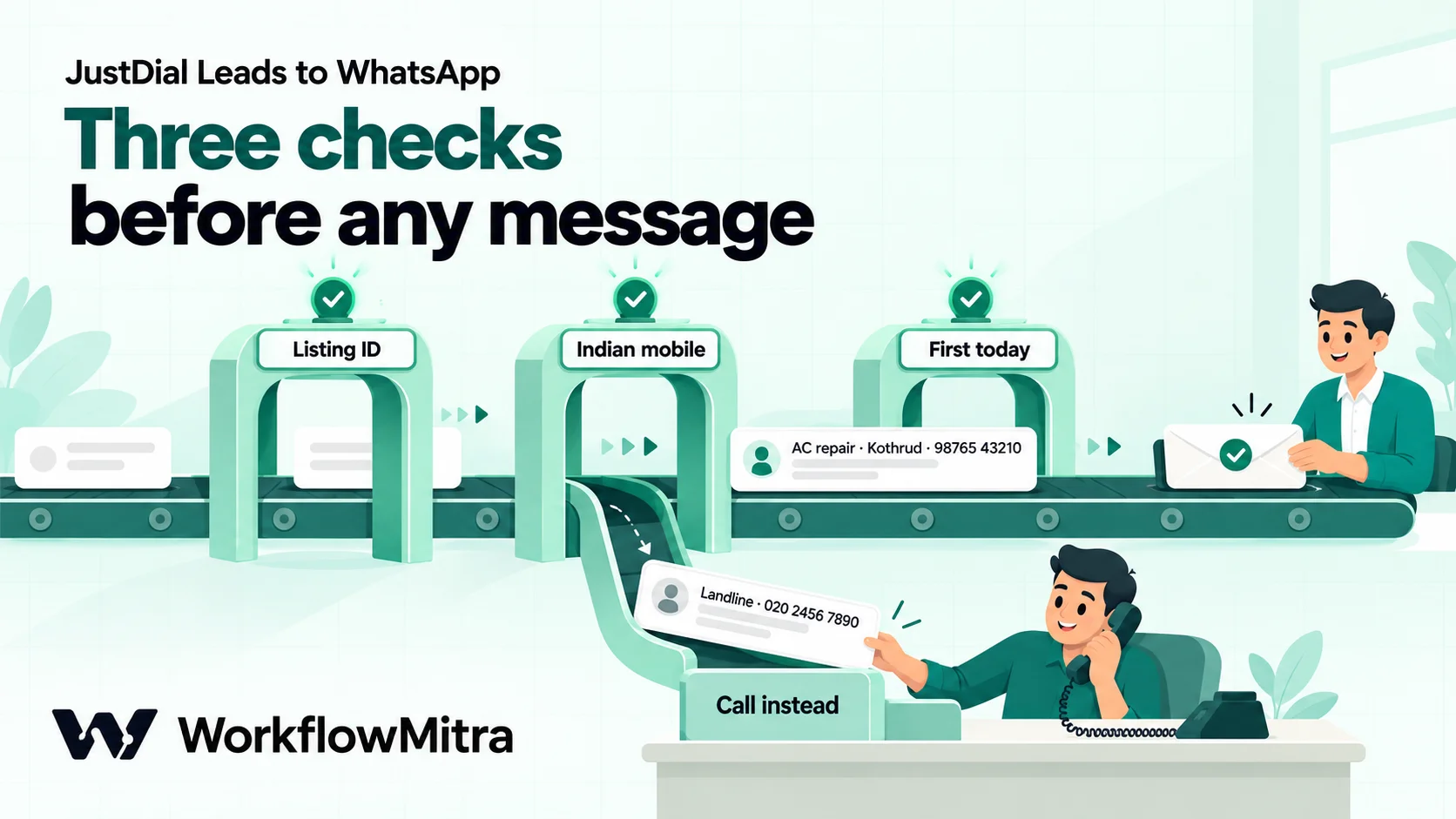
A first-time enquiry from a valid mobile costs six credits. A repeat enquiry skips step 9 and costs five. A landline or broken number skips the Data Store and the reply, still alerts the team and is logged.
How to send JustDial leads to WhatsApp, step by step
1. Create the webhook and get it configured
Start a new workflow with the On webhook call trigger and set Source to Something else. In Edit webhook, empty the Secret under API key authentication, because JustDial’s push can’t send a custom header and would otherwise be refused. Save, activate the workflow, copy the URL and send it to your account manager.
These steps, the email to send with them, and the browser test you can run while you wait, are explained in full in steps 1–5 of the JustDial lead integration guide. One addition for this workflow: when you test from the browser, put your own mobile number in the test URL, so the WhatsApp step messages you and not a stranger.
2. Accept only real JustDial leads
This step matters more here than in a capture-only workflow, because this workflow sends WhatsApp messages from your number. Add an IF step named “Real lead” with two rules joined by AND:
{{ $trigger.leadid }}Is not empty{{ $trigger.parentid }}Equal to the value your real leads carry
Take the second value from your first genuine JustDial lead, not from a guess. Integrators commonly report a parentid field linked to your listing; if your payload carries a different stable field, use that. The point is a value a stranger who found your URL wouldn’t know. Leave the IF’s Else unconnected so anything else stops quietly.
3. Clean the number
JustDial numbers may arrive as 9876543210, +91 98765 43210 or 09876543210, depending on how the person entered them. Check the format on your first real lead, then add a Set Variable step named “Clean number” with one field, digits:
{{ replace(replace(replace(replace(replace(trim($trigger.mobile), " ", ""), "-", ""), "+", ""), "(", ""), ")", "") }}WorkflowMitra’s expressions have no regular expressions, so a chain of replace() calls does the cleaning. Set Variable steps cost no credits.
4. Keep the last ten digits
Add a second Set Variable step named “Lead number” with two fields:
mobile10:{{ substring(digits, subtract(length(digits), 10)) }}first_name:{{ startcase(lower(first(split(trim($trigger.name), " ")))) }}
Taking the last ten digits handles the three common formats in one rule. Tested results:
| Number as received | mobile10 | Passes step 5? |
|---|---|---|
| 9876543210 | 9876543210 | Yes |
| +91 98765 43210 | 9876543210 | Yes |
| 09876543210 | 9876543210 | Yes |
| 919876543210 | 9876543210 | Yes |
| 02024567890 (Pune landline) | 2024567890 | No: starts with 2 |
| 98765 | 98765 | No: too short |
| blank | blank | No |
The first_name field takes the first word of the name and tidies its capitals, so “RAHUL SHARMA” becomes “Rahul”. It’s used in the message, and keeping it to one word matters for safety, as the section on the open URL explains. If your buyers are mostly outside India, this India-only rule isn’t enough: formatting phone numbers to E.164 has a multi-country version.
5. Check it’s an Indian mobile number
Add an IF step named “Indian mobile” with three rules joined by AND:
{{ length(mobile10) }}Equal to (Number)10{{ toString(toNumber(mobile10)) }}Equal to{{ mobile10 }}{{ contains("6789", substring(mobile10, 0, 1)) }}Is yes
The first rule checks the length. The second is a digits-only check: a value with any letter in it doesn’t survive conversion to a number and back. The third checks that the number starts with 6, 7, 8 or 9, as Indian mobile numbers do. Landlines fail here, which is correct, because a landline can’t receive WhatsApp messages.
Connect the Else branch straight to the salesperson alert in step 10, so a lead with a landline still gets a phone call.
6. Record the number for today
On the “Indian mobile” route, add a Data Store step and name it “Reply log”. Choose or create a store such as “JustDial replies”, set the operation to Create or update (upsert), and set the key to:
{{ mobile10 }}-{{ formatDate(now(), "YYYY-MM-DD") }}Put a fixed value such as {"replied": true} in the data field. What matters is the step’s wasNew output, which is yes only the first time that key is written. That covers two problems at once. A buyer who enquires three times in a morning gets one message. And a lead JustDial delivers twice gets one message, which matters because WorkflowMitra’s automatic duplicate check reads the request body, and a GET request has none.
The date comes from the server’s clock, so the “day” may not start at midnight in India. That’s fine for its purpose, which is “not more than once a day”, not “exactly once per calendar day”.
7. Assign a salesperson
Add Assign to the next person, name it “Assign”, and list your salespeople under Who should this go to?, each with a name and WhatsApp number. Each lead goes to the next person in turn, and the rotation continues across runs. The step adds assignedName and assignedTo to the data. For uneven teams, absences and area-based routing, see round-robin lead assignment.
Assigning before the message lets the acknowledgement name a real person, which reads far better than “our team will contact you”.
8. Send the reply only to first-time numbers
Add an IF step named “First today”: {{ $node["Reply log"].wasNew }} Is yes. You can also pick the field from the variable list, which inserts the reference for you. The named route goes to the WhatsApp reply. The Else route goes straight to the salesperson alert.
9. Send the WhatsApp acknowledgement
Add a WhatsApp step. Choose ChatMitra or Meta Cloud API as the provider, select your connection, set the operation to Template message and pick your acknowledgement from Choose an approved template. If it doesn’t appear, use Reload templates; only approved templates are listed.
For To, add the country code:
{{ padStart($node["Lead number"].mobile10, 12, "91") }}That gives 919876543210. Don’t send the ten-digit number alone. The WhatsApp step accepts it, but it has no country code, and Meta may read it relative to your business number’s country.
Fill the template’s variables: {{ $node["Lead number"].first_name }} for the name, {{ $trigger.category }} for the service, and {{ $node["Assign"].assignedName }} for the salesperson. Fill each variable’s If it’s empty, send instead box: “there” for the name, “your enquiry” for the service.
Then right-click the WhatsApp step, choose Add error handler, and connect the red branch to the salesperson alert. If a send fails, for example because the number isn’t on WhatsApp, the salesperson still gets the lead, and a handled error ends the run as a success. Add a short alert to yourself on that branch too, with the lead ID, so repeated failures get noticed.
10. Alert the salesperson about every lead
Add a step that tells the assigned salesperson about the lead: name, area, service, number and the JustDial lead ID. Connect it from four places: the WhatsApp reply, the Else of “First today”, the Else of “Indian mobile” and the error branch. A step with several incoming connections runs once when any of them reaches it, so every real lead produces exactly one alert.
You can send the alert as a WhatsApp staff template, or as a Slack, Telegram or email message if your team lives there. WhatsApp is often the best fit for field teams; the others carry no Meta charge.
11. Log the lead
End with a Google Sheets step that adds a row: lead ID, time, name, number, area, service, salesperson, and a Status column set to “New” that your team changes to “Contacted” after the call. The sheet becomes your response-time record and shows which leads were never called back. The lead sheet’s design is covered in the capture guide.
Format the phone and Lead ID columns as Plain text in Google Sheets, or set the step’s Write values to Exactly as written (no formulas), so 919876543210 isn’t treated as a number.
12. Test before JustDial goes live
Run three tests from your browser using your own number: a first enquiry, the same enquiry again, and one with a landline. Expect one WhatsApp message to your phone, three salesperson alerts and three sheet rows. Each test runs the workflow for real and uses credits; the webhook’s Safe Test Mode simulates WhatsApp sends from its test panel if you want to check the mapping without messaging anyone first. Then ask your account manager for a test lead and check that its fields match yours.
Writing the WhatsApp template
The template is the part buyers actually see. Short, specific and obviously a reply works best. Adapt these and submit them as your own:
Acknowledgement (utility): “Hi {{1}}, thank you for your enquiry about {{2}} on JustDial. This is [Business name], [area]. {{3}} from our team will call you shortly. You can also reply here with your address and a convenient time. Reply STOP if you’d prefer a call only.”
Staff alert (utility, to your own team): “New JustDial lead for you: {{1}}, {{2}}. Service: {{3}}. Mobile: {{4}}. Please call within 15 minutes.”
A few choices make these work:
- Write the business name into the template body, not a variable. It can’t go missing, and it tells the buyer exactly who’s messaging them.
- Say where they found you. “Your enquiry on JustDial” explains why a business is messaging them, and makes the message an obvious reply.
- Keep variables to short, predictable values. A first name and a JustDial category are fine. The full enquiry text isn’t, for reasons explained next.
- Promise a call, not a price. Prices, offers and catalogue links push the template into marketing and make you look like every other listing.
- Use your customers’ language. If most enquiries are in Hindi or Marathi, submit the template in that language as well and choose it in the step.
When the buyer replies, the 24-hour customer service window opens, and your team can send quotes, photos and directions freely. If you send through ChatMitra, the reply lands in ChatMitra’s shared team inbox, where the assigned salesperson can pick it up.
Keep an open URL from messaging strangers
A JustDial webhook can’t carry a secret, so the URL itself is the key. In a capture-only workflow, a leaked URL means junk rows in a sheet. In this workflow, a leaked URL could make your business number send templates to numbers that never enquired, which is exactly the kind of message that gets reported. These safeguards close most of that risk:
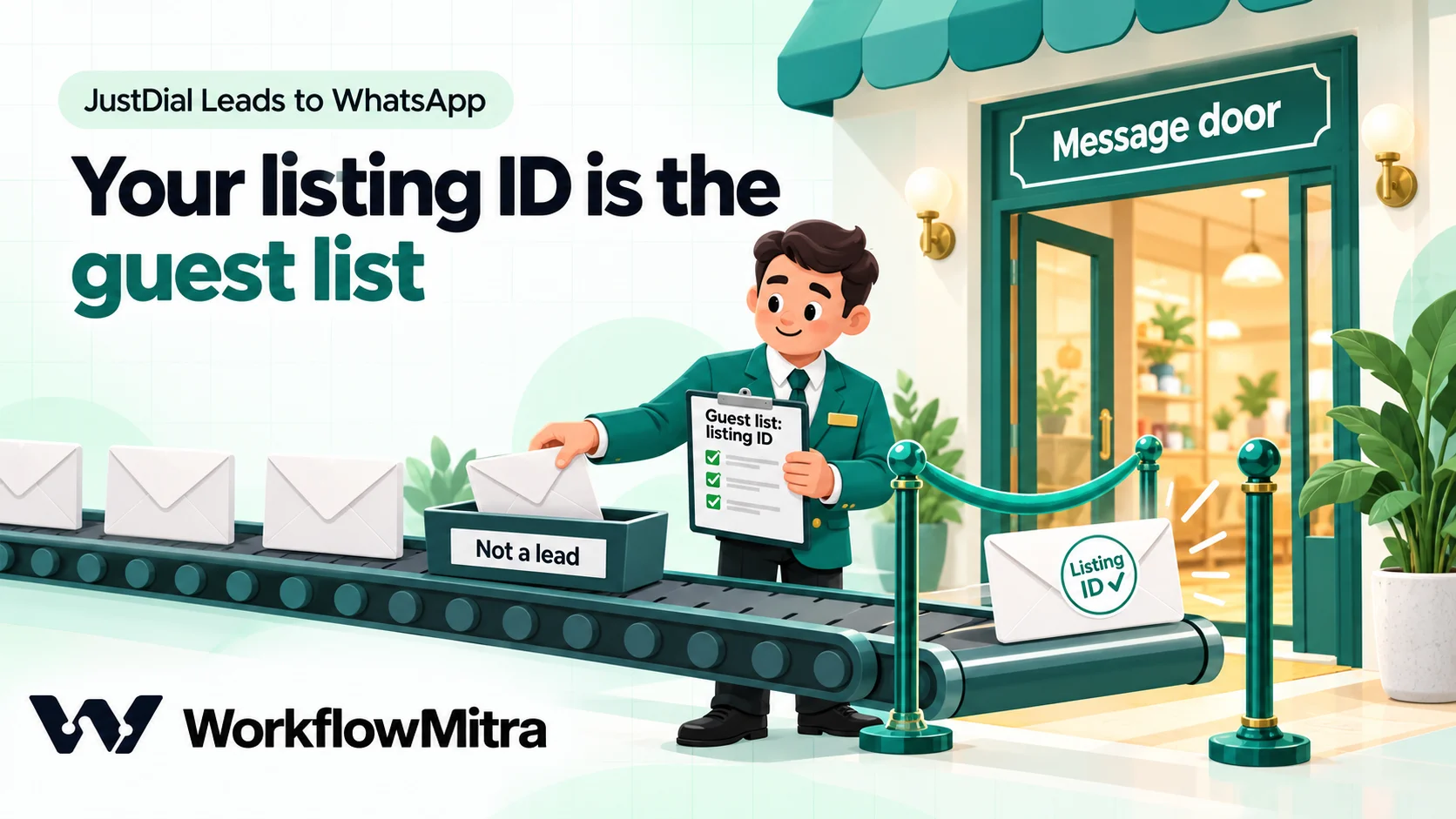
- Require your listing’s ID (step 2). This is the strongest check. Someone who stumbles on the URL won’t know the value.
- One message per number per day (step 6). Even a misused URL can’t send the same person a stream of messages.
- Keep free text out of the buyer’s template. Your template’s fixed wording can’t be changed from outside, but its variables can. A first name limited to one word and a JustDial category give a stranger nothing useful to inject. A variable that carries the whole enquiry text would let anyone who knows the URL put their own words into a message from your number.
- Keep the URL private. Share it with your account manager only, never in screenshots or chats.
- Watch the volume. Your sheet log shows every lead. A sudden run of enquiries with unfamiliar areas or names is worth a look. If the URL leaks, use Rotate URL in the trigger panel; the old address keeps working for seven days, giving JustDial time to update it.
The webhook security guide covers open URLs in more depth.
Why not add an automatic follow-up?
It’s tempting to add a Delay step and send a second template the next day to buyers who haven’t replied. Don’t do it this way. A Delay step pauses the run and then carries on, and it can’t be cancelled because the buyer replied in the meantime. The follow-up would reach people who already booked, which looks careless and invites blocks.
Better options:
- Let the salesperson follow up from the inbox, where they can see whether the buyer answered. ChatMitra’s guide to WhatsApp follow-up messages has wording that works.
- Run a separate daily workflow on a schedule that reads your lead sheet and follows up only on rows your team hasn’t marked as contacted. That workflow checks the current state before sending, which a Delay can’t.
Either way, keep follow-ups to one, and keep them about the enquiry.
What does it cost?
| Bill | What it pays for | How it's calculated |
|---|---|---|
| WorkflowMitra | Running the workflow | One credit per charged step at default rates: webhook trigger, Data Store, Assign, WhatsApp, alert and Google Sheets steps at 1 each; IF and Set Variable steps at 0 |
| Meta | Delivering each WhatsApp template | Per delivered template, by category and the recipient's country; Meta has charged per message since 1 July 2025 |
| ChatMitra (when it's your sender) | Platform, inbox and API | ₹0.20 per conversation, charged once per person in any 24-hour period, however many messages you exchange |
| JustDial | Your listing and leads | Your existing JustDial package |
A worked example: a home-appliance repair business in Pune gets 300 JustDial leads a month, and about 270 are first-time mobile numbers. The workflow uses roughly 1,770 credits (270 × 6 plus 30 × 5), well inside the 10,000 credits WorkflowMitra’s entry plan includes for ₹999 a month. On ChatMitra’s pricing page today, Meta’s India rate for a utility template is ₹0.11. So 270 acknowledgements cost about ₹30 from Meta and ₹54 in ChatMitra conversation fees. Staff alerts on WhatsApp add a little more: Meta’s utility charge per alert, which falls away when the salesperson has messaged your number in the past 24 hours (Meta’s pricing page says utility templates inside an open window are free), plus at most one ₹0.20 conversation per salesperson per day. Send alerts by Slack or Telegram and that part disappears. Check both pricing pages on the day you budget, because Meta’s rate card changes.
Troubleshooting
| Symptom | Likely cause | Fix |
|---|---|---|
| Leads reach the sheet but nobody gets a WhatsApp | The number fails "Indian mobile", or the template isn't approved | Check mobile10 in the run; check the template's status and use Reload templates |
| Every lead stops at "Real lead" | The listing ID value or field name doesn't match the real payload | Compare with a real lead in the run history and update the rule |
| A buyer got two messages | The Data Store key differs between the two runs, for example one run used a different number format | Check mobile10 in both runs; the key must use the cleaned ten digits |
| The message says "Hi there" for everyone | The name field is called something else in your payload | Map first_name from the field your real leads use |
| WhatsApp step fails with a recipient error | The number isn't on WhatsApp, or the country code is missing | Use the padStart(…, 12, "91") expression; the error branch still alerts the salesperson |
| Template rejected or approved as marketing | Promotional wording, prices or links in the body | Remove them; keep it an acknowledgement of the enquiry |
| No requests arrive at all | Workflow inactive, or JustDial hasn't configured the URL | Activate and save; ask your account manager to confirm and send a test lead |
Limits worth knowing
- JustDial publishes no lead schema. Field names in this guide are the ones integrators commonly report. Build from your own first real lead and confirm details with your account manager.
- Consent is a judgement call. No tool can turn a cold message into a welcome one. One relevant reply per enquiry is the defensible line.
- The India-only number rule rejects foreign numbers. If you get international enquiries, use the multi-country method in the E.164 guide.
- The once-per-day rule uses the server’s date, not Indian midnight.
- Delay can’t be cancelled. Use a schedule-based check for any follow-up.
- Your template, Meta’s decision. Meta decides a template’s category from its content.
Why use WorkflowMitra for JustDial leads?
WorkflowMitra, powered by ChatMitra, handles the whole path in one workflow: the open GET webhook JustDial needs, free IF and Set Variable steps for the number checks, a Data Store for once-per-day rules, round-robin assignment, and a WhatsApp step that sends approved templates through ChatMitra or Meta’s Cloud API, with fallbacks for empty variables. Replies to messages sent through ChatMitra land in its shared inbox. The same workflow also writes the sheet row and alerts your team, so a lead never depends on someone checking the JustDial app. If you only want leads in a CRM and your CRM has a built-in JustDial connector, that connector may be all you need; this approach fits when you want the instant WhatsApp reply and your own rules around it.
Start on a WorkflowMitra trial: 14 days, 10,000 credits, no card needed, with plans on the pricing page. Build the capture first with the JustDial lead integration guide, then add the reply from this one. Selling on IndiaMART as well? The IndiaMART to WhatsApp guide applies the same pattern to IndiaMART’s Push API. For the WhatsApp side of lead generation, ChatMitra’s guide to WhatsApp lead generation goes further.
WorkflowMitra behaviour was checked against the product's source code on 18 October 2026: the webhook trigger, IF operators, Set Variable, Data Store upsert output, Assign, WhatsApp template fields and step labels. The number-cleaning expressions, the ten-digit rule and the three IF rules were executed in the product's expression and condition code on that date for every case in the table. JustDial field names come from integrator documentation; JustDial publishes no lead schema. WhatsApp rules are from Meta's Business Messaging Policy, opt-in guidance and pricing documentation, and prices from chatmitra.com/pricing, all read on 18 October 2026. The business, numbers and lead volumes are examples.
Frequently Asked Questions
Questions businesses ask before sending automatic WhatsApp replies to JustDial enquiries.
Yes. Ask your JustDial account manager to push new leads to a webhook URL. A workflow tool receives each lead, checks the mobile number and sends the buyer an approved WhatsApp template through the WhatsApp Business Platform, using a provider such as ChatMitra or Meta's Cloud API directly. The reply usually goes out within seconds of the enquiry.
Automate the work between your apps
Build workflows with triggers, conditions and actions, then test them before they go live. Try WorkflowMitra free for 14 days, no card required.
