KPI Alerts Automation: Get Told When a Number Crosses the Line, Not in Tomorrow's Report

Quick Summary
KPI alerts automation means a workflow checks the numbers that matter (collections, failed payments, refunds, leads, balances) and messages the right person only when one crosses a limit you set, instead of waiting for tomorrow's report. A good alert names the number, the limit, the owner and the next step; it fires once when the line is crossed and sends an all-clear when the number recovers. In WorkflowMitra, powered by ChatMitra, a scheduled check reads a KPI tab in Google Sheets, a short Code step decides what changed, and Slack, Telegram, email or WhatsApp carries the message.
Most businesses find out about a bad day the next morning. The daily report says collections were half the usual, or that 20 payments failed between 2 and 4 p.m. By then the gateway issue is fixed, the customers have gone elsewhere, and the only useful thing left to do is apologise.
A KPI alert closes that gap. Instead of waiting for someone to read a report, a workflow watches a handful of numbers and messages the right person when one crosses a line. The rest of the time it stays silent.
The hard part isn’t sending the message. It’s sending the right message once: not every 15 minutes while the problem lasts, not for numbers nobody acts on, and with a clear “back to normal” when it’s over. This guide covers how to choose the numbers and limits, how to design alerts people trust, and how to build a complete alert board in WorkflowMitra, powered by ChatMitra, that alerts once and sends an all-clear.
Quick answer: To automate KPI alerts, list the few numbers you would act on, set a warning level, a critical level and a level at which the alert clears, and decide who owns each one. Then have a workflow check those numbers on a schedule (or on each event), compare them with the limits, remember which alerts are already open, and message the owner only when a number crosses a level or recovers. Keep non-urgent checks to working hours.
What is a KPI alert?
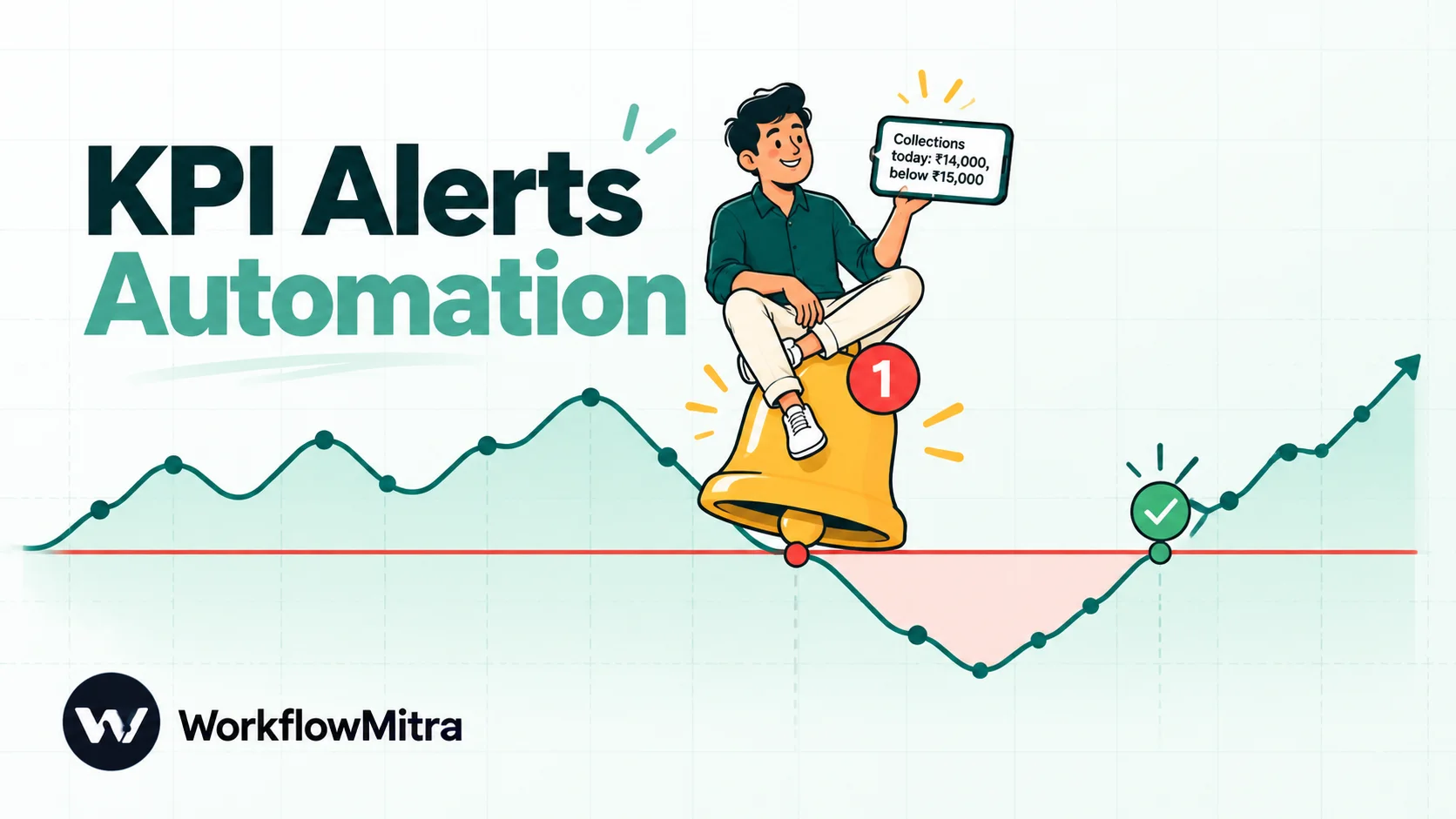
A KPI alert is an automatic message, sent to a named person, when a key business number crosses a limit you’ve set. “Collections today are ₹14,000, below the critical level of ₹15,000. Owner: Priya. Check the Razorpay dashboard.” That’s a complete alert: the number, the limit it crossed, who owns it and what to do.
It helps to separate three tools that are often confused:
| Dashboard | Report | Alert | |
|---|---|---|---|
| When you see it | When you go and look | On a schedule (every morning) | Only when a number crosses a line |
| Answers | "How are we doing right now?" | "How did yesterday go?" | "What needs attention now?" |
| Normal day | Same screen as always | Same message as always | Silence |
| Risk | Nobody looks | Read without being noticed | Too many, then ignored |
Alerts complement reports rather than replacing them. A morning summary gives context; three or four alerts catch the exceptions that can’t wait. If you don’t have a daily summary yet, automated daily reports walks through building one.
What makes an alert worth sending
Google’s site reliability engineers, who run some of the largest alerting systems in the world, put the core rule plainly in the Site Reliability Engineering book: “Every page should be actionable.” They also describe what happens when that rule is broken: when alerts arrive too often, people “second-guess, skim, or even ignore incoming alerts, sometimes even ignoring a ‘real’ page that’s masked by the noise.”
The same holds in a ten-person business. An owner who gets twelve “sales are low” messages before lunch stops reading them by Wednesday. Five rules keep alerts worth reading:
- Actionable. Every alert implies something to do. If the honest response is “noted”, it belongs in a report.
- Owned. One named person is responsible for each alert. “The team” means nobody.
- Once per crossing. The alert fires when the line is crossed, not on every check while it stays crossed.
- Closed. An all-clear message when the number recovers, so the owner knows the problem is over without checking.
- Timed. Non-urgent checks run during working hours. A low-collections alert at 2 a.m. helps nobody.
Most “alert fatigue” comes from breaking rules 3 and 4. A workflow that simply compares a number with a limit on every check will repeat itself until the number recovers, and then go quiet without saying so.
Which numbers deserve an alert?
Pick the numbers where a few hours’ warning changes what you do. For a small business, these are typical:
| Number | Alert when | How to check | What the owner does |
|---|---|---|---|
| Collections today | Below a level by mid-afternoon | Schedule, from the payments log | Checks the gateway, chases due invoices |
| Failed payments today | Above the usual count | Schedule, from the payments log | Looks for a gateway or checkout problem |
| A single large refund | Above a set amount | On each refund event | Confirms it was intended |
| New leads today | Zero, or well below normal, by a set hour | Schedule, from the leads sheet | Checks forms, ads and the website |
| Cash or wallet balance | Below a safe level | Schedule, from a balance cell or an API | Tops up or delays a payment |
| Overdue receivables | Above an amount | Daily, from the invoice sheet | Starts calls to the largest accounts |
| Ad spend today | Above the daily budget | Schedule, from an export or API | Pauses or adjusts campaigns |
Start with two or three. If one fires and nobody does anything, delete it.
Do you need a workflow at all?
Several tools have alerts built in. Use them where they fit; they’re simpler than anything you’ll build.
| Tool | What its alerts can do | Main limits |
|---|---|---|
| Google Sheets notification rules | Email when anything changes or a form is submitted | No conditions on values; email only |
| Google Analytics 4 custom insights | Email when a metric crosses a threshold or changes by a percentage | Website/app metrics only; checks hourly at best |
| Data Studio (formerly Looker Studio) chart alerts | Email when a chart's data meets conditions | Pro only; recipients in your organisation; AND conditions only |
| Power BI data alerts | Notification and email on a dashboard tile | Gauges, KPIs and cards only; notifies at most hourly or daily; works on refreshed data only; Pro licence outside My Workspace |
| RazorpayX low-balance alerts | Email when the payout account balance falls below your limit | RazorpayX balance only; repeats every 4–24 hours |
| WorkflowMitra workspace alerts | Email or Slack when a workflow fails or credit usage passes a percentage | About your automations, not your business numbers |
A workflow earns its place when the number lives in a sheet, a database or an app with no alerting; when the alert should reach Slack, Telegram or WhatsApp rather than email; when one rule combines numbers from more than one place; or when you want the alert-once, all-clear and working-hours behaviour that built-in alerts rarely offer.
How to choose a threshold
A threshold is a guess about where “normal” ends. Make it an informed guess.
Start from history. Look at four to eight weeks of the number, at the same time of day if it builds up during the day. Note the usual range. If collections by 4 p.m. are normally ₹35,000 to ₹60,000, a warning at ₹30,000 is sensible; a warning at ₹50,000 will fire half the week.
Use two levels. A warning says “watch this”; a critical level says “act now”. Monitoring tools such as Datadog use the same split, with a warning threshold and an alert threshold on the same check. Warnings can go to a channel; critical alerts go to the owner directly.
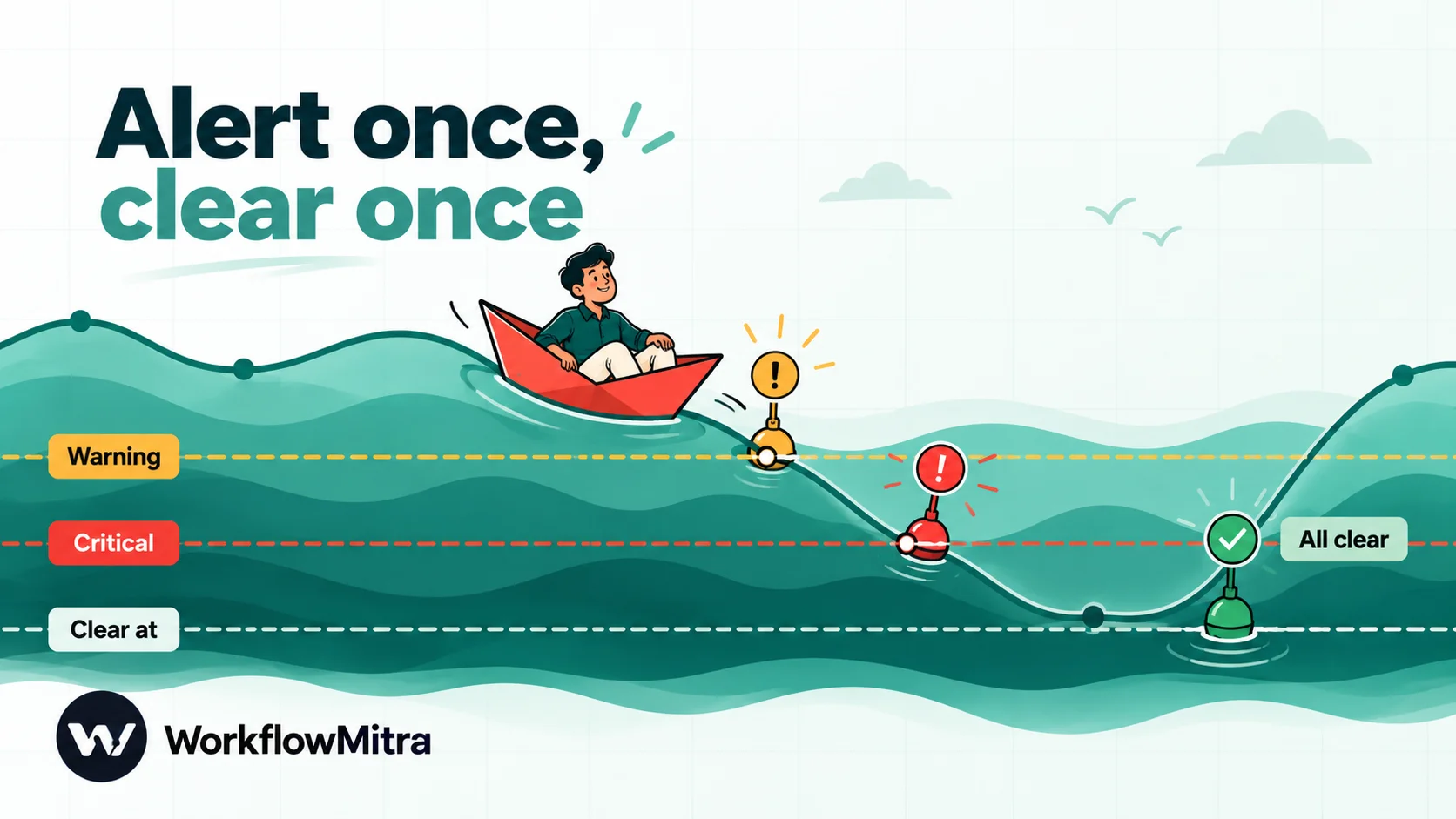
Add a clear level. If an alert fires below ₹30,000 and clears above ₹30,000, a number that wobbles between ₹29,800 and ₹30,200 will alert and clear all afternoon. Datadog’s documentation describes recovery thresholds as a way to “reduce noise of a flapping monitor”. Do the same: alert below ₹30,000, clear only above ₹35,000.
Mind the volume. A rate needs enough events behind it. Three failures out of five payments is 60%, but it might be one customer retrying. Either alert on counts or require a minimum number of attempts before a percentage counts.
Treat “no data” as its own state. A blank cell, a formula error or a lead count that hasn’t moved since morning often means the source broke. That deserves its own message, and it should never be read as zero.
Make thresholds follow the clock
Numbers that build up during the day, such as collections, orders and leads, can’t share one limit from morning to night. ₹20,000 collected by 11 a.m. may be a good day; ₹20,000 by 6 p.m. is a bad one. A fixed threshold either fires every morning or catches nothing until evening.
The fix is to alert on pace rather than the raw total. Add a small Pace tab with two columns: the hour (9, 10, 11 … 20) and the share of a normal day’s total that has usually arrived by then, worked out from a few weeks of history (say 3% by 9 a.m., 8% by 10 a.m., 35% by 1 p.m., 80% by 6 p.m.). Keep every share above zero, or the division below fails and the row reports “no data”. Then make the KPI value a percentage of the expected amount:
=SUMIFS(Payments!C:C, Payments!A:A, TODAY()) / (50000 * VLOOKUP(HOUR(NOW()), Pace!A2:B13, 2, TRUE))
Here ₹50,000 is a typical day’s collections. The result reads as “we’re at 64% of where we usually are by now”, and a warning at 70%, a critical level at 40% and a clear level at 85% work at every hour of the day. HOUR(NOW()) uses the spreadsheet’s own time zone, set under File › Settings, so check it matches your team’s.
Alert on silence, too
Some of the most useful alerts are about nothing happening. A contact form that broke after a website update, an ad account that was paused, or a payment page that stopped loading all show up first as no new leads or no payments, not as a bad number.
Add a row for it: “Leads since 10 a.m.” with a formula such as =IF(HOUR(NOW())<12, 1, COUNTIFS(Leads!A:A, ">="&(TODAY()+TIME(10,0,0)))), Direction below, Warning 1 and Clear at 1. A quiet early morning is normal, so the IF holds the value at 1 until noon; after that, zero leads since 10 a.m. raises a warning, and the first new lead clears it. A scheduled check is the only method that catches silence; event-based alerts, by definition, never fire when no events arrive.
Three ways to watch a number
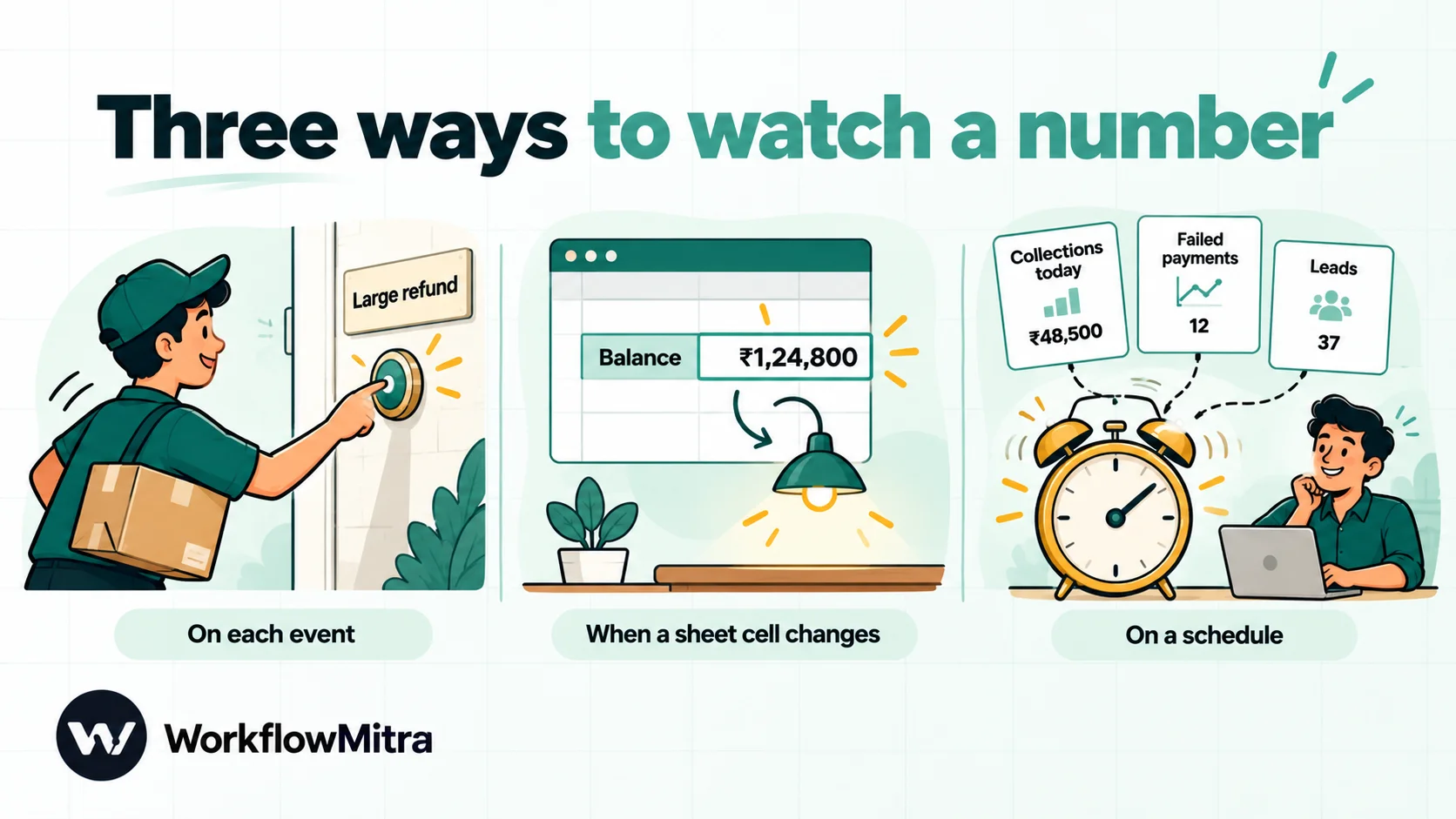
| Method | Best for | Speed | Cost in WorkflowMitra |
|---|---|---|---|
| On each event (webhook) | One transaction over a limit: a large refund, an unusually big order | Seconds | 1 credit per event received, plus the alert |
| When a sheet cell changes | A single value someone updates, such as a balance | Next sheet check (every 5 minutes by default) | Checks with no change are free; 1 credit per run |
| On a schedule | Totals, rates, several numbers at once, and "nothing happened" alerts | Next scheduled check | About 2 credits per check |
The sheet-change method has a catch: WorkflowMitra’s Google Sheets trigger passes the row’s current values, not its previous ones, so a workflow can’t tell “just crossed” from “still crossed” without keeping its own record. The scheduled build below keeps that record in the sheet, which is what makes alert-once possible.
Build it: a KPI alert board that alerts once and clears
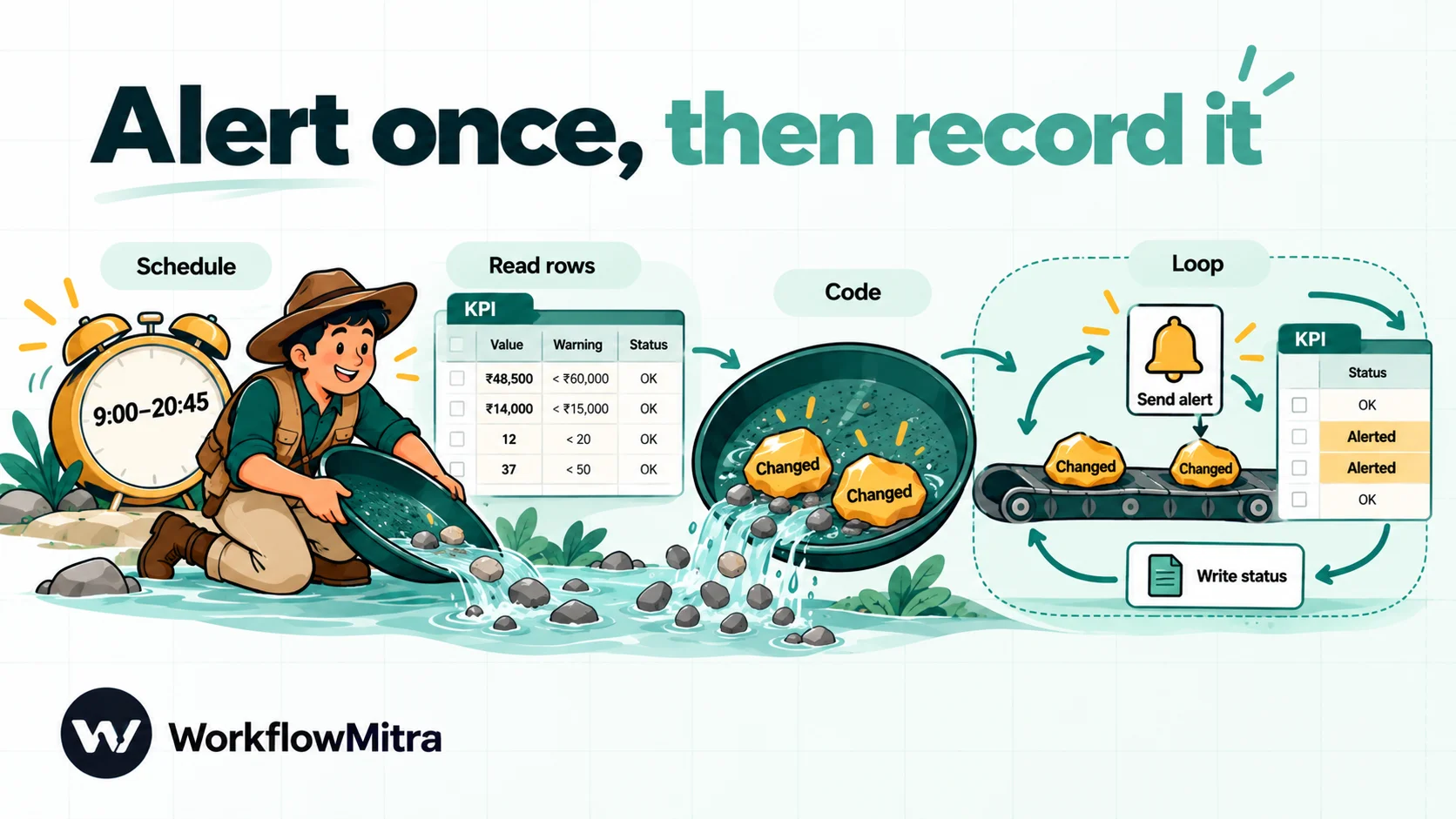
This build checks several numbers every 15 minutes during working hours, alerts once when one crosses a level, and sends an all-clear when it recovers. It uses a KPI tab in Google Sheets as the control panel, so you can add or change alerts without touching the workflow.
1. Build the KPI tab
Add a tab called KPI to the spreadsheet that holds your data, with one row per number and these headers:
| Metric | Value | Direction | Warning | Critical | Clear at | Owner | Action | Status |
|---|---|---|---|---|---|---|---|---|
| Collections today (₹) | formula | below | 30000 | 15000 | 35000 | Priya | Check the Razorpay dashboard. | |
| Failed payments today | formula | above | 8 | 15 | 5 | Arjun | Look for a gateway incident. |
The Value column holds a formula that works the number out from your data, for example =SUMIFS(Payments!C:C, Payments!A:A, TODAY()) for today’s collections from a payments log. Direction says whether trouble means the number going above or below the limits. Leave Status empty; the workflow writes it.
Formulas that use TODAY() or NOW() only recalculate when something changes unless you tell them otherwise. Under File › Settings › Calculation, set recalculation to On change and every minute so the values are current when the workflow reads them.
If your payments don’t reach a sheet yet, Razorpay to Google Sheets logs every payment automatically.
2. Schedule the checks for working hours
Create a workflow with a Schedule trigger and choose Custom schedule (advanced)…. Enter the cron expression */15 9-20 * * 1-6 and set Timezone to your team’s zone, such as Asia/Kolkata. That runs every 15 minutes from 9:00 to 20:45, Monday to Saturday. Use numbers for days of the week; WorkflowMitra’s cron field doesn’t accept names like MON-FRI.
For numbers that change slowly, check hourly instead (0 9-20 * * 1-6), which costs a quarter as much. Scheduling automations explains cron expressions in more detail.
3. Read the board
Add a Google Sheets step with Read rows, pointed at the KPI tab, and set Read values to Raw values (numbers stay numbers).
This setting matters. With the default, As displayed, a value of 41,250 arrives as the text “41,250”, and in our tests the comparison operators treat that text as not a number at all, so “41,250” is not greater than 40,000. Raw values arrive as real numbers, and blank cells and formula errors arrive as text, which the next step treats as “no data”.
4. Decide what changed
Add a Code step. It compares each number with its levels, looks at the status already recorded, and keeps only the rows whose status has changed:
const n = new Intl.NumberFormat('en-IN');
const isNum = (v) => typeof v === 'number' && Number.isFinite(v);
const changes = [];

for (const r of input.rows || []) {
  const metric = String(r.Metric || '').trim();
  if (!metric) continue;

  const below = String(r.Direction || '').trim().toLowerCase() === 'below';
  const crossed = (limit) => isNum(limit) && (below ? r.Value < limit : r.Value > limit);
  const clearAt = isNum(r['Clear at']) ? r['Clear at'] : r.Warning;
  const recovered = isNum(clearAt) && (below ? r.Value >= clearAt : r.Value <= clearAt);
  const was = ['warning', 'critical', 'no data'].includes(r.Status) ? r.Status : 'ok';
  const owner = r.Owner || 'no owner set';
  let now = was;

  if (!isNum(r.Value)) now = 'no data'; // blank, text or #N/A is not zero
  else if (crossed(r.Critical)) now = 'critical';
  else if (crossed(r.Warning)) now = was === 'critical' ? 'critical' : 'warning';
  else if (was === 'no data' || recovered) now = 'ok';

  if (now === was) continue;

  const limit = now === 'critical' ? r.Critical : r.Warning;
  const side = below ? 'below' : 'above';
  const text = {
    critical: `🔴 ${metric} is ${n.format(r.Value)}, ${side} the critical level of ${n.format(limit)}. Owner: ${owner}. ${r.Action || ''}`,
    warning: `🟠 ${metric} is ${n.format(r.Value)}, ${side} the warning level of ${n.format(limit)}. Owner: ${owner}. ${r.Action || ''}`,
    ok: `✅ ${metric} is back to normal at ${isNum(r.Value) ? n.format(r.Value) : '-'}.`,
    'no data': `⚪ ${metric} has no number to check. Is its source still updating? Owner: ${owner}.`,
  }[now];

  changes.push({ metric, status: now, text: text.trim(), at: new Date().toISOString() });
}

return { changes, count: changes.length };
Read the four status lines from the bottom up and the behaviour follows. An open alert stays open until the number passes its Clear at level, so a value wobbling around the warning line doesn’t produce a stream of messages. A warning that worsens becomes critical (one new message), but a critical alert doesn’t downgrade to a warning on the way back; it simply clears. And anything that isn’t a number becomes “no data”, never zero.
We ran this code through WorkflowMitra’s Code step with a sequence of values: one message when collections dropped below ₹30,000, nothing while they stayed there, one when they fell below ₹15,000, nothing at ₹32,000, an all-clear at ₹36,000, and a “no data” message when the cell was emptied. Each run took a few milliseconds, which costs a small fraction of a credit. Change en-IN to your own locale for number formatting.
5. Loop over the changes
Add a Loop step and set List field (optional) to changes. Everything connected to the loop’s body runs once per changed number. On a quiet check the list is empty and nothing else runs, so most checks cost only the trigger and the read.
6. Send the alert
Inside the loop, add a Slack step with your channel’s incoming webhook URL and set Message to {{ text }}. A Telegram step (Bot token, Chat ID, Message {{ text }}) or a Discord step works the same way, and an Email step with Send an email suits owners who live in their inbox.
To route alerts to each owner’s own channel, add a Switch on {{ $trigger.metric }} before the message step, with one route per owner. Inside a loop, $trigger refers to the current item.
7. Record the new status
After the message, add a Google Sheets step with Update row on the KPI tab. Under Which rows, match the Metric column to {{ $trigger.metric }}, and write {{ $trigger.status }} to the Status column. This written status is the workflow’s memory: on the next check, the Code step compares against it and stays quiet.
Keep the metric names unique. If two rows share a name, the update stops rather than guessing, which is the safe default.
Optional: keep an alert log. Add one more Google Sheets step in the loop with Add row(s) to an Alert log tab, writing {{ $trigger.at }}, {{ $trigger.metric }}, {{ $trigger.status }} and {{ $trigger.text }}. It costs one more credit per alert, and after a month it answers the questions that make alerts better: which numbers alert most, how long problems last between the alert and the all-clear, and which alerts nobody acted on. The at field is the check time in UTC, which the Code step adds to every change; don’t use a =NOW() formula for it, because the sheet would recalculate every logged time.
8. Test it, then switch it on
The editor’s Run button performs a real run, and sheet updates are real even in test mode, so test against a copy of the spreadsheet with a test Slack channel. Type a value past the warning level into the copy’s Value cell, run, and check you get one message and a “warning” status. Run again: no message. Restore the value past Clear at: one all-clear. Empty the cell: one “no data”. How to test an automated workflow has a fuller checklist.
Then point the steps at the real spreadsheet and set the workflow to Active. Finally, turn on WorkflowMitra’s own failure alerts under Workspace settings › Alerts, so you hear if the alert workflow itself stops working. Workflow error handling explains those settings.
Variation: alert on a single large transaction
Some exceptions are single events: a refund well above normal, or an order large enough that the owner wants to know at once. These don’t need a schedule.
Create a workflow with a Razorpay webhook trigger and subscribe it in Razorpay to refund.processed only. Add an IF: {{ paisaToRupees(payload.refund.entity.amount) }} Greater than 10000, since Razorpay sends amounts in paise. On the “yes” branch, send a Slack or Telegram message with the refund amount, the payment ID {{ payload.refund.entity.payment_id }} and a note to confirm it was intended.
One setting needs changing. WorkflowMitra’s Razorpay source removes duplicate deliveries using the payment ID, so a refund on a payment the workflow has already seen could be skipped. Under the webhook’s Advanced settings, set the Idempotency key path to payload.refund.entity.id, so each refund is tracked by its own ID. Each event costs one credit, and the IF step is free, so refunds under the limit cost only the trigger.
Variation: numbers from a database or an API
If the figures live in your own database, replace the Read rows step with a PostgreSQL or MySQL query that returns one row per metric, with columns aliased to the KPI tab’s headers (quote the one with a space: AS "Clear at" in PostgreSQL). Both steps return the result as rows, so the Code step works unchanged, and the thresholds and status can live in a small table of their own. One detail: PostgreSQL returns sums and counts as text such as “41250.00”, which the Code step would read as “no data”, so cast them in the query (SUM(amount)::float).
For a balance or a figure from another service’s API, an HTTP Request step returns the parsed response in body. Add an IF on {{ ok }} first, because WorkflowMitra treats a 4xx or 5xx response as a finished step with ok: false rather than a failure, and you don’t want an error page read as a balance of zero. Connect any API without code covers authentication and response handling.
Where to send alerts
| Channel | Good for | Know this |
|---|---|---|
| Slack | Team channels, warnings | Incoming webhooks allow about one message per second, with short bursts; plenty for alerts |
| Telegram | Owners and small teams on mobile | Plain text from WorkflowMitra; Telegram asks bots to keep to about one message per second per chat and 20 per minute in groups |
| Low-urgency warnings, records | Easy to miss for urgent alerts | |
| Owners who live in WhatsApp; critical alerts | Needs a Meta-approved template outside the 24-hour customer service window; Meta assigns the category on review | |
| Discord | Teams already using it | Webhook URL per channel |
A common split: warnings to a shared Slack or Telegram channel, critical alerts to the owner directly. For WhatsApp, write one plain template with variables for the metric, value, limit and action, such as “Alert: {{1}} is {{2}}, past your limit of {{3}}. Next step: {{4}}”, and keep it free of promotional content. WorkflowMitra’s WhatsApp step sends it through ChatMitra or Meta’s Cloud API.
Write alerts people act on
The message is the product. Compare:
- Weak: “KPI alert triggered.”
- Better: “Collections low.”
- Good: ”🔴 Collections today are ₹14,000, below the critical level of ₹15,000. Owner: Priya. Check the Razorpay dashboard.”
A good alert answers four questions without a click: what number, how bad, whose job, what next. Put the Action text in the KPI tab and it travels with every alert. Keep the wording calm and factual; an alert that shouts every time loses its urgency.
Review and tune your alerts every month
An alert set is never finished. Once a month, spend fifteen minutes with the alert log and ask three questions of each row on the KPI tab:
- Did it fire, and did someone act? An alert that fired and was ignored is either aimed at the wrong person or measuring the wrong thing. Fix the owner or remove it.
- Did it fire too often? More than a couple of times a week usually means the warning level sits inside the normal range. Move it, or widen the gap to the clear level.
- Did something go wrong that it missed? If a bad afternoon reached the morning report without an alert, the threshold is too loose or the check runs too rarely.
Open alerts deserve a look too. A critical status still showing at the end of the day means the problem outlasted the working hours, and it’s worth listing in the next morning’s summary so it doesn’t quietly become normal. Because the status lives in the KPI tab, a daily report can read it in the same step as the other figures.
What does it cost?
| Setup | Runs per month | Credits per run | Credits per month |
|---|---|---|---|
| KPI board, every 15 min, 9:00–21:00, Mon–Sat | About 1,250 | About 2 (trigger + read; Code is a fraction) | About 2,500 |
| KPI board, hourly, same hours | About 310 | About 2 | About 625 |
| Each alert or all-clear sent | As needed | About 3 (loop item, message, status update) | Small |
| Large-refund alert (event) | One per refund | 1, or 2 when it alerts | Small |
The 15-minute board fits comfortably within WorkflowMitra’s entry plan of ₹999 a month (₹849 billed yearly) for 10,000 credits, with room for other workflows (prices checked 8 October 2026). The board costs the same whether it watches two numbers or twenty, because all of them are read in one step. WhatsApp alerts add Meta’s template charge and a per-conversation fee when ChatMitra sends them; see ChatMitra pricing.
Troubleshooting
| Symptom | Likely cause | Fix |
|---|---|---|
| Alert repeats on every check | The Status write-back isn't happening | Check the Update row step: Metric names must match exactly |
| Number never alerts although it's clearly past the limit | Values read "As displayed" arrive as text such as "41,250" | Set Read values to Raw values |
| "No data" alerts for a working number | The cell holds text, an error or a number formatted as text | Fix the formula; make sure it returns a plain number |
| Simple IF alert fires on an empty cell | A blank value counts as "less than" any limit | Add "Is not empty" to the IF, or use the Code step above |
| Values look out of date | TODAY() formulas haven't recalculated | Set recalculation to "On change and every minute" |
| Alerts at the wrong hours | Schedule time zone not set | Set Timezone on the Schedule trigger |
| Refund alerts missing | Duplicate detection on the payment ID | Set Idempotency key path to the refund ID |
Common mistakes
- Alerting on everything. Ten alerts are ten reasons to stop reading. Start with three.
- No clear level, so a number near the line alerts and clears all day.
- Treating blanks as zero. A broken source then looks like a business problem, or worse, hides one.
- No owner. An alert sent to a group, with no name, is a notification, not a call to act.
- Thresholds set once and never revisited. Review them monthly; as the business grows, last quarter’s “low” becomes normal.
- Using an alert as a report. If it fires most days, move that number to the morning summary.
Why use WorkflowMitra for KPI alerts?
- Alerts from anywhere your numbers live: Google Sheets, PostgreSQL, MySQL, any HTTP API, and signed payment events from Razorpay and Stripe.
- Delivery where your team reads: Slack, Telegram, Discord, email, and WhatsApp templates through ChatMitra or Meta’s Cloud API.
- Working-hours schedules in your time zone, with cron for precise windows.
- Logic without extra cost: IF, Switch and Loop routing is free or cheap, so a whole alert board costs about two credits a check.
- Your thresholds stay in a sheet your team can edit, not buried in workflow settings.
For finance numbers in particular, finance automation for small business shows where alerts fit alongside payment logging, reminders and approvals, and Google Sheets automation covers the sheet triggers and steps used here.
Start with one number
Pick the one number you’d most hate to discover a day late. Add it to a KPI tab, set a warning, a critical level and a clear level, and build the board around it this week. Add the second number only when the first has proved itself.
Try WorkflowMitra free for 14 days (10,000 credits, no card needed) and set up your first alert today. Plans and credit tiers are on the pricing page.
Sources, read on 8 October 2026: Google, Site Reliability Engineering, "Monitoring Distributed Systems"; Datadog docs on monitor configuration and recovery thresholds; Google Sheets help on notification rules and the Apps Script recalculation interval; Google Analytics help on custom insights; Google Cloud docs on chart alerts in Data Studio; Microsoft Learn on Power BI data alerts; Razorpay docs on RazorpayX accounts and low-balance alerts and refund webhooks; Slack rate limits; Telegram Bot FAQ; Meta's WhatsApp docs on message templates. WorkflowMitra behaviour was checked in the product's code, and the comparisons, expressions and Code step above were executed against its engine.
Frequently Asked Questions
Questions teams ask before setting up KPI and threshold alerts.
A KPI alert is an automatic message that tells a specific person when a key number crosses a limit, for example when today's collections fall below ₹30,000 or failed payments rise above eight. Unlike a report, it is silent while things are normal and speaks only when something needs attention.
Automate the work between your apps
Build workflows with triggers, conditions and actions, then test them before they go live. Try WorkflowMitra free for 14 days, no card required.
