Landing Page Leads to Your CRM: Connect Any Page Builder Without a Developer

Quick Summary
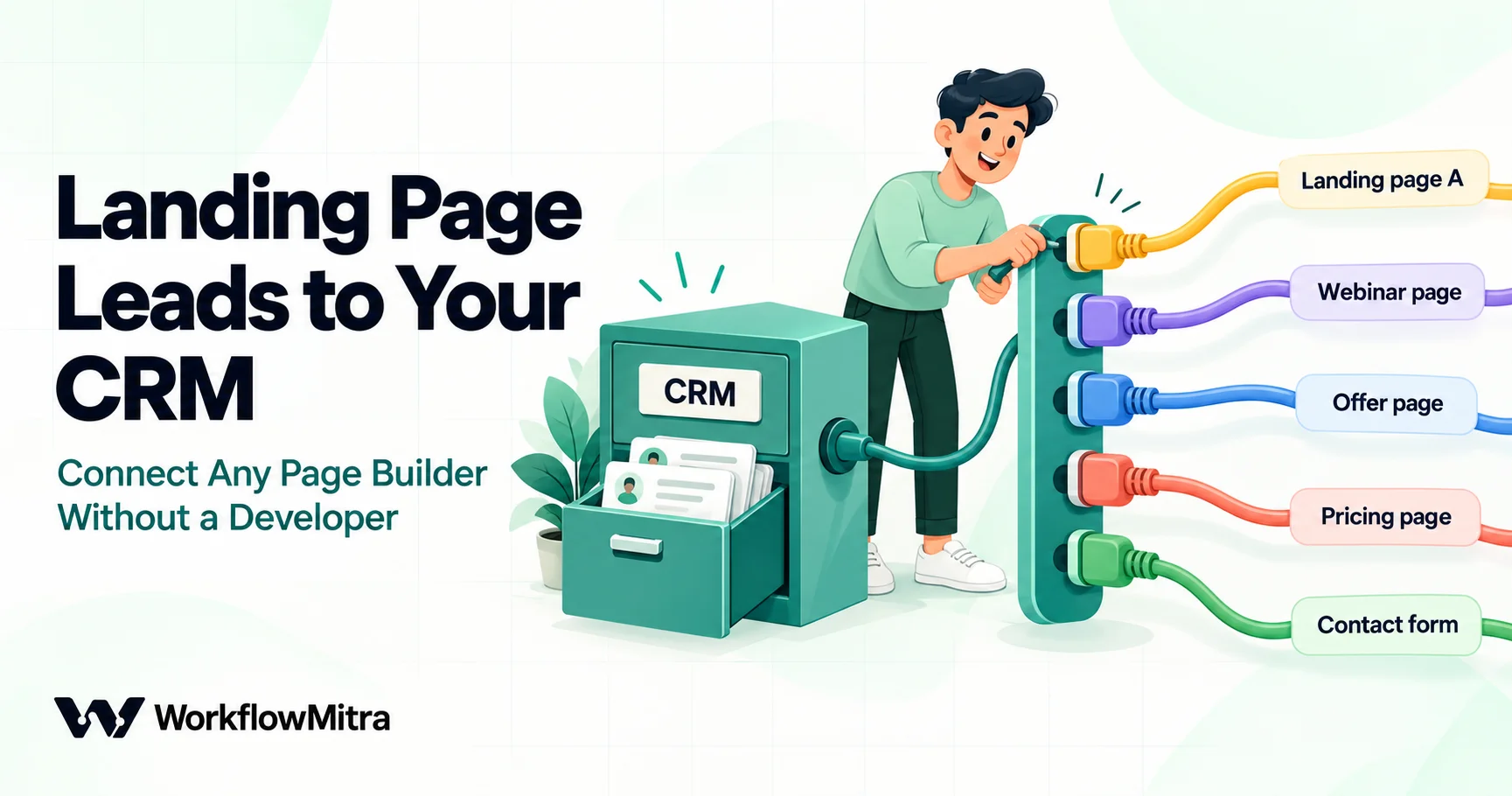
To send landing page leads to your CRM without a developer, point your page builder's form webhook at one workflow. Unbounce, Instapage, Leadpages, Webflow, Framer, Carrd and Elementor can all post submissions to a URL, each in a different shape. Add one clean-up step that turns any of those shapes into the same lead (name, email, phone, page and UTM tags), reject empty and spam submissions, then create or update the lead in your CRM with an upsert on email so a second sign-up never makes a duplicate. Set the webhook's reply to what each builder expects (Unbounce, Webflow and Elementor want exactly HTTP 200), and alert the lead's owner in the same run.
To get landing page leads into your CRM without a developer, connect your page builder’s form webhook to a workflow that does four things: turns the submission into a clean lead, rejects junk, creates or updates the lead in your CRM, and tells the right person. Unbounce, Instapage, Leadpages, Webflow, Framer, Carrd and Elementor Pro can all post form submissions to a URL. They just do it in seven different shapes, with different ideas about what counts as a successful reply.
This guide builds that workflow in WorkflowMitra, powered by ChatMitra, with Zoho CRM as the example CRM. It covers what each builder actually sends (checked against each vendor’s documentation on 18 October 2026), a single clean-up step that handles all of them, a duplicate-proof way to write to the CRM, and the reply settings that stop builders from reporting failures for leads that arrived safely.
Why landing page leads get stuck in the builder
A landing page is built to convert, not to manage leads. Every builder keeps its own list of submissions and sends an email notification. That works for one page and one person. It stops working when:
- The lead sits in the builder’s inbox for hours. Speed matters for inbound leads, and an email notification to a shared inbox isn’t a sales process.
- There are several pages on several tools. The campaign page is on Unbounce, the webinar page on Leadpages and the main site on Webflow, and nobody has one list.
- The CRM gets copies. Someone downloads a CSV every Friday and imports it, and the person who signed up for two offers becomes two leads.
- The campaign gets lost. The UTM tags that say which ad produced the lead are in the page URL, not in the CRM.
Most builders offer native integrations with a handful of CRMs. If yours covers your CRM and does everything you need, use it. A workflow is the better fit when there’s no connector for your CRM, when you use more than one builder, or when you want more than a sync. That means rejecting junk, merging repeat sign-ups, recording the page and campaign, and alerting a salesperson in the same moment. For the wider picture of what happens to a lead after it lands, see lead management automation.
What each page builder sends
Every builder below can send a form submission to any URL. The details differ in three ways that matter: the format of the data, the reply the builder expects, and whether it can prove the request came from it.
| Builder | Where to set it up | What it sends | Reply it needs | How to lock the URL |
|---|---|---|---|---|
| Unbounce | Page → Integrations → Webhooks | Form post; the fields sit inside one data.json text field, each value in a list | HTTP 200 | Custom header with a secret; fixed source IPs |
| Instapage | Settings → Integrations, then the page's Form Integrations | The fields you map, under the names you choose | Reply within 20 seconds | Bearer token in an Authorization header |
| Leadpages (new builder) | Account Settings → Webhooks | JSON: event, page_id, url, form_data | Any 2xx within 10 seconds | Optional signature (method not documented) |
| Webflow | Form settings → Send to → Webhook | JSON: payload.data keyed by field name, plus form name and submission ID | HTTP 200; retries 3 more times, 10 minutes apart | Signature over timestamp and body |
| Framer | Form → Send To → Webhook | JSON keyed by input names | Any 2xx; retries up to 5 times | Signature over body and submission ID |
| Carrd (Pro Plus) | Form → Type: Custom → Send to URL | Your choice; use AJAX + JSON | Any 2xx (AJAX) | Up to 5 custom headers |
| Elementor Pro | Form → Actions After Submit → Webhook | Form post; with Advanced Data on, fields nested by ID | Exactly 200 | None |
A few details from the vendors’ own documentation are worth knowing before you build:
- Unbounce sends a standard form post by default. Its webhook guide shows the page fields (
page_id,page_url,variant) at the top level and the visitor’s answers inside a field calleddata.json, a JSON string in which every value is a list ("email": ["[email protected]"]). It asks you to “return a 200 response”, publishes two source IP addresses you can allow, and lets you add your own header. - Instapage sends the fields you map in its webhook settings, plus page details such as
page_id,page_urlandvariant. Your endpoint must answer within 20 seconds. If the reply is JSON with amessagetext, Instapage shows that text as the thank-you message. It can send a bearer token. - Leadpages (the new builder) posts JSON with the answers under
form_data, retries a failed delivery twice, and counts any 2xx reply as success, according to its integrations guide. Leadpages Classic doesn’t support custom webhooks. - Webflow sends JSON with the answers under
payload.data, keyed by field name (“First Name”). Its webhook documentation says any reply other than 200 counts as a failure; it retries and eventually deactivates the webhook. Webflow’s free Starter site plan is limited to 50 form submissions in total. - Framer sends JSON that “uses the names of the inputs as keys”, per its webhook setup guide, and can sign each request.
- Carrd’s custom form docs say URL forms need Pro Plus or higher. It can send JSON with up to five custom headers, and has a “Collect UTM parameters” option that adds the five UTM fields for you.
- Elementor Pro has its own quirks (field labels versus field IDs, and the exact-200 rule). They’re covered in detail in the WordPress form guide, so this guide only handles its Advanced Data format.
How the workflow fits together
One workflow can serve every page and every builder:
- Webhook trigger: one URL that every builder posts to.
- Code: “Normalise lead”: turns any builder’s format into the same lead fields and decides whether it’s a real lead.
- IF:
{{ ok }}Is yes. Anything else ends the run. - Zoho CRM: create the lead, or update it if the email already exists.
- Alert: Slack, Telegram or email to the person who calls the lead.
- Response (only for Instapage): a thank-you message the page can show.
Using one workflow for everything keeps the rules in one place. If you’d rather keep builders apart, for example so each one has its own secret, copy the workflow once per builder. The steps don’t change.
Step 1: create the webhook and set the reply
Add a Webhook trigger and choose Website form as the source. Save the workflow to get its URL. Then open Edit webhook and set three things.
Authentication. The Website form source expects a shared secret in a header called x-webhook-secret. What you do with it depends on the builder:
- Unbounce and Carrd can send custom headers. Add
x-webhook-secretwith the secret’s value in the builder’s webhook settings, and the URL is useless without it. For Unbounce you can also add its two published IP addresses under IP restrictions. - Instapage sends its token as
Authorization: Bearer <token>. WorkflowMitra compares the whole header value, so set Header name toAuthorizationand pasteBearerfollowed by your token as the Secret. - Webflow, Framer, Leadpages and Elementor can’t send a header you choose, so empty the Secret field. The panel then warns that anyone with the URL can start the workflow. That’s the honest trade-off. These builders sign their requests, but Webflow signs the timestamp plus the body and Framer signs the body plus a submission ID, and WorkflowMitra’s signature check covers body-only signatures. Leadpages doesn’t document what it signs. Keep the URL private (it lives in the builder’s settings, not in the page) and rely on the checks in Step 3. The webhook security guide covers this case in its section on senders that can only paste a URL.
Reply. WorkflowMitra webhooks reply 202 by default, as soon as the request is accepted. Leadpages, Framer and Carrd accept any 2xx, so leave it. Unbounce, Webflow and Elementor want exactly 200. For those, turn on Enforcement → Respond synchronously. The webhook then holds the request until the run finishes (up to 25 seconds) and replies 200, or 502 if the run failed. Keep these workflows short: no Delay steps, and no slow calls before the CRM step. Instapage needs an answer within 20 seconds, so the same applies.
Duplicates from retries. Webflow retries a failed delivery 10 minutes later, and WorkflowMitra’s automatic duplicate check (identical bodies within about 60 seconds) won’t catch a retry that late. For a Webflow-only workflow, set Idempotency key path to payload.id, Webflow’s submission ID, so a retried submission is recognised for 24 hours. The CRM upsert in Step 4 is the second safety net: even a repeated submission updates the same lead instead of creating another.
Step 2: one clean-up step for every builder
Each builder names and nests fields differently, so the next step turns any of them into the same set of fields. Add a Code step directly after the trigger, call it Normalise lead, and paste:
// 1. Find the form fields, whichever builder sent them
let f = input || {};
let builder = 'Form';
if (typeof f['data.json'] === 'string') {            // Unbounce (default form post)
  f = { ...JSON.parse(f['data.json']), page_url: input.page_url };
  builder = 'Unbounce';
} else if (f.payload && f.payload.data) {            // Webflow
  f = { ...f.payload.data, form_name: f.payload.name }; builder = 'Webflow';
} else if (f.form_data) {                            // Leadpages
  f = { ...f.form_data, page_url: input.url }; builder = 'Leadpages';
} else if (f.fields && typeof f.fields === 'object') { // Elementor, Advanced Data on
  const flat = {};
  for (const [id, v] of Object.entries(f.fields)) flat[id] = v && typeof v === 'object' ? v.value : v;
  f = { ...flat, form_name: (input.form || {}).name }; builder = 'Elementor';
}

// 2. Read a field by any of its usual names; Unbounce wraps values in lists
const keys = Object.keys(f);
const pick = (...names) => {
  for (const n of names) {
    const k = keys.find((x) => x.toLowerCase().replace(/[\s_-]/g, '') === n);
    if (k === undefined) continue;
    let v = f[k];
    if (Array.isArray(v)) v = v[0];
    v = String(v ?? '').trim();
    if (v) return v;
  }
  return '';
};

const email = pick('email', 'emailaddress', 'workemail').toLowerCase();
let phone = pick('phone', 'phonenumber', 'mobile', 'mobilenumber', 'whatsapp', 'whatsappnumber').replace(/[^\d+]/g, '');
if (/^[6-9]\d{9}$/.test(phone)) phone = '+91' + phone;   // bare Indian mobile number
let first = pick('firstname', 'fname');
let last = pick('lastname', 'lname', 'surname');
const full = pick('name', 'fullname', 'yourname');
if (!first && !last && full) {
  const parts = full.split(/\s+/);
  last = parts.length > 1 ? parts.pop() : parts[0];
  first = parts.length ? parts.join(' ') : '';
  if (first === last) first = '';
}

const lead = {
  first, last, email, phone,
  company: pick('company', 'companyname', 'business'),
  message: pick('message', 'comments', 'requirement', 'enquiry'),
  utm_source: pick('utmsource'), utm_medium: pick('utmmedium'), utm_campaign: pick('utmcampaign'),
  page: pick('pageurl', 'url', 'formname'),
  builder,
};

// 3. Decide whether it is a real lead
const problems = [];
if (!email && !phone) problems.push('no email or phone');
if (email && !/^[^\s@]+@[^\s@]+\.[^\s@]+$/.test(email)) problems.push('email looks wrong');
if (pick('companywebsite')) problems.push('honeypot filled (likely a bot)');

// 4. The record Zoho CRM expects (Last_Name is mandatory for Leads)
const zoho = {
  Last_Name: last || email || phone,
  First_Name: first || undefined,
  Email: email || undefined,
  Phone: phone || undefined,
  Company: lead.company || undefined,
  Lead_Source: 'Landing page',   // must exist in your Lead Source pick list
  Description: [lead.message, `Page: ${lead.page}`, `Builder: ${builder}`,
    `UTM: ${lead.utm_source}/${lead.utm_medium}/${lead.utm_campaign}`].filter(Boolean).join('\n'),
};

return { ...lead, ok: problems.length === 0, problems: problems.join(', '), zoho };
What it does, in order:
- Finds the answers. It unpacks Unbounce’s
data.json, Webflow’spayload.data, Leadpages’form_dataand Elementor’s Advanced Datafields. Anything else (Framer, Carrd, Instapage, a plain form) is already flat. - Reads fields by meaning, not exact name. “Email”, “email_address” and “Work Email” all count as email, and “Phone Number”, “mobile” and “WhatsApp number” as phone. Matching ignores case, spaces, hyphens and underscores. Unbounce’s lists are unwrapped to their first value.
- Tidies the values. It lowercases the email and strips spaces and dashes from the phone. A bare 10-digit Indian mobile number gets
+91in front. For other formats, see the E.164 phone formatting guide. A single “Name” field is split into first and last name at the last space. - Judges the lead. It needs an email or a phone, a plausible email if there is one, and an empty honeypot field (more on that below).
- Builds the CRM record. Zoho CRM requires a last name for every lead, and its insert records reference lists
Last_Nameas the mandatory system field for Leads. When a form collects only an email, the step uses the email as the last name rather than letting Zoho reject the record.Lead_Sourceis a pick list in Zoho, so add “Landing page” to that list first, or change the value to one you already use.
We ran this step in WorkflowMitra’s Code sandbox with sample submissions shaped like each builder’s documented format. Here’s what came back:
| Sample | Came in as | Lead produced | ok |
|---|---|---|---|
| Unbounce | data.json with "name": ["Asha Rao"], phone "98765 43210" | Asha / Rao, [email protected], +919876543210, page URL and UTM tags | yes |
| Webflow | payload.data with "First Name", "Last Name", "+91 99887 76655" | Ravi / Kumar, +919988776655, form name as the page | yes |
| Leadpages | form_data with email and first name only | Jane, last name = her email, page URL | yes |
| Elementor | fields.name.value, fields.phone.value, no email | Imran / Shaikh, +919123456780 | yes |
| Framer | "Email": "meera@example" | rejected: email looks wrong | no |
| Carrd | honeypot field filled in | rejected: likely a bot | no |
| Empty post | nothing | rejected: no email or phone | no |
Why Unbounce needs special care
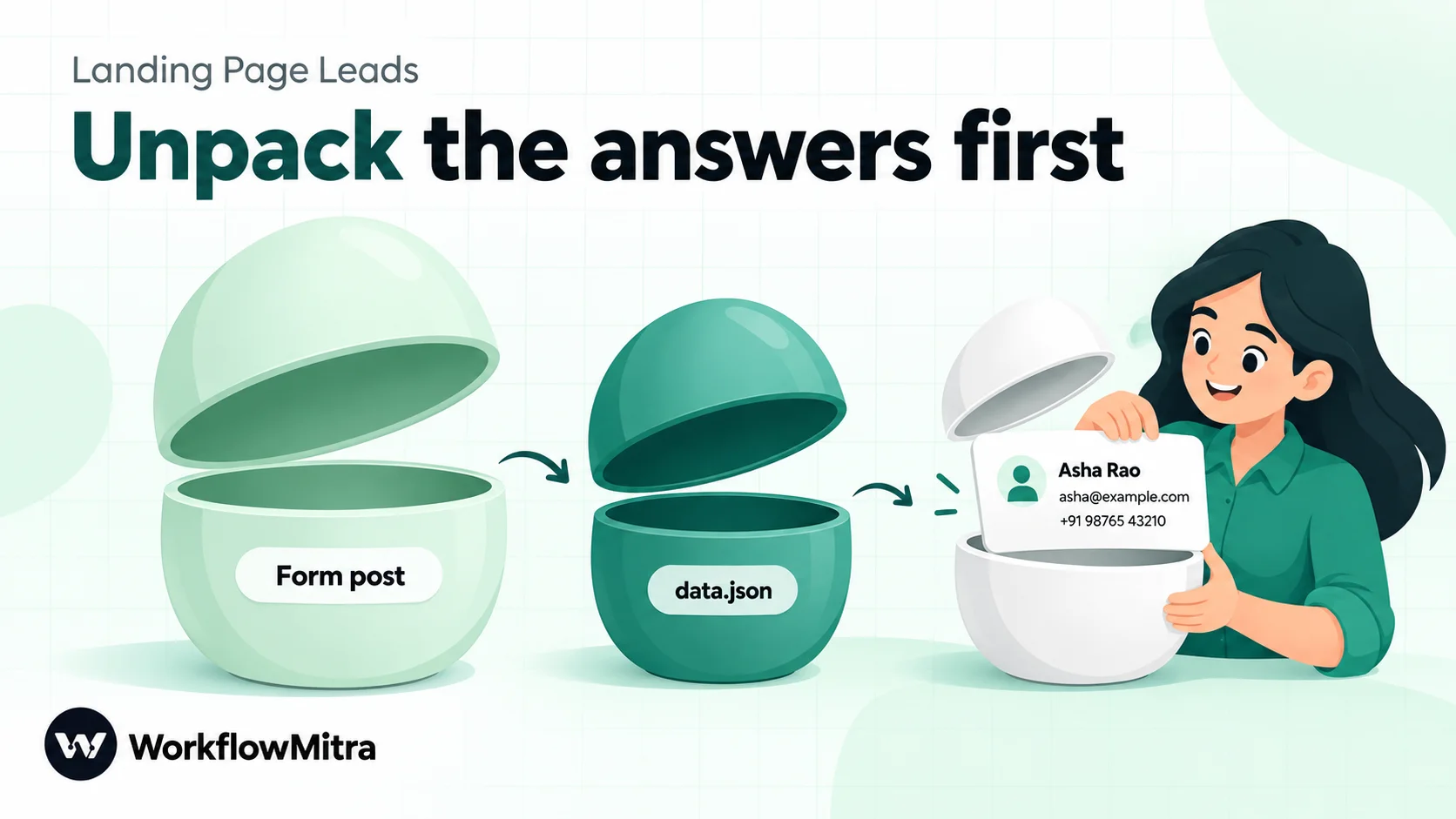
Unbounce’s default format catches people out even without a Code step. WorkflowMitra parses the form post into fields, and the answers arrive as one field whose name contains a dot: data.json. A normal path such as {{ data.json }} looks for a field json inside a field data, finds nothing and returns empty. We checked this against the expression engine. You have to use bracket notation, {{ $trigger["data.json"] }}, which returns the JSON text. If you’d rather not use a Code step, put that expression in a Parse JSON step’s “JSON string” field (Parse JSON costs no credits). Then read each answer with an index, such as {{ email[0] }}, because every value is a list.
The honeypot field
Add a hidden text field named company_website to every form. People never see it, so they leave it blank. Simple bots fill in every field they find. The clean-up step rejects any submission where it has a value. It’s not a complete defence, but it costs nothing and catches the commonest junk. For forms that attract real spam, the AI spam filter guide adds a smarter check.
Step 3: let only real leads through
Add an IF step with one route: {{ ok }} Is yes. Connect the CRM step to that route and leave Else unconnected, or send rejected submissions to a Google Sheet tab so you can see what’s being dropped (the webhook to Google Sheets guide shows how). The IF step passes the clean-up step’s output straight through, so the next step can still read {{ zoho }}, {{ email }} and the rest directly. IF steps cost no credits.
Step 4: create or update the lead in Zoho CRM, without duplicates
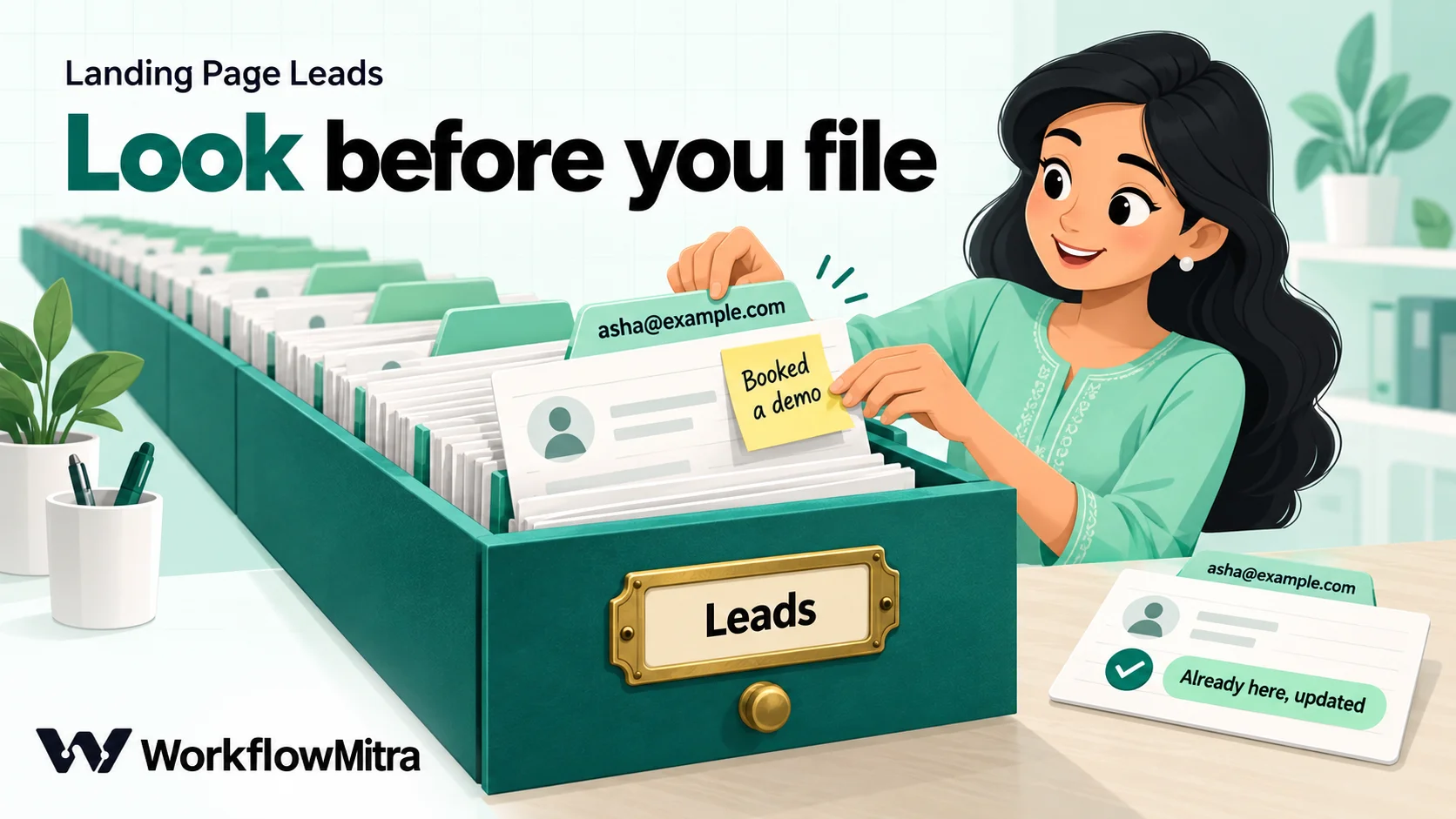
This is where most landing page integrations go wrong. A plain “create lead” makes a new record every time. The visitor who downloads your price list on Monday and books a demo on Thursday becomes two leads, owned by two people.
The cleanest fix is Zoho CRM’s upsert endpoint, which creates the lead or updates the existing one in a single call. Its upsert reference says the default duplicate check for Leads is the Email field. Each result tells you whether it was an insert or an update.
Add an App Request step:
- App: Zoho CRM, with your Zoho connection. Its address follows your Zoho data centre, so
.comand.inaccounts both work. The Zoho CRM WhatsApp guide walks through creating the connection. - What should it do?
POSTand the path/crm/v8/Leads/upsert - Information to send:
{
  "data": [{{ zoho }}],
  "duplicate_check_fields": ["Email"],
  "trigger": ["workflow"]
}
{{ zoho }} drops in the whole record from the clean-up step. WorkflowMitra inserts it as proper JSON: in our test, a name containing quote marks came out correctly escaped, and the body parsed cleanly. "trigger": ["workflow"] lets your Zoho workflow rules run on these leads, as they would for a lead added by hand; use [] to skip them.
If Zoho rejects the record (a missing mandatory field, or a value that doesn’t fit a field), the step fails with Zoho’s reason and the field name, instead of looking successful while the CRM stays empty. Zoho’s write APIs can report a refused record inside an otherwise successful reply, and WorkflowMitra’s Zoho requests check for that.
Phone-only forms
Indian landing pages often ask only for a name and a mobile number. The upsert above checks Email, and a lead with no email has nothing to match on, so each submission would become a new lead. For phone-first forms, use the Zoho CRM step instead of App Request:
- Search Records in Leads where Phone equals
{{ phone }}. No match isn’t an error: the step returnscount0 and an emptyrecordslist. - IF
{{ count }}Greater than 0. - On the match route, Update Record with Record ID
{{ $node["Search lead"].records[0].id }}. Name the search step “Search lead”, and type[0]yourself rather than accepting a.0from the variable picker. On Else, Create Record.
Zoho’s search matches the phone text exactly, which works because the clean-up step always writes numbers in the same +91… form. Leads entered by hand in another format won’t match, so tidy those once.
Step 5: tell someone, while the lead is warm
After the CRM step, add a Slack, Telegram or email message to the lead’s owner:
New landing page lead ({{ body.data[0].action }})
{{ $node["Normalise lead"].first }} {{ $node["Normalise lead"].last }}
{{ $node["Normalise lead"].phone }} / {{ $node["Normalise lead"].email }}
Page: {{ $node["Normalise lead"].page }}
Campaign: {{ $node["Normalise lead"].utm_campaign }}
body.data[0].action comes from Zoho’s upsert reply and reads insert for a new lead or update for someone who has signed up before, which is useful context for the call. The other fields use $node[...] because the step before the message is the CRM step, not the clean-up step. To share leads across a team, put a round-robin assignment in front of the alert. To message the lead themselves on WhatsApp, add a template message through ChatMitra as shown in the webhook to WhatsApp guide.
Step 6 (Instapage only): a thank-you message
Instapage shows the message text from a JSON reply as the form’s thank-you text. With Respond synchronously on, add a Response step at the end. Set Response body to {"message": "Thanks! We'll call you within the hour."}, Status code to 200 and Content type to application/json. Without the content type, the reply goes out as plain text and Instapage won’t read it as JSON. Keep the text static. Other builders ignore the reply body, so they don’t need this step.
UTM tags and the page the lead came from
Knowing which page and campaign produced a lead is half the reason to automate this. Add three hidden fields to each form, utm_source, utm_medium and utm_campaign, and make sure your ad links carry those parameters. Unbounce fills a hidden field from a URL parameter of the same name (case-sensitive). Carrd’s “Collect UTM parameters” option adds all five for you. The clean-up step picks the tags up by name and writes them into the lead’s Description. If you’d rather have them in their own CRM fields, create custom fields in Zoho and add them to the zoho object in the Code step, using the fields’ API names.
The page itself arrives as page_url from Unbounce and Instapage and as url from Leadpages. Webflow sends only the form’s name, so give each form a name that identifies its page. Lead source tracking has more to it than three hidden fields: first touch versus last touch, keeping tags across page views, and leads that never fill in a form. The lead source tracking guide covers those.
Hand-built pages: a plain HTML form
If your landing page is hand-built HTML rather than a builder, you might try to point the form straight at the webhook. Two browser rules get in the way:
- A normal form
actionsends the visitor to the webhook URL, so they see a bare JSON reply instead of your thank-you page. - A JavaScript
fetchthat sends JSON triggers a browser permission check (CORS), and the webhook doesn’t grant it to other websites. The browser blocks the request before it’s sent.
What does work is sending the form as ordinary form data with mode: 'no-cors'. The browser delivers it without a permission check; it just won’t let your page read the reply. The page then shows its own thank-you message:
<form id="lead-form">
  <input name="name" placeholder="Your name" required>
  <input name="email" type="email" placeholder="Email" required>
  <input name="phone" placeholder="Mobile number">
  <input name="company_website" tabindex="-1" autocomplete="off" style="position:absolute;left:-9999px">
  <button>Get the price list</button>
</form>
<script>
document.getElementById('lead-form').addEventListener('submit', async (e) => {
  e.preventDefault();
  const data = new URLSearchParams(new FormData(e.target));
  data.append('page_url', location.href);
  new URLSearchParams(location.search).forEach((v, k) => { if (k.startsWith('utm_')) data.append(k, v); });
  await fetch('PASTE-YOUR-WEBHOOK-URL', { method: 'POST', mode: 'no-cors', body: data });
  e.target.innerHTML = '<p>Thanks! We will be in touch shortly.</p>';
});
</script>
Two honest limits. The page shows “Thanks” even if the webhook rejected the request, for example because the workflow was paused, so turn on failure alerts and check the webhook’s deliveries list after any change. And the URL is visible in the page source, so it must have no secret (a browser can’t send one here) and anyone can post to it. The honeypot, the validation in Step 3 and the webhook’s limit of 120 requests a minute help, but a builder’s own webhook, where the URL stays in its settings, is the safer choice.
Test it with one fake lead per builder
- Use a test email you control, such as
[email protected]. Safe Test Mode simulates message steps, but CRM and App Request steps run for real, so test leads land in Zoho. Delete them afterwards. - Submit each form once and open the webhook’s latest delivery. Check that the clean-up step’s output has the name, email, phone and page you typed.
- Submit the same email again from a different page. The alert should say
update, and Zoho should still have one lead. - Check the builder’s side. Unbounce’s leads list, Webflow’s form settings and Elementor’s form message all show whether the builder saw a success. A failure there with a lead in Zoho almost always means the reply wasn’t 200: turn on Respond synchronously.
- Send junk. Fill in the honeypot field (remove its hiding style temporarily), and submit a bad email. Neither should reach Zoho.
The webhook testing guide has more ways to send test requests without filling in forms by hand.
What it costs
A credit in WorkflowMitra is one executed step. For each real lead: webhook trigger (1) + clean-up Code step (a tiny fraction) + IF (0) + Zoho CRM (1) + alert (1) = about 3 credits. Add 1 for the search step on phone-only forms. A spam submission stopped by the IF step costs 1 credit, for the trigger. A request rejected by the webhook’s secret check never starts a run and costs nothing. At 500 leads a month, that’s roughly 1,500 credits.
Troubleshooting
The builder reports a failed webhook, but the lead is in the CRM. The builder wanted a 200 and got 202. Turn on Respond synchronously (Unbounce, Webflow, Elementor).
Every Unbounce field is empty. The workflow reads {{ data.json }} or {{ email }} directly. Use {{ $trigger["data.json"] }} with Parse JSON, or the clean-up step.
Requests are rejected with 401. The webhook still expects x-webhook-secret and the builder isn’t sending it. Add the header in the builder, or empty the secret for builders that can’t send one.
Zoho rejected the record. The error names the field. Usually it’s a mandatory custom field on your Leads layout, or a Lead_Source value that isn’t in the pick list.
Duplicate leads still appear. The form has no email field, so the upsert has nothing to match. Use the phone search from Step 4. Or the same person used two different emails, which no automatic check can catch.
Webflow deactivated the webhook. It retries a failing delivery a few times and then switches the webhook off. Fix the cause, turn the workflow on, and add the webhook again in Webflow.
Common mistakes
- Mapping fields by label. Labels change when someone edits the page copy. Use field IDs or input names, and keep them short.
- Creating instead of upserting. It’s the main source of duplicate leads.
- Leaving the secret on for a builder that can’t send it, or turning it off for one that can.
- Long workflows behind Respond synchronously. Anything that pushes past 20–25 seconds breaks Instapage’s thank-you message and gets a 202 instead of a 200.
- Testing with real customer emails. Test leads go into the CRM for real.
One workflow for every landing page
Every major page builder can hand its leads to a URL. The work is in the details: reading seven formats as one, replying the way each builder expects, and writing to the CRM so a returning visitor updates their record instead of duplicating it. Build that once and every new landing page, on any builder, is a matter of pasting the same URL into its form settings.
WorkflowMitra, powered by ChatMitra, gives you the pieces in one visual editor: a webhook trigger with secrets, IP restrictions and synchronous replies, a sandboxed Code step, IF routing at no credit cost, Zoho CRM and App Request steps that catch refused records, and Slack, Telegram, email and WhatsApp alerts.
You can build this on a WorkflowMitra trial: 14 days, 10,000 credits, no card needed, with plans on the pricing page.
Page builder webhook formats, replies, retries and signing were read in each vendor's official documentation on 18 October 2026 (Unbounce, Instapage, Leadpages, Webflow, Framer, Carrd); Elementor details follow the WordPress form guide. WorkflowMitra behaviour was checked against the product's source code on that date: webhook body parsing, the shared-secret header check, CORS, synchronous replies, idempotency, the Code step, Parse JSON, the App Request JSON body and Zoho response checks, Zoho CRM search, and credit rates. The clean-up step was executed in the Code step's isolated-vm sandbox with sample submissions shaped like each builder's documented format, and the expressions and request body were evaluated with the workflow engine. Zoho CRM details come from its v8 API reference. Names, numbers and pages are examples.
Frequently Asked Questions
Questions marketers ask when they connect landing page forms to a CRM.
Use your page builder's form webhook. Most builders, including Unbounce, Instapage, Leadpages, Webflow, Framer, Carrd and Elementor Pro, can post each submission to a URL. Point that URL at a workflow that cleans the data, checks it is a real lead and creates or updates the record in your CRM. No code is needed in the page, and the same workflow can serve every page and builder you use.
Automate the work between your apps
Build workflows with triggers, conditions and actions, then test them before they go live. Try WorkflowMitra free for 14 days, no card required.
