Lead Flow Monitoring: Get Alerted When Leads Suddenly Stop Coming In

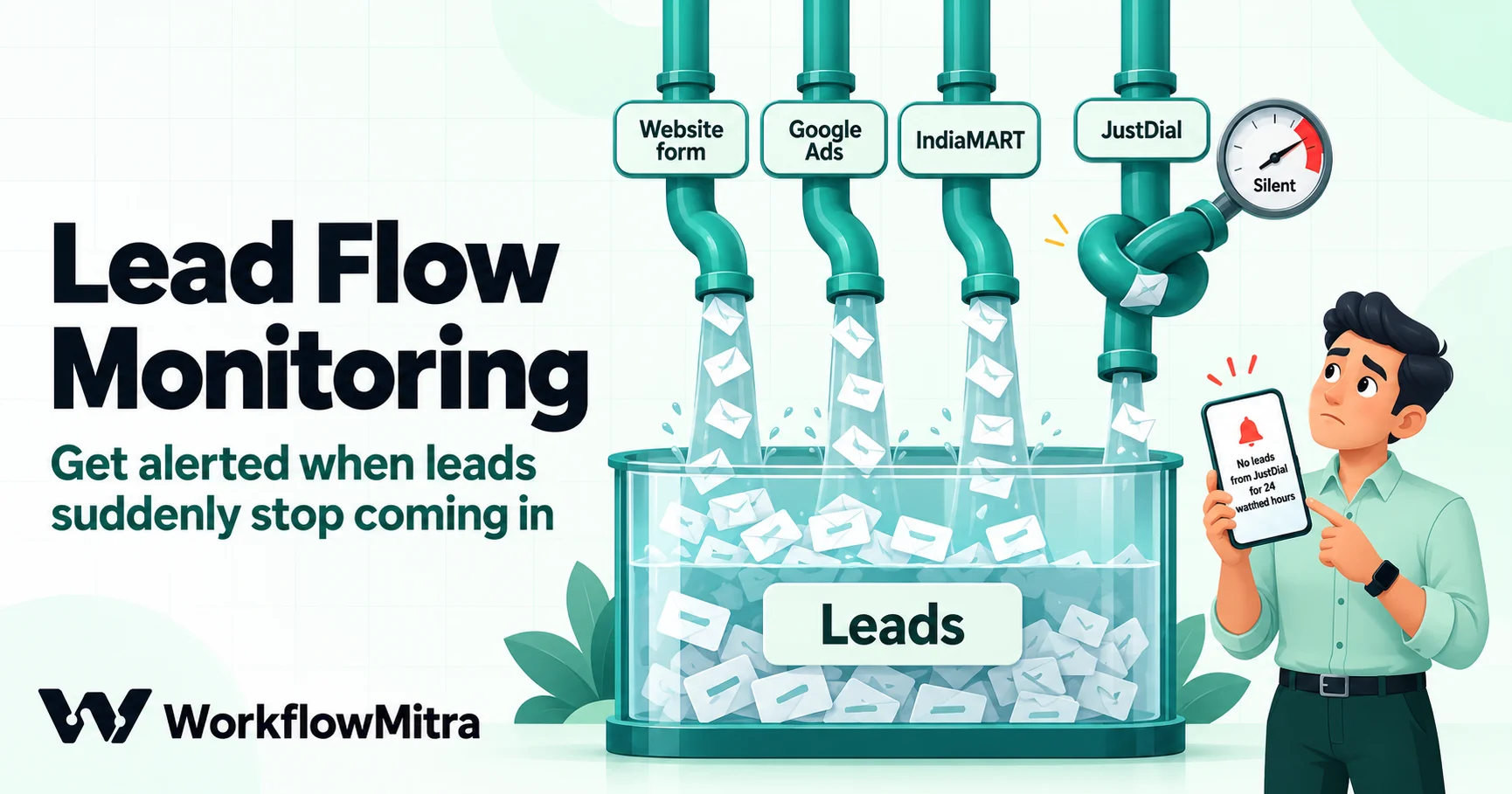
Quick Summary
Lead flow monitoring means checking that each lead source is still delivering, and getting an alert when one goes quiet for longer than normal. Silence is the failure that ordinary alerts miss: a broken website form, a paused ad account, an expired connection or a paused workflow produce no error, just no leads. Set up monitoring in three parts. First, give every source a silence window based on its own history, such as the longest normal gap between leads during working hours, and decide the hours and days you will watch. Second, record the time of the latest lead per source in one place; in WorkflowMitra, powered by ChatMitra, each lead workflow can update a Sources tab in Google Sheets. Third, run a scheduled workflow during working hours that compares the last lead time with the window, sends one alert when a source goes silent, one all-clear when leads return, and a separate alert when the last lead time can't be read. A daily test lead can also prove the pipeline works on quiet days. An hourly check during working hours costs about 625 credits a month.
The worst week for a lead form is the one where nothing goes wrong. No error emails, no failed runs, no complaints. Just fewer enquiries, which everyone puts down to a slow week, until someone submits the form themselves on Thursday and finds that a plugin update broke it on Monday.
Silence is the failure that ordinary monitoring misses. This guide explains how lead flow monitoring works, how to set a silence window for each source from your own data, and how to build a monitor in WorkflowMitra, powered by ChatMitra, that alerts once when a source goes quiet, clears itself when leads return, and never stays silent because it couldn’t read a date.
Quick answer: Lead flow monitoring checks that each lead source is still delivering and alerts you when one goes quiet for longer than its normal gap. Give every source its own silence window and watch hours, record the time of the latest lead per source, and run a scheduled check that sends one alert when a source goes silent, one all-clear when it recovers, and a separate alert when the time can't be read. Hourly checks during working hours cost about 625 credits a month in WorkflowMitra.
What is lead flow monitoring?
Lead flow monitoring is a scheduled check that every source sending you leads is still sending them at its usual rate. A source is anything that produces enquiries: your website form, a landing page, Google Ads or Meta lead forms, a marketplace such as IndiaMART or JustDial, a WhatsApp enquiry flow, a missed-call number. For each one, the monitor knows when the last lead arrived and how long a normal gap is. When the gap runs longer than normal during the hours you watch, a named person gets an alert.
It differs from the monitoring you may already have:
| Kind of monitoring | What it notices | What it misses |
|---|---|---|
| Uptime checks | The website or API is down | A page that loads but whose form doesn’t submit |
| Workflow failure alerts | A run started and a step failed | Runs that never started |
| KPI threshold alerts | A number crossed a line | Usually set daily, so a morning outage is found in the evening |
| Lead flow monitoring | A source went quiet for longer than normal | Leads that arrive but are junk or duplicates |
Each has a job. Our guides cover workflow monitoring, API health checks and KPI alerts. Lead flow monitoring fills the gap between them: the failure that produces no event at all.
Why leads stop without an error
A lead travels through a chain before anyone sees it: the ad or listing, the page, the form, the form tool, the connection to your automation, the workflow, the sheet or CRM, and the notification. A break anywhere along that chain stops the flow, and most breaks are silent.
| Link in the chain | How it breaks | Why nobody notices |
|---|---|---|
| Ads and listings | Payment fails, an ad is disapproved, a budget runs out, a marketplace plan expires | The site works; there are just fewer visitors |
| The page | A redesign drops the form, a script error stops the submit button, a CAPTCHA key expires | The page looks fine to the team |
| The form tool | A plugin update changes field names, a notification setting is reset | Submissions may still be stored in the form tool |
| The connection | A webhook URL is changed or removed, an API key expires, a sender disables a webhook after errors | Errors appear only in the sender’s own log |
| The workflow | The workflow is paused, its webhook secret is rotated, the workspace runs out of credits | No run starts, so no run fails |
| The destination | A sheet tab is renamed, a CRM field becomes required | This one does produce failed runs, if you’re watching |
Two WorkflowMitra details are worth knowing. A paused workflow’s webhook answers with a 404 and doesn’t log the request, so nothing appears in its history; some senders, Typeform among them, switch a webhook off immediately after a 404. And when a workspace has no credits left, an incoming webhook is recorded as an error in the delivery log but no run is created, so the Executions list stays quiet. Our checklist for when an automation is not triggering covers each trigger type in detail.
The common thread is that every one of these failures looks the same from the sales team’s side: no new leads. That’s why the check has to watch for absence, not errors.
Set a silence window for each source
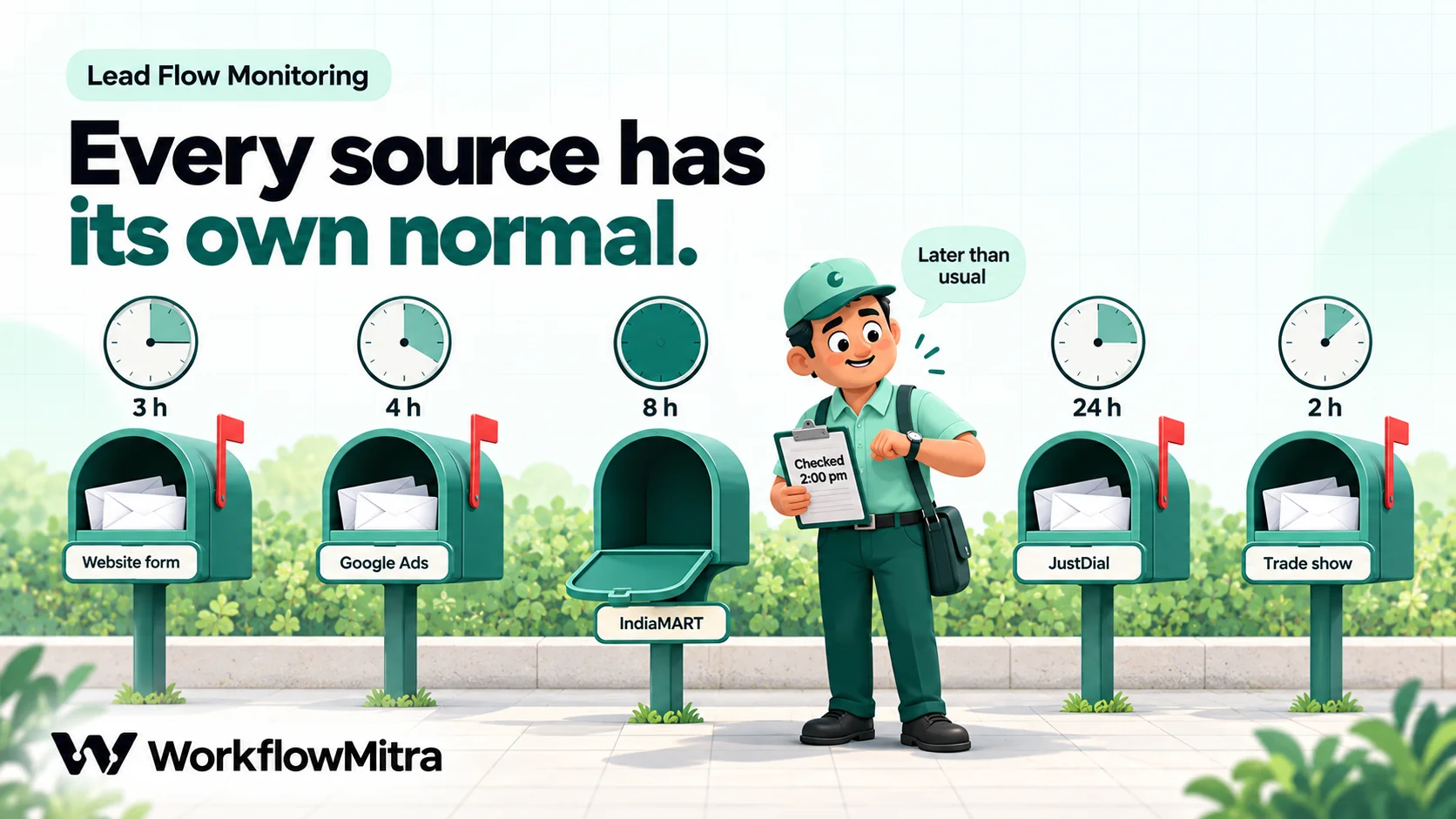
The hardest part of lead flow monitoring is deciding what “too quiet” means. One threshold for every source doesn’t work: a website form that gets 40 leads a day and a marketplace that sends three would need very different patience.
Set three things per source:
- Silence window: how many watched hours without a lead counts as a problem.
- Watch hours: when leads normally arrive, for example 9 a.m. to 9 p.m.
- Watch days: which days of the week to watch, for example Monday to Saturday.
The window should come from the source’s own history. A good starting rule is the longest normal gap between leads during watch hours over the last four weeks, rounded up. Use the longest gap rather than the typical one, because a window set at the typical gap alerts every afternoon lull.
Measure every gap in watched hours: the clock runs only during watch hours on watched days and pauses overnight and on days off. A lead at 8 p.m. followed by the next one at 9:40 a.m. is a gap of an hour and forty minutes, not thirteen and a half hours. A quiet watched day, on the other hand, counts in full. The monitor below counts the same way, so windows of more than one day work too.
Here’s what a set of windows might look like for a small B2B business, in watched hours. These are examples; yours come from your data.
| Source | Typical day | Window | Watch hours | Days |
|---|---|---|---|---|
| Website form | 25–40 leads | 3 hours | 9:00–21:00 | Mon–Sat |
| Google Ads lead form | 8–15 leads | 4 hours | 9:00–21:00 | Every day |
| IndiaMART | 4–8 enquiries | 8 hours | 10:00–19:00 | Mon–Sat |
| JustDial | 1–3 enquiries | 24 hours | 10:00–20:00 | Mon–Sat |
| Trade-show QR form | Event days only | 2 hours | 10:00–18:00 | Event days |
Low-volume sources need longer windows, and some sources shouldn’t be watched by the hour at all. If a source sends one lead every two days, a daily or weekly count is a better check than a silence window.
Find your normal gaps with one Code step
If your leads already sit in a Google Sheet with a source column and a timestamp, a one-off workflow can measure the gaps for you. Use a Manual trigger, a Google Sheets step with Read rows on the leads tab, and a Code step with this script. It expects columns named Source and Created at, with times in ISO format, such as 2026-10-14T05:10:00.000Z, which is what {{ now() }} writes. Set FROM, TO and DAYS to the hours and days you plan to watch:
const OFFSET_MIN = 330; // India (UTC+5:30)
const FROM = 9, TO = 21, DAYS = '1-6'; // the hours and days you will watch
const HOUR = 3600000;
const inDays = (spec, d) => String(spec).split(',').some((part) => {
  const [a, b] = part.trim().split('-').map(Number);
  return Number.isFinite(b) ? d >= a && d <= b : d === a;
});
const watched = (start, end) => {
  const d0 = new Date(start + OFFSET_MIN * 60000);
  let dayStart = Date.UTC(d0.getUTCFullYear(), d0.getUTCMonth(), d0.getUTCDate()) - OFFSET_MIN * 60000;
  let total = 0;
  for (let i = 0; dayStart < end && i < 60; i++, dayStart += 24 * HOUR) {
    if (!inDays(DAYS, new Date(dayStart + OFFSET_MIN * 60000).getUTCDay())) continue;
    const a = Math.max(start, dayStart + FROM * HOUR);
    const b = Math.min(end, dayStart + TO * HOUR);
    if (b > a) total += (b - a) / HOUR;
  }
  return total;
};
const bySource = {};
for (const r of input.rows || []) {
  const s = String(r['Created at'] || '').trim();
  const t = /^\d{4}-\d{2}-\d{2}T/.test(s) ? Date.parse(s) : NaN; // ISO text only
  const src = String(r.Source || '').trim();
  if (src && Number.isFinite(t)) (bySource[src] ||= []).push(t);
}
const report = Object.entries(bySource).map(([source, times]) => {
  times.sort((a, b) => a - b);
  const gaps = [];
  for (let i = 1; i < times.length; i++) {
    const g = watched(times[i - 1], times[i]);
    if (g > 0) gaps.push(g); // two leads in the same off-hours stretch are not a gap
  }
  gaps.sort((a, b) => a - b);
  const pick = (q) => gaps.length ? +gaps[Math.min(gaps.length - 1, Math.floor(q * gaps.length))].toFixed(1) : null;
  return { source, leads: times.length, typicalGapH: pick(0.5), gap95H: pick(0.95), longestGapH: pick(1) };
});
return { report };
For each source, the output shows the typical gap, the gap that 95% of gaps stay under, and the longest gap, all in watched hours. We ran it in WorkflowMitra’s Code step on sample data. A form with leads at 9:40, 10:30, 12:00 and 15:30 from Monday to Wednesday reported a typical gap of 1.5 hours and a longest gap of 6.2 hours: the quiet evening after 15:30 plus the next morning until 9:40. A marketplace with leads at 11:00 and 19:00 on Monday and Tuesday, nothing on Wednesday and one at noon on Thursday reported a longest gap of 17 hours, because the quiet Wednesday counts in full. Rows without an ISO time are skipped, including day-first dates, which JavaScript would otherwise misread as month-first.
Two cautions. If the longest gap covers a holiday or a known outage, use the 95% figure instead. And Read rows starts at the top of the sheet, reading 5,000 rows by default and up to 50,000, so on a large sheet use Offset to read the most recent rows.
Record the last lead per source
The monitor needs one fact per source: when did its latest lead arrive? You can get it two ways.
Option A: a Sources tab that each lead workflow updates (recommended). Add a tab called Sources to your lead sheet with one row per source and these columns:
| Source | Last lead at | Window (hours) | Watch from | Watch to | Days | Owner | Status |
|---|---|---|---|---|---|---|---|
| Website form | 3 | 9 | 21 | 1-6 | Priya | ||
| IndiaMART | 8 | 10 | 19 | 1-6 | Arjun |
Days uses numbers, with 0 for Sunday through 6 for Saturday, so 1-6 means Monday to Saturday and 0-6 means every day; you can also list days, such as 1,3,5. Leave Last lead at and Status empty; workflows fill them.
Then, in every workflow that receives leads, add one Google Sheets step with Update row on the Sources tab. Under Which rows, match Source to the fixed name of that source, such as Website form, and write {{ now() }} to Last lead at. Set Write values to Exactly as written (no formulas), so the time is stored as the text the monitor expects. This costs one credit per lead and works no matter how big your lead sheet grows.
Option B: read the lead sheet itself. If every lead lands in one sheet with a source column and an ISO timestamp, and the sheet stays below the read limit, the monitor can read it and find the latest time per source in its Code step. It costs nothing per lead, but it breaks quietly when the sheet outgrows the read limit, because the newest rows are the ones left unread.
Whichever you pick, keep the timestamp in ISO format. In our tests, WorkflowMitra’s date comparisons read ISO text correctly but treat day-first text such as 19/10/2026 10:15 as unreadable, and many form tools write exactly that. Our guide to date calculations in workflows explains the formats in detail.
Build the monitor in WorkflowMitra
The monitor is one scheduled workflow with six steps. On a quiet check it uses only the first three.
1. Schedule the check for watch hours
Create a workflow with a Schedule trigger, choose Custom schedule (advanced)… and enter 0 9-20 * * 1-6, with Timezone set to Asia/Kolkata. That checks on the hour from 9:00 to 20:00, Monday to Saturday. Use the widest watch hours of any source; the Code step skips sources outside their own hours. For faster detection on a busy form, check every 15 minutes with */15 9-20 * * 1-6, at four times the cost. Days must be numbers; the cron field doesn’t accept names such as MON. Our guide to scheduling automations explains cron in more detail.
2. Read the Sources tab
Add a Google Sheets step with Read rows on the Sources tab, and set Read values to Raw values (numbers stay numbers), so the window and watch hours arrive as numbers.
3. Decide which sources changed state
Add a Code step. It works out, for each source in its watch hours, whether it is healthy, silent or unreadable, compares that with the Status already recorded, and returns only the sources whose state has changed:
const OFFSET_MIN = 330; // India (UTC+5:30, no daylight saving). Change for your zone.
const HOUR = 3600000;
const now = Date.now();
const local = new Date(now + OFFSET_MIN * 60000);
const today = local.getUTCDay(); // 0 = Sunday … 6 = Saturday
const hour = local.getUTCHours() + local.getUTCMinutes() / 60;

const inDays = (spec, d) => String(spec || '0-6').split(',').some((part) => {
  const [a, b] = part.trim().split('-').map(Number);
  return Number.isFinite(b) ? d >= a && d <= b : d === a;
});
const toMs = (v) => {
  if (typeof v === 'number') return (v - 25569) * 86400000 - OFFSET_MIN * 60000; // sheet date
  const s = String(v || '').trim();
  return /^\d{4}-\d{2}-\d{2}T/.test(s) ? Date.parse(s) : NaN; // ISO text only
};
const show = (ms) => new Date(ms + OFFSET_MIN * 60000).toISOString().slice(0, 16).replace('T', ' ');
// Hours between two moments that fall inside the watch hours of watched days
const watched = (start, end, from, to, days) => {
  const d0 = new Date(start + OFFSET_MIN * 60000);
  let dayStart = Date.UTC(d0.getUTCFullYear(), d0.getUTCMonth(), d0.getUTCDate()) - OFFSET_MIN * 60000;
  let total = 0;
  for (let i = 0; dayStart < end && i < 60; i++, dayStart += 24 * HOUR) {
    if (!inDays(days, new Date(dayStart + OFFSET_MIN * 60000).getUTCDay())) continue;
    const a = Math.max(start, dayStart + from * HOUR);
    const b = Math.min(end, dayStart + to * HOUR);
    if (b > a) total += (b - a) / HOUR;
  }
  return total;
};

const changes = [];
for (const r of input.rows || []) {
  const source = String(r.Source || '').trim();
  if (!source) continue;
  const from = Number(r['Watch from'] ?? 9);
  const to = Number(r['Watch to'] ?? 21);
  if (!inDays(r.Days, today) || hour < from || hour >= to) continue; // outside watch hours: stay quiet

  const was = ['silent', 'unknown'].includes(r.Status) ? r.Status : 'ok';
  const last = toMs(r['Last lead at']);
  const windowH = Number(r['Window (hours)']) || 2;
  let status = 'unknown';
  let quietH = 0;
  if (Number.isFinite(last)) {
    quietH = watched(last, now, from, to, r.Days);
    status = quietH > windowH ? 'silent' : 'ok';
  }
  if (status === was) continue;

  const owner = r.Owner || 'no owner set';
  let text;
  if (status === 'silent') text = `🔴 No new leads from ${source} for ${quietH.toFixed(1)} watched hours (last lead ${show(last)}). Owner: ${owner}. Send a test lead and follow it through.`;
  else if (status === 'ok') text = `✅ ${source} is receiving leads again (last lead ${show(last)}).`;
  else text = `⚪ Can't read the last lead time for ${source} ("${r['Last lead at'] ?? ''}"). Owner: ${owner}. Check the Sources tab.`;
  changes.push({ source, status, hours: +quietH.toFixed(1), text, at: new Date(now).toISOString() });
}
return { changes, count: changes.length };
Three design choices make it safe:
- The clock pauses outside watch hours. Silence is counted only in watched hours on watched days, so a lead at 8 p.m. yesterday, with watch hours ending at 9 p.m., and none by 9:30 this morning is an hour and a half of silence, not thirteen and a half hours. A quiet watched day counts in full, so a 24-hour window on a source watched 10 hours a day fires after about two and a half quiet days.
- Unreadable means alert, not quiet. A blank cell or a date in the wrong format becomes “unknown” and sends its own message. A monitor that silently skips rows it can’t read is the same failure it was built to catch.
- One message per change. A source alerts once when it goes silent, stays quiet while it remains silent, and sends one all-clear when leads return.
We ran this code in WorkflowMitra’s Code step against thirteen sample sources on 19 October 2026. It flagged a source five hours past a three-hour window, sent an all-clear for a source marked silent whose lead had just arrived, flagged a day-first date and a blank cell as unreadable, and converted a date typed straight into the sheet. It counted a lead from 8 p.m. the previous evening as about seven watched hours by mid-afternoon and stayed quiet against a 24-hour window, and it flagged a lead from three evenings earlier at 32 watched hours, or 20 when one of those days was excluded from watch days. It skipped a source outside its watch days and stayed quiet for a source already marked silent. Each run took a few milliseconds. The script assumes India time; change OFFSET_MIN for another zone without daylight saving.
4. Loop over the changes
Add a Loop step and set List field (optional) to changes. The loop’s body runs once per source that changed. On a normal check the list is empty and the run ends here.
5. Send the alert
Inside the loop, add a Slack step with your sales channel’s incoming webhook URL and Message set to {{ text }}. Inside a loop, $trigger and plain field names refer to the current item. A Telegram, Discord or Email step works the same way. To route each source to its owner, put a Switch on {{ $trigger.source }} before the message step, with one route per owner; Switch steps cost nothing.
You can also alert on WhatsApp through ChatMitra, but messages to your team outside a 24-hour chat window need an approved template, and each one carries Meta’s template charge and ChatMitra’s per-conversation fee.
6. Record the new status
After the message, add a Google Sheets step with Update row on the Sources tab. Match Source to {{ $trigger.source }} and write {{ $trigger.status }} to Status. That written status is the monitor’s memory: on the next check, the Code step compares against it and stays quiet. Keep source names unique; if two rows share a name, the update stops rather than guessing. The hours field in each change holds the watched hours of silence, if you’d like to log it.
Before switching it on, change one row’s Last lead at to a time a day ago and run the workflow from the editor. You should get one silent alert, then nothing on a second run, then an all-clear once you put the time back. Our guide on how to test an automation workflow covers testing more generally.
Prove the pipeline on quiet days with a test lead
A silence window can’t tell a quiet Sunday from a broken connection. For sources where a long quiet spell is normal, a daily test lead, sometimes called a canary, proves the pipeline works.
The idea is simple: once a day, send a clearly marked test lead into the same entry point real leads use, and let the lead workflow record it separately.
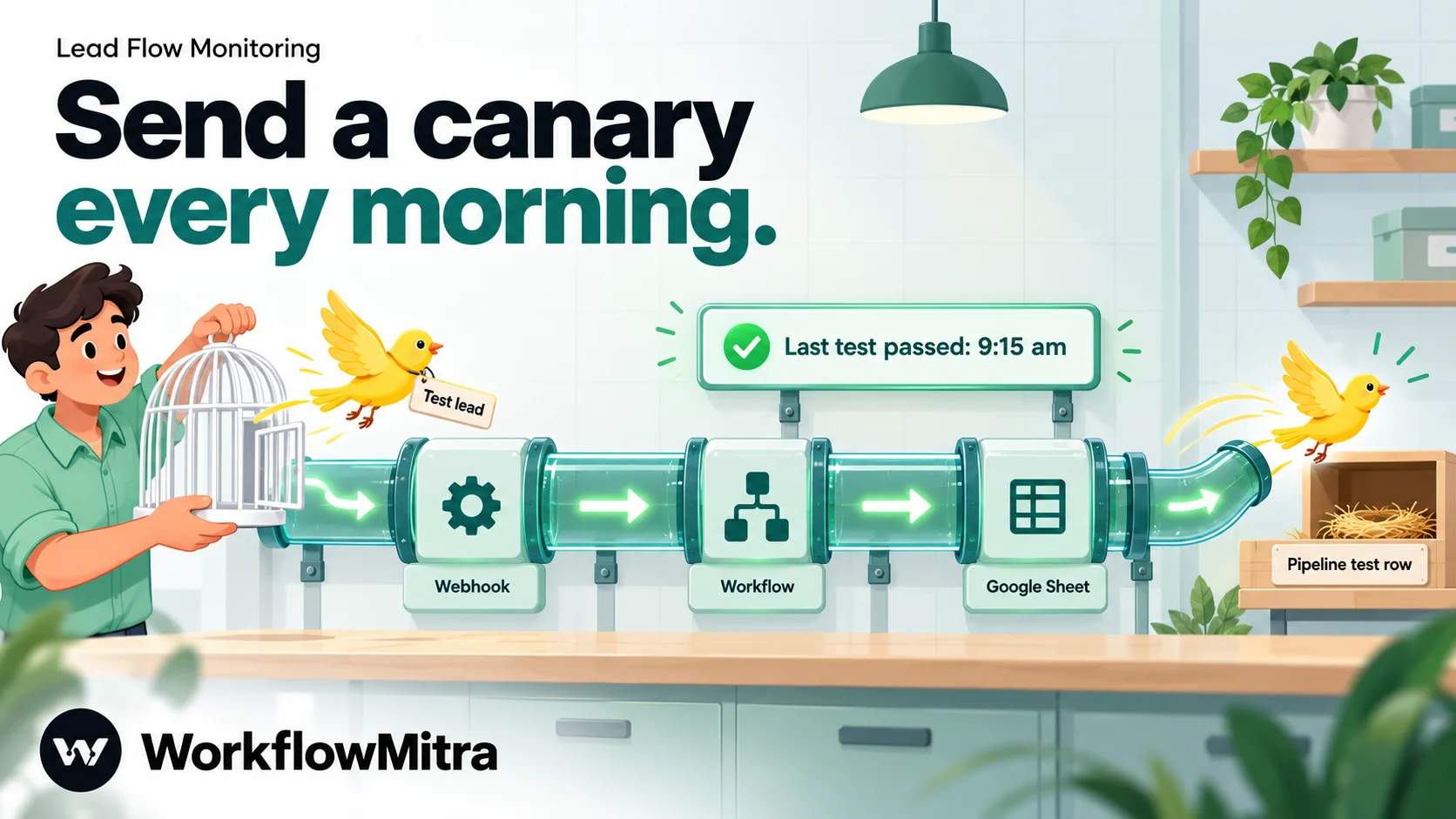
- Create a workflow with a Schedule trigger at, say, 9:15 every morning, and an HTTP Request step that sends a POST with JSON to your lead workflow’s webhook URL. Include the same secret header the real sender uses, a name such as “Pipeline test”, and the field
"test": trueas a JSON true value rather than text. - Add a row to the Sources tab called Website pipeline test, with a window of 26 hours, watch hours 0 to 24 and days
0-6. - In the lead workflow, add an IF step straight after the trigger with the condition
testIs yes, which matches the JSON valuetrue. Test leads take a short branch: one Update row that writes{{ now() }}to Last lead at on the Website pipeline test row, and nothing else. They never reach the CRM, the sales team or a customer, and they never touch the real source’s row.
If a morning test fails to arrive, the pipeline row passes its 26-hour window that afternoon and the monitor alerts, even on a day when no real leads were expected.
Be clear about what this proves. A test sent to the webhook checks everything from the webhook onward: the workflow is active, the secret matches, credits are available and the sheet accepts the write. It doesn’t test the website form itself. To cover the form, submit a real test entry through it on a schedule, which some form tools and outside services can do, or have someone submit one every morning as part of opening routine.
The most important rule: test leads must never update the real source’s row. Otherwise they hide the very silence the monitor is watching for.
When the alert fires: a diagnosis order
An alert that says “no leads from the website form” is only useful if someone knows what to do next. Put this order in the alert’s owner’s hands:
- Submit a test lead yourself through the real form or ad, on a phone using mobile data, the way a customer would.
- Check the form tool’s own submissions. If your test isn’t there, the problem is the page or the form: a plugin update, a script error, an expired CAPTCHA key, or a page that lost its form.
- Check the sender’s delivery log. Form tools and ad platforms that send webhooks usually show recent attempts and whether they were switched off.
- Check the workflow. Is it active? A paused workflow’s webhook returns 404 without logging the request. Then check the webhook’s deliveries for rejected or failed attempts, and the credit balance.
- Check Executions. Did a run start for your test, and did every step succeed?
- Check the destination. Did the row land in the right tab with the right columns?
- Check upstream. Ad account billing and approvals, lead-form connections, marketplace plan status and API keys.
The first place your test lead doesn’t appear is where the chain is broken. Our guides to lead management automation and specific sources, such as Google Ads lead form webhooks, IndiaMART and JustDial, cover each connection in detail.
Write alerts the owner can act on
A good silence alert answers four questions in one line: which source, how long, since when, and who owns it. The Code step above produces messages like this:
🔴 No new leads from Website form for 4.5 watched hours (last lead 2026-10-19 10:15). Owner: Priya. Send a test lead and follow it through.
Keep alerts in a channel the owner actually reads, give every source one named owner, and keep the all-clear message. Without the all-clear, nobody knows whether the problem was fixed or just ignored.
What does it cost?
WorkflowMitra charges credits per executed step: one for the trigger, one for each Sheets or messaging step, and one per loop item. IF and Switch steps are free, and Code steps cost a fraction of a credit for short scripts.
| Part | How often | Credits each | Credits per month |
|---|---|---|---|
| Hourly check, 9:00–21:00, Mon–Sat | About 312 runs | About 2 (trigger + read; Code is a fraction) | About 625 |
| 15-minute check, same hours | About 1,250 runs | About 2 | About 2,500 |
| Lead workflow updating Last lead at | Once per lead | 1 | Equal to your lead count |
| Alert or all-clear | When a source changes | About 3 (loop item, message, status update) | Small |
| Daily test lead | 30 runs | About 2 plus the lead workflow’s run | About 120 |
A business with 600 leads a month and an hourly check uses about 1,250 credits a month for monitoring, which fits within the entry plan of 10,000 credits for ₹999 a month (₹849 a month billed yearly), with room for the lead workflows themselves. Prices were checked on 19 October 2026.
One caution: the monitor runs in the same workspace as your lead workflows, so if credits run out, both stop. Set workspace credit alerts so you hear about a low balance before it becomes silence.
Common mistakes
- One window for every source. A three-hour window floods you with marketplace alerts and misses a website outage for a day. Set windows per source.
- Watching around the clock. Overnight gaps are normal for most Indian businesses. Watch working hours and count silence in watched hours only.
- Skipping rows it can’t read. If a date is blank or day-first, alert on that too. Silent skipping is the failure you are trying to catch.
- Alerting on every check. Ten identical messages in ten hours teach people to mute the channel. Alert once and send an all-clear.
- Letting test leads count as real. A daily test that updates the real timestamp hides every outage.
- Reading a huge lead sheet from the top. The newest rows are the ones that get cut off. Use a Sources tab instead.
- No owner. An alert in a shared channel with no name on it is a notification, not an action.
- Forgetting holidays. On Diwali or a regional holiday, either change Days for the week or accept one alert and clear it.
Start with your busiest source
Lead flow monitoring is one of the cheapest automations you can run and one of the most valuable, because the failure it catches is invisible until someone counts. Start with the source that sends the most leads, set its window from four weeks of history, and build the monitor for that one source this week. Add the others once the first has run quietly for a few days.
To build it, start a WorkflowMitra trial: 14 days, 10,000 credits, no card needed. If your enquiries end up on WhatsApp, ChatMitra is the WhatsApp Business API platform WorkflowMitra uses to send messages.
Sources: WorkflowMitra behaviour was checked against the product's source code on 19 October 2026: the Schedule trigger, Google Sheets Read rows limits, read and write value options and Update row matching, the Code step sandbox, Loop and Switch, credit rates per step, webhook handling of paused workflows and of workspaces without credits, and the webhook delivery log. Both Code step scripts were run in WorkflowMitra's Code step sandbox on sample data that day. Prices are from WorkflowMitra's public plans on 19 October 2026. The sources, windows, owners, lead counts and times are examples.
Frequently Asked Questions
Short answers to common questions about lead flow monitoring and zero-lead alerts.
It is a regular check that each source of leads, such as a website form, ad lead forms or a marketplace, is still delivering leads at its normal rate. When a source goes quiet for longer than its usual gap, the monitor alerts a named person so they can find out why before a day of enquiries is lost.
Automate the work between your apps
Build workflows with triggers, conditions and actions, then test them before they go live. Try WorkflowMitra free for 14 days, no card required.
