LinkedIn Conversions API: Send Offline B2B Conversions from Your CRM or Google Sheet Without a Developer App

Quick Summary
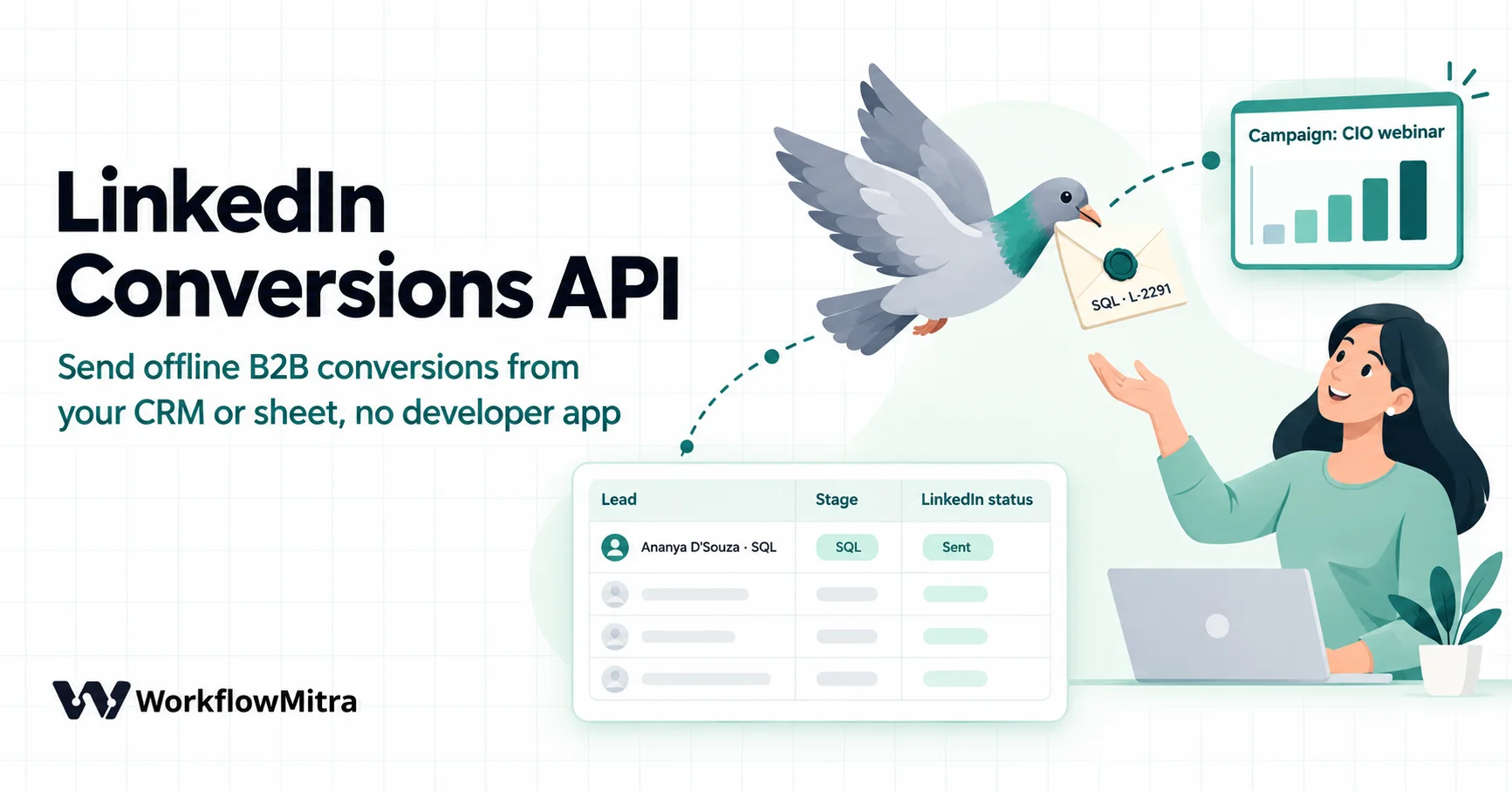
The LinkedIn Conversions API lets you send conversions that happen away from your website, such as a lead your sales team marks as qualified or a deal that closes, back to LinkedIn so Campaign Manager can attribute them to your ads and optimise towards them. You don't need a LinkedIn developer app to do it for your own ad account: in Campaign Manager, open Data, then Signals Manager, choose Direct API and generate an access token, which doesn't expire. Create a conversion rule with Conversions API as its source, then post each event to https://api.linkedin.com/rest/conversionEvents with the rule's ID, the time in milliseconds (within the last 90 days) and at least one identifier, usually the lowercased email hashed with SHA-256. In WorkflowMitra, powered by ChatMitra, a Google Sheets or webhook trigger, one HTTP Request step and the built-in sha256() helper do the whole job.
LinkedIn is where many Indian B2B companies buy their most expensive clicks. A lead form fill from a CIO costs real money, and the ad platform counts it as a success the moment the form is submitted. What it never learns is which of those leads your sales team later called qualified, which booked a demo, and which became a ₹4.5 lakh annual contract. So the campaigns that produce form fills get more budget than the ones that produce revenue.
The LinkedIn Conversions API closes that gap by letting you send those later stages back to LinkedIn. This guide covers what you need on the LinkedIn side (including the Campaign Manager token that means you don’t need a developer app), what each event must contain, and how to build the whole thing in WorkflowMitra, powered by ChatMitra, from a Google Sheet or a CRM, with one request step and no code. LinkedIn’s documentation was read on 22 October 2026, and the request body was run through WorkflowMitra’s own template engine the same day.
What is the LinkedIn Conversions API?
The LinkedIn Conversions API lets you send conversions from your own systems straight to LinkedIn, so Campaign Manager can credit them to the ads that started them. It handles actions the Insight Tag can't see, such as a lead your team qualifies, a demo that happens on a call or a deal that closes in your CRM. For your own ad account you don't need a developer app: generate an access token in Campaign Manager under Data → Signals Manager → Direct API, create a conversion rule with Conversions API as its source, and post each event to /rest/conversionEvents with the rule's ID, the time in milliseconds (within 90 days) and an identifier such as a SHA-256 hashed email.
LinkedIn describes the Conversions API as covering both online and offline actions, sent continuously or on a schedule from a server or partner platform. Its help pages also recommend setting it up before you optimise an ad set for qualified leads, because that goal needs LinkedIn to see which leads were qualified.
Which conversions are worth sending
The Insight Tag already sees website actions. The Conversions API earns its keep with the stages that happen after the form, where LinkedIn otherwise has no signal. For a typical B2B pipeline, that means:
| Stage in your pipeline | Send it? | Why |
|---|---|---|
| Form submitted (LinkedIn Lead Gen Form) | No | LinkedIn already counts it |
| Form submitted on your website | Usually no | The Insight Tag sees it; send it by API only if you also pass the same eventId for deduplication |
| Marketing qualified (MQL) | Yes, if your team agrees on the definition | The first signal of quality, available within days |
| Sales qualified (SQL) or demo held | Yes | The best balance of volume and quality for most B2B accounts |
| Deal won | Yes, with its value | Lets you compare campaigns on revenue, though volume is low and arrives late |
| Disqualified or lost | No | LinkedIn's conversions are positive actions; leave these out |
Two practical points shape the choice. LinkedIn only accepts conversions from the last 90 days, so a stage that typically happens four months after the click (a large enterprise deal, say) will often be too late to send. And campaigns need enough conversions to learn from, so a stage that happens five times a month is better for reporting than for optimisation. Many teams send SQL as the main event and Won as a second, value-carrying event. If your stages aren’t clearly defined yet, our guide to lead lifecycle stages is the place to start.
What you need from LinkedIn
An access token from Campaign Manager
This is the step most guides get wrong. LinkedIn’s developer documentation says that advertisers sending their own conversion data “don’t need to create a developer application or apply for the Conversions API through the developer portal”. Instead:
- In your Campaign Manager ad account, click Data in the left menu, then Signals Manager.
- Click Direct API, then Generate access token.
- Sign in to LinkedIn when asked and follow the instructions.
- When the token appears, click it to copy it, and store it somewhere safe straight away.
LinkedIn states that these tokens don’t expire, and that Campaign Manager doesn’t keep a copy, so if you lose it you’ll need to generate a new one. Treat it like a password: anyone who has it can send conversions to your ad account. The person generating it needs a role on the ad account above Viewer, because LinkedIn’s validation rejects events from users who only have view access.
The developer-app route, with OAuth and the rw_conversions permission, still exists. It’s for partners who build integrations for many advertisers, and it involves an application review and company page verification. You don’t need it to send your own data.
A conversion rule with Conversions API as its source
Each type of conversion you send needs its own rule.
- In Campaign Manager, go to Measure → Conversion tracking and click Create conversion, then choose Conversions API.
- Name the rule (for example “SQL from CRM”), choose its category, and choose how its value is set. For deals, choose a dynamic value with a sensible default; for SQLs, a fixed value or none.
- Choose the click and view windows and the attribution model.
- Choose Direct API as the integration, and add the campaigns or ad sets the conversion should be counted against.
You need the rule’s ID for every event. LinkedIn’s schema notes that you can read it from Campaign Manager’s address bar when you open the rule to edit it: it’s the number after /conversions/. In the request it becomes urn:lla:llaPartnerConversion: followed by that number. Only campaigns associated with the rule can be credited with its conversions, so associate every campaign that could have produced the lead.
What each event contains
Every event goes to https://api.linkedin.com/rest/conversionEvents as a POST with four headers: your token, Content-Type: application/json, LinkedIn-Version in YYYYMM format, and X-Restli-Protocol-Version: 2.0.0. The body has a handful of fields.
| Field | Required | What goes in it |
|---|---|---|
conversion | Yes | urn:lla:llaPartnerConversion: + your rule ID |
conversionHappenedAt | Yes | When it happened, as epoch milliseconds, within the past 90 days |
user.userIds | Yes (may be an empty list) | One or more identifiers; for CRM data, normally SHA256_EMAIL |
user.userInfo | No | First name and last name together, plus optional company, job title and two-letter country code, to improve matching |
conversionValue | No | Currency code (such as INR) and the amount as a decimal string |
eventId | No | Your own unique ID for the event, used to deduplicate against the Insight Tag |
user.lead, user.externalIds | No | A LinkedIn Lead Gen Form response URN, or one ID of your own for the person |
The email rule is precise: LinkedIn says the address “must be converted to lower case, without any whitespaces and then hashed in SHA256 format”, sent as a 64-character hex string. Names in userInfo go in plain text. From version 202609 onwards you can send hashed names instead (hashedFirstName, hashedLastName), but plain names are simpler and remain accepted. If you include userInfo, it must have both a first and a last name.
LinkedIn returns 201 Created for a successful event. Validation failures return 400 or 422 with a message that names the problem, such as “Conversion time should be within 90 days”.
How the workflow fits together
The workflow watches a pipeline sheet, and sends an event when a lead’s stage changes to the one you track. It’s six steps, and none of them needs code.
- Google Sheets trigger: runs when the Stage column changes on any row.
- IF: continues only when the new stage is “SQL”.
- IF: continues only when the email cell isn’t blank once spaces are removed.
- HTTP Request: posts the event to LinkedIn, hashing the email inside the request with
sha256(). - IF: checks whether LinkedIn answered with success.
- Google Sheets: writes “Sent” and the time, or LinkedIn’s error, into a LinkedIn status column on the same row.
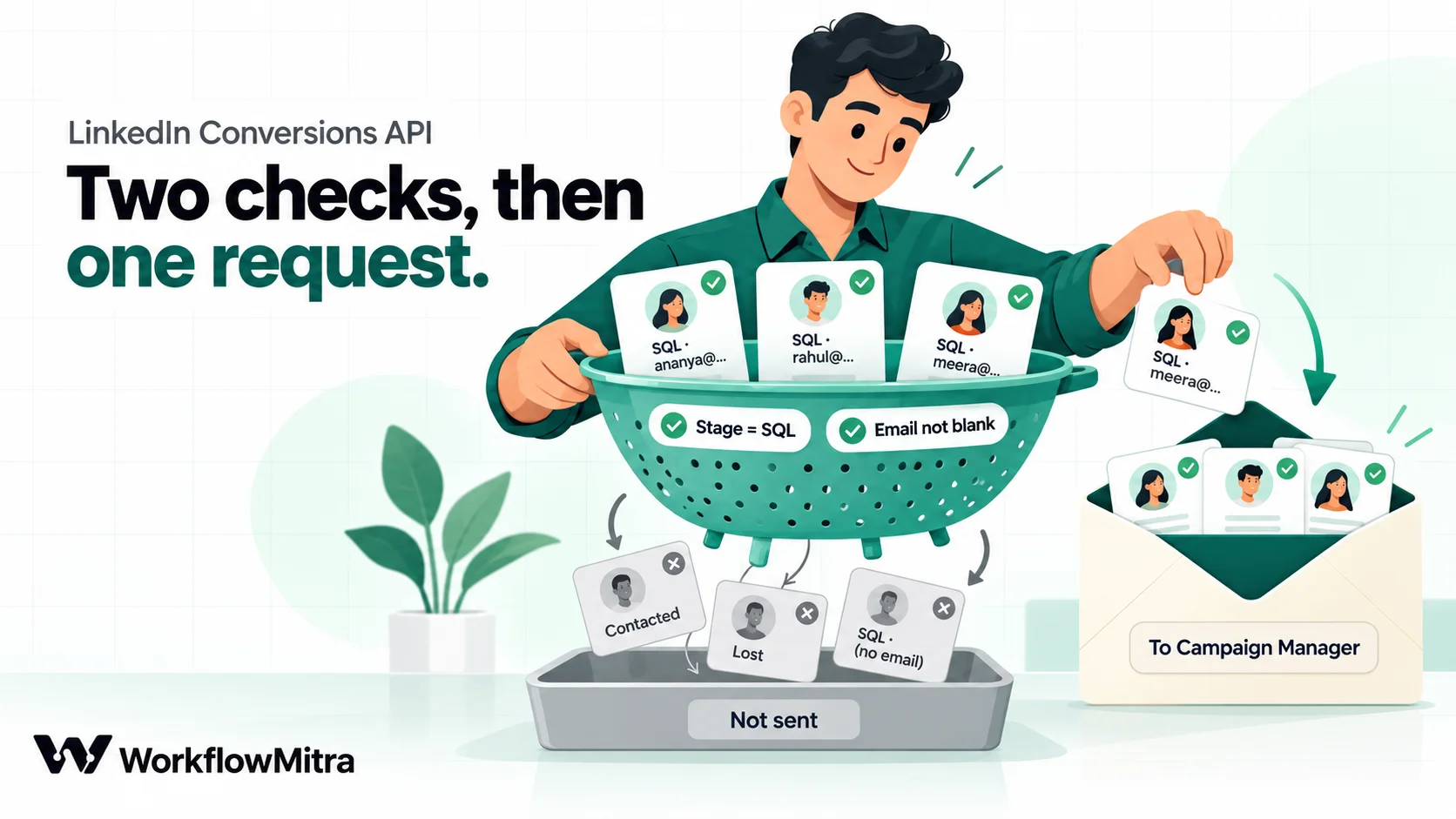
Set up the sheet first. Use one row per lead with a header row and these columns: Lead ID, First name, Last name, Email, Company, Job title, Deal value, Stage and LinkedIn status. Format Lead ID as plain text so long IDs aren’t rounded, and use a dropdown for Stage so “SQL” is always spelled the same way. A CRM works the same way if it can call a URL when a stage changes; the CRM section below covers that.
Build it step by step
Build against a copy of your pipeline sheet first. WorkflowMitra’s HTTP Request step sends real requests even in a test run, so your first test will reach LinkedIn; use a lead whose conversion you’re happy to report.
1. Watch the Stage column
Add a Google Sheets trigger, connect your account, choose the spreadsheet and tab, and set the event to One column changes with Stage as the watched column. The trigger checks the sheet every 5 minutes by default (1 minute at the fastest), and a check that finds nothing new costs nothing.
Two behaviours to know. The first check after you turn the workflow on records the sheet as it is and doesn’t fire for existing rows, so stages set before then aren’t sent; use the backfill section for those. And a new row added with its stage already filled doesn’t count as a column change; the trigger fires when a stage changes on an existing row, which is how a pipeline sheet is normally used.
The trigger hands the whole row to the workflow, so every column is available as {{ $trigger["Column name"] }}.
2. Continue only for the stage you track
Add an IF step: {{ $trigger.Stage }} Equal to SQL. Everything after this step goes on the Yes route. Changes to any other stage end here and cost only the trigger’s credit.
If you track two stages, such as SQL and Won, use a Switch step instead, with one route per stage and a separate HTTP Request step on each, because each stage has its own conversion rule.
3. Stop blank emails from becoming fake matches
Add a second IF step: {{ trim($trigger.Email) }} Is not empty.
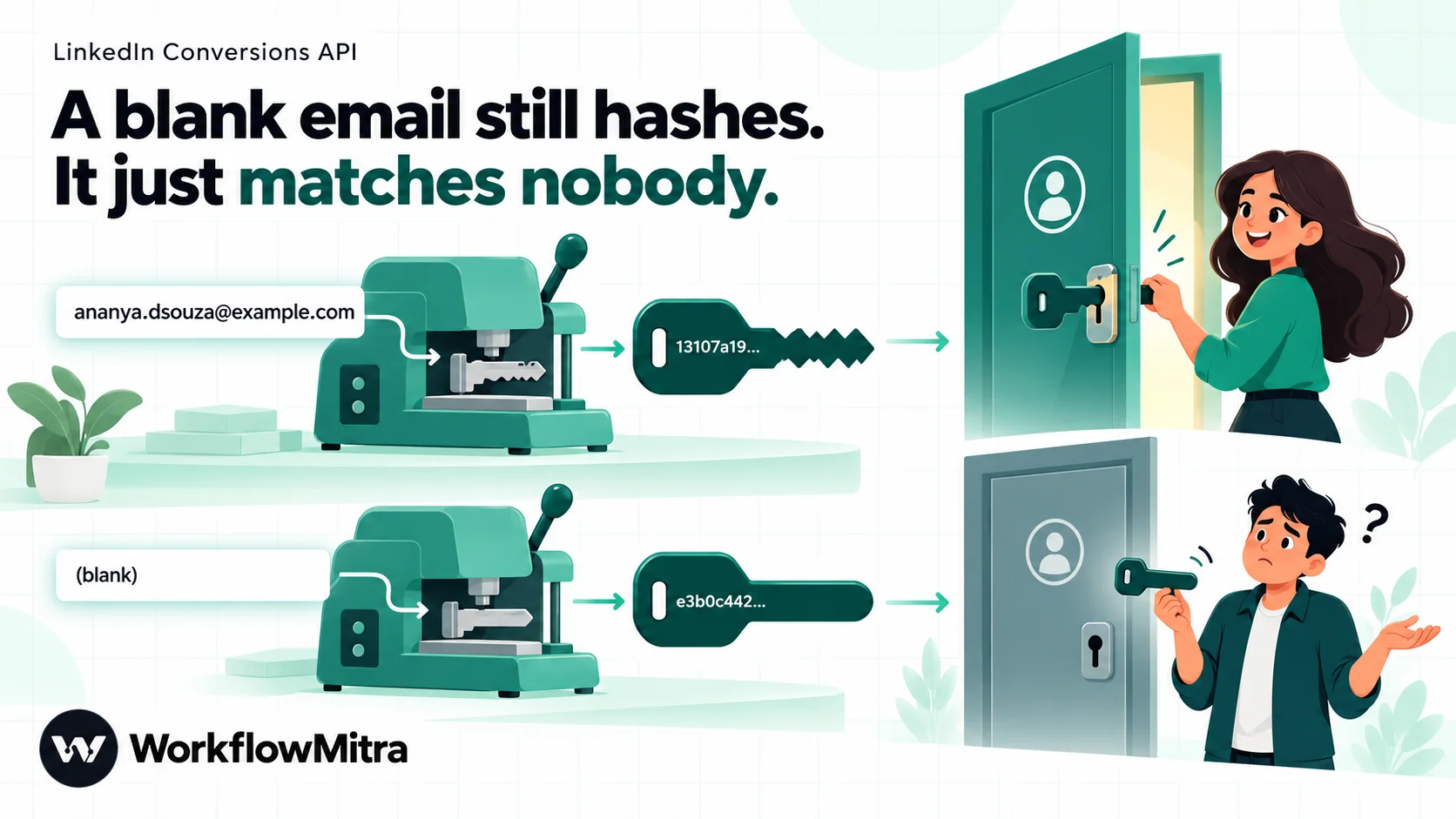
This check is easy to skip and costly to miss. If the email cell is blank, or the column is misspelled in your expression, the hashing still produces a hash: the SHA-256 of an empty string, e3b0c442…b855. It looks exactly like a real one, LinkedIn accepts it, and it matches nobody. We confirmed this in WorkflowMitra’s expression engine: a blank cell and a misspelled column name both produce that value. The trim() matters too, because WorkflowMitra’s Is not empty treats a cell holding only a space as not empty.
On the No route, add a Google Sheets Update row step that writes “Skipped: no email” into the LinkedIn status column, so someone can fix the record.
4. Send the event to LinkedIn
Add an HTTP Request step named “Send to LinkedIn”:
- Method: POST
- URL:
https://api.linkedin.com/rest/conversionEvents - Headers:
Authorization=Bearerfollowed by your token;LinkedIn-Version=202610;X-Restli-Protocol-Version=2.0.0;Content-Type=application/json - Body: Raw (JSON string)
{
  "conversion": "urn:lla:llaPartnerConversion:123456",
  "conversionHappenedAt": {{ timestamp() }},
  "conversionValue": {
    "currencyCode": "INR",
    "amount": "{{ replace(replace($trigger["Deal value"], ",", ""), "₹", "") }}"
  },
  "eventId": "{{ $trigger["Lead ID"] }}-sql",
  "user": {
    "userIds": [
      {
        "idType": "SHA256_EMAIL",
        "idValue": "{{ sha256(lower(replace(trim($trigger.Email), " ", ""))) }}"
      }
    ],
    "userInfo": {
      "firstName": "{{ $trigger["First name"] }}",
      "lastName": "{{ $trigger["Last name"] }}",
      "companyName": "{{ $trigger.Company }}",
      "title": "{{ $trigger["Job title"] }}",
      "countryCode": "IN"
    }
  }
}
Replace 123456 with your rule’s ID. What each line does:
timestamp()gives the current time in milliseconds. Because the trigger checks every few minutes, that’s within minutes of the real stage change, which is close enough for attribution.sha256(lower(replace(trim(...), " ", "")))follows LinkedIn’s rule: trim the ends, remove any spaces left inside, lowercase, then hash. For ” [email protected] ” it produces13107a19…75bc0, the same value Python’shashlibgives for[email protected].- The amount strips Indian thousands separators and the rupee sign, so “₹4,50,000” is sent as “450000”. If you don’t track a value for this stage, delete the whole
conversionValueblock. eventIdcombines your lead ID and the stage, so the same lead’s SQL and Won events never share an ID.
WorkflowMitra’s Raw body escapes values placed inside JSON strings, so a company called Shah & Sons "Exports" or a surname like D'Souza still produces valid JSON. We ran this exact body through the engine with both and parsed the result. Use straight quotes inside $trigger["…"]; curly quotes pasted from a document make the reference resolve empty.
If some of your leads have no last name, don’t send userInfo for them: LinkedIn’s rules require both names when userInfo is present. The simplest fix is a third IF before this step that checks both name columns, with a second HTTP Request on its No route whose body leaves out the userInfo block.
5. Check LinkedIn’s answer
The HTTP Request step doesn’t fail when LinkedIn returns an error. A 400 or 422 comes back as a completed step with ok set to false, so you need to check it. Add an IF step: {{ $node["Send to LinkedIn"].ok }} Is yes.
6. Write the result back to the row
On the Yes route, add a Google Sheets step set to Update row, matching Lead ID to {{ $trigger["Lead ID"] }}, and set LinkedIn status to Sent {{ now() }}.
On the No route, add the same step with LinkedIn status set to Error {{ $node["Send to LinkedIn"].status }}, and add an Email or Slack step to tell whoever owns the integration. LinkedIn’s explanation of the error is in the response body, which you can read in the run’s HTTP Request step.
Writing to LinkedIn status doesn’t trigger the workflow again, because the trigger only watches Stage. And the status column gives you a simple guard against sending twice: if a salesperson moves a lead from SQL back to Contacted and then to SQL again, add a second condition to the first IF: LinkedIn status Does not contain “Sent”.
Testing and going live
The LinkedIn pages we read describe no separate test mode for the Conversions API, so test with one real lead.
- Change one lead’s stage to SQL in your sheet copy and wait for the next check.
- Open the run. The HTTP Request step should show status 201.
- In Campaign Manager, open Conversion tracking and check the rule. Reporting isn’t instant, so give it a day before deciding something is wrong.
- Point the workflow at the real sheet and turn it on.
Expect fewer conversions in Campaign Manager than rows sent. Only events LinkedIn can match to a member, and that fall within the rule’s click or view windows for an associated campaign, are attributed. Sending company, title and names alongside the hashed email gives LinkedIn more ways to match.
Sending conversions from a CRM instead
If your pipeline lives in a CRM rather than a sheet, the request is identical; only the trigger changes.
- If the CRM can call a URL when a deal or lead changes stage (most can, through workflow rules or automations), point it at a WorkflowMitra Webhook trigger and replace the
$trigger["…"]references with the field names your CRM sends. Our guide to webhooks explains how the trigger receives them. - If it can’t, export qualified leads to a sheet on a schedule and use the sheet version above.
Before you build either, check whether your CRM already has a route to LinkedIn. LinkedIn’s help centre lists direct integrations for HubSpot, Salesforce Data 360, Segment and others, plus Zapier and Make, and its CRM Sync connects supported CRMs through Business Manager. If yours is on that list and does what you need, it’s less to maintain than a workflow.
Backfilling the last 90 days
When you first set this up, you’ll want to send the qualified leads you already have. LinkedIn accepts events up to 90 days old, so the request just needs the real date instead of timestamp().
- Add a column Qualified at with the date and time each lead became an SQL, and a column Qualified at (ms) with this formula, which converts an Indian date-time to epoch milliseconds:
=ROUND((B2-DATE(1970,1,1))*86400000)-19800000. The 19,800,000 is the 5½-hour IST offset in milliseconds. For 20 October 2026, 14:05 IST, it gives 1792485300000, which matches the value computed independently. - Build a separate workflow: a Manual trigger, a Google Sheets step set to Read rows with values read as Raw values (numbers stay numbers), so the millisecond number isn’t displayed with commas, and a Loop over the rows.
- Inside the Loop, use the same IF checks and HTTP Request, with
"conversionHappenedAt": {{ $trigger["Qualified at (ms)"] }}. Inside a Loop,$triggermeans the current row, so the rest of the body works unchanged. - Skip rows older than 90 days with an IF on the ms column, or LinkedIn will reject them one by one.
Set the Loop to Sequential. LinkedIn allows up to 600 requests a minute per token, which a backfill of a few hundred rows won’t approach, but sequential runs keep the order and make errors easy to read.
Troubleshooting
| What you see | Likely cause | Fix |
|---|---|---|
| 401, empty or invalid token | Bearer missing before the token, or the token was mistyped | Header value must be Bearer, a space, then the token |
| 403 USER_NOT_AUTHORIZED | The token's user has no role (or only Viewer) on the ad account | Generate the token as a user with a higher role on that account |
| 400 "Conversion time should be within 90 days" | A backfill row is too old, or seconds were sent instead of milliseconds | Skip rows over 90 days; multiply seconds by 1,000 |
| 400 about user identification | No valid identifier, or an empty string in one | Check the email guard; send userInfo only with both names |
| 400 "marked as deleted" | The conversion rule was deleted or disabled | Re-enable the rule or use the new rule's ID |
| 422 "field is required" | conversionHappenedAt or userIds missing | Keep userIds even when empty: [] |
| Requests fail after working for a year | The LinkedIn-Version you send has been sunset | Update the header to a current version; LinkedIn supports each for at least a year |
| 201 every time, but few conversions in Campaign Manager | Low match rate, campaigns not associated with the rule, or leads outside the attribution window | Add names, company and title; associate all relevant campaigns |
For how the HTTP Request step reports these codes, see our guide to HTTP status codes in automation.
Privacy: hashing is not anonymising
A hashed email is still personal data: its whole purpose is to be matched to a person. Before you send lead data to LinkedIn, make sure your privacy notice tells people you share data with advertising platforms to measure campaigns, and that your use fits LinkedIn’s advertising terms. Indian businesses should also consider their obligations under the Digital Personal Data Protection Act. Send only what helps matching (email, names, company, title, country) and nothing sensitive in the conversion name or value.
Keep the token out of shared screenshots. In WorkflowMitra, HTTP Request headers are stored in the workflow itself, so anyone who can open the workflow, including Viewers, can read the token. Give access to the workflow only to people you’d trust with the token, and generate a new one if someone with access leaves.
What does it cost?
WorkflowMitra charges credits per executed step:
| Step | Credits | When it runs |
|---|---|---|
| Google Sheets trigger | 1 | Every Stage change (checks that find nothing are free) |
| IF steps | 0 | Every run |
| HTTP Request | 1 | Each event sent |
| Google Sheets update | 1 | Each event sent or skipped |
So a stage change that isn’t SQL costs 1 credit, and an SQL sent to LinkedIn costs 3. A team that changes 1,500 stages a month and qualifies 200 leads uses about 1,500 + 400 = 1,900 credits. On 22 October 2026, WorkflowMitra’s plans started at ₹999 a month for 10,000 credits (₹849 a month billed yearly), with a 14-day trial that needs no card; see the WorkflowMitra pricing page for current plans.
What this setup can’t do
- No dedicated LinkedIn conversions step. It’s a plain HTTP Request, so you update the version header yourself once a year.
- Polling, not instant. The Sheets trigger checks every 1 to 5 minutes. That’s fine for attribution, but it isn’t real time.
- One event per request. LinkedIn accepts up to 5,000 events in one batch request, but this workflow sends one per row, which keeps errors per row. At normal B2B volumes that’s far below LinkedIn’s limits.
- No click ID. CRM data usually has no LinkedIn click ID (
li_fat_id), so matching relies on email and names. If you capture the click ID on your website forms, add it as a second identifier of typeLINKEDIN_FIRST_PARTY_ADS_TRACKING_UUID.
Why use WorkflowMitra for LinkedIn offline conversions?
WorkflowMitra, powered by ChatMitra, suits this job when your pipeline lives in a Google Sheet or a CRM without a LinkedIn integration, and you want to see exactly what was sent.
- No developer app and no code. A Campaign Manager token, the built-in
sha256()helper and one HTTP Request step cover the whole integration. - You control the data. Hashing happens inside the workflow, and each run shows the exact JSON sent and LinkedIn’s reply.
- The sheet shows the status of every lead. Sent, skipped or failed, with the reason, in the row itself.
- Rupee pricing per step that runs. IF steps are free, and you can try it for 14 days without a card.
Other routes can be better. If your CRM is HubSpot or Salesforce, or you already use Zapier or Make, LinkedIn’s listed integrations may need no build at all. If you qualify a handful of leads a month, a monthly CSV upload in Campaign Manager is less to maintain. And if you also advertise on Meta and Google, the same pattern covers them: see our guides to Meta Conversions API offline conversions and Google Ads offline conversion import.
Start with one stage
Pick the stage your sales team cares most about, usually SQL, create one conversion rule for it, and send it for a month before adding more. Once Campaign Manager shows SQLs by campaign, you can judge your LinkedIn spend on leads that sales accepted rather than on form fills. You can build and test the whole workflow on a 14-day WorkflowMitra trial with no card needed.
LinkedIn details were read on 22 October 2026 from Microsoft Learn's Conversions API, Conversions API schema, Getting access to Conversions API and API versioning pages, and LinkedIn Help's Set up a Conversions API integration in Campaign Manager, Signals Manager and deduplication articles. LinkedIn's interface and rules change; check them in your own account. WorkflowMitra details come from its source code as of 22 October 2026; the request body, hashing and blank-email behaviour were run through WorkflowMitra's expression and JSON template engine. No live LinkedIn ad account was used, so run one test event before relying on the workflow.
Frequently Asked Questions
Questions B2B marketers ask before sending offline conversions to LinkedIn.
It's an API that lets advertisers send conversion events from their own systems to LinkedIn, server to server. LinkedIn uses those events to attribute conversions to campaigns in Campaign Manager and to optimise delivery. It works for offline actions such as qualified leads, booked demos and closed deals, not only website actions.
Automate the work between your apps
Build workflows with triggers, conditions and actions, then test them before they go live. Try WorkflowMitra free for 14 days, no card required.