Loops in Workflow Automation: How to Process Every Item in a List

Quick Summary
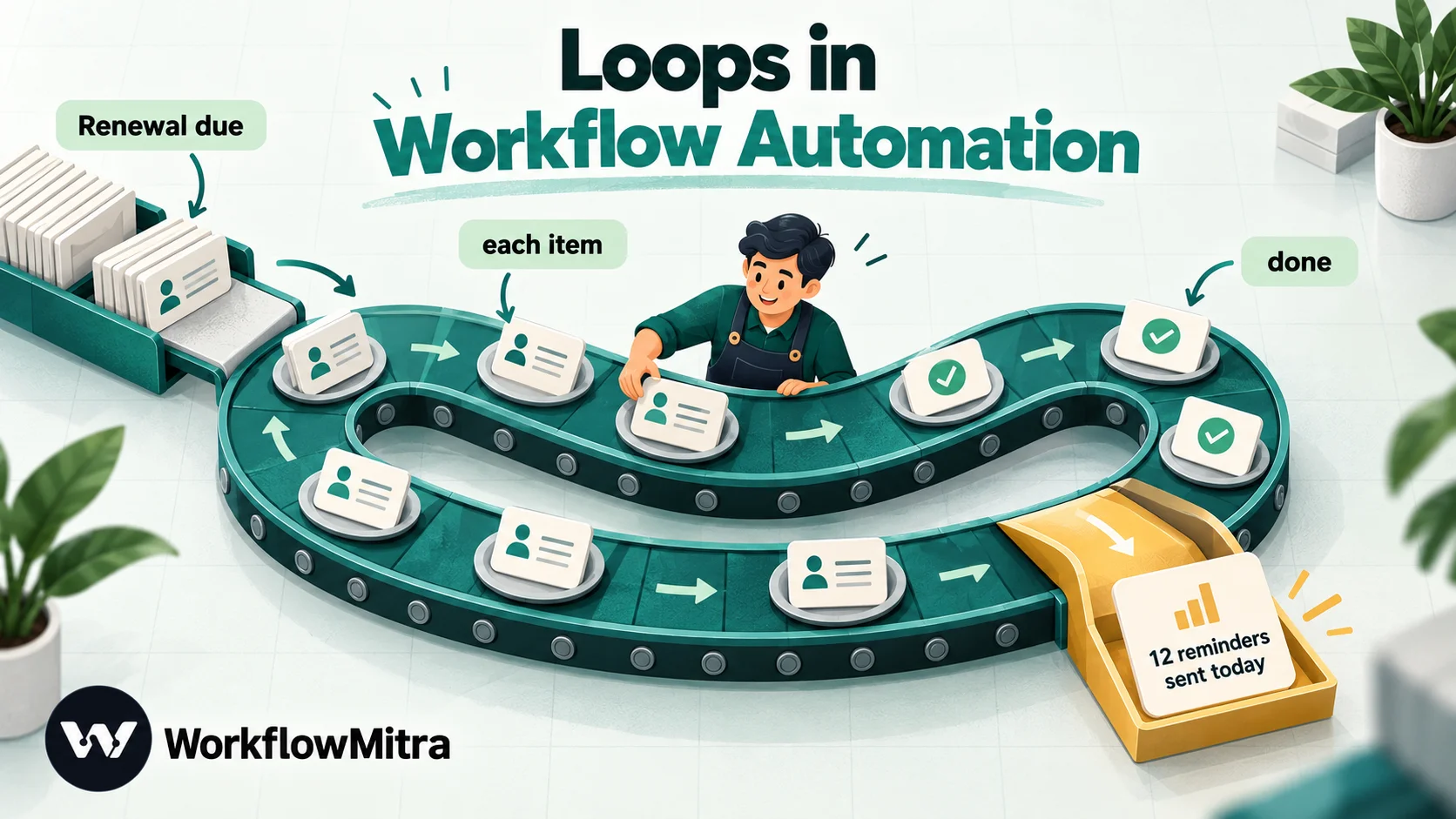
A loop in workflow automation repeats a set of steps once for every item in a list, such as each row of a sheet, each product in an order or each record an API returns, and then carries on with the results. Use a loop when every item needs its own action; use an expression or a bulk step when you only need one answer or one write for the whole list. In WorkflowMitra, powered by ChatMitra, the Loop step runs its each item branch once per item (up to 1,000 per run, charged 1 credit for each item on top of the steps it runs), with settings for batch size, parallel runs and pauses between batches, then continues on its done branch with every item's result.
Sooner or later, every automation runs into a list. A spreadsheet read returns 40 rows instead of one. An order arrives with six products. An API answers with a page of 100 records. The workflow you built for “a customer” or “an order” now has to handle many of them, and the next step only knows how to deal with one.
That is what a loop is for. This guide covers what loops do in workflow automation, the cases where you can skip one, and how to build a loop that copes with real data: rate limits, failures, delays, nested lists and costs included. The examples use WorkflowMitra, powered by ChatMitra, but the ideas carry over to any automation tool.
The WorkflowMitra behaviour described here was checked against the product’s code on 8 October 2026, and we ran each pattern through its workflow engine with sample data.
Quick answer: A loop repeats a set of steps once for every item in a list, then continues with the results. Use one when each item needs its own action: one email per customer, one API call per record. Skip it when you need one answer about the list (use an expression) or when the target app can accept the whole list in one call (use a bulk step). In WorkflowMitra, add a Loop step, point its List field at the array, attach steps to its each item branch, and carry on from its done branch.
What is a loop in workflow automation?
A loop is a step that takes a list and runs the steps attached to it once per item. Each pass, or iteration, sees one item as its input. When the last item is finished, the loop hands back the collected results and the workflow moves on.
A workflow without loops handles one thing per run: one new lead, one paid invoice. That is fine until a single trigger produces many things. A daily schedule that reads a sheet of renewals, a webhook carrying an order with several products, an AI step that returns a list of extracted contacts: each produces a list, and most action steps (send an email, create a contact, call an API) act on one record at a time.
Without a loop, you have three bad options. Pick the first item and ignore the rest. Build ten copies of the step and hope the list never has eleven items. Or paste the whole list into one field and get a mess. A loop removes the guesswork. It works the same whether the list has 1 item or 900.
Do you actually need a loop?
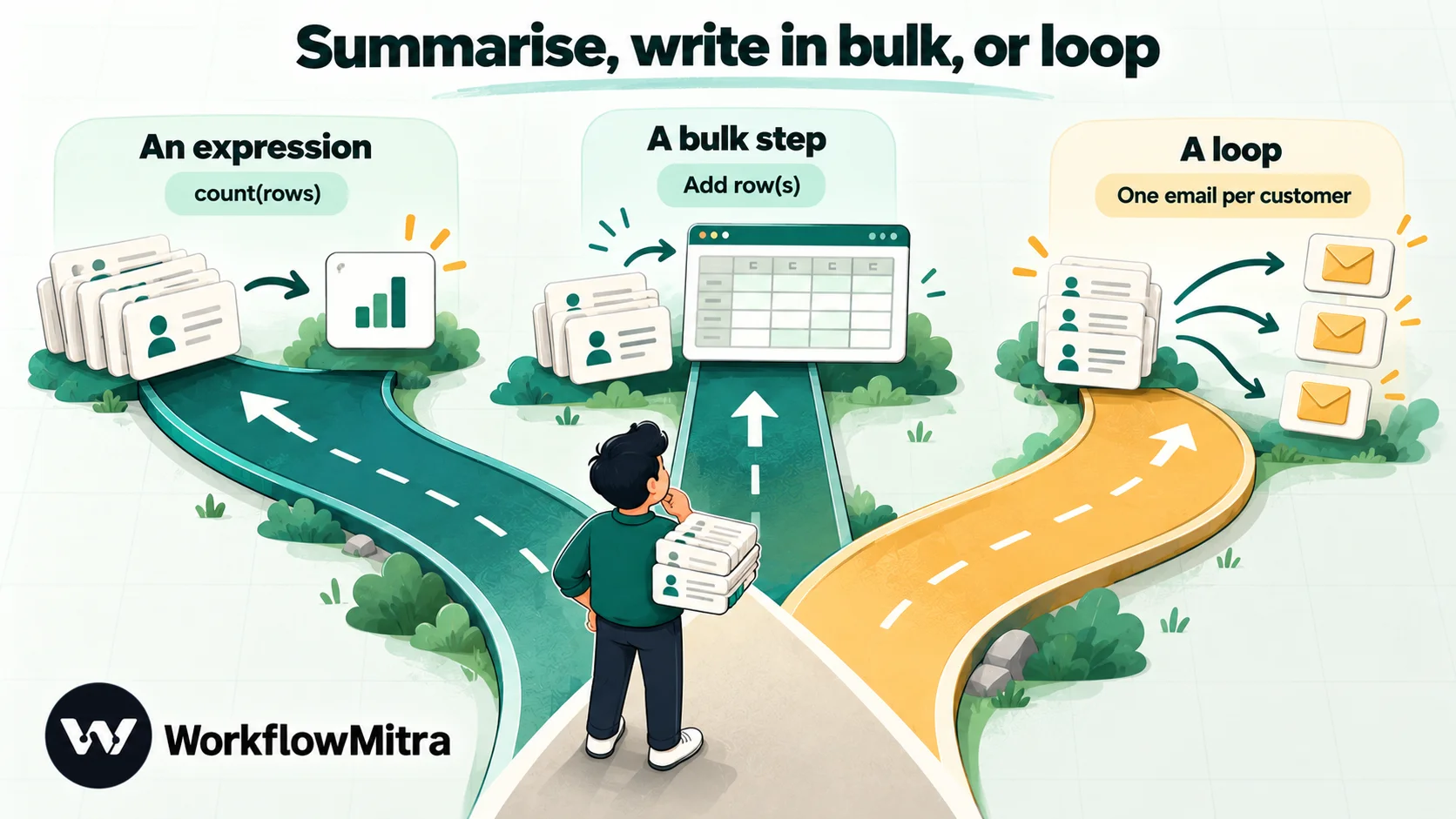
Loops are powerful, but they are also the most common way to make a workflow slow and expensive. Before adding one, ask what you need from the list.
| What you need | Best tool | Example |
|---|---|---|
| One answer about the whole list | An expression | {{ join(map(items, name), ", ") }} puts every product name in one message; {{ count(rows) }} counts rows |
| The whole list written to one app | A bulk step | Google Sheets Add row(s) in Multiple Rows mode writes one row per item in a single call |
| A different action for each item | A loop | One personalised email per customer; one API update per record |
| Only some items need action | Filter first, then loop | A Code step keeps overdue rows only, then the loop runs on those |
| Repeat until something changes | Not a loop | Poll on a schedule, or wait for a webhook |
The last row trips people up. A “loop until the payment is confirmed” is not a list problem. It is a timing problem, and it belongs to a scheduled check or an incoming webhook. Our guide to scheduling automations covers that pattern.
If you’re not sure, start with the cheapest option that gives the right result. A daily summary message built with join(map(...)) costs one step. The same summary built by looping over 200 rows and appending text costs hundreds.
Where lists come from
Knowing where your list lives makes the loop easier to set up, because you have to point the loop at it.
- Spreadsheet reads. A Google Sheets Read rows step returns its rows in a list called
rows, alongside atotalRowscount. By default it reads up to 5,000 rows. - Webhooks. Orders carry their products in a list such as
line_items(WooCommerce, Shopify), and form tools send repeated answers as lists. - API responses. An HTTP Request or App Request step returns the response in
body, so a list often sits at a path likebody.dataorbody.results. - Database queries. Query steps return the matching records as a list.
- AI steps. A model asked to “extract every contact” often returns JSON as text. That’s a string, not a list, until a Parse JSON step turns it into one.
The last point causes more “my loop did nothing” reports than anything else. A list that has been turned into text, by an AI reply, by a Set Variable field or by a spreadsheet cell, looks right in the run log, but a loop sees a string and treats it as an empty list. We confirmed this in testing: a list stored in a Set Variable field and then looped over produced zero iterations and no error. If the run detail shows your list wrapped in quotes rather than square brackets, parse it first. Our guide to JSON in workflows explains the difference.
How the Loop step works in WorkflowMitra
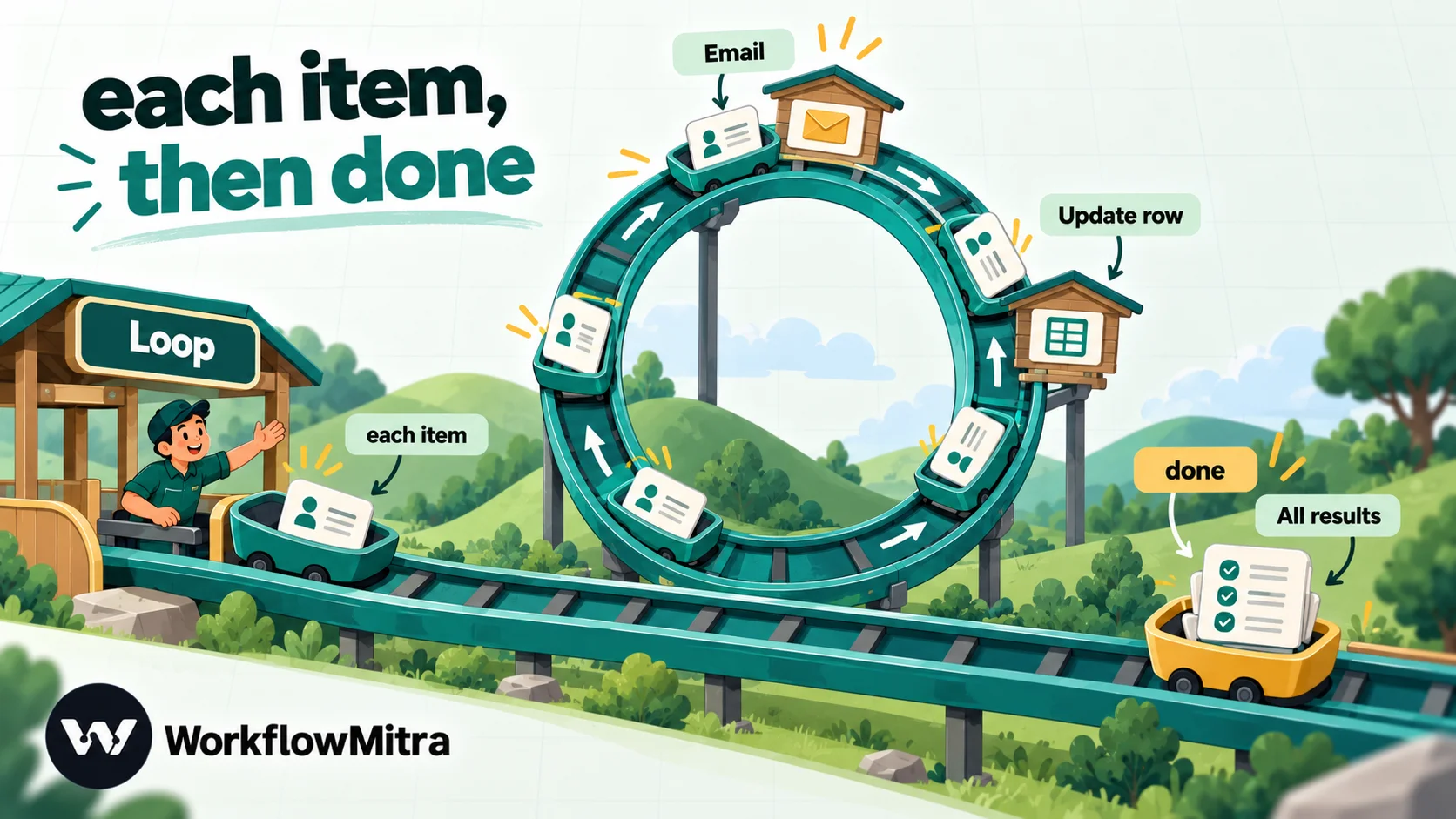
The Loop step has two outputs on the canvas:
- each item runs once per item. Everything you connect after it, step after step, belongs to the loop body.
- done runs once, after the last item. Steps here receive the list of results, one entry per item, in the original order.
Its settings:
| Setting | What it does | Notes |
|---|---|---|
| List field (optional) | The path to the list in the previous step's output, such as rows or body.data | Type a plain path, not {{ }}. Leave it empty when the step before the Loop outputs a bare list |
| Batch size | How many items form one batch (1–100) | Matters with pauses and parallel runs |
| Execution mode | Sequential or Parallel | Parallel runs several batches at once |
| Max concurrency | How many batches run at the same time in Parallel mode (1–10) | Items within a batch still run one after another |
| Delay between batches (ms) | A pause between batches | Capped at 60,000 ms (one minute) |
| Empty list behavior | Skip (return empty array) or Fail (raise error) | Skip is the default |
Two details in that table deserve emphasis. First, the List field takes a plain path. If you type {{ rows }}, the loop finds no list and, with the default “Skip” behaviour, quietly runs zero times. Second, you don’t always need to add the Loop by hand. When you pick a field that sits inside a list in the expression picker, WorkflowMitra asks whether you want One per item (it adds a Loop before the step) or Just the first one. Choosing the wrong one isn’t an error, so read that prompt carefully.
What a step inside the loop can see
This is the part that surprises people coming from other tools, so it’s worth understanding before you build anything.
Each pass of a WorkflowMitra loop runs the loop body as a small workflow of its own, with the current item as its starting data. That isolation is what makes loops predictable, but it changes what expressions inside the body can reach. We tested each of these in the engine:
| Inside the loop body, you write… | You get |
|---|---|
{{ email }} in the first step of the body | The current item's email |
{{ $trigger.email }} anywhere in the body | The current item's email, because the item is this mini-run's trigger |
{{ $node["Send reminder"].id }} | Works, if "Send reminder" is another step inside the same body |
{{ $node["Read renewals"].totalRows }} (a step before the loop) | Empty: steps outside the body can't be reached |
{{ $trigger.campaign }} meaning the workflow's original trigger | Empty: $trigger now means the item |
{{ item.email }} | Empty: there is no item name inside a Loop body |
A position counter such as {{ $index }} | Empty: no counter is provided |
Two habits follow from this.
Use $trigger. from the second step of the body onwards. A plain {{ email }} reads the previous step’s output. In the first step that is the item, but after an Email or Sheets step it is that step’s result. {{ $trigger.email }} always means the item.
Put everything the body needs onto the items before the loop. If each email needs the campaign name from the original trigger, or a date worked out earlier, copy it onto every item first. A Code step does this in one line and can filter the list at the same time:
return input.rows
  .filter(row => row.Status === 'Due')
  .map(row => ({ ...row, campaign: 'Renewal October' }));
Connect the Loop straight after it and leave its List field empty: the Code step now outputs a bare list. A Code step costs a tiny fraction of a credit for a script that runs in milliseconds. The Code step guide covers input and return values.
Build one: email every customer whose renewal is due
Here is a complete loop that runs every morning, finds customers whose subscription renews within three days, emails each one, and marks the row so nobody is emailed twice.
The sheet, a tab called Renewals, has these columns: ID, Name, Email, Renews on (formatted as a plain 2026-10-11 style date) and Reminded.
1. Schedule the workflow
Add a Schedule trigger for 09:00 every day.
2. Read the rows
Add Google Sheets → Read rows on the Renewals tab. Its output has the rows in rows.
3. Keep only the rows that need action
Add a Code step:
const limit = new Date(Date.now() + 3 * 24 * 60 * 60 * 1000)
  .toISOString().slice(0, 10);

return input.rows.filter(row =>
  !row.Reminded && row['Renews on'] && row['Renews on'] <= limit
);
Dates written as YYYY-MM-DD text compare correctly as text, which is why the column format matters. The time used is the server’s clock in UTC, so a renewal near midnight may be counted a day early or late. For three-day reminders that rarely matters.
4. Add the Loop
Connect a Loop step and leave List field blank. Keep Sequential mode and a batch size of 1 for now. Set Empty list behavior to Skip, so days with no renewals end quietly.
5. Email each customer
On the each item branch, add an Email step. Because it is the first step in the body, plain fields work, but $trigger. is clearer:
- To:
{{ $trigger.Email }} - Subject:
Your plan renews on {{ $trigger["Renews on"] }} - Message: a short note that uses
{{ $trigger.Name }}.
The bracket form $trigger["Renews on"] is how you refer to a column whose name has a space.
6. Mark the row as done
Still in the body, after the Email step, add Google Sheets → Update row on the same tab. Match the ID column to {{ $trigger.ID }} and set Reminded to the date. Here, $trigger. is essential. A plain {{ ID }} would look in the Email step’s result and find nothing.
Marking each row as soon as it’s handled is what makes the workflow safe to re-run. If the run stops halfway, the next morning’s run skips everyone already reminded.
7. Report on the done branch (optional)
On done, add a Slack or email step to the team: {{ count($node["Each renewal"]) }} renewal reminders sent today, where “Each renewal” is the name you gave the Loop step. Steps after done are outside the loop, so they can refer to it by name and to anything before it.
Cost: 1 credit for the trigger, 1 for Read rows, a fraction of a credit for Code, then 3 per customer (the loop item, the email and the row update), plus 1 for the report. On a day with 12 renewals, that’s about 39 credits. Looping over all 400 rows and filtering inside the loop with an IF would charge the 400 loop items alone, which is why the Code filter sits in front.
Three more loop patterns worth copying
The renewal example covers the classic shape: filter, loop, act, mark. Three other shapes come up again and again.
Call an API per record, then write the results once
Suppose you have 80 PIN codes in a sheet and a delivery partner’s API that checks serviceability one code at a time. The API call has to happen per item, but writing the answers back doesn’t.
Put an HTTP Request (or App Request) step inside the loop, then a Set Variable step that adds clearly named fields to its result, such as pincode from {{ $trigger.pincode }} and serviceable from the response body. On the done branch, a single Google Sheets step does the writing: choose Add row(s), switch to Multiple Rows, point its list at {{ $node["Check each code"] }} (the Loop’s name), and map {{ item.pincode }} and {{ item.serviceable }} to columns. The loop collects one result per item, and that one step writes all 80 rows in a single call. You pay for the 80 API calls, which are unavoidable, but only 1 credit for the writing.
This “collect inside, write once outside” shape works for any job where the slow or expensive part is per item and the destination accepts a list.
Act on a list an AI step extracted
An AI step asked to pull every attendee out of a meeting summary, or every line item out of an emailed purchase order, usually replies with JSON text. Add a Parse JSON step to turn the text into a real list, then loop over it to create one CRM contact or one task per entry. Two safeguards matter here. Check the list isn’t empty before relying on it, and validate each entry inside the loop, for example with an IF route that skips entries without an email address. Models occasionally invent or merge entries, so treat the list as a draft until it passes your checks.
Send one WhatsApp message per recipient
When each person on a short operational list needs their own message, such as five delivery drivers who each get their own route, a loop with a WhatsApp step inside it is the natural fit. WorkflowMitra’s WhatsApp step can send through ChatMitra or directly through Meta’s Cloud API. Messages that start a conversation need an approved template, and every recipient must have agreed to hear from you. For one-off campaigns to large customer lists, a dedicated broadcast tool is the better fit than a workflow loop. ChatMitra’s guide to official bulk WhatsApp sending explains why the official route matters.
Pacing a loop: batches, parallel runs and rate limits
Most apps limit how fast you can call them. A loop that fires 300 requests as fast as it can will hit those limits, and the failed calls end the run. The Loop step has four settings for controlling speed.
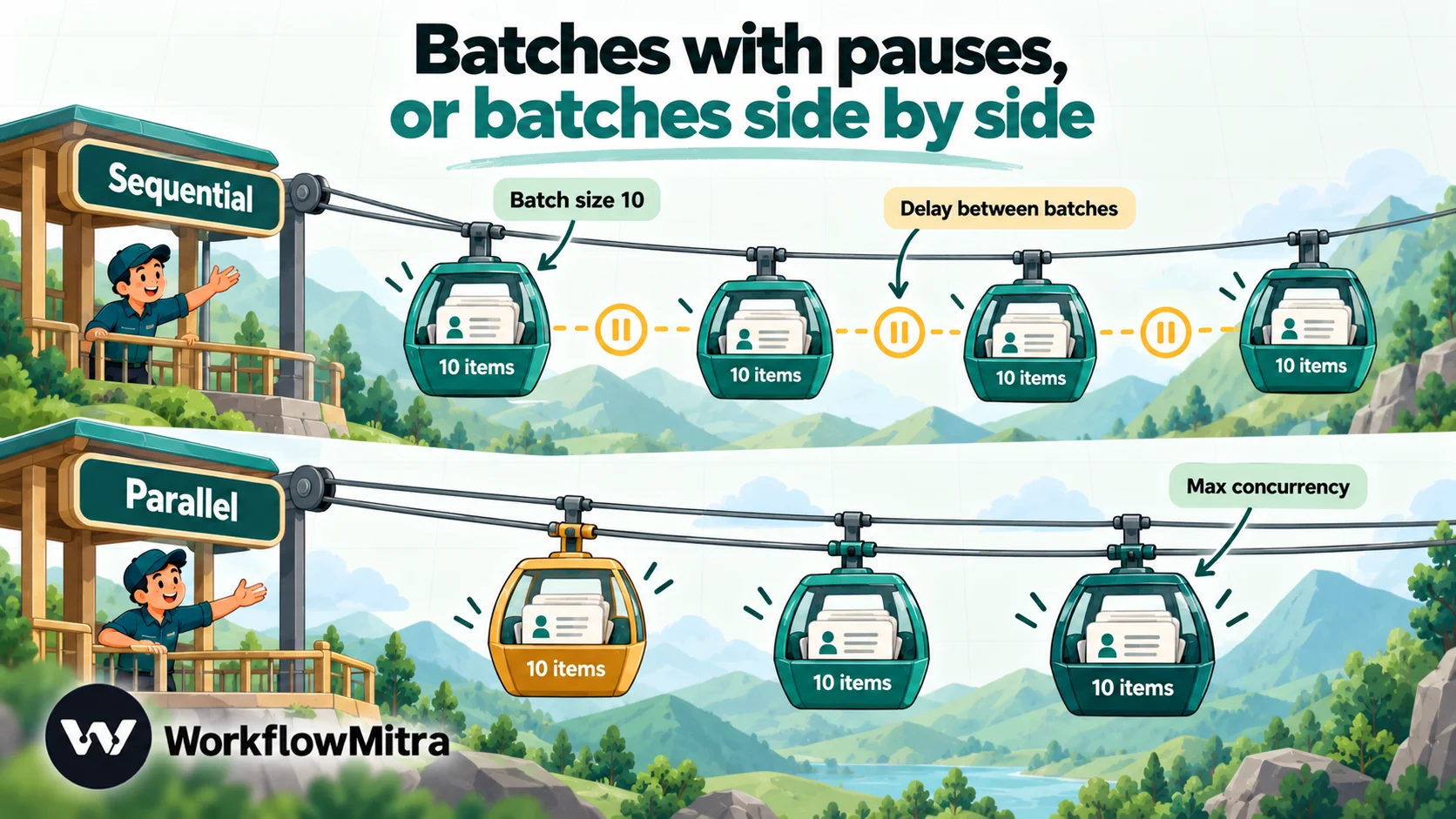
Sequential with pauses. In Sequential mode, items run one at a time, and Delay between batches pauses after each batch. To stay near 60 calls a minute, use a batch size of 10 and a delay of 10,000 ms: ten calls, a ten-second pause, repeat. The real rate also depends on how long each call takes, so treat the numbers as an upper bound and check the app’s documented limit.
Parallel. In Parallel mode, up to Max concurrency batches run at once (the maximum is 10), and items inside each batch still run in order. Parallel is useful when each item waits on a slow service and the service tolerates several requests at a time. It’s a poor choice when items must happen in order, or when two items might update the same record.
Order of results. Whichever mode you choose, the done branch receives results in the same order as the original list.
A practical starting point: sequential, batch size 1, no delay. Change one setting at a time only when you have a reason, such as a rate-limit error in the run history.
When one item fails
By default, a loop is all-or-nothing in one direction only. If item 7 of 20 fails, the Loop step fails with a message like “Loop item 7 failed”, the run stops, and items 1 to 6 have already done their work. Emails sent stay sent. Rows written stay written.
That default is safe, but often not what you want. There are three ways to make loops more forgiving.
- Handle errors inside the body. Right-click the risky step (an API call, say) and choose Add error handler, optionally adding a step on its error path to log the problem. If it fails for one item, that item’s body ends with an error result instead of failing the loop, and the loop moves on. In our test, a three-item loop with a failing middle item finished successfully, and the middle result came back as an object with an
errorfield. After the loop,{{ length(filter($node["Each renewal"], error != "")) }}counts the failures, so you can alert someone. Our error handling guide covers handlers in more depth. - Make each item safe to repeat. Mark processed items, as the renewal example does, or record a key in a Data Store before acting. Then a re-run after a failure only touches what’s left. The webhook idempotency guide explains the key-first pattern.
- Validate before the loop. A Code filter that drops rows without an email address is cheaper than an email step that fails on them.
A step gets a single attempt unless configured otherwise, so even a brief network error on one item is a failure. That’s another reason to keep loop bodies short and their steps safe to repeat.
Delays inside a loop
A loop body can contain a Delay step, with one important limit. Waits of up to 25 seconds run inside the step, so a 5-second pause between messages works for each item. Longer waits are different: WorkflowMitra pauses the whole run and resumes it later, and that isn’t supported inside a loop. A Delay of two minutes followed by another step in the body fails the loop with “Durable delays inside a Loop are not supported yet.”
If you need minutes or hours between items, there are better shapes:
- Delay between batches handles pauses of up to a minute between groups.
- Spread the work over scheduled runs. Process a slice of the list each run, such as 50 rows per hour, and mark them as done.
- Hand off to a second workflow for anything that genuinely needs to wait days, such as a follow-up email three days after each signup.
Each step in a loop body also has the normal per-step timeout of 30 seconds, so a single slow call can’t hang the loop forever.
Loops inside loops
Some data is nested: orders that contain products, customers that have several contacts. A loop can sit inside another loop’s body to handle both levels. WorkflowMitra allows loops nested up to three levels deep.
Inside the inner loop, $trigger means the inner item, the product rather than the order. The outer order’s fields aren’t reachable from there, so copy what you need, such as the order number, onto each product before the inner loop. A Code step in the outer body can do that.
Watch the arithmetic. 50 orders with 8 products each is 400 inner iterations, and each one is charged. Nested loops are often a sign that a bulk step or a flattening Code step would do the job more cheaply. One Code step can turn “orders with products” into a flat list of product rows, and one loop or bulk write can handle the rest.
Big lists: the 1,000-item limit
A single Loop step handles up to 1,000 items per run. A longer list fails the step with “Loop input has 1250 items; the limit is 1000.” That is deliberate. Silently dropping item 1,001 onwards would be far worse than failing loudly.
For larger jobs, work in pages:
- Google Sheets Read rows has Limit and Skip settings. Read 500 rows, process them, and let the next run read the next 500.
- APIs usually page their results with
page,offsetor a cursor. Request one page per run. - Mark progress so each run knows where to start, either in the sheet itself or in a Data Store record.
And ask again whether you need per-item actions at all. Writing 5,000 rows to a sheet doesn’t need a loop. Bulk Add row(s) writes them in batches inside one step.
Seeing what happened in a loop
A loop’s own step in the run history shows how many items it ran and how many failed. The steps inside the body are recorded for the first 20 items and for every failed item after that. A 900-item run therefore doesn’t bury the log, but if item 450 behaved strangely without failing, you won’t see its steps. When you’re debugging, test with a short list first, or temporarily filter the list down to the items you’re investigating. For safe test runs in general, see how to test an automated workflow.
What loops cost
In WorkflowMitra, credits are charged per executed step. The Loop step itself costs 1 credit per item, and every step inside the body is charged as usual for each item. IF, Switch, Set Variable and Delay are free; most action steps cost 1 credit.
| Job | Loop approach | Cheaper approach |
|---|---|---|
| Write 40 order lines to a sheet | 40 loop items + 40 Sheets steps = 80 credits | One bulk Add row(s) = 1 credit |
| Send the team one summary of 40 items | 40 loop items + text building, plus the message | One message using join(map(...)) = 1 credit |
| Email 40 different customers | 40 loop items + 40 emails = 80 credits | No cheaper option: this is a real loop job |
| Email the 6 of 400 rows that are due | 400 loop items + IF + 6 emails = 406 credits | Code filter first: 6 loop items + 6 emails ≈ 12 credits |
Our guide to reducing automation costs has more patterns like these. For a store that needs order lines in a spreadsheet, the WooCommerce orders to Google Sheets tutorial uses a bulk step instead of a loop for exactly this reason.
How other automation tools handle loops
Every major platform solves the same problem, in different ways. Knowing the differences helps if you’re moving a workflow between tools.
| Tool | How it loops | Limits and counting |
|---|---|---|
| WorkflowMitra | A Loop step with an each item branch and a done branch; batches, parallel mode and pauses built in | 1,000 items per Loop step; nesting up to 3 levels; each item costs 1 credit, and body steps are charged as usual |
| Zapier | Looping by Zapier, from line items, delimited text or a number range | Up to 500 iterations; nested loops not supported; iterations run in parallel; each later action uses 1 task per iteration (help centre, updated 28 June 2026) |
| n8n | Most nodes process every incoming item automatically; Loop Over Items splits work into batches | Some nodes, such as certain database operations and HTTP pagination, need an explicit loop (n8n docs) |
| Make | An Iterator turns an array into separate bundles; an Aggregator combines them again | Modules after the Iterator run once per bundle and are counted each time |
The practical differences: Zapier’s loops always run in parallel, so they can’t guarantee order, while WorkflowMitra defaults to sequential and lets you opt into parallel. n8n’s per-item behaviour means many workflows need no explicit loop at all. Make’s Iterator and Aggregator pair is close to WorkflowMitra’s each item and done branches.
Common loop mistakes
| Symptom | Cause | Fix |
|---|---|---|
| The loop runs zero times, no error | {{ }} typed in List field, or the list is text | Use a plain path; parse JSON text first |
| Every iteration uses the same value | The step reads a fixed path like rows.0.email | Use the item's field inside the body |
| Fields are empty from the second step on | Plain {{ field }} reads the previous step's output | Use {{ $trigger.field }} |
| Data from before the loop is empty | Outer steps aren't reachable inside the body | Copy the values onto each item before the loop |
| "Loop input has N items; the limit is 1000" | List too long | Read in pages |
| Rate-limit errors part-way through | Calls too fast | Batch size + Delay between batches |
| Duplicates after a re-run | Items weren't marked as done | Mark each item as it's handled |
| Big credit bill for a small result | Looping where an expression or bulk step would do | Summarise or write in bulk; filter before looping |
Start small
The best first loop is a short one: a list of three test rows, a body of one step, sequential mode, no extras. Watch it in the run history, check that each item did what you expected, then add the filter, the error handler and the pacing as the real data demands them. If you’re new to how steps pass data along, read triggers, actions and conditions first.
WorkflowMitra’s Loop step, Code filter and bulk Sheets steps are all available in the 14-day trial, which needs no card, so you can try each pattern above on your own data.
Frequently Asked Questions
Questions people ask when they first build a loop into a workflow.
A loop repeats one or more workflow steps for every item in a list. If a step returns 30 spreadsheet rows, a loop runs the steps inside it 30 times, once with each row, and then continues with the combined results. It is how a workflow sends one email per customer or creates one record per order line without you building 30 copies of the same step.
Automate the work between your apps
Build workflows with triggers, conditions and actions, then test them before they go live. Try WorkflowMitra free for 14 days, no card required.
