Send Zoom and Google Meet Links on WhatsApp Automatically

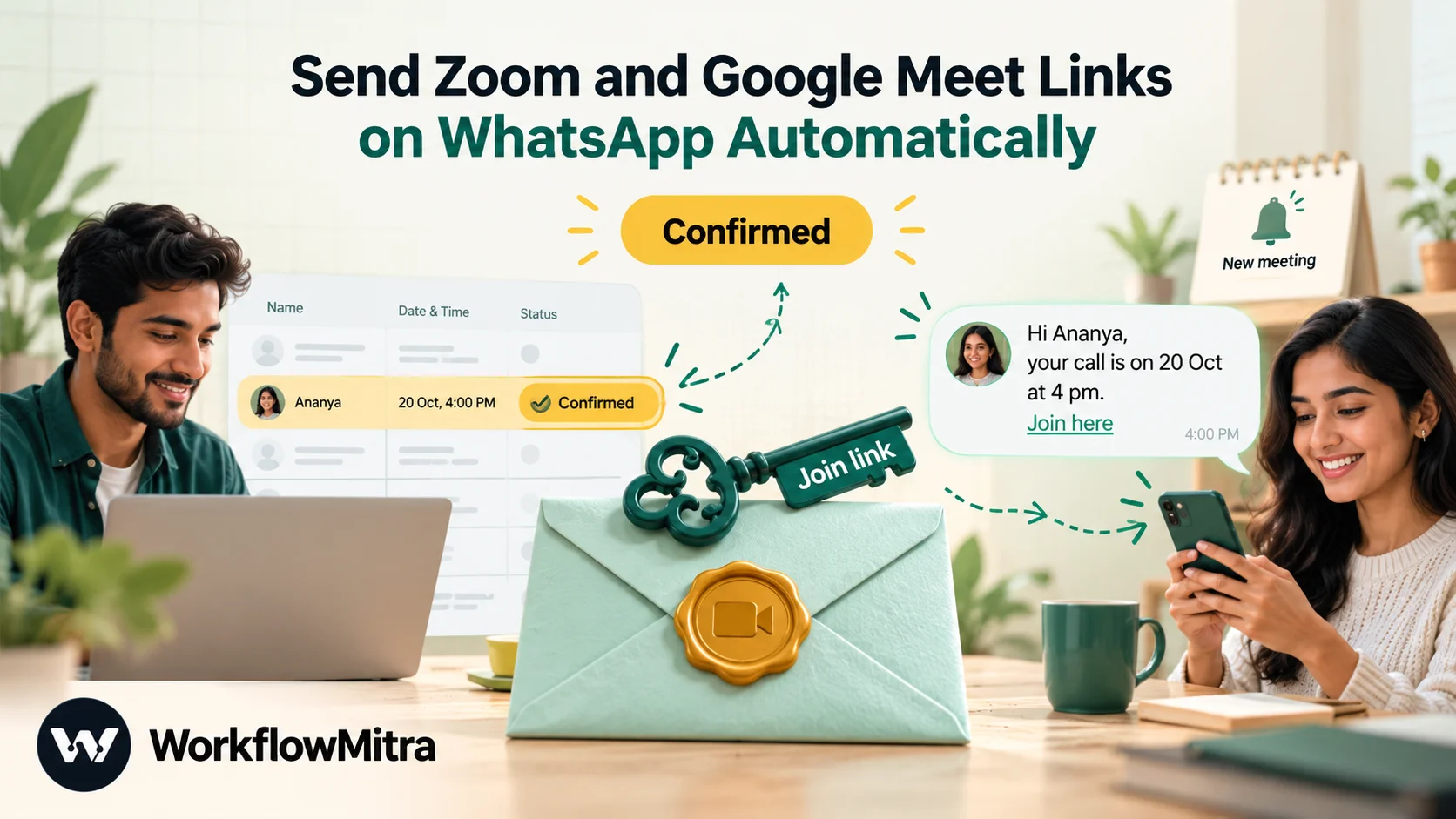
Quick Summary
You can send a Zoom link on WhatsApp automatically in three ways: share one standing link, create a new Zoom meeting for each confirmed booking, or register each attendee and send their personal join link. In WorkflowMitra, powered by ChatMitra, the Meeting step creates Zoom meetings or registrants through a Server-to-Server OAuth app, an IF step confirms the meeting was created, and a WhatsApp step sends the join link in an approved template through ChatMitra or Meta's Cloud API. Google Meet creation runs through a service account, which Google limits, so test it before relying on it.
Most meeting links still travel the slow way. A client confirms a slot, somebody opens Zoom, schedules the call, copies the invitation, opens WhatsApp, finds the chat and pastes it in. Multiply that by every demo, consultation, coaching session or class, and it becomes a small daily job that is easy to get wrong: the wrong time zone, the link for yesterday’s call, a host link pasted where the join link should be.
Sending meeting links on WhatsApp automatically removes that job. The person gets the link on the app they actually open, right after the booking is confirmed, and your team doesn’t have to remember to send it. This guide covers the three patterns that work, how to set each one up with Zoom, what to know about Google Meet before you rely on it, and the details that cause most problems in practice: time zones, failed meeting creation, links that leak host access, and reminders.
The examples use WorkflowMitra, powered by ChatMitra. The planning advice applies to any tool.
Can you send a Zoom link on WhatsApp automatically?
Yes. A workflow can create the Zoom meeting, or reuse a standing one, and send the join link to the person's WhatsApp number in an approved template. The sending side needs WhatsApp Business Platform access: either Meta's Cloud API directly, or ChatMitra on top of it. The WhatsApp Business app on a phone can't be automated this way.
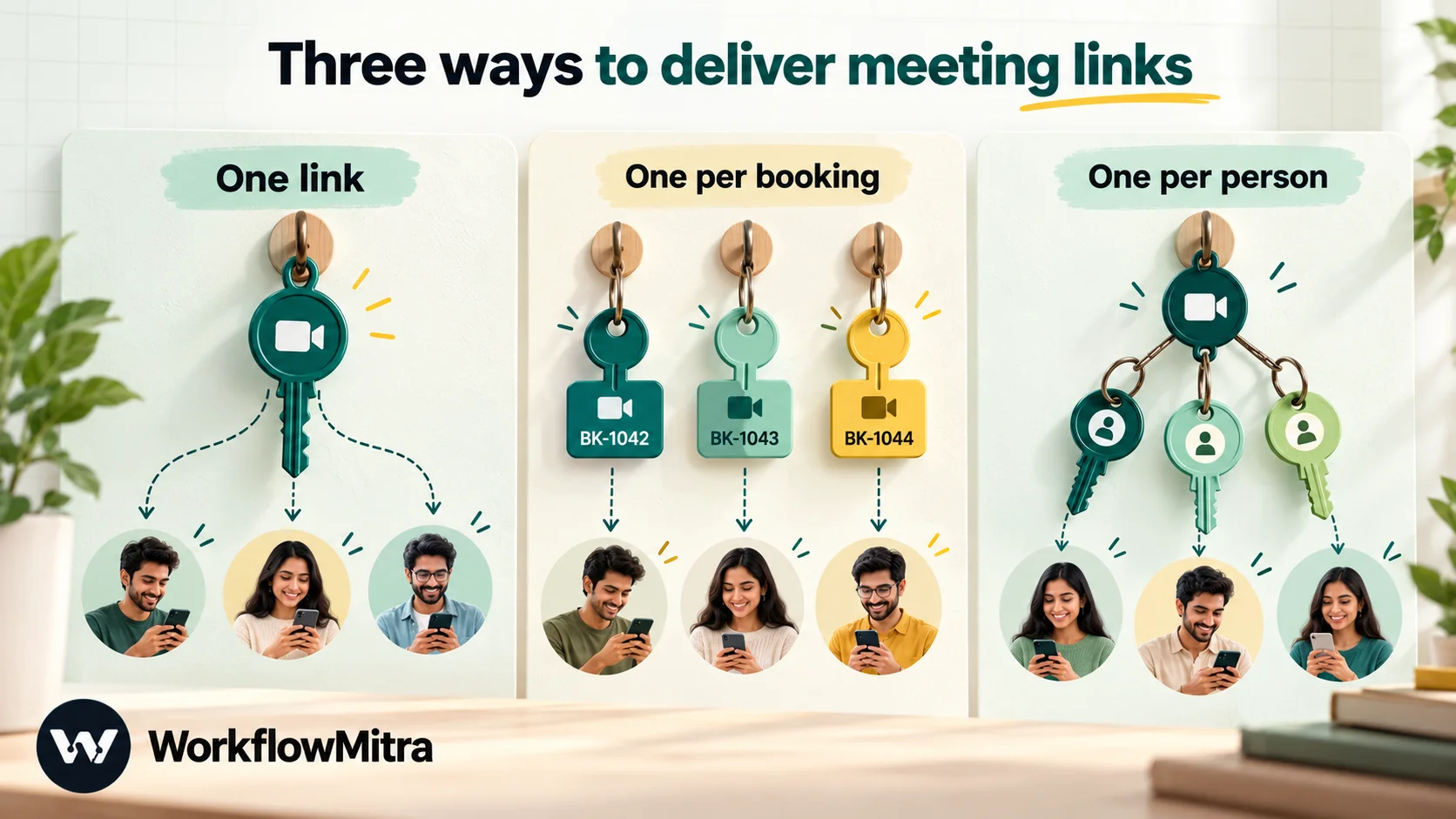
There are three ways to do it, and the right one depends on how your meetings work:
- Send one standing link. Everyone joins the same room: a weekly class, office hours, a recurring meeting. The workflow only sends a link you already have.
- Create a meeting per booking. Each confirmed booking gets its own Zoom meeting at its own time, and the workflow sends that meeting’s join link.
- Send each attendee a personal link. For a session with many people, each registrant gets their own join link, so you can see who joined and nobody can forward one link to the world.
Which pattern fits your meetings?
| Pattern | Best for | Zoom setup | What the workflow does | Trade-offs |
|---|---|---|---|---|
| Standing link | Weekly classes, open office hours, a team's fixed stand-up | One recurring meeting created once in Zoom | Sends the same link to each new person | Simplest; anyone with the link can join any session; no per-person attendance |
| Meeting per booking | Demos, consultations, coaching, interviews, tutoring | A Server-to-Server OAuth app so the workflow can create meetings | Creates a meeting at the booked time, sends its join link, saves it to the sheet | Needs a clean start time and time zone; one meeting per booking to manage |
| Personal link per attendee | Paid workshops, webinars run as meetings, cohort classes | A meeting with registration turned on, plus the same app | Registers each person and sends their own join link | Needs a licensed host and the person's email; Zoom may also email them |
A quick way to decide: if the time is the same for everyone, start with a standing link. If each person has their own time, create a meeting per booking. If many people share a time but you need to know who they are, use registrants.
What you need before you start
- A WhatsApp Business Platform number, connected via ChatMitra (you paste its API key into the WhatsApp step) or straight to Meta’s Cloud API with a phone number ID and token.
- An approved utility template with variables for the name, the date and time, and the link. Templates are created and tracked in ChatMitra under managing templates.
- A record of who booked what: usually a Google Sheet, but it can be a form, a webhook from your website or a CRM. Each record needs the person’s WhatsApp number with country code and, for patterns 2 and 3, a start time or an email address.
- A Zoom account and, for patterns 2 and 3, permission to build a Server-to-Server OAuth app (covered next).
- A WorkflowMitra workspace. The free trial runs for 14 days on 10,000 credits, and signing up doesn’t ask for payment details.
Connect Zoom with a Server-to-Server OAuth app
Patterns 2 and 3 need WorkflowMitra to call Zoom’s API on your account’s behalf. Zoom’s way of allowing that for internal tools is a Server-to-Server OAuth app: no pop-up sign-in, no marketplace review, just three values you copy across.
- Sign in to the Zoom App Marketplace with an account that has the “Server-to-Server OAuth app” permission. Account owners and admins usually do; anyone else needs it granted in Zoom’s role settings.
- Open the Marketplace’s developer area, choose to build an app, and pick Server-to-Server OAuth app. Give it a name your admins will recognise, such as “WorkflowMitra meetings”.
- Copy the Account ID, Client ID and Client secret from the app credentials page.
- Under Scopes, add permission to create meetings for users in your account (in Zoom’s granular scope list this is
meeting:write:meeting:admin). For pattern 3, also add the scope that lets the app add meeting registrants. - Activate the app. Zoom won’t issue a token for an app that hasn’t been activated.
In WorkflowMitra, add a Meeting step, choose Zoom as the service and create a new connection with the three values. Use Verify on the connection: it requests a token from Zoom and reports whether the app authenticated, and the run view offers a reconnect action later if an admin deactivates the app.
The connection is account-wide. Whose Zoom calendar a meeting lands on is decided per step by the Host field. Leave it blank for the connection’s own user, or enter the email of the colleague who should host.
Pattern 1: send a standing meeting link
If every attendee joins the same room, you don’t need the Meeting step at all. Create the recurring meeting once in Zoom (or Google Meet, or any other service), copy its join link, and put that link straight into the WhatsApp step’s template variable.
A typical workflow for a weekly class:
- Trigger: a new registration, from a form webhook, a Typeform response or a new row in a sheet. The Typeform to WhatsApp guide shows the webhook side in detail.
- IF: the phone number is present and the person agreed to WhatsApp messages.
- WhatsApp: a utility template such as “Hi {{1}}, you’re in for Thursday Strength Basics at 7 pm. Join here: {{2}}. Your coach opens the room 5 minutes early.” with the link in
{{2}}.
Two settings in Zoom matter more than anything in the workflow. Turn on the waiting room or a passcode for the recurring meeting, because a standing link will eventually be forwarded. And avoid using your Personal Meeting ID for public sessions: it’s the same room for every meeting you ever host, so anyone who has it can drop into a private call later.
When the class time or link changes, update the template variable in one place. That’s the main reason to keep the link in the workflow rather than baked into the approved template text.
Pattern 2: create a Zoom meeting for each confirmed booking
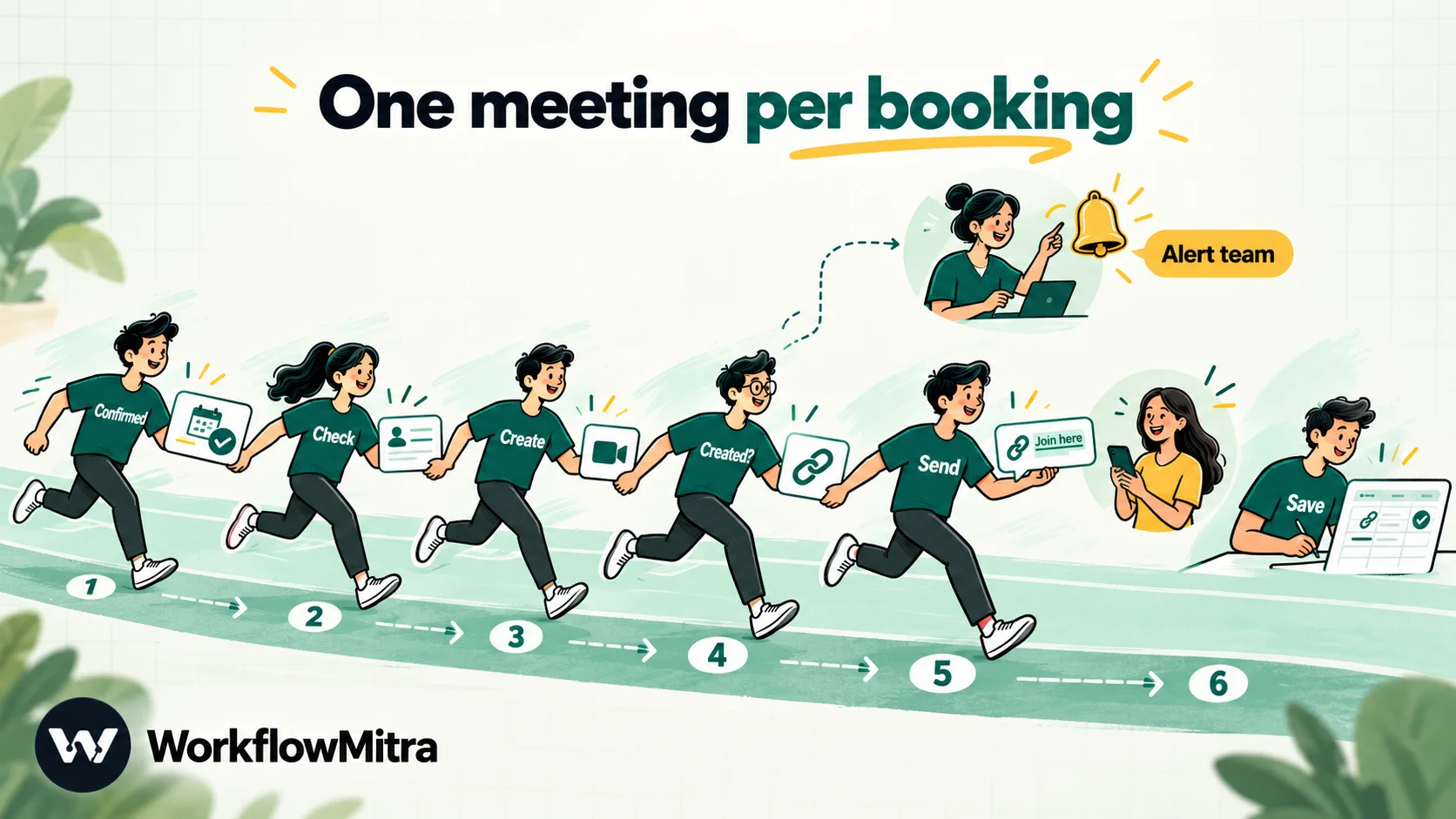
This is the pattern most service businesses want. A client is confirmed for a slot, and a few minutes later they have a WhatsApp message with their own meeting link, while the host has the meeting in Zoom.
1. Lay out the booking sheet
Use one row per booking with these columns, in this order or any other:
- booking_id: something unique per row, such as
BK-1042. The workflow uses it to write the link back. - name and phone (full number with country code, such as 919876543210).
- date and time, typed by whoever confirms the booking.
- start_iso: a formula that turns them into a machine-readable time, for example
=TEXT(D2,"yyyy-mm-dd")&"T"&TEXT(E2,"hh:mm")&":00", which produces2026-10-20T16:00:00. - status: blank, then
Confirmedwhen the slot is agreed. - meeting_link: left empty; the workflow fills it in.
The start_iso column is not optional decoration. WorkflowMitra’s sheet trigger reads raw cell values, so a real date cell arrives as a serial number such as 46315 rather than “20 Oct 2026”. A text formula gives the Meeting step a value it can read. Short column names without spaces or brackets also make the expressions later easier to write and harder to break.
2. Trigger on the status column
Add the When a sheet row changes trigger, point it at the booking tab, and choose One column changes with status as the column. The workflow now runs whenever someone changes a booking’s status, and only then. Writing the meeting link back into the same row won’t set it off again, because that’s a different column. If you’re new to sheet triggers, Google Sheets automation explains row identity and check intervals.
3. Check it’s a booking that needs a meeting
Add an IF step with three rules that must all hold: {{ $trigger.status }} equals Confirmed, {{ $trigger.meeting_link }} Is empty, and {{ $trigger.phone }} Is not empty. The empty-link rule is your protection against duplicates: if someone flips a status from Confirmed to something else and back, the row already has a link and no second meeting is created. IF steps cost no credits at default rates.
4. Create the Zoom meeting
On the IF step’s matching route, add the Meeting step:
- Service: Zoom, with the connection from earlier.
- What should it do?: Create a meeting.
- Title:
Consultation with {{ $trigger.name }}. - Starts: this field needs care. First, in Pick date & time mode, choose your business’s time zone (for example Asia/Kolkata or Europe/London) and any date. Then switch to Use a variable and enter
{{ $trigger.start_iso }}. The time zone you picked stays saved on the step, and Zoom reads the sheet’s local time in that zone. - Minutes: the session length.
- Host: blank for the connection’s user, or the consultant’s Zoom email.
- Waiting room: on, for client meetings.
The time-zone step is the one people skip. Zoom treats a start time ending in Z as UTC and a time without Z as local to the time zone sent with it. If no time zone is saved on the step, WorkflowMitra sends UTC, and a 4 pm booking in India would start at 9:30 pm.
5. Check the meeting was actually created
Add a second IF step after the Meeting step with one rule: {{ $node["Meeting"].ok }} Is yes. Use the step’s actual name if you renamed it.
This step matters because of how the Meeting step reports trouble. When Zoom refuses a request with an answer such as “user not found” or “invalid scope”, the step doesn’t stop the run. It finishes with ok set to false, the HTTP status, and Zoom’s reply under raw, so your workflow can decide what to do. Without this check, the next step would send a WhatsApp message with an empty link. On the Else route, send your team an email or Slack message with the booking ID so a person can fix it.
6. Send the join link on WhatsApp
On the matching route, add a WhatsApp step:
- Provider: ChatMitra or Meta’s Cloud API.
- To:
{{ $trigger.phone }}. - Template name: your approved meeting template.
- Variables:
{{ $trigger.name }}for the greeting, the date and time from the sheet as people read them, and{{ $node["Meeting"].joinUrl }}for the link.
joinUrl is the link attendees use. Depending on your Zoom account’s passcode settings, the passcode is already embedded in it for one-click joining. If your account doesn’t embed passcodes, add one more variable with {{ $node["Meeting"].raw.password }}.
Never send the meeting’s start URL to a client. Zoom’s start link lets whoever opens it start the meeting as the host. The Meeting step’s main output leaves it out; it’s only inside raw, and if you use it at all, it belongs in a message to the host, never the client.
7. Save the link back to the booking
Finish with a Google Sheets step set to Update row. Use booking_id as the Key column, {{ $trigger.booking_id }} as the Key value, and write {{ $node["Meeting"].joinUrl }} into meeting_link. Now the sheet shows which bookings have a meeting, your team can resend a link by hand if needed, and the IF check in step 3 has something to look at.
Optionally, add a Slack or email step that tells the host: “Consultation with Asha booked for 20 Oct, 4:00 pm. It’s in your Zoom.” With several consultants, an Assign to the next person step placed ahead of the Meeting step can pick who’s next, and the Host field then takes that person’s email. Round-robin lead assignment covers that step.
Pattern 3: a personal Zoom link for each registrant
For a workshop or class where many people join the same session, registration gives each person their own join link. That brings three benefits: each link is tied to one registrant, so attendance reports show who actually joined; a link passed around is traceable to the person it was issued to; and you can cancel one person’s registration without changing the room.
Zoom’s requirements come first. The meeting must have registration turned on, it must belong to a licensed (paid) host, and it can’t be your Personal Meeting ID or a recurring meeting with no fixed time. WorkflowMitra’s Meeting step can’t switch registration on when it creates a meeting, so schedule this meeting in Zoom yourself, turn on Registration, and note its meeting ID.
The workflow then looks like this:
- Trigger: a sign-up from a form, a webhook from your checkout, or a new row in a registration sheet.
- IF: phone present, consent given, email present. Zoom won’t register anyone without an email address and a first name.
- Meeting step: Zoom, Add a registrant, with the meeting ID and the person’s email and first name (and last name, phone or organisation if you collect them).
- IF:
{{ $node["Meeting"].ok }}Is yes. - WhatsApp: send the personal
{{ $node["Meeting"].joinUrl }}in your template.
Depending on your registration settings, Zoom may also email each registrant a confirmation. That’s usually fine; the WhatsApp message is the one people find quickly on the day. If you want only WhatsApp, change the meeting’s registration email settings in Zoom.
What about Google Meet?
Google Meet links are created through Google Calendar: a Meet link is attached to a calendar event. WorkflowMitra’s Meeting step lists Google Meet and does exactly that, signing in with a Google service account rather than as a person.
That sign-in method has limits that Google sets, not WorkflowMitra:
- Inviting guests. Google’s Calendar API release notes state that service accounts created on or after 2 March 2020 can invite guests only through domain-wide delegation, a Google Workspace admin setting that lets a service account act as a named user. The Meeting step signs in as the service account itself and doesn’t use delegation, so leave the Invite field empty when you choose Google Meet.
- Attaching the Meet link. Whether Google lets a service account add a Meet conference depends on the calendar and the account behind it. When Google refuses, the step stops with the message “Google Calendar does not allow Meet creation for this calendar”.
So test Google Meet creation on your own account before you build a client-facing process on it. If it works, the event’s link is in {{ $node["Meeting"].joinUrl }}, as with Zoom. If it doesn’t, two Meet routes stay dependable:
- A standing Meet link (pattern 1), created once in Google Calendar for a recurring session.
- Host creates, workflow sends. The consultant creates the event in Google Calendar, pastes its Meet link into the booking row’s meeting_link column and sets the status to Confirmed. A workflow triggered on the status column sends that link on WhatsApp. It keeps one manual step, but it removes the copying into chats and the chasing.
Other meeting services in the same step
Zoom and Google Meet cover most small businesses, but the same Meeting step works with several other services, each with its own trade-offs. Check each one on your own account before building around it.
- Microsoft Teams creates online meetings through an app registered in Microsoft Entra ID. App-only access has to name the user who owns the meeting, which is why the step asks for an Organiser.
- Cal.com books a slot on one of your event types, so the person gets a booking rather than a bare meeting, and Cal.com’s own confirmation rules apply.
- Whereby creates rooms through its API key; rooms can’t be edited after creation, only deleted and replaced.
- Jitsi needs no account on your side: the step builds a room link instantly and the room exists when the first person opens it. If you use the public meet.jit.si service, check its current sign-in rules for moderators before sending clients there; a self-hosted Jitsi server avoids that question.
- Zoho Bookings and Webex suit teams already paying for those suites.
Whichever you choose, keep the second IF check on ok. Every service has its own ways of refusing a request, and that check is what turns a refusal into an alert rather than an empty link in a client’s chat.
Writing the meeting-link message
Meeting links are usually sent to someone who hasn’t written to you on WhatsApp in the last 24 hours, so the message has to be an approved template. A link to a meeting the person booked is a classic utility message: it’s about their own transaction, not a promotion. Keep it that way. Adding “also, 20% off our next course” tends to turn the whole template into marketing, which changes its price and its approval odds.
A few practical rules:
- Put the link in the body as a variable, and write at least a short sentence after it. Meta doesn’t accept a template body that ends with a variable.
- State the time with its time zone when you have clients abroad: “Tuesday 20 Oct, 4:00 pm India time”. The person’s phone won’t convert it for them.
- Say what happens if they’re late or can’t make it: reply to this chat, use a reschedule link, or call.
- Name the host, so the person knows who will be on the call.
Two original examples:
- “Hi {{1}}, your consultation with {{2}} is confirmed for {{3}}. Join on Zoom here: {{4}}. If you need to move it, just reply to this message.”
- “Hi {{1}}, here’s your personal link for {{2}} on {{3}}: {{4}}. Please don’t share it, as it’s registered to you.”
For more on confirmation wording in general, ChatMitra’s guide to booking confirmation messages has templates for appointments and reservations, and utility messages explains how Meta categorises them.
Sending reminders with the link
A link sent three days early is easy to lose. A reminder on the day, with the link again, is often what gets people to the call.
It’s tempting to add a Delay step after the WhatsApp step and send the reminder from the same run. Resist it. A Delay pauses for a set duration (30 days at most); it has no idea when the meeting is, so it can’t work backwards from the time in your sheet. If the booking moves, the delayed reminder goes out at the old time.
A separate scheduled workflow is more reliable:
- Schedule trigger every morning at 8:00 in your time zone.
- Google Sheets, Read rows from the booking tab.
- A Loop over the rows, with an IF inside that keeps only today’s confirmed bookings with a link.
- A WhatsApp step sending a reminder template with the time and
meeting_link.
Because the reminder reads the sheet each morning, a booking that was moved or cancelled gets the right reminder, or none. ChatMitra’s guide to WhatsApp reminder messages has wording for same-day and day-before reminders. The Loop step uses one credit for each row it goes through, so keep finished bookings on a separate archive tab and the morning loop stays short.
Time zones: the five mistakes behind wrong meeting times
| What happens | Why | Fix |
|---|---|---|
| Meeting is 5½ hours late for an India booking | Local time sent with no time zone, so it was read as UTC | Pick the time zone in the Starts field, then switch to the variable |
| Start time error before Zoom is even called | The value isn't a readable date, often a sheet serial number like 46315 | Map the start_iso text formula, not the date cell |
| Meeting on the right day, wrong hour, only in some months | A fixed offset used where daylight saving applies (for example UK or US clients) | Use a named zone such as Europe/London, not a fixed +01:00 |
| Client abroad joins at the wrong time | The message stated a time without saying which zone | Write "4:00 pm India time" or include the client's zone |
| Times shift after someone edits the sheet | The formula column was overwritten with a typed value | Protect the start_iso column in Google Sheets |
What does it cost?
| Who charges | For what | How it's counted |
|---|---|---|
| WorkflowMitra | Running the workflow | Credits per executed step: sheet trigger 1, IF 0, Meeting 1 for a single create or registration, WhatsApp 1, Google Sheets 1 at default rates |
| Meta | Delivering the WhatsApp template | Per delivered template, by category and the recipient's country |
| ChatMitra (if you send through it) | The sending platform | A fee per conversation: once per customer per 24 hours, not per message |
| Zoom | Hosting the meetings | Your Zoom plan, which also sets meeting length and whether registration is available |
A worked example: a tax consultancy confirms 300 client calls a month. Each confirmation runs the sheet trigger, two IF checks, the Meeting step, the WhatsApp step and the sheet update, which is four charged steps, or 1,200 credits a month. The day-of reminder workflow adds two credits each morning for the schedule and the sheet read, one loop credit per row it reads, and one WhatsApp credit per reminder, so move past bookings to an archive tab and keep the loop short. Together they use a small share of the entry allowance (₹999 buys 10,000 credits a month). On the WhatsApp side, ChatMitra’s fee for 300 clients is at most 300 × ₹0.20 = ₹60 for the confirmations, plus Meta’s per-template charge; a reminder sent on a later day is another conversation. Current rates are listed at chatmitra.com/pricing and on WorkflowMitra’s pricing.
Troubleshooting
| What you see | Likely cause | Fix |
|---|---|---|
| Connection won't verify: "app has been disabled" | The Server-to-Server app isn't activated, or an admin turned it off | Open the app in the Zoom App Marketplace and activate it |
Meeting step finishes with ok false and a 4xx status | Missing scope, a Host email that isn't a user on the account, or a bad meeting ID | Read Zoom's message under raw in the run; add the scope or fix the host |
| WhatsApp message arrives with an empty link | No check on the Meeting step's ok before sending | Add the second IF step from pattern 2 |
| Two meetings for one booking | Status changed twice and nothing checked for an existing link | Add the meeting_link Is empty rule and the Update row step |
| Registrant step fails | Registration not enabled, host not licensed, or no email | Turn on registration in Zoom; collect email and first name |
| Google Meet: "does not allow Meet creation for this calendar" | Google refused a Meet link for the service account | Use a standing Meet link or the host-creates route |
| Meta error about the template | Body ends with the link variable, or wrong template name or language | Add text after the link and resubmit; reload templates in the step |
| Calls cut off at 40 minutes | The host is on Zoom's Basic plan | Set Host to a licensed user |
Limits worth knowing
- No Zoom trigger in WorkflowMitra. Workflows start from your booking source (a sheet, a form, a webhook), not from events inside Zoom.
- No registration toggle. The Meeting step creates standard scheduled or recurring Zoom meetings; meetings that need registration are set up in Zoom.
- Service-account Google sign-in. The Google Meet option uses a service account without delegation, with the limits above.
- Templates for first contact. Free-text replies are only allowed inside the 24-hour window after the person’s last message, and the workflow won’t work that out for you.
- Fixed delays. A Delay step pauses for a set duration, never until a date. Reminders tied to a meeting time belong in a scheduled workflow.
Why use WorkflowMitra for meeting links on WhatsApp?
WorkflowMitra, powered by ChatMitra, fits this job because the meeting is only one step in a longer chain: a booking is confirmed, a meeting is made, the client is told, the host is told, the record is updated, and a reminder follows. Specific to meeting links:
- One Meeting step for several services. Zoom (including registrants), Google Meet, Microsoft Teams, Cal.com, Whereby, Zoho Bookings, Jitsi and Webex share the same step, so switching services doesn’t mean rebuilding the workflow.
- Results you can branch on. A refused request comes back with
ok, the HTTP status and the provider’s reply instead of a silent gap, so the workflow can alert a person rather than send a broken message. - A time field that respects time zones. Pick a zone once, then map a variable, and Zoom gets the meeting at the hour you meant.
- WhatsApp sending built around templates, through ChatMitra or Meta’s Cloud API, with fallbacks for empty variables.
- The rest of the process in one place: IF checks that cost nothing at default rates, round-robin assignment, Sheets updates, Slack and email alerts, and scheduled reminder workflows, priced in rupees per step.
It isn’t always necessary. If you book through a scheduling tool such as Calendly or Cal.com, those tools can add a Zoom or Meet link to the booking and send their own confirmation emails, and you may only need WhatsApp for the reminder. If your meetings are always the same recurring room, pattern 1 is a few minutes’ work in any tool.
If your team still copies meeting links into WhatsApp by hand, start a 14-day trial, connect a Zoom Server-to-Server app, and build pattern 2 against a copy of your booking sheet. Confirm one test booking with your own number before switching it on for clients. Other WhatsApp workflows, from order updates to lead alerts, are collected in WhatsApp workflow automation; copyable examples live on the templates page.
Product behaviour described here was checked in WorkflowMitra's code on 7 October 2026, and the expressions were run against the expression engine with sample data. Zoom details are from Zoom's developer documentation on Server-to-Server OAuth and its meeting registration help, read the same day. Google's service-account rule is from the Google Calendar API release notes. Meta's template rules and pricing are from Meta's WhatsApp Business Platform documentation. ChatMitra's fee is from chatmitra.com/pricing.
Frequently Asked Questions
What people ask before they automate meeting links on WhatsApp.
Yes. Use the WhatsApp Business Platform with a workflow tool. In WorkflowMitra, a trigger such as a confirmed booking row starts the run, the Meeting step creates the Zoom meeting, and a WhatsApp step sends the join link in an approved template. If everyone joins the same room, you can skip the Meeting step and send one standing link.
Automate the work between your apps
Build workflows with triggers, conditions and actions, then test them before they go live. Try WorkflowMitra free for 14 days, no card required.
