How to Migrate from Zapier (or Make) Without Breaking Your Automations

Quick Summary
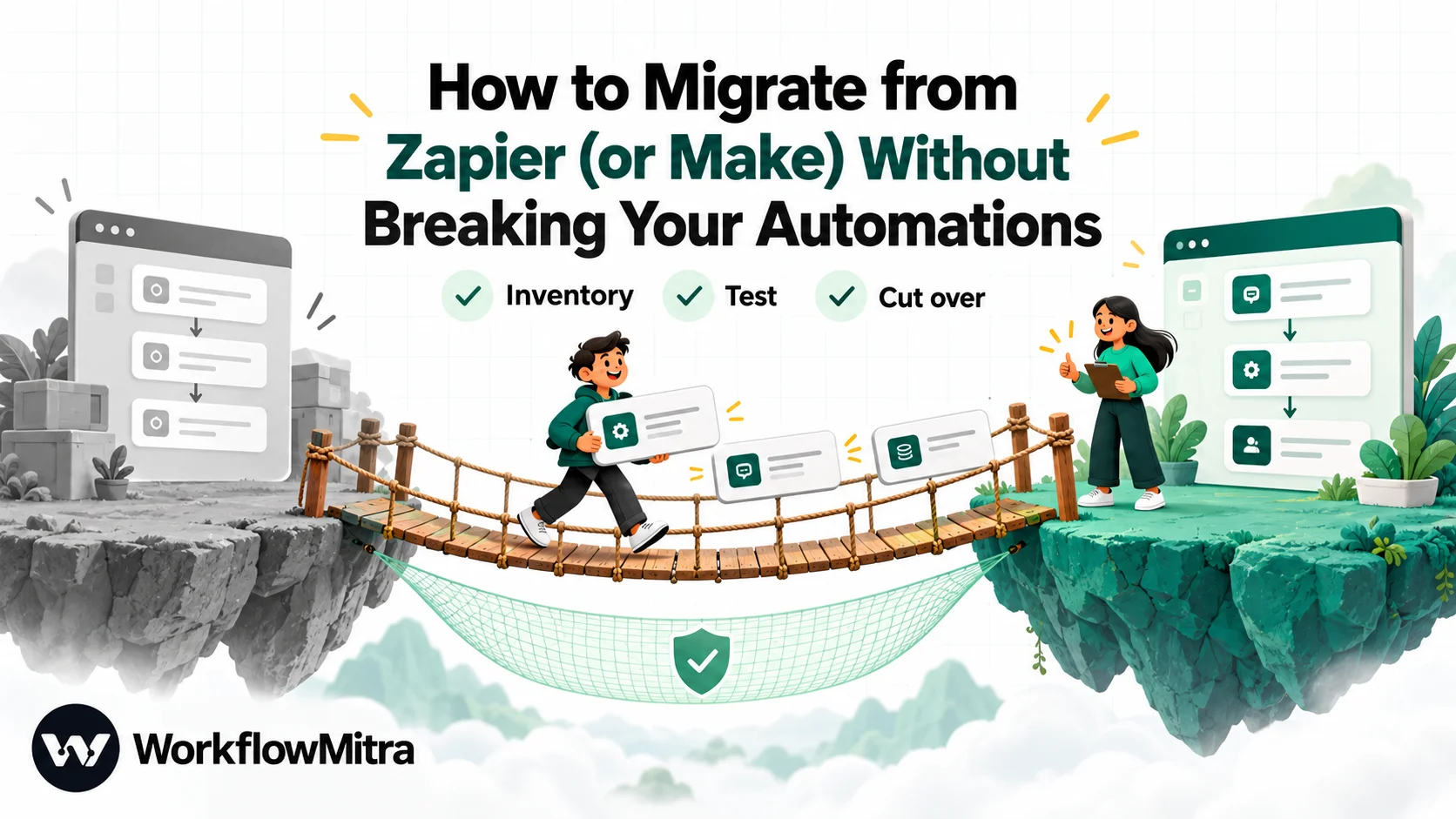
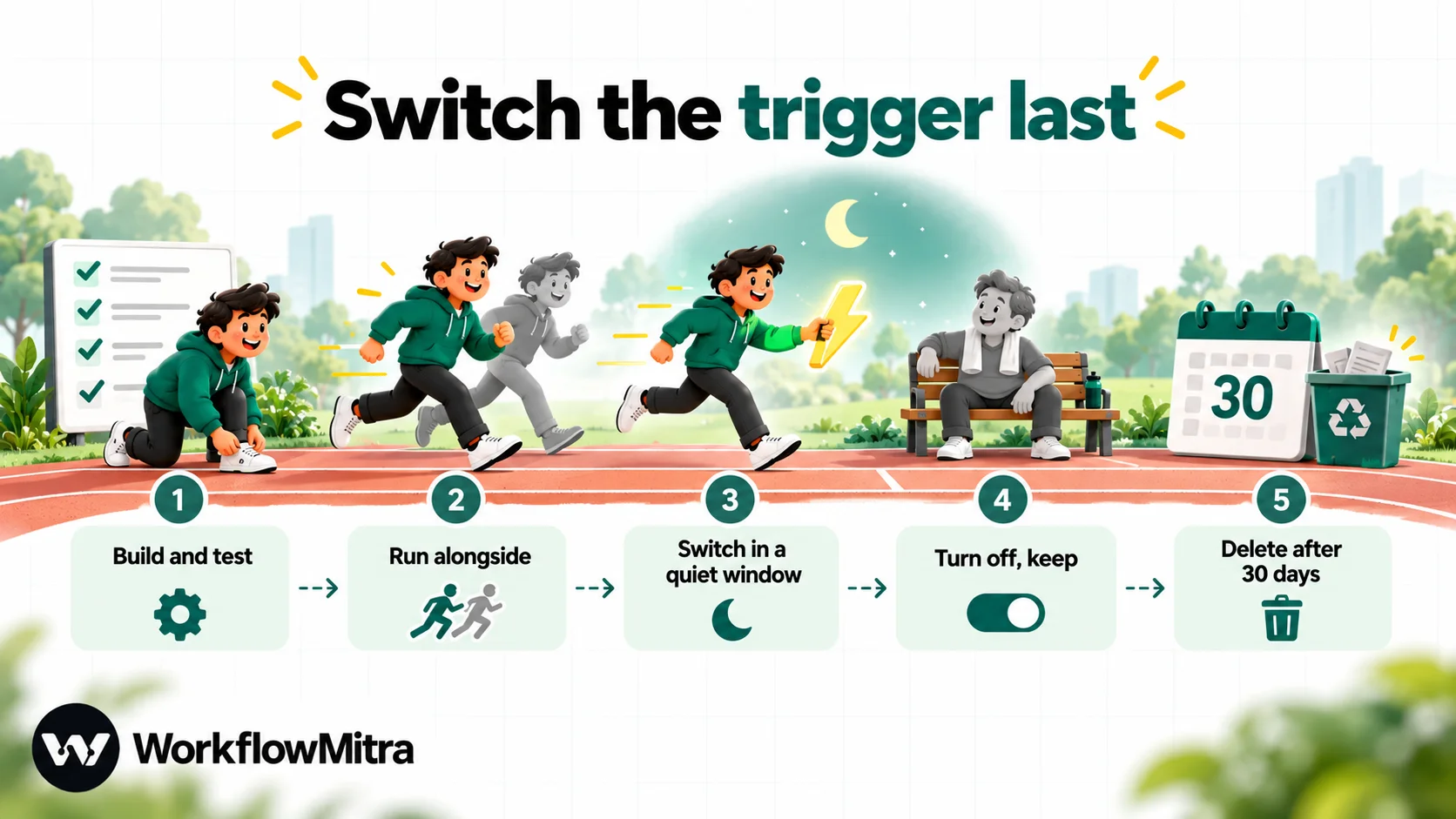
To migrate from Zapier or Make without breaking anything, export your workflows and run history first, list every automation with its trigger, apps and volume, and rebuild them one at a time in the new tool, because no tool imports another's workflows. Test each rebuild without side effects, then cut over trigger by trigger: add the new webhook URL beside the old one where the sender allows it, and switch polling and schedule triggers in a quiet window. Keep the old workflows turned off, not deleted, for 30 days.
Switching automation tools sounds like a weekend job until you open the old account and count. Forty Zaps, a dozen of them nobody remembers creating, three that send WhatsApp messages to customers and one that quietly keeps the sales sheet in order. Any of them could break during the move without anyone noticing for days.
This guide is a migration plan for that situation. It covers what you can export from Zapier and Make, how their concepts map onto a new tool, how to rebuild without surprises, and, most importantly, how to cut over each kind of trigger so that nothing runs twice and nothing is missed. The examples use WorkflowMitra, powered by ChatMitra, as the destination, but the method works for any move between automation platforms.
How do you migrate from Zapier without breaking anything?
To migrate from Zapier (or Make) safely, export your workflows and run history, list every automation with its trigger, apps and monthly volume, and rebuild them one at a time in the new tool, because no platform imports another's workflows. Test each rebuild without side effects, then cut over trigger by trigger, and keep the old workflows turned off, not deleted, for 30 days.
The order matters more than the speed. Most broken migrations come from switching triggers before the new workflow is proven, or from switching a polling trigger at a busy moment.
What moves, and what you rebuild
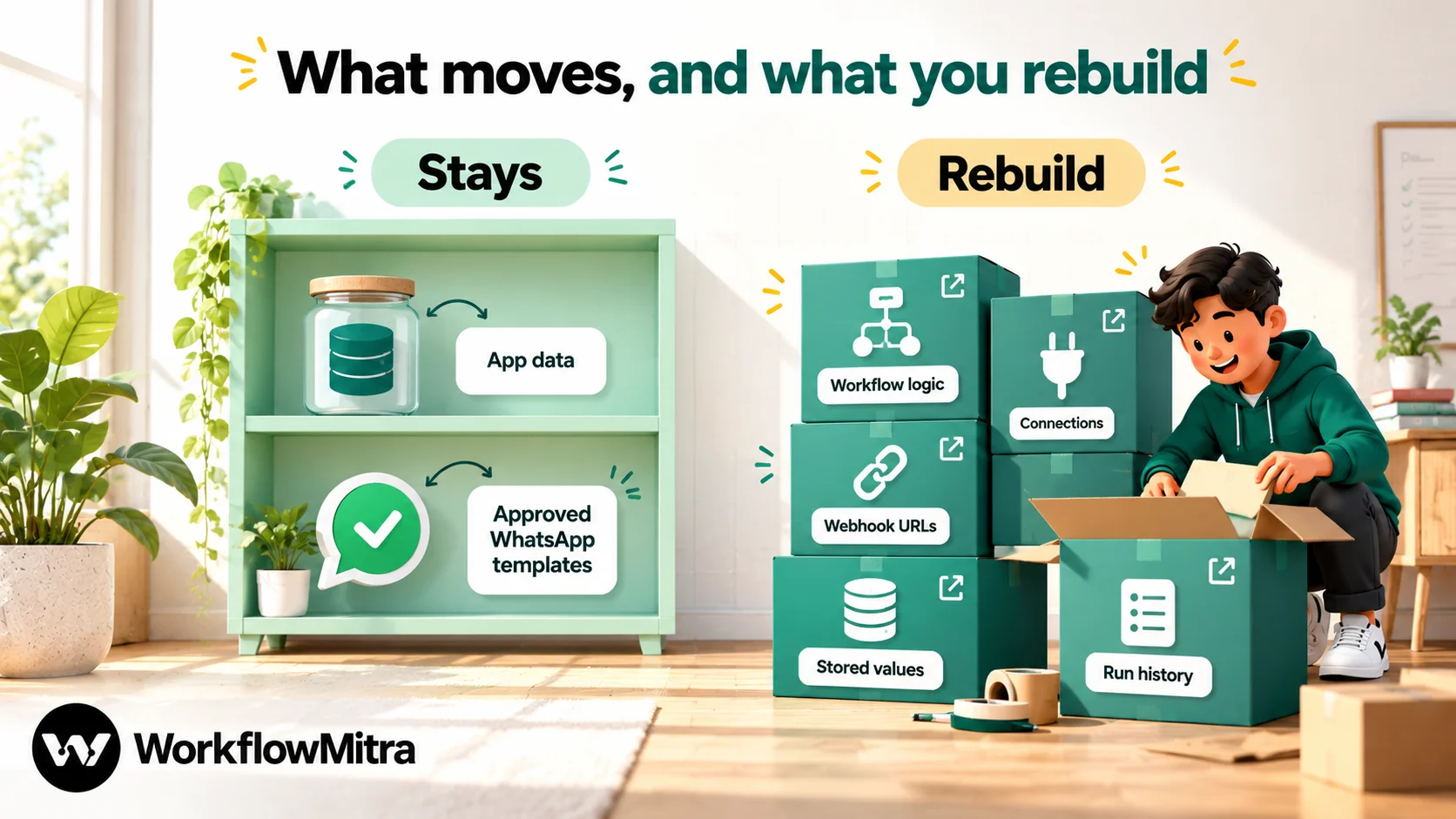
Start with a clear picture of what an export can and can’t carry.
| Item | Moves on its own? | What to do |
|---|---|---|
| Workflow logic (triggers, steps, filters, branches) | No | Export as a reference, then rebuild in the new tool |
| App connections and API keys | No | Reconnect each app in the new tool; revoke the old ones at the end |
| Webhook URLs | No, they change | Update every app or form that sends to the old URL |
| Run history | No | Export what you may need for audits or disputes before cancelling |
| Stored values (Storage by Zapier, Make data stores, Zapier Tables) | No | Export and load into a sheet or database the new workflows can read |
| Data in your apps (CRM, sheets, shop, inbox) | Yes, it never left | Nothing |
| Approved WhatsApp templates | Yes | Nothing, as long as you send from the same WhatsApp number |
That last row surprises people. WhatsApp templates are approved for your WhatsApp Business Account, not for the automation tool that calls the API, so a new tool sending from the same number uses the same templates. ChatMitra’s guide to message templates explains how approval works.
Before you start: should you move everything?
Not necessarily. A migration is worth doing when the new tool fixes a real problem: the bill has outgrown the value, the workflows you care about most (often WhatsApp ones) are awkward in the old tool, or you want rupee billing and support in your time zone.
It’s not worth it for a workflow that depends on an app the new tool can’t reach, or for a Zap that runs twice a month and works. Running two tools for a while is normal, and some businesses keep a handful of Zaps for good. Decide per workflow, not per platform.
If you’re still choosing a destination, WorkflowMitra vs Zapier and Zapier alternatives compare the options. This guide assumes the decision is made and the work is ahead.
Step 1: Export everything and build an inventory
What Zapier lets you export
- Your Zaps as JSON. In Zapier, open Settings → Security and data and use the download icon next to Download my Zap workflows. Account owners and super admins on Team and Enterprise plans can download private and shared Zaps for the whole account; others export their own.
- Your full account data. Download my account data in the same place emails a ZIP that includes
Zapfile.json, which describes all undeleted Zaps, and links for downloading run data. - Zap history. In Zap history, select runs and download up to 5,000 at a time as CSV or JSON; the file arrives by email.
The Zap JSON is a backup format. Zapier’s own import of it works only into Team and Enterprise accounts, and other platforms don’t read it. Treat it as a precise written record of each trigger, step and field mapping, which is exactly what you need while rebuilding.
Zapier keeps Zap history for 29 to 69 days by default, so export anything you might need for a dispute or an audit before you cancel.
What Make lets you export
In Make, open a scenario, click the three-dot menu and choose Export blueprint. The JSON file holds the modules, their settings and the mapped values. It doesn’t include connections, webhooks or data stores, so record those separately: the webhook addresses, and the contents of any data store your scenarios read.
Build the inventory
Put every automation in one sheet before you rebuild anything. This is the single most useful hour of the whole migration.
| Column | Why it matters |
|---|---|
| Name and purpose | One sentence a colleague would understand |
| Owner | Who notices if it breaks |
| Trigger type | Webhook, polling (Sheets, email, RSS), schedule or app event; it decides the cut-over method |
| Apps and steps | Every app touched, in order |
| Logic | Filters, paths or routers, loops, code, delays |
| Runs last month | From Zap history or Make's scenario history; drives priority and cost |
| Customer-facing? | Anything that messages customers gets the most care |
| Stored data | Storage, data stores or Tables it reads or writes |
| Decision | Move, retire or keep on the old tool |
Most inventories turn up automations that can simply be retired: Zaps for a campaign that ended, duplicates someone made while testing, workflows whose app the business no longer uses. Retiring them is the cheapest migration there is.
Step 2: Map the concepts
Platforms use different words for similar ideas. A shared vocabulary avoids rebuilding the wrong thing.
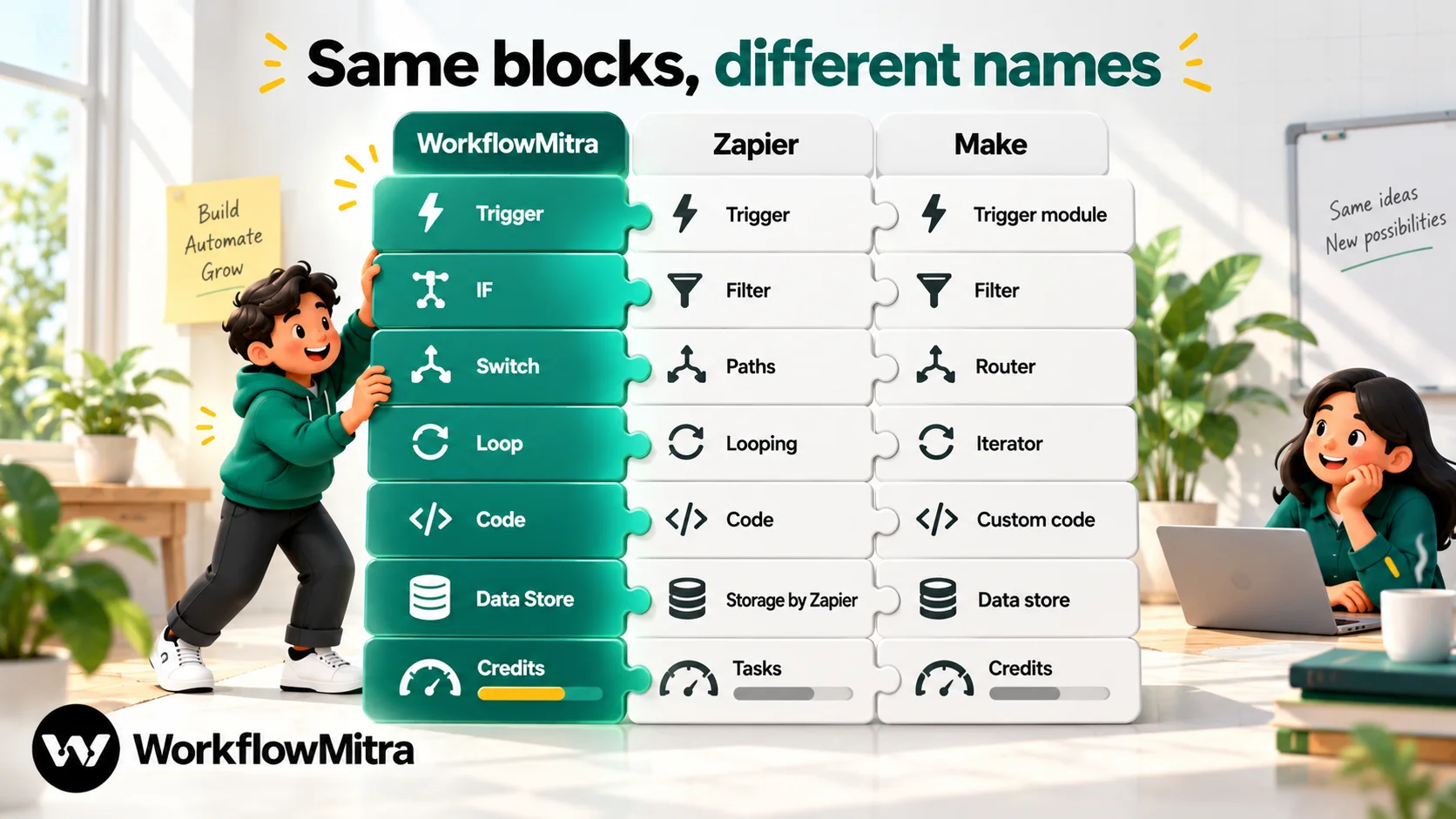
| WorkflowMitra | Zapier | Make | Notes |
|---|---|---|---|
| Workflow | Zap | Scenario | New and cloned workflows start switched off |
| Trigger (webhook, Google Sheets, email, RSS, schedule, chat) | Trigger | Trigger module | Webhook URLs change; senders must be updated |
| Step | Action | Module | One step per app action |
| IF | Filter | Filter | IF also gives you a "no" branch |
| Switch | Paths | Router | One branch per case |
| Expressions and Set Variable | Formatter | Built-in functions, Set variable | Set Variable stores values as text |
| Loop | Looping | Iterator | Processes each item in a list |
| Delay | Delay | Sleep | Durable waits |
| Code (JavaScript) | Code (JavaScript or Python) | Custom code options | Rewrite Python as JavaScript |
| On webhook call / HTTP Request / Response | Webhooks by Zapier | Webhooks, HTTP | Signed presets for common senders |
| Data Store | Storage by Zapier | Data store | Best for keys and "seen before?" checks |
| Wait for approval | Human in the Loop | — | Approve in the app's Approvals page |
| Credits | Tasks | Credits (formerly operations) | Counted differently; see Step 5 |
A few things don’t map one to one, and it’s better to know before you start:
- Sub-Zaps and sub-scenarios have no equivalent in WorkflowMitra, which doesn’t have child workflows. Fold the shared logic into each workflow that needs it, or move it behind a webhook that several workflows call.
- Digest by Zapier collects items and releases them together. Rebuild it as two workflows: one appends each item to a sheet, and a scheduled one reads the sheet and sends the summary.
- Zapier Tables and Interfaces have no direct counterpart. Move table data to Google Sheets or a database, and forms to a form tool that sends a webhook.
- Stored values. WorkflowMitra’s Data Store is ideal for “have I seen this ID before?” checks, but values written into a record aren’t filled in from
{{ }}expressions. Keep values you need to read back in a sheet cell instead.
Step 3: Check that every app is reachable
Go through the inventory’s app column before rebuilding anything. A missing action is the most common reason a migration stalls halfway.
For each app, there are four ways a workflow can reach it, in order of preference:
- A native step, such as Google Sheets, WhatsApp, Slack, Telegram, Discord, Zoho CRM, Freshdesk, Intercom, databases and email.
- A signed webhook preset for apps that send events, such as Shopify, WooCommerce, Razorpay, Stripe and Typeform.
- App Request, an authenticated API call through a saved connection, for apps such as HubSpot, Shopify, Zoho Books and Shiprocket, where you write the endpoint.
- HTTP Request to any API you have credentials for.
Be honest about gaps. WorkflowMitra has no steps for Notion, Airtable, Salesforce, Jira, QuickBooks or Google Calendar today, and its email credential can’t sign in to Outlook.com or Microsoft 365 mailboxes. Zapier lists thousands of apps; if a workflow relies on a niche one, check its API before committing, or leave that workflow where it is.
Set up the workspace before you rebuild
A little setup saves rework later. In WorkflowMitra, invite the people who’ll build and maintain workflows, and give each the right role: Owners and Admins add and manage credentials, Members build and run workflows, and Viewers can look without changing anything. Then have an Admin add the connections the inventory lists, such as the Google account, the WhatsApp sender and the CRM, so builders pick from saved credentials rather than pasting keys into steps.
Finally, switch on failure alerts in the workspace settings, by email or a Slack webhook, before the first workflow goes live. During a migration, an alert on the first failed run is worth more than any amount of careful testing.
Checking an app with no native step
If an app in your inventory has no native step, spend ten minutes with its API documentation before deciding. Look for three things: how it authenticates (an API key or a bearer token is straightforward; a full OAuth sign-in flow takes more setup), whether it can send webhooks when something happens, and whether the endpoint you need is documented with an example. Then make one real call with an HTTP Request step, using Import from cURL if the documentation gives a cURL example. If that call works, the app is reachable, and the rest is ordinary rebuilding. If it doesn’t, keep that workflow on the old tool for now and note why in the inventory.
Step 4: Rebuild one workflow at a time
Start with the workflow that matters most, not the easiest one. If the most important workflow works in the new tool, the rest will follow; if it doesn’t, you’ve learned that before investing more time.
Open the exported JSON or blueprint next to the editor and rebuild step by step. Build your first workflow covers the WorkflowMitra editor if you haven’t used it.
Translate field mappings
Zapier inserts fields as pills tied to a step; Make refers to them by module number, such as {{1.email}}. In WorkflowMitra, a plain {{ email }} reads only the previous step’s output. To read data from anywhere in the workflow, use:
{{ $trigger.email }}for the trigger’s data, from any step.{{ $node["Find customer"].phone }}for a named step’s output.
Using $trigger and $node from the start means you can add a step later without breaking the mappings below it.
Translate Formatter steps and functions
Most Zapier Formatter steps become a function inside the field that needs the value, so there’s no separate step to maintain. We ran these through WorkflowMitra’s template engine with sample values:
| Formatter job | WorkflowMitra expression | Result |
|---|---|---|
| Trim and lowercase an email | {{ lower(trim(email)) }} | [email protected] |
| Capitalise a name | {{ startcase(name) }} | Asha Rao |
| Default value for an empty field | {{ ifempty(city, "Unknown") }} or {{ city | Unknown }} | Unknown |
| Lookup table | {{ switch(plan, "pro", "Pro plan", "basic", "Basic", "Other") }} | Pro plan |
| Number with two decimals | {{ formatNumber(amount, 2) }} | 1,499.50 |
A trap for Make users. Many WorkflowMitra function names match Make’s (ifempty, switch, get, map, formatDate), but Make separates arguments with semicolons and WorkflowMitra uses commas. In our test, ifempty(city; "Unknown") returned an empty value rather than an error. Search every rebuilt expression for ; before you test.
Dates. formatDate formats in the time zone of the server that runs the workflow. If a date must show in a particular time zone, test it with a real value, or let the destination (a sheet formula, for example) do the formatting.
Rebuild branches and errors deliberately
Zapier Paths and Make routers become a Switch or one or more IF steps; both are free. For error handling, right-click a step and choose Add error handler to give it an error branch. A handled error ends the run as a success, so put an alert on that branch, and set up failure alerts by email or Slack in the workspace settings. Workflow error handling explains the options.
Step 5: Recalculate the cost before you switch
Plan sizes don’t compare directly, because each platform counts something different.
| Item | WorkflowMitra | Zapier |
|---|---|---|
| Trigger | 1 credit per run | Free |
| Checks that find nothing new | Free (no run starts) | Free |
| Conditions and branches | IF and Switch free | Filter and Paths free |
| Formatting | Free inside expressions | Formatter free |
| Delay | Free | Free |
| Each action step that runs | 1 credit | 1 task, successful steps only |
Make counts a credit for each module that runs. Its routers and filters are free, but its training material is explicit that the trigger module uses a credit on every check, whether it finds fifty new items or none. A scenario that checks every 15 minutes therefore uses about 2,880 credits a month before it does any work. Check your Make usage history for the real figure.
A worked example: a Zap with a trigger, a Filter, a Formatter step and two actions uses 2 tasks per run in Zapier. Rebuilt in WorkflowMitra with an IF and the formatting inside the action fields, it uses 3 credits per run: the trigger plus two actions. So a workflow that ran 1,000 times last month needs about 3,000 credits. Add up that figure for every workflow you’re moving, using last month’s run counts from the inventory, and compare the total with a plan. WorkflowMitra’s entry plan is ₹999 a month for 10,000 credits.
For Zapier’s side in rupees, see Zapier pricing in India; for Make, WorkflowMitra vs Make.
Step 6: Test without side effects
A rebuilt workflow should prove itself before it touches a customer.
- Use test data first. Point Google Sheets steps at a copy of the sheet and messages at your own number.
- Use the webhook Test Console’s Safe Test Mode for webhook workflows. It simulates the WhatsApp, WhatsApp link, email, Slack, Discord and Telegram steps instead of sending. Every other step, such as a sheet write or a CRM update, acts for real, and a Delay still waits, so keep those on test data.
- Remember that the editor’s Run button runs live. It saves the workflow and runs it with empty input even if the workflow is switched off. It’s useful for scheduled workflows, but only after their steps point at test destinations.
- Compare outputs with the old tool. For a few days, run the rebuild beside the old automation on test destinations and compare row by row or message by message.
How to test an automated workflow goes deeper on all of this.
Step 7: Cut over one trigger at a time
This is where migrations break. The safe method depends on the trigger type.
| Trigger type | Risk at cut-over | Safe method |
|---|---|---|
| Webhook from a sender that allows several endpoints (Stripe, Razorpay, many SaaS apps) | Low | Add the new URL beside the old one, confirm deliveries arrive, then remove the old endpoint |
| Webhook from a sender with one URL field (form plugins, older apps) | Medium | Swap the URL in a quiet moment, then send a test submission straight away |
| Google Sheets (new or updated rows) | Medium | Switch in a quiet window, then check the sheet for rows added during the changeover |
| Email inbox | Medium | Turn the new workflow on first; it starts from mail that arrives after its first check |
| Schedule | Low | Turn the old schedule off before the new one's first run; check the time zone |
Webhooks. When both URLs are active, the same event reaches both tools, so keep the new workflow on test destinations until you remove the old endpoint. After the switch, duplicate protection on the new trigger absorbs the retries that senders make during changes; the webhook idempotency guide explains how. Keep a list of every sender you update, so nothing still points at the old tool a month later.
Google Sheets. WorkflowMitra’s Sheets trigger records every existing row as already seen on its first check, so it never re-processes your history. That’s what you want, but it also means rows added between the old Zap’s last check and the new trigger’s first check are treated as old. Turn the new workflow on, wait for its first check, turn the Zap off at once, and look at the rows added in those few minutes. A quiet hour makes that list empty. Checks that find nothing cost no credits, so a short interval during the changeover is cheap.
Email. The new trigger starts from mail that arrives after its first check, so existing mail won’t fire it. Turn it on before you turn the old one off and accept a few minutes of overlap, or deal with the handful of emails that arrive during the switch by hand.
Schedules. Two tools running the same daily report means two reports. Turn the old schedule off first and confirm the new one’s time zone in its settings.
Step 8: Decommission the old tool carefully
- Turn old automations off; don’t delete them. Keep them for about 30 days as a reference.
- Export the history you need before cancelling. Zapier’s default retention is 29 to 69 days.
- Remove old connections and API keys in the apps themselves, so the old tool can no longer act on your accounts.
- Update your documentation, including the inventory sheet’s Decision column and the list of webhook senders.
- Downgrade or cancel only after the last automation has been off for a full billing cycle without anyone noticing.
Review after 30 days
A month after the last cut-over, spend half an hour checking that the migration did what you wanted. Compare the credits actually used with the estimate from Step 5; a large difference usually points to a workflow that runs more often than the inventory suggested, or a polling interval that’s shorter than it needs to be. Look through the failed runs for patterns, such as one step that fails on a particular kind of input. Ask the owners named in the inventory whether anything behaves differently from before. Then delete the old automations, close the old account or downgrade it, and mark the inventory as complete, so the next person who asks “where does this run?” has an answer.
On the new side, make sure failure alerts are switched on and that someone reads them. WorkflowMitra’s entry plan keeps 7 days of run history, so issues are easiest to investigate the same week.
A realistic timeline
| Week | Work |
|---|---|
| 1 | Export, inventory, retire unused automations, check app coverage, estimate cost |
| 2 | Rebuild and test the two or three most important workflows; cut them over |
| 3 | Rebuild the rest in small batches; cut over each batch after a few days of side-by-side checks |
| 4 | Watch the run history, fix anything unexpected, turn off the remaining old automations |
| +30 days | Delete the old automations, remove old connections, downgrade or cancel |
That timeline suits a small business with ten to twenty simple automations. Heavy branching, custom code or many apps without native steps stretch it.
A worked example: moving a lead workflow
Here’s how the method plays out on one typical Zap: website form → add a row to the leads sheet → WhatsApp the sales owner → Slack post if the budget is large.
Inventory. The trigger is Webhooks by Zapier, posted to by a form plugin with a single URL field. There’s a Formatter step to tidy the phone number, a Filter on budget for the Slack branch, and three actions. Zap history shows about 600 runs last month. It’s customer-adjacent (the sales owner calls the lead), so it’s high priority.
Mapping. The webhook becomes On webhook call with the website-form preset. The Formatter step disappears: the phone clean-up becomes an expression inside the WhatsApp step’s recipient field. The sheet action becomes a Google Sheets Add row(s) step. The WhatsApp message uses the same approved template, sent through ChatMitra from the same number. The Filter becomes an IF on the budget field, with the Slack step on its yes branch.
Cost. In Zapier the run costs 2 tasks, or 3 when the Slack branch runs. In WorkflowMitra it costs 3 credits (trigger, sheet, WhatsApp), or 4 with Slack. At 600 runs, with one lead in five above the budget threshold, that’s about 1,920 credits a month.
Testing. In the webhook Test Console with Safe Test Mode on, a sample submission writes a row to a copy of the leads sheet while the WhatsApp and Slack steps are simulated. A second test with an empty phone field confirms the fallback works.
Cut-over. The form plugin has one URL field, so the switch happens at a quiet hour: paste the new URL, submit a real test lead, check the row, the WhatsApp message and the run history, then turn the Zap off. The whole cut-over takes about five minutes, and the Zap stays available, switched off, for a month.
Moving WhatsApp workflows
WhatsApp automations deserve extra care, because mistakes reach customers directly.
- Send from the same number so approved templates and customer conversations carry over. WorkflowMitra sends through ChatMitra or directly through Meta’s Cloud API, with a picker for approved templates.
- Check every template variable after rebuilding. Meta rejects a template message with an empty variable, so give each one a fallback.
- Keep consent rules unchanged. The new tool doesn’t change who agreed to receive messages from you.
- Mind incoming messages. If replies arrive in ChatMitra’s shared inbox today, they still will; the automation tool changes how messages are sent, not where replies land.
Common migration mistakes
- Switching triggers before testing. The new workflow should have run on test data, and been compared with the old one, before any sender points at it.
- Leaving both tools live on the same trigger. Customers get two messages and sheets get two rows.
- Forgetting forgotten senders. A form on an old landing page still posting to the old webhook is a classic month-two surprise. The inventory’s sender list prevents it.
- Copying Make expressions unchanged. Semicolon-separated arguments fail quietly in WorkflowMitra.
- Deleting old Zaps on day one. You lose the reference you’ll want when something behaves differently.
- Cancelling before exporting history. Retention limits mean last quarter’s runs may already be gone.
When Zapier or Make may be the better home
A migration plan should say when not to migrate.
Stay with Zapier for workflows built on apps that only it connects to, when you rely on Zapier Tables, Interfaces or sub-Zaps, or when a team already depends on its longer run history. Zapier also doesn’t charge for triggers or failed steps, which suits workflows that fail often by design.
Stay with Make when a scenario leans on complex data mapping, aggregators and many routers that would be laborious to rebuild, or when your team is fluent in it and the bill is acceptable.
Move to WorkflowMitra when the workflows that matter most involve WhatsApp, Google Sheets, Indian payment gateways and CRMs, and rupee billing.
Why use WorkflowMitra as your destination?
WorkflowMitra, by ChatMitra, can’t import Zaps or blueprints, and it doesn’t pretend otherwise. What it offers is a destination that makes the rebuild and the cut-over safer:
- WhatsApp as a first-class step, sending through ChatMitra or Meta’s Cloud API with an approved-template picker, so customer messaging workflows are often shorter than their Zapier versions.
- Signed webhook presets for Shopify, WooCommerce, Razorpay, Stripe, Typeform and others, with duplicate protection and a delivery log, which is what makes webhook cut-overs safe.
- A Sheets trigger that won’t replay your history, and free checks when nothing changed.
- Make-style functions (
ifempty,switch,get,map), so many expressions translate with only the separators changed. - Safe Test Mode for messaging steps, so you can run real payloads through a rebuild without sending anything.
- Rupee plans and credits you can estimate from your existing run counts.
The quickest way to judge it is to rebuild your single most important Zap during a 14-day trial, which doesn’t ask for a card. If it works there, you have your migration plan; if it doesn’t, you’ve lost an afternoon rather than a month.
WorkflowMitra features and expression results in this guide were checked in the product on 7 October 2026. Zapier details come from its help articles on exporting account data, importing and exporting Zaps, exporting Zap history, data retention and task usage. Make details come from Make's help on scenario blueprints and Make Academy on credit consumption. All read the same day.
Frequently Asked Questions
Questions teams ask before they move their automations from Zapier or Make to another platform.
Not directly. Zapier lets you download your Zaps as a JSON file from Settings > Security and data, but that file is meant for backup and for importing into another Zapier account on the Team or Enterprise plan. Other platforms don't import it, so every Zap is rebuilt by hand. The export is still useful as a precise record of each trigger, step and field mapping.
Automate the work between your apps
Build workflows with triggers, conditions and actions, then test them before they go live. Try WorkflowMitra free for 14 days, no card required.
